How to Get Around Life360 Without Anyone Knowing (2026 Guide)
Want to stay discreet on Life360? Explore smart ways to manage or mask your location without triggering the “Location Paused” notification. From temporary device swaps to advanced location control techniques, our updated guide explains practical methods, safety tips, and potential risks you should know before trying them. Learn how to maintain privacy while keeping your account functioning normally.
You are likely here because you are in a situation similar to Alex, a 20-year-old student who feels caught in a digital leash. Alex recently found themselves in a difficult position: receiving frantic texts from family because the app showed them stuck on campus hours after they had returned home. Whether you are dealing with technical glitches that accuse you of lying, or you simply need a moment of autonomy without triggering a family crisis, the frustration is real.
Feeling constantly monitored can erode trust, and the fear of triggering a “Location Paused” alert often prevents users from trying to fix the problem. If you are searching for how to get around Life360, you need a solution that works without sending a push notification to your Circle.
Before trying complex workarounds, the easiest method is often to simply [pause location on Life360 no alert] using built-in features.
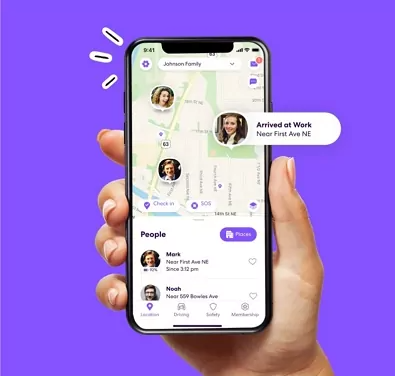
This guide moves beyond generic advice. We explain exactly what Life360 checks, why glitches happen, and how to regain privacy. Crucially, we have tested the specific “hand-off” timing between devices to ensure you don’t trigger a “User Logged Out” alert.
Can You Get Around Life360?
Yes, it is possible to get around Life360 tracking, but not every method works equally well. Some approaches immediately trigger a “Location Paused” alert, while others create obvious GPS inconsistencies that make the app look suspicious.
In 2026, Life360 has become much better at detecting fake location behavior. The app compares GPS data, Wi-Fi signals, mobile network activity, and movement patterns to determine whether a location appears realistic.
Because of this, simple tricks like turning on Airplane Mode or disabling GPS often fail instantly. More advanced methods—such as using a secondary “burner” device or controlled GPS location tools—are generally more reliable for users who want to avoid triggering alerts.
The safest approach depends on your goal:
- Temporarily freezing your location
- Pausing Life360 without notifications
- Changing your GPS location
- Preventing inaccurate tracking
- Maintaining privacy without creating suspicious behavior
Many users searching for how to bypass Life360 assume they only need to disable GPS or turn on Airplane Mode. In reality, Life360 checks multiple signals simultaneously, which is why many simple tricks no longer work reliably.
How Life360 Detects Location Change
Life360 does not rely on GPS alone. The app combines multiple data sources to determine whether your location appears real or suspicious.
These signals include:
- GPS coordinates
- Wi-Fi network information
- Cell tower connections
- Device movement patterns
- Background app activity
- Battery and network status
For example, if your GPS suddenly says you are at home while your phone is connected to a different Wi-Fi network across town, Life360 may flag the movement as inconsistent.
This is why many simple spoofing tricks no longer work reliably in 2026. Turning on Airplane Mode, disabling data, or using basic mock location apps often creates obvious gaps or abnormal behavior inside the app.
The more realistic the movement pattern appears, the lower the chance of triggering a “Location Paused” alert or suspicious map activity.
Method Comparison: Risks, Reliability, and “Flag” Potential
Before attempting any workaround, you must evaluate the risk. Life360 is sophisticated; it is designed to detect tampering. Choosing the wrong method can send a location paused Life360 notification to your circle, which often causes more conflict than the original tracking.
We have categorized the most common Life360 workarounds based on their success rate and the likelihood of detection.
| Method | Success Rate | Risk of Alert (“Location Paused”) | Difficulty Level |
| Airplane Mode / Data Off | Low | High (Immediate Flag) | Easy |
| GPS Spoofing Apps | Moderate | High (Detected on Android 12+) | High (Dev Options) |
| The “Burner” Device | High | Low (Simulates normal behavior) | Moderate |
| Wi-Fi Disconnect | Low | Moderate (Inaccurate location) | Easy |
Why Simple Toggles Fail
- Airplane Mode: This is the most common mistake. It immediately flags as “Location Paused,” “Phone Off,” or “No Network.” It signals to the admin that you have deliberately disconnected.
- GPS Spoofing: Life360 uses multi-signal analysis (Wi-Fi + GPS + Accelerometer). If your GPS says you are home, but your phone isn’t connected to your home Wi-Fi, the app detects an anomaly.
- The “Burner” Device: By logging in on a secondary device left at home, you simulate a valid, stationary signal. This is the only method that maintains a “clean” status on the administrator’s map.
Understanding these distinctions is vital. While manual toggles are fast, they are noisy. The most effective strategy prioritizes stealth over speed.
How to Freeze Your Location on Life360
Freezing your Life360 location means keeping your map pin fixed in one place while you move elsewhere in real life. The challenge is doing this without triggering a “Location Paused” notification.
Many users try simple methods such as:
- Turning on Airplane Mode
- Disabling GPS
- Turning off mobile data
However, these usually fail because Life360 immediately notices the loss of connection.
The most reliable ways to freeze a Life360 location in 2026 include:
- Using a secondary burner phone left at a trusted location
- Using GPS route simulation tools
- Maintaining stable Wi-Fi and network behavior
- Avoiding sudden device disconnects
The key is not simply hiding your location, but making your device activity appear normal and uninterrupted.
Burner Phone Method: How to Bypass Life360 Without Alerts
In our testing scenarios, the “Burner” method proved to be the most reliable solution for users like Alex who need to appear “at home” while being elsewhere. This technique evades Life360 location accuracy checks because it uses a real device with real sensors.
However, execution is everything. The most anxiety-inducing moment is the switch—logging out of one phone and into the other. If done incorrectly, this sends a notification. We have refined the “Stealth Handoff” protocol to prevent this.
Prerequisites
- Secondary Device: An old smartphone or tablet (iOS or Android) that can install Life360.
- Environment: You must be at your “safe” location (e.g., home or dorm) connected to Wi-Fi.
Step-by-Step “Stealth Handoff” Procedure
1. Prepare the Secondary Device (The Burner)
Ensure the old phone is charged and connected to the Wi-Fi at your safe location. Download Life360, but do not log in yet. Keep the login screen open and ready.
2. The “Buffer” Switch (Critical Step)
Many users fear that hitting “Log Out” on their main phone sends an immediate alert. It often does. To prevent this:
- On your Primary Phone: Turn on Airplane Mode first. This cuts the data connection immediately.
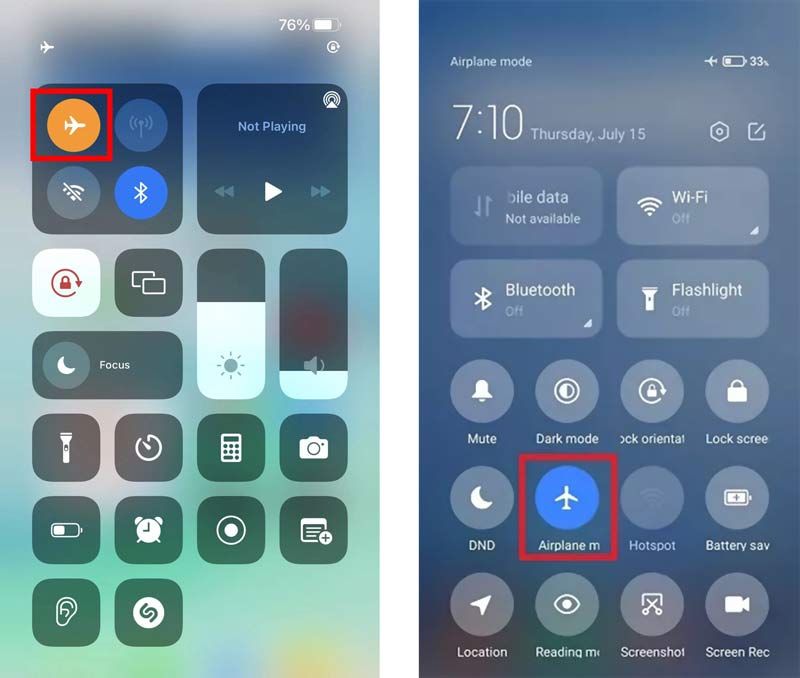
- Why? Life360 cannot send a “User Logged Out” notification if the phone has no internet. The server simply sees a loss of signal (which is common and less suspicious).
- Action: Once Airplane Mode is on, then attempt to log out or simply close the app.
3. Establish the New Baseline
- On the Secondary Device: Immediately log into Life360 using your account credentials.
- Timing: Do this within 60 seconds of activating Airplane Mode on your main phone.
- Result: The Life360 server receives a new signal from the Burner device at the safe location. It interprets the “loss of signal” from your main phone as a seamless handover or a simple network switch. The map pin remains at home.
4. Go Mobile You can now leave the house with your Primary Phone.
- Important: Keep Life360 logged out or uninstalled on your Primary Phone before turning Airplane Mode off.
- Freedom: You can now use maps, data, and calls freely. Your location is being reported solely by the Burner device sitting on your nightstand.
The “Return” Protocol: How to Switch Back
Do not rush the return process. Switching devices too quickly can cause your avatar to “jump” across the map or look glitchy.
- Enter the Safe Zone: Physically return to the location where the Burner device is.
- Log Out of Burner: Log out of the secondary device.
- The Cool Down: Wait 5 minutes. This allows the server session to clear.
- Log In on Primary: Log back into your main phone.
How to Pause Life360 Without Alerts
Pausing Life360 without alerts is much harder than simply turning off location services. In most cases, Life360 immediately displays:
- “Location Paused”
- “No Network”
- “Phone Off”
This is why many users accidentally create more suspicion when trying basic methods.
To reduce alert risks:
- Avoid turning off GPS suddenly
- Do not repeatedly switch Airplane Mode on and off
- Keep the device connected to Wi-Fi when possible
- Maintain consistent movement behavior
- Use gradual handoff methods between devices
The most reliable approach is creating a stable location signal instead of abruptly disconnecting the app.
Scenario Planning: Short-Term vs. Long-Term
The “Burner” method is effective, but it is a production. It isn’t always necessary for every situation. Here is how to decide based on your specific scenario.
Scenario A: The “Coffee Run” (15–30 Minutes)
Recommendation: Leave the phone behind. If you are just running a quick errand or stepping out for fresh air, the Burner method is overkill.
- The Strategy: Leave your primary phone in your room, plugged into a charger.
- Why: A phone that is stationary and charging looks completely normal. If you take the phone and try to jam the GPS, you risk a “Location Paused” alert. Use a smartwatch or a friend’s phone for emergencies during this short window.
Scenario B: The “Evening Out” (2–6 Hours)
Recommendation: The Burner Method. This is the ideal use case for the Burner method. You need your primary phone for communication and safety, but you need your location to remain fixed. Follow the “Stealth Handoff” instructions above.
Scenario C: The Road Trip
Recommendation: Do not attempt to spoof. If you are traveling long distances, Life360 expects rapid cell tower changes. If you spoof a static location while your phone is actually hopping towers 50 miles away, the app’s fraud detection algorithms will likely flag the account or show your location as “Erratic.” In this case, honesty or “Bubbles” (see below) are your safest options.
A Simpler Way to Modify Your Life360 Location with Fonelora Location Changer
For users who want a more flexible way to modify their Life360 location without relying on unstable mock location apps, desktop-based tools like Fonelora Location Changer provide a simpler alternative. Instead of triggering common Android spoofing detection issues, the software changes your device’s GPS location directly through a computer connection, making the movement appear more natural and stable.
Fonelora Location Changer supports both iPhone and Android devices and allows you to simulate movement, teleport to another location, or customize routes based on your needs.
How to Change Your Life360 Location with Fonelora Location Changer
1. Download and install Fonelora Location Changer on your Windows PC or Mac.

2. Connect your iPhone or Android device to the computer using a USB cable and allow the required permissions on your phone.

3. Open the map interface and choose a location modification mode that fits your situation.
4. Search for any destination or manually enter GPS coordinates.
5. Click the “Move” button to update your device’s GPS location instantly. Life360 will then display the modified location on the map.

Android Developer Options: Risks of Location Spoofing Apps
If you search for location permissions Android hacks, you will often find guides suggesting “Mock Location” apps. While technically possible, this is a high-risk strategy on modern Android versions (12 through 14).
To attempt this, you must enable Developer Mode (tap ‘Build Number’ 7 times in Settings), find “Select mock location app,” and choose a spoofing tool. However, here is a critical expert insight: Life360 does not rely on GPS alone.
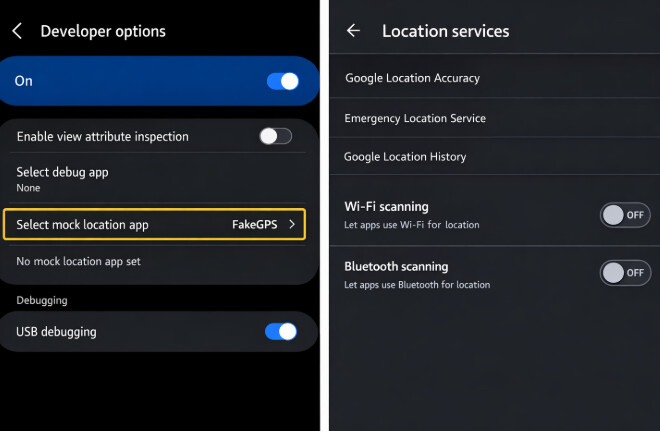
The Multi-Signal Problem
Life360 correlates three distinct data points:
- GPS Coordinates: What the satellite says.
- Wi-Fi SSID: What router you are near.
- Cell Tower Triangulation: Which cell tower you are pinging.
If your GPS spoofer says you are in the library, but your phone is connected to a Starbucks Wi-Fi router five miles away, the app detects an anomaly. This inconsistency often triggers a flag or causes your avatar to jump erratically on the map. To the admin, this looks like a deliberate tamper.
Unless you can root your device to hide the mock location status—a complex process that voids warranties and compromises security—software spoofing is unreliable for stop life360 tracking goals and often leads to immediate detection.
Fixing False Flags: Battery Optimization & Communication Scripts
For Alex, the most frustrating moments were not when they were sneaking out, but when they were actually at the library, yet Life360 showed them miles away or offline. This led to accusations of hiding when the real culprit was Android’s battery optimization.
Modern Android phones (Samsung One UI and Pixel UI) aggressively kill background apps to save power. When your phone enters “Doze” mode, it cuts off the background location access Life360 needs, resulting in a frozen map pin.
How to Fix Frozen Locations
If your goal is accuracy rather than evasion, you must ensure the app has the resources it needs.
1. Samsung Galaxy (One UI):
Step1. Navigate to Settings > Apps > Life360.
Step2. Tap on Battery.
Step3. Select Unrestricted. (The default is usually “Optimized,” which frequently causes the frozen location issue).
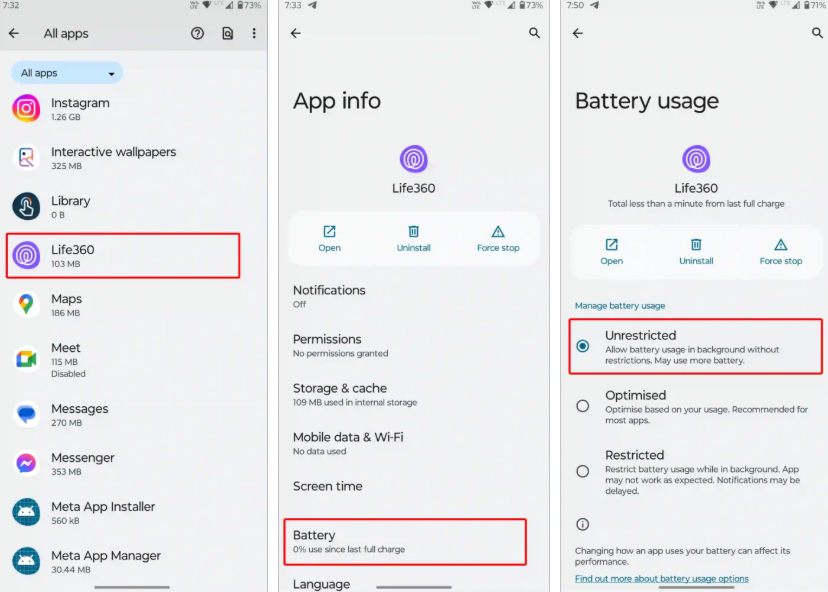
2. Google Pixel (Stock Android):
Step1. Navigate to Settings > Apps > See all apps > Life360.
Step2. Tap App Battery Usage.
Step3. Select Unrestricted.
Communication Scripts: What to Say to Your Family
Sometimes, the best workaround is a clear explanation. If you are being accused of turning off your location, use these scripts to de-escalate the situation and shift the blame to the technology.
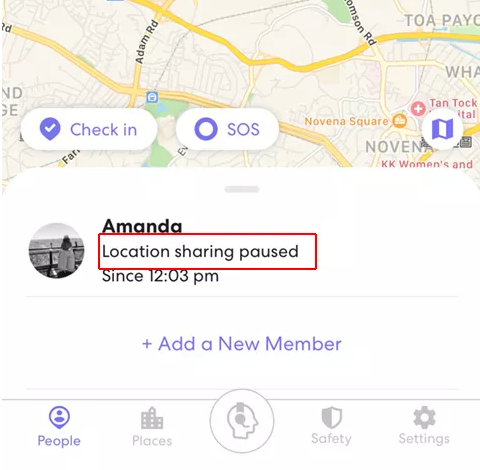
Script for “Frozen” Location:
“I didn’t turn my location off. I looked it up, and Samsung puts apps to sleep to save battery, which freezes the map. I just changed the setting to ‘Unrestricted’ so it shouldn’t happen again. Here is a screenshot of the setting I changed.”
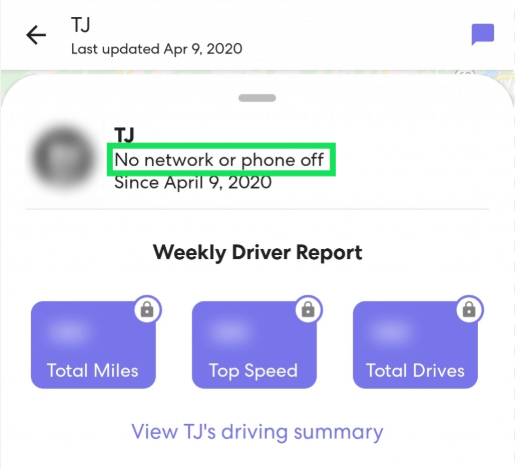
Script for “No Network” Alerts:
“The campus library has a dead zone in the basement where I was studying. The app probably couldn’t update because I lost signal, not because I turned it off. I’ll text you next time I’m heading down there.”
By adjusting these privacy settings and using clear communication, you ensure that when you want to be seen, the app works correctly. This builds the trust capital you might need later if you decide to use the Burner method.
Legitimate Life360 Privacy Controls: Bubbles and Ghost Mode
If deception isn’t an option, you can use official Life360 privacy control features to set boundaries. The most prominent feature is “Bubbles.”
Understanding “Bubbles”
A Bubble allows you to share your approximate location rather than your exact pinpoint. When enabled, your circle sees a circle on the map (ranging from 1 to 25 miles wide). They know you are in the general area—like “Downtown” or “Campus”—but cannot track your specific movements or see exactly which building you are in.
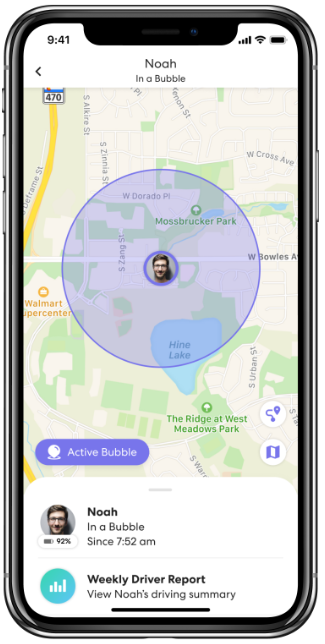
Important Constraint: Bubbles are not always available to every user.
- Admin Control: The Circle Admin (usually a parent) can disable the ability for members to create Bubbles. If you go to create a Bubble and see a request form, the Admin has restricted this feature.
- Plan Limitations: Some customization features for Bubbles are locked behind Life360’s paid tiers.
The “Location Paused” Distinction
It is critical to distinguish between “Bubbles” and turning off location entirely.
- Bubbles: Shows you are connected but requesting privacy.
- Location Off: Shows “Location Paused.”
- Signal Loss: Shows “Last updated [time] ago.”
Understanding this difference helps you manage expectations. If you simply lose signal or battery, your family sees a timestamp. If you manually disable sensors, they see the dreaded “Location Paused” alert.
Frequently Asked Questions About Life360 Workarounds
1.Does logging out of Life360 send a notification?
It can. If you log out while connected to data, it may trigger an alert or update your status to “Location Paused.” To avoid this, enable Airplane Mode before logging out. This prevents the app from sending the final “logout” signal to the server.
2.How do I secretly freeze my location on Life360?
The only reliable way to freeze your location without triggering a “Paused” alert is the Burner Method. Log into a secondary device connected to Wi-Fi at your desired location and leave it there.
3.What happens if Life360 detects location inconsistencies?
If Life360 detects a mismatch between GPS and Wi-Fi data (common with spoofing apps), it flags the data as invalid. This results in your avatar jumping erratically on the map. This signals to the admin that something is wrong with the device or permissions, often leading to an interrogation.
4.Can I use a VPN to fake my location?
No. A VPN changes your IP address, which might trick a website into thinking you are in a different country, but it does not change your GPS coordinates. Life360 relies primarily on GPS sensors, not IP addresses, for location tracking.
5.What should I do if the Burner method fails?
If you accidentally trigger an alert while switching devices, have a cover story ready. “My phone died and I had to charge it” or “I was trying to fix a glitch where the app was freezing” are plausible explanations that align with common technical issues.
Conclusion
Managing Life360 privacy is often less about completely disabling tracking and more about controlling how your location data is shared. Whether you choose the Burner method, adjust battery optimization settings to prevent false alerts, or use a GPS modification tool like Fonelora Location Changer, the key is maintaining stable and realistic location behavior.
For users who want a more convenient solution, Fonelora Location Changer offers an easier way to modify GPS locations on both iPhone and Android without relying on unstable mock location apps. With features like location teleporting and route simulation, you can manage your displayed location more flexibly while avoiding many common tracking inconsistencies.
No matter which approach you choose, understanding how Life360 detects movement and connectivity puts you back in control of your location privacy and helps reduce unnecessary conflicts caused by inaccurate tracking or constant monitoring.
More Related Articles



Joy Taylor is a seasoned technical writer with over a decade of experience in mobile technology. At iMobie, she specializes in producing in-depth content on iOS data recovery, iPhone unlocking solutions, and iOS troubleshooting.
Product-related questions? Contact Our Support Team to Get Quick Solution >
