For many Grindr users, location is useful but also sensitive. The app is built around nearby discovery, yet showing your exact area all the time can feel uncomfortable, especially when you are at home, in a small neighborhood, traveling, or checking another city before a trip.
If you are looking for a fake GPS for Grindr, the real question is not only which tool can move your location. You also need to understand how Grindr reads device location, why a VPN alone does not usually change your Grindr grid, and why iPhone and Android require different setup methods.
This guide explains practical ways to change location on Grindr on iPhone and Android, including Android mock location settings, desktop-based GPS changers, common location update problems, and basic privacy notes before using any location-changing method.
Quick Answer: A VPN is not enough to change Grindr location because Grindr mainly uses your device GPS. Android users can try mock location settings, while iPhone users usually need a desktop-based GPS location changer. If you want a simpler option for both iPhone and Android, Fonelora Location Changer can help you set a different GPS location on a device you own without jailbreak or root.
Quick Decision Guide: Ways to Change Grindr Location
Before choosing a method, it helps to understand what each option can and cannot do. Some users only need to browse another area. Others want their device GPS to show a different place. These are not the same thing.
Grindr reads location from your device GPS, while a VPN mainly changes your IP address. That is why VPN apps may change your internet region but not your Grindr grid. To make Grindr load a different nearby area, the GPS location on the phone usually needs to change.
There are generally three ways users try to change Grindr location:
| Method | Best For | Setup Notes | Stability |
| Desktop GPS Changer | iPhone and Android users | Requires a computer and device connection | High |
| Android Mock Location Apps | Android users only | Requires Developer Options and location setting checks | Medium |
| Modified APKs / Jailbreak Tools | Advanced users | Not recommended for normal privacy use | Unstable |
1. Desktop-Tethered GPS Changers
Desktop-tethered GPS changers work by connecting your phone to a computer and setting a different device location through desktop software. This approach is often more practical for iPhone users because normal App Store apps cannot directly override system GPS for Grindr.
For Android users, desktop tools can also be useful when mobile-only mock location apps are unstable or when the phone keeps returning to its real location.
Pro Tip: Different dating apps update location in different ways. If you also use Hinge, read this guide on does Hinge automatically update your location to better understand how dating apps handle GPS data.
2. Mobile-Only Mock Location Apps
Android users can use mock location apps through Developer Options. This method can work, but it depends heavily on your phone settings. If Wi-Fi scanning, Bluetooth scanning, or high-accuracy location services remain active, your device may receive conflicting location signals.
For users searching for fake GPS for Grindr Android, this method is possible, but it requires careful setup and may not work equally well on every Android version or device model.
3. Modified Apps or Jailbroken Devices
Modified apps, unofficial APKs, and jailbreak-based methods are not recommended for most users. They can create device security problems, expose private data, or make the app unstable. If your goal is privacy and normal location control, a cleaner GPS-changing method is usually a better choice.
How to Set Up Fake GPS for Grindr on Android
Android includes a mock location feature that was originally designed for developers. With a fake GPS app and the right settings, it can change the location that Grindr reads. The key is to avoid conflicting location sources on your phone.
Step 1: Enable Developer Options
To access mock location settings, first enable Developer Options on your Android device.
- Pixel / Stock Android: Go to Settings > About Phone, then tap Build Number seven times.
- Samsung Galaxy Devices: Go to Settings > About Phone > Software Information, then tap Build Number seven times.
You should see a message saying that Developer Options are now enabled.
Step 2: Select a Mock Location App
- Go to Settings > System > Developer Options.
- On Samsung devices, Developer Options usually appears near the bottom of the main Settings menu.
- Find the Location or Debugging section.
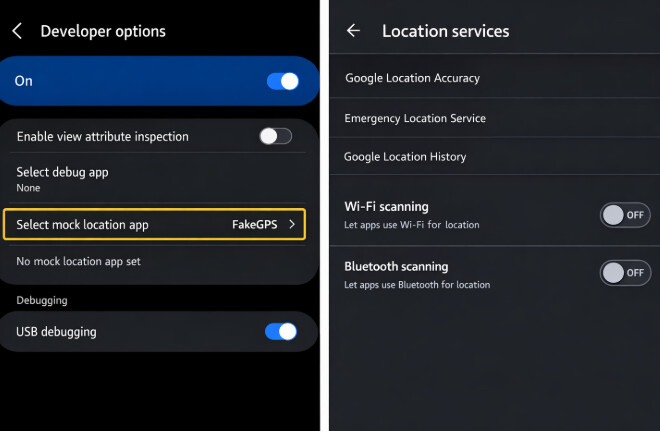
- Tap Select mock location app.
- Choose the fake GPS app you installed.
After selecting the app, open it and choose the city or area where you want your device GPS to appear. Then check the location in Google Maps before opening Grindr.
Step 3: Disable Wi-Fi and Bluetooth Scanning
This step is important because Android may use nearby Wi-Fi networks and Bluetooth signals to improve location accuracy. If those signals point to your real location, the phone may not stay on the location selected in your fake GPS app.
Go to Settings > Location > Location Services, then turn off:
- Wi-Fi Scanning
- Bluetooth Scanning
- High Accuracy Mode, if available
If these settings are left on, your device may return to your real area or show inconsistent distance inside Grindr. This is one of the most common reasons fake GPS for Grindr stops working on Android.
Step 4: Start the Fake GPS Location
Open your fake GPS app, choose the city or area where you want your Grindr profile to appear, and tap the start or play button. Then open Google Maps first to confirm that your device location has changed.
If the map shows the new location correctly, open Grindr and check whether the grid updates. If the grid does not refresh, force close Grindr, clear the app cache, and reopen the app.
How to Change Grindr Location on iPhone
Changing Grindr location on iPhone is different from Android because Apple does not allow normal App Store apps to directly override system GPS. Many apps that claim to change iPhone location only provide maps, VPN routing, or photo metadata tools. They do not actually change where Grindr places your profile.
For users searching for fake GPS for Grindr iPhone, Grindr fake location iOS, or change Grindr location iPhone without jailbreak, the practical method is usually a desktop-based GPS changer.
The Desktop-Tethering Method for iOS
With the desktop-tethering method, you connect your iPhone to a computer and set a different GPS location through desktop software. After the device location changes, location-based apps on the phone can read the updated position.
Reliable desktop-based tools include Fonelora Location Changer, Tenorshare iAnyGo, and Dr.Fone – Virtual Location. Fonelora is useful for users who want one tool for both iOS and Android, with no jailbreak or root required.
Bonus Tool: These tools can also help with other location-based apps. For example, if you work with ride-hailing or location testing scenarios, read our guide on how to set up fake GPS for Uber safely.
Why Choose Fonelora Location Changer?
- Simple to Use: Clean desktop interface with clear controls.
- No Jailbreak or Root Needed: Works on both iPhone and Android without modifying the system.
- Route Simulation: Supports route planning, adjustable speed, and joystick control.
- High Compatibility: Works on newer iOS and Android versions where many mobile spoofing apps may fail.
- Stable Connection: Helps reduce sudden location resets caused by unstable mobile-only tools.
- Flexible Location Control: Enter a city, drop a pin, or use coordinates depending on your needs.
How to Change Grindr Location with Fonelora
Follow these steps to set a different GPS location on your iPhone or Android device:
Download and launch Fonelora Location Changer. Install the software on your PC or Mac.

Connect your device. Use a USB cable to connect your iPhone or Android device. On iPhone, tap “Trust” when prompted.

Select your destination. Search for a city, drop a pin on the map, or enter coordinates manually.
Move your GPS location. Click “Move Here” to update your phone’s GPS position. After the change, check Apple Maps or Google Maps first, then reopen Grindr to see whether the grid reflects the new area.
Use the location responsibly. Only change location on your own device or a device you have permission to use, and be aware that some apps may restrict or limit location-changing behavior.

Account, Privacy, and Location Accuracy Notes
Before using any Grindr fake location method, remember that location-based apps may use more than one signal to decide where you are. GPS is the main factor, but IP region, nearby Wi-Fi networks, Bluetooth signals, and cached location data may also affect what you see inside the app.
If these signals do not match, Grindr may fail to update the grid, show the wrong distance, or keep loading your previous area. This does not always mean the GPS changer failed. It may simply mean your phone or app still has old location data cached.
Common location accuracy problems include:
- Profiles not loading on the grid.
- Distance not updating correctly.
- Grindr still showing your previous city.
- Connection errors despite having internet access.
- Your device location returning to the real area in map apps.
Privacy Alert: Privacy matters even after you match. If a conversation moves to private messages, you may also want to learn how to stop sharing location on iMessage silently.
Practical Location Change Habits
Changing your device location works best when the new location matches a realistic use case. For example, checking another city before travel is different from switching between distant places repeatedly within a short time.
Use the table below as a practical reference for how to think about distance changes. It is not an official rule from Grindr. It is simply a conservative way to avoid confusing the app with abrupt location changes.
| Distance Changed | Practical Usage Note |
| < 10 km, same neighborhood | Useful for local privacy checks or nearby area browsing |
| 10 – 50 km, nearby city | Better for checking another local area before visiting |
| 50 – 200 km, regional travel | Use when planning a trip or comparing nearby cities |
| 200+ km, long-distance change | Use conservatively and avoid frequent back-and-forth switching |
Key Usage Tips
- Pick one location per session: Staying in one selected area is usually more stable than switching constantly.
- Check your map app first: Confirm that Apple Maps or Google Maps shows the selected location before launching Grindr.
- Avoid conflicting signals: On Android, Wi-Fi and Bluetooth scanning can sometimes pull your phone back toward the real location.
- Restart Grindr if needed: Force close and reopen the app after changing GPS location.
- Use route simulation only when useful: A simple fixed location is enough for most Grindr location checks.
Related Read: Need a break from dating apps without deleting your account? Learn how to use Bumble Snooze Mode to hide your profile without losing current matches.
Troubleshooting: When Your Fake GPS for Grindr Stops Working
Even with the right setup, Grindr location may not update immediately. The most common causes are cached app data, conflicting location services, unstable GPS changer connection, or the mistaken use of VPN instead of GPS location change.
Before using advanced fixes, try this quick checklist:
- Turn off Wi-Fi and use mobile data.
- Restart your device.
- Confirm the selected location in Apple Maps or Google Maps first.
- Force close and reopen Grindr.
- Clear Grindr cache on Android.
1. Rubber-Banding on Android
This usually happens because your phone is using high-accuracy location services or nearby network signals instead of relying only on the selected mock location.
Fix: Disable Wi-Fi Scanning and Bluetooth Scanning. If the problem continues, turn off Wi-Fi completely and use mobile data while changing location.
2. Grindr Showing the Wrong Distance
Sometimes Grindr keeps old location data and continues showing distance based on where you were before.
Fix: Force close Grindr and reopen it. On Android, clear the app cache. On iPhone, check Apple Maps first and reopen Grindr only after the map shows the selected location correctly.
3. GPS Signal Lost on iPhone
If Grindr shows a location services error, your desktop GPS changer may have disconnected or the device may no longer be reading the selected location.
Fix: Restart the desktop GPS changer, reconnect your device, confirm the location in Apple Maps, then open Grindr again.
4. VPN Works but Grindr Location Does Not Change
A VPN only changes your IP address. Grindr still uses GPS data from your phone, so your grid location will not change unless your GPS coordinates also change.
Fix: Use a GPS location changer instead of relying on VPN alone.
Frequently Asked Questions About Fake GPS for Grindr
1. What is the best fake GPS for Grindr in 2026?
The best option depends on your device. Android users can use mock location apps through Developer Options, while iPhone users usually need a desktop-based GPS changer because App Store apps cannot directly override system GPS.
2. Can I change Grindr location on iPhone?
Yes. To change Grindr location on iPhone, you usually need to connect the device to a desktop GPS changer. This method does not require jailbreak and can change the GPS location read by location-based apps.
3. Can I use fake GPS for Grindr on Android?
Yes. Android supports mock location through Developer Options. After selecting a mock location app, you should also check Wi-Fi scanning, Bluetooth scanning, and high-accuracy location settings to avoid conflicting signals.
4. Does a VPN change Grindr location?
No. A VPN changes your IP address, but Grindr mainly reads your device GPS. To change where your Grindr grid appears, you need to change GPS location, not only network region.
5. Why is my Grindr distance not updating?
This may happen because Grindr cached your old location, the GPS changer disconnected, or your phone is still using Wi-Fi and Bluetooth signals to estimate your real area. Restart the app and confirm the selected location in a map app first.
6. Why does Grindr fake GPS keep snapping back?
Snapping back usually happens when your device receives conflicting location signals from GPS, Wi-Fi, Bluetooth, or cellular networks. On Android, turning off Wi-Fi scanning and Bluetooth scanning often helps.
7. Can I change Grindr location without jailbreak?
Yes. Desktop-based GPS changers allow iPhone users to set a different device location without jailbreaking the phone. Android users can also use mock location settings without rooting the device.
8. Is a modified Grindr APK recommended?
No. Modified apps and unofficial APKs can create security and privacy risks. For most users, Android mock location settings or a desktop GPS changer are cleaner options.
9. Why does Grindr show my old city after changing GPS?
Grindr may still be using cached location data. Force close the app, confirm the new location in Apple Maps or Google Maps, then reopen Grindr. On Android, clearing the app cache may also help.
10. What is the most practical way to change Grindr location?
For Android, use Developer Options with a mock location app and check location scanning settings. For iPhone, use a desktop GPS changer such as Fonelora Location Changer, then confirm the selected location in Apple Maps before opening Grindr.
Explore More: Curious about how other social apps use location information? See our guide on how to find someone’s location on Instagram safely and legally.
Final Thoughts: Change Grindr Location with More Control
Changing Grindr location is mainly about controlling how your device GPS appears to the app. A VPN alone is usually not enough because Grindr relies on GPS data. Android users can use mock location settings, while iPhone users usually need a desktop-based GPS changer.
For the best experience, choose the method that fits your device, confirm the selected location in a map app first, and avoid unstable tools such as modified APKs or jailbreak-only methods. If Grindr does not update immediately, check cached app data, Wi-Fi scanning, Bluetooth scanning, and whether your GPS changer is still connected.
If you want a simpler option for both platforms, Fonelora Location Changer can help you set a different GPS location on iPhone and Android, use coordinates or map search, and troubleshoot common location update problems without jailbreak or root.