How to Pause Snapchat Location: A Complete Guide
Wondering how to pause Snapchat location? Freeze your last spot or go invisible with Ghost Mode. Our guide has tested steps that won’t notify friends.
Quick Answer: You cannot technically “pause” Snapchat location with one button. However, you can control what others see in three practical ways: turn on Ghost Mode to hide yourself from Snap Map, change your phone’s location permissions to freeze your last known location, or use a location changer if you want your Snapchat location to appear somewhere else without looking inactive.
If you are searching for how to pause Snapchat location without them knowing, the key is choosing the right method. Ghost Mode hides you completely, while permission settings make your location stay at the last place Snapchat recorded. Your friends do not receive a notification when you use either method, but what they see on Snap Map will be different.
Before we dive into the steps, keep in mind that adjusting app settings can sometimes make users worry about Snapchat data or Memories. If you ever find your photos missing, here is how to recover deleted snapchat memories.
This guide explains the safest ways to pause, freeze, hide, or change your Snapchat location on iPhone and Android. If you want to appear in a specific city instead of only stopping updates, you can also read this guide to fake Snapchat location.
Can You Really Pause Snapchat Location?
No, Snapchat does not offer a direct Pause Location button. You cannot open Snap Map, tap one switch, and freeze your Actionmoji in place forever. This is why many users feel confused when they search for “pause Snapchat location” or “freeze Snap Map location.”
Instead, Snapchat location control works through a few different settings:
- Ghost Mode: Hides your location from everyone on Snap Map.
- Phone location permissions: Stops Snapchat from updating your location in the background.
- Custom friend visibility: Lets you share your location with only certain people.
- GPS location changer: Lets you make Snapchat show another place instead of your real location.
The best method depends on what you want others to see. If you want to disappear from Snap Map, use Ghost Mode. If you want to look like you are still at your last location, change your iPhone or Android permissions. If you want to appear active in another place, a location changer is the better option.
Privacy is easier to manage when you understand what others can see. You can also read our guide on how to see the location of someone on Snapchat to better understand Snap Map visibility.
Method 1: Use Ghost Mode to Hide Snapchat Location
Best for: Users who want to completely stop sharing their Snapchat location.
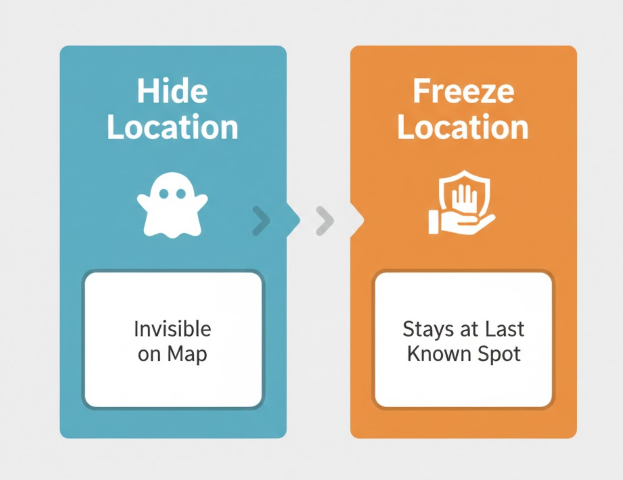
Ghost Mode is Snapchat’s built-in privacy setting. When it is turned on, your location is not visible to friends on Snap Map. This is the easiest way to stop Snapchat location sharing without changing your phone’s system settings.
Many users worry that Ghost Mode will send a notification like “Alex stopped sharing location.” It does not work that way. Friends are not directly notified when you enable Ghost Mode, but they may notice that your Actionmoji is no longer visible on the map.
If your Snap Map is not updating even when Ghost Mode is off, the issue may not be a privacy setting. In that case, read our guide on how to fix Snapchat location not updating.
How to Turn on Ghost Mode on Snapchat
- Open the Snapchat app on your iPhone or Android phone.
- Tap your Profile icon or Bitmoji in the top-left corner.
- Tap the Settings gear icon in the top-right corner.
- Scroll down to Privacy Controls.
- Tap See My Location.
- Turn on Ghost Mode.
- Choose a duration: 3 Hours, 24 Hours, or Until Turned Off.
What Happens After You Turn on Ghost Mode?
- Your Actionmoji disappears from Snap Map.
- Friends cannot see your live or recent location.
- Snapchat does not send a direct notification to your friends.
- You can still use Snapchat normally, including chats, stories, snaps, and filters.
Ghost Mode is simple and safe, but it is also obvious in one way: you are no longer visible on Snap Map. If your goal is to pause Snapchat location without disappearing, the next method is better.
Method 2: How to Freeze Your Snapchat Location Without Ghost Mode
Best for: Users who want to pause Snapchat location without turning on Ghost Mode.
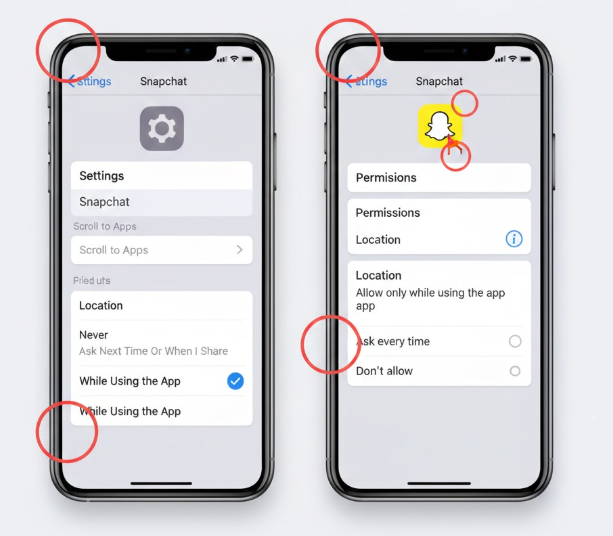
If you want to freeze your Snapchat location instead of hiding it, change your phone’s app permission settings. This method prevents Snapchat from accessing your location in the background. As a result, Snapchat can only update your location when the app is open and allowed to use location services.
This is the closest method to “pausing” Snapchat location. Your friends may still see your last known location, but it will not keep following you after you close the app.
If Snapchat is placing you in the wrong spot, the problem may be caused by GPS accuracy rather than privacy settings. Here is how to fix Snap Map showing wrong location.
How to Freeze Snapchat Location on iPhone
- Open the Settings app on your iPhone.
- Scroll down and tap Snapchat.
- Tap Location.
- Select While Using the App.
- Keep Precise Location turned on if you want Snapchat to record an accurate last location.
- Open Snapchat at the location you want to show.
- Close Snapchat completely when you want the location to stop updating.
To better manage your privacy, you should also know when does Snap Maps update your position.
How to Freeze Snapchat Location on Android
- Open the Settings app on your Android phone.
- Go to Apps or Apps & notifications.
- Find and tap Snapchat.
- Tap Permissions.
- Tap Location.
- Choose Allow only while using the app.
- Open Snapchat at the place you want to show, then close the app when you want updates to stop.
With these settings, Snapchat can update your location only when you are actively using the app. Once you close Snapchat, your Snap Map location may remain at the last recorded place until it expires.
If your settings menu freezes, crashes, or behaves abnormally while changing permissions, you can use a professional tool to fix common Android system issues.
What Do Friends See When Your Snapchat Location Is Frozen?
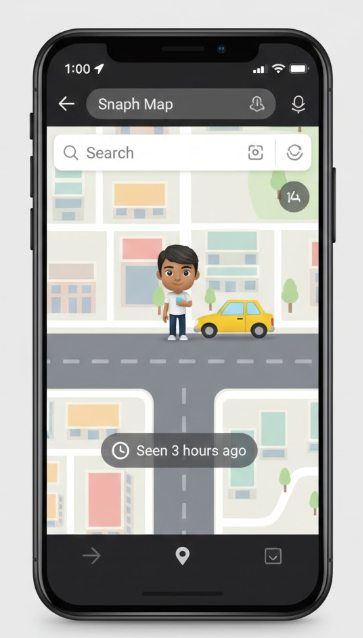
At first, your friends may simply see your Actionmoji at the last place Snapchat recorded. It does not look like a special “paused” status. Over time, Snapchat may show a timestamp such as “2 hours ago” or “8 hours ago.” This usually looks like you have not opened Snapchat recently.
This is why freezing your location is more subtle than Ghost Mode in some situations. You remain visible, but your location does not continue moving with you.
For more permanent location control, check our full guide on how to change location on Snapchat.
Method 3: A Smarter Way to Pause Snapchat Location Without Ghost Mode or Freezing
Best for: Users who want to stay visible on Snap Map but avoid showing their real location.
Ghost Mode hides you completely. Permission settings freeze your last known position. But both methods have limits. If you stay frozen for too long, the timestamp may show that your location has not updated. If you turn on Ghost Mode, you disappear from Snap Map entirely.
A smarter option is to use Fonelora Location Changer. Instead of simply stopping Snapchat location updates, it lets you control where your phone’s GPS location appears. This means Snapchat can show a selected location rather than your real one.
This method is useful if you want to:
- Pause your real Snapchat location without turning on Ghost Mode.
- Stay visible on Snap Map without revealing where you actually are.
- Avoid looking inactive with a long “last updated” timestamp.
- Appear in another city, neighborhood, school, office, or travel destination.
- Simulate natural movement instead of staying frozen in one spot.
Unlike basic system tricks, Fonelora works on both iOS and Android without jailbreak or root. It supports teleport mode, joystick movement, and route simulation with adjustable speeds, making your location behavior look more natural than a static freeze.
How to Control Snapchat Location with Fonelora
Step 1: Connect Your Device
Download and launch Fonelora Location Changer on your computer. Then connect your iPhone or Android device via USB, Wi-Fi, or Bluetooth.

Step 2: Choose a Location Mode
Select the mode that fits your needs. You can choose a direct location change, joystick movement, or simulated route depending on how natural you want the movement to appear.

Step 3: Set and Apply Your Location
Enter a destination or GPS coordinates, then click Move to update the location used by Snapchat and other location-based apps.

With this method, you are not just learning how to pause Snapchat location. You are gaining full control over where your Snapchat location appears while keeping your activity looking normal.
Which Method Is Best? Ghost Mode vs. Freeze vs. Location Changer
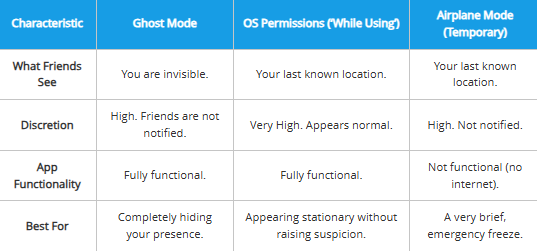
The best way to pause Snapchat location depends on your goal. If you want full privacy, use Ghost Mode. If you want to stop live updates but remain visible, change your phone permissions. If you want to appear somewhere else, use a GPS location changer.
Here is a quick comparison:
| Method | What Friends See | Does It Notify Friends? | Best For |
| Ghost Mode | You disappear from Snap Map. | No direct notification. | Completely hiding your location. |
| iPhone/Android Permissions | Your last known location. | No direct notification. | Freezing Snapchat location without Ghost Mode. |
| Airplane Mode | Your last known location. | No direct notification. | Very short emergency use only. |
| Fonelora Location Changer | A selected or simulated location. | No direct notification from Snapchat. | Staying visible while hiding your real location. |
When Should You Use Each Method?
- Use Ghost Mode if you do not want anyone to see your Snap Map location.
- Use location permissions if you want to freeze Snapchat location without disappearing.
- Use Airplane Mode only for a temporary pause, because Snapchat cannot send or receive data while offline.
- Use Fonelora if you want Snapchat to show another location instead of your real one.
The core difference is simple: Ghost Mode hides you, permission settings freeze you, and a location changer lets you decide where you appear.
If simple fixes do not work and Snapchat still shows the wrong place, check our advanced methods for Snapchat location wrong errors.
Extra Tips Before You Pause Snapchat Location
Before changing your Snapchat location settings, keep these points in mind:
- Do not reopen Snapchat at your real location if you are using the permission method. Opening the app can refresh your location.
- Check your device-level permissions after system updates. iOS or Android updates may reset or change app permission behavior.
- Use “My Friends, Except…” if you only want to hide your location from certain people.
- Avoid relying on Airplane Mode for long periods because Snapchat will not work properly without internet access.
- Use a neutral last location if you want the freeze method to look natural.
Frequently Asked Questions About Pausing Snapchat Location
Here are direct answers to the most common questions about how to pause, freeze, or hide Snapchat location.
Q1: Can you pause your location on Snapchat?
Snapchat does not have a direct pause button. To pause your Snapchat location in practice, you can either turn on Ghost Mode, set location access to While Using the App, or use a GPS location changer to control where Snapchat shows you.
Q2: How do I pause Snapchat location without them knowing?
The most subtle way is to change Snapchat’s location permission to While Using the App on iPhone or Allow only while using the app on Android. This can freeze your last known location without sending a notification to friends.
Q3: Will my friends know if I turn on Ghost Mode?
Snapchat does not send a direct notification when you turn on Ghost Mode. However, your friends may notice that your Actionmoji is no longer visible on Snap Map.
Q4: Does Snapchat notify someone when you stop sharing location?
No. Snapchat does not directly notify friends when you turn on Ghost Mode, change location permissions, or limit who can see your location. The visible result may change, but there is no standard alert saying you stopped sharing.
Q5: How long does Snapchat location stay visible?
Your Snapchat location visibility depends on your device permissions and app activity. If your permissions are set to Only while using, your location on Snap Map may expire after 24 hours. If you open Snapchat again, your location may update based on your current device location.
Q6: Can I freeze my Snapchat location for one person?
No, Snapchat does not offer a “freeze location for one friend” feature. However, you can hide your location from specific friends by going to See My Location and choosing My Friends, Except…. You can also choose Only These Friends if you want to share your location with a smaller group.
Q7: Can I pause Snapchat location without turning off location on my phone?
Yes. You do not need to turn off location services for your entire phone. Instead, change only Snapchat’s location permission. On iPhone, choose While Using the App. On Android, choose Allow only while using the app.
Q8: Why is my Snapchat location still updating after I changed permissions?
Your location may update if Snapchat is still open in the background, if you reopened the app, or if your device settings still allow background location access. Fully close Snapchat and double-check the app permission settings.
Q9: Is Ghost Mode better than freezing Snapchat location?
Ghost Mode is better for complete privacy because it removes you from Snap Map. Freezing your Snapchat location is better if you want to remain visible but stop live updates. The best choice depends on whether you want to disappear or simply appear stationary.
Q10: Can I make Snapchat show a different location?
Yes. If you want Snapchat to show a different place instead of your real location, you need a location-changing method. You can read this full guide on how to fake Snapchat location.
Take Control of Your Snapchat Privacy
You do not need to feel uncertain about who can see your location on Snap Map. Even though Snapchat does not offer a direct pause button, you still have several effective options.
For full privacy, turn on Ghost Mode. To pause Snapchat location without disappearing, change your iPhone or Android location permissions. To stay visible while showing a different place, use a GPS location changer like Fonelora Location Changer.
The right method depends on your goal: hide, freeze, or control. Once you understand the difference, managing your Snapchat location becomes much easier and far less stressful.



Joy Taylor is a seasoned technical writer with over a decade of experience in mobile technology. At iMobie, she specializes in producing in-depth content on iOS data recovery, iPhone unlocking solutions, and iOS troubleshooting.
Product-related questions? Contact Our Support Team to Get Quick Solution >
