Many Life360 users want to know one thing before making any change: does Life360 notify when you leave a Circle? The concern is understandable. Leaving a family or friend Circle can feel awkward, and most people want to know exactly what others will see before they take action.
The direct answer is: Life360 does not usually send a loud push notification that says you left a Circle. However, leaving is not completely invisible. Your profile disappears from the Circle map and member list, so other members may notice when they open the app.
This guide explains what happens when you leave a Life360 Circle, what other members can see, how leaving compares with pausing location or disabling permissions, and which option makes the most sense depending on your privacy needs. If you are also wondering about other Life360 notifications, you may want to check whether Life360 tells you when someone checks your location.
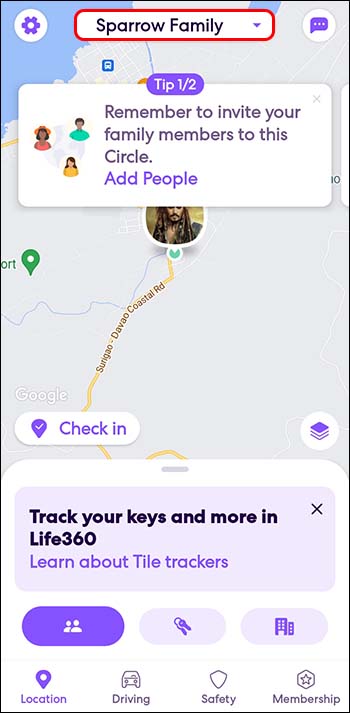
Does Life360 Notify When You Leave a Circle? The Direct Answer
Based on our tests, Life360 does not send a direct push notification that explicitly says, “[Your Name] has left the Circle.” This is one of the biggest misunderstandings about leaving a Life360 Circle.
However, this does not mean no one can tell. When you leave a Circle, your profile is removed from two important places:
- The Circle map: Your location icon disappears from the map.
- The member list: Your name is removed from the Circle member list.
So while Life360 may not send a direct alert, your absence can still be noticed. Anyone who checks the Circle map or member list may realize that you are no longer part of the group.
If your main question is whether people get a notification when you leave a Life360 Circle, the safest answer is: they may not receive a direct push alert, but they can still notice that you left.
Free vs. Premium Plans and Circle Admins
Before deciding what to do, it is important to understand that Life360 features may differ between free and paid plans. Circle Admins may also have more visibility than regular members.
On the free version, an Admin can add or remove members, but they may not receive special alerts every time someone changes phone permissions or temporarily stops location updates.
However, paid plans such as Gold or Platinum may include more detailed alerts or reports. For example, Circle members may see messages related to phone status, location permissions, battery, or connectivity depending on app version, device settings, and subscription features.
Because Life360 can change its features over time, avoid assuming that no one will notice. The most useful approach is to understand what each action shows to others before choosing the option that fits your situation.
3 Ways to Manage Your Life360 Location Sharing
There are three common ways to manage Life360 location sharing: disabling app permissions, pausing location sharing, or officially leaving the Circle. Each option has a different result and a different level of visibility.
Use the table below to compare what happens in each case.
| Revoke App Permissions | Pause Location Sharing | Officially Leave the Circle | |
| Visibility Level | Medium to High | Low | Low |
| What Others See | Your location may stop updating and show an old timestamp. You remain in the Circle. | A clear “Location Sharing Paused” message may appear. | Your profile icon and name are removed from the map and member list. |
| Reversibility | Easy. You can turn permissions back on. | Easy. You can turn sharing back on in the app. | Hard. You need a new invitation to rejoin. |
| Best For | Temporarily stopping updates without leaving the Circle. | Being open that you paused location sharing. | Permanently leaving a Circle. |
Method 1: Revoke Phone Permissions
Revoking Life360’s location permission stops the app from receiving new GPS updates. This does not remove you from the Circle, but your location may become stale or unavailable over time.
This method is useful if you want to temporarily stop sharing your live location without officially leaving the Circle. However, other members may still notice that your location has not updated for a while.
What Others May See Over Time:
- First few hours: Your icon may remain at the last known location with an older timestamp.
- After longer inactivity: Life360 may show messages such as location unavailable, phone off, no network, or another status depending on device and app behavior. For a related status explanation, see what happens to Life360 in Airplane Mode.
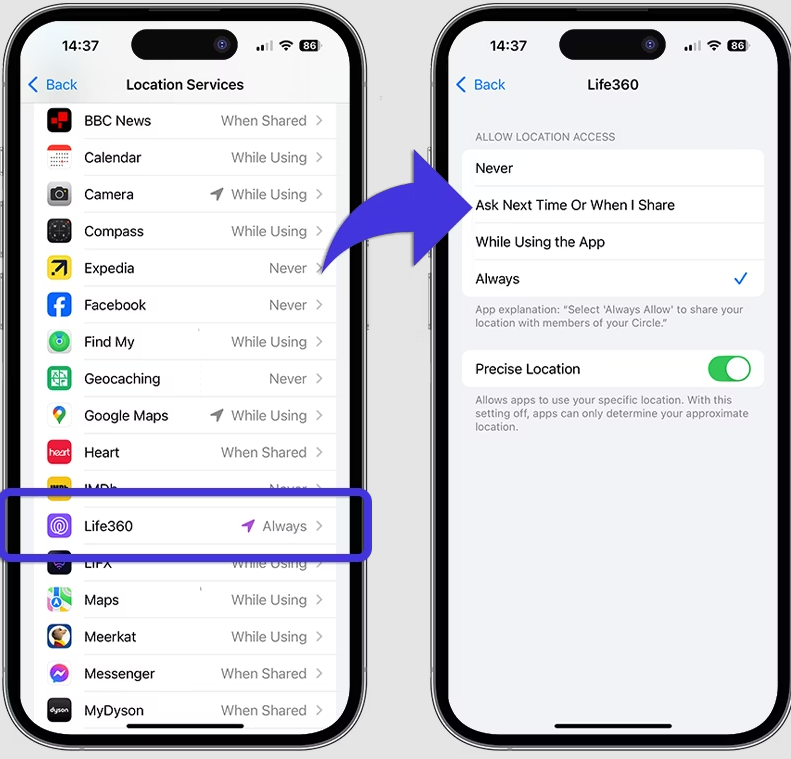
On an iPhone:
Step 1. Open the Settings app.
Step 2. Tap Privacy & Security, then select Location Services.
Step 3. Find Life360 in the app list.
Step 4. Change its permission from Always to While Using the App, Ask Next Time, or Never.
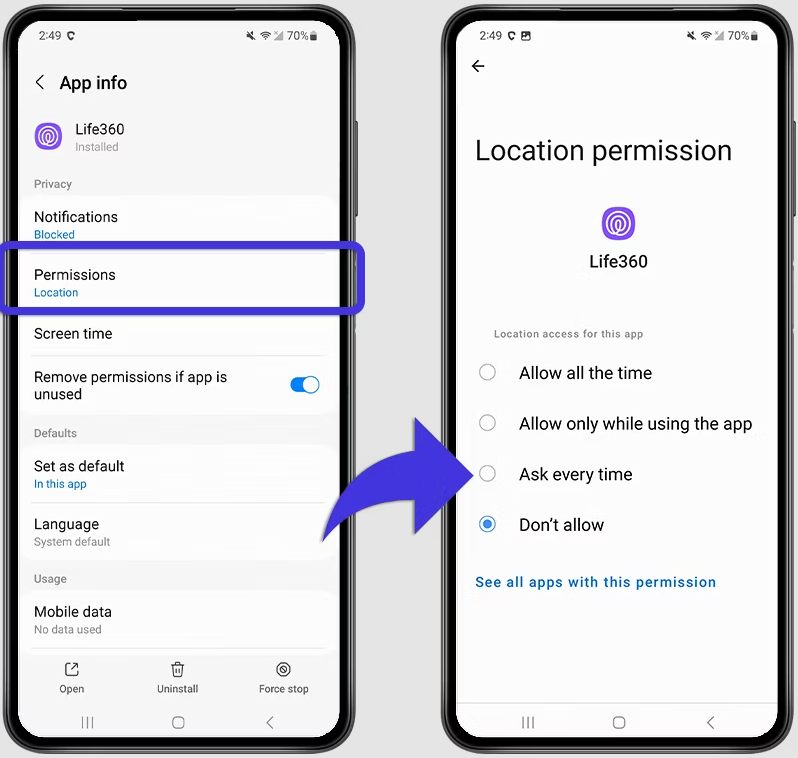
On an Android Phone:
Step 1. Open the Settings app.
Step 2. Tap Location, then select App location permissions.
Step 3. Find Life360 in the list.
Step 4. Change its access from Allow all the time to Allow only while using the app, Ask every time, or Don’t allow.
Do not assume uninstalling Life360 will immediately hide everything. In some cases, the last known location may remain visible for a period of time. To understand this situation in more detail, read whether Life360 still tracks you after deleting the app.
Method 2: Pause Location Sharing Within the App
Life360 also allows users to pause location sharing from inside the app. This is more transparent than changing phone permissions because Circle members may see that location sharing has been paused.
This method is best if you want to stop sharing location but do not want to leave the Circle completely. For a deeper walkthrough, see how to pause your Life360 location without triggering an alert.
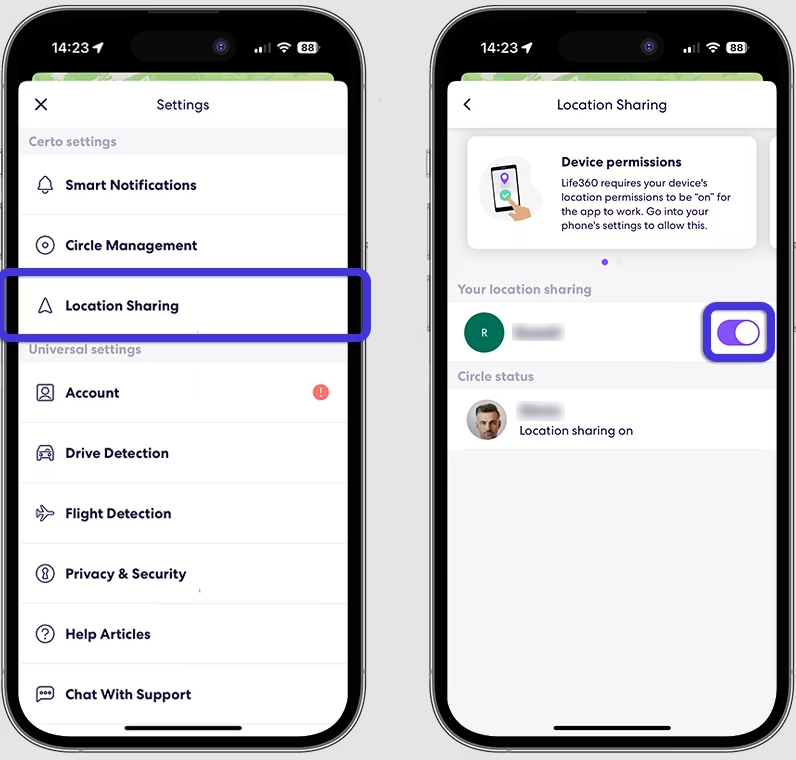
Step 1. Open the Life360 app.
Step 2. Tap the Settings gear icon.
Step 3. Select Location Sharing.
Step 4. Choose the Circle you want to change.
Step 5. Toggle location sharing off.
Method 3: Officially Leave a Life360 Circle
Leaving the Circle is the most permanent option. Once you leave, your profile is removed from that Circle, and you cannot rejoin unless a Circle Admin sends you a new invitation.
Step 1. Open the Life360 app.
Step 2. Tap the Settings gear icon.
Step 3. Tap Circle Management.
Step 4. Select Leave Circle.
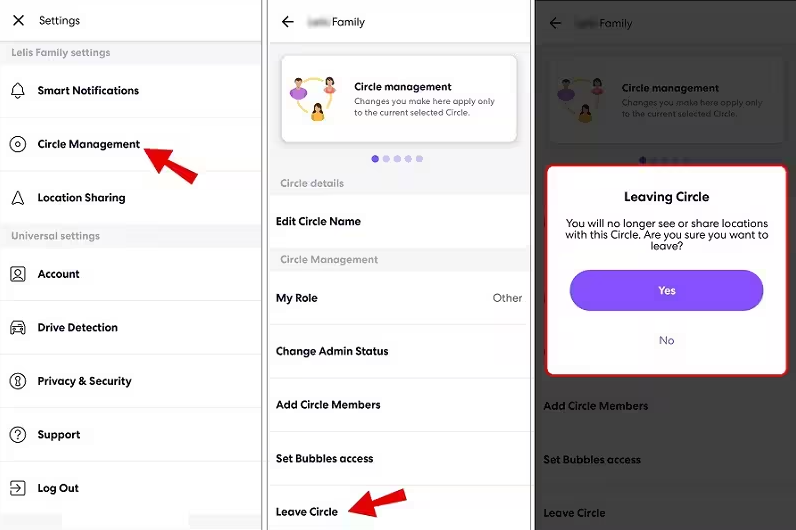
Life360 will show a confirmation prompt. After you confirm, your profile is removed from the Circle map and member list.
Optional: Manage Device Location Without Leaving a Circle
Some users are not ready to leave a Circle but still want more control over how their device location behaves. In this case, first review Life360’s built-in options, such as pausing location sharing or adjusting phone permissions.
If Life360 is showing the wrong place or your location looks inaccurate, the issue may be related to GPS, network conditions, or device settings. You can start with this guide to fix Life360 wrong location before using any external tool.
If your goal is device-location testing or managing GPS behavior on your own phone, a location tool such as Fonelora Location Changer can help set or simulate device location on iPhone and Android. This should be used responsibly, only on your own device or a device you have permission to manage.
Fonelora Location Changer
Realistic GPS movement simulation, flexible route control, easy no-modification setup, and support for gaming, social, privacy, and location-based testing in one platform.
For this Life360 topic, treat any GPS location tool as an optional privacy-management method, not as a replacement for understanding what Circle members can see. If your main goal is simply to leave a Circle, the official Leave Circle option is still the clearest method.
How to Know If Someone Left Your Life360 Circle
If you are trying to understand whether someone left a Circle or simply stopped sharing location, there are two main signs to look for.
Sign 1: The Member Has Completely Disappeared
This is the clearest sign that someone officially left the Circle.
- Their icon is gone from the map.
- Their name no longer appears in the member list.
- You may need to check Circle Management to confirm the member list.
Sign 2: The Member’s Location Status Has Changed
If the person is still in the Circle but their location is not updating, they may have paused sharing, turned off permissions, lost network connection, or turned off their phone.
- “Location Sharing Paused”: The user has paused sharing from inside Life360.
- Old location with timestamp: Their phone may be off, offline, or no longer sending location updates.
- Location unavailable: The app may not have permission, GPS may be unavailable, or the phone may have a connection issue.
If the member is still listed but the location is unavailable, they probably have not left the Circle. They are still a member, but their live location is not updating. To better understand visual status indicators, see this guide to Life360 Circle colors meaning.
Frequently Asked Questions About Life360 Privacy
Here are direct answers to the most common questions about Life360 Circle notifications and location sharing.
1. Does Life360 notify when you leave a Circle?
Life360 does not usually send a direct push notification saying that you left. However, your profile disappears from the Circle map and member list, so other members may notice when they check the app.
2. Can I leave a Life360 Circle without anyone knowing?
Not completely. There may not be a loud alert, but leaving removes your profile from the Circle. If another member checks the map or member list, they can see that you are no longer there.
3. Does leaving a Life360 Circle notify others?
In many cases, there is no direct notification. But the result is visible because your name and icon are removed from that Circle. This makes leaving different from simply pausing location or turning off permissions.
4. Is uninstalling Life360 a good way to hide my location?
No. Uninstalling may leave your last known location visible for some time, and your Circle membership may still remain. Changing permissions or using Life360’s built-in settings gives you more control.
5. What does a Circle Admin see that other members don’t?
Admins can manage Circle members. Depending on the plan and app version, they may also have access to more alerts or reports. Premium plans may include more detailed phone or location status information.
6. How can I tell if someone left my Life360 Circle or just turned off their phone?
If their icon and name are completely gone from the map and member list, they likely left the Circle. If their icon remains but the location is old, paused, or unavailable, they may still be in the Circle but not actively sharing location.
7. Does leaving one Circle delete my entire Life360 account?
No. Leaving one Circle does not delete your Life360 account. Your account remains active, and you can still be part of other Circles.
8. Which is better for privacy: Life360 or Find My?
Both apps handle location sharing differently. If you are comparing options, read our guide on iSharing vs Life360 to understand how different family location apps handle privacy and visibility.
Take Control of Your Digital Privacy
Leaving a Life360 Circle does not usually trigger a direct push notification, but it is not fully hidden. Your profile disappears from the Circle map and member list, so other members can still notice your absence.
If you only need a temporary break, pausing location sharing or adjusting app permissions may be more flexible than leaving completely. If you no longer want to share location with that Circle, officially leaving is the clearest option.
The best choice depends on your goal: temporary privacy, transparent location pausing, or permanently leaving the Circle. Before changing anything, understand what other members may see and choose the option that matches your situation.
Fonelora Location Changer
- Bluetooth Hardware Simulation for Safer GPS Spoofing
- Realistic Movement & Route Simulation
- No Root or Jailbreak Required
- All-in-One Solution for Games, Social Apps & Privacy
More Related Articles