How to Change Location on Life360: Guide for Privacy & Control
Want to manage how your location appears on Life360? This guide explores different approaches people consider, such as secondary devices or computer-based location simulation, and explains the potential consequences of each. We also cover how Life360 detects unusual activity and what you should know before attempting to alter or hide your real-time location.
Imagine seeing your digital avatar stuck on a university campus map at 2:00 AM, while you are actually safely back in your dorm room. For users like Jake, a 19-year-old college freshman, this isn’t a hypothetical glitch—it’s a source of genuine anxiety. He joined a Life360 Circle to reassure his parents, but when the app displays inaccurate data, it sparks unnecessary frantic texts and distrust.
If you are searching for how to change location on Life360, you likely share this desire for autonomy and accuracy. Whether you need to correct a persistent bug where Life360 location is not accurate, or you simply need a moment of privacy without triggering a “Location Paused” alert, understanding the mechanics of GPS tracking is essential.
Modern privacy isn’t just about hiding; it is about ensuring the data being broadcast about your life is correct and under your control.
Strategic Decision Guide: Comparing Location Changing Methods
Before you attempt to alter your coordinates, you must choose a strategy that matches your device type (Android vs. iPhone) and your technical comfort level. Not all methods are created equal. Some will freeze your location effectively, while others will instantly alert your Life360 circle members that you have tampered with the connection.
To help you decide, we have compared the four primary techniques: Hardware Spoofing (The Burner Strategy), Desktop Tethering (The iOS Solution), Software Spoofing (Android Mock Locations), and Connectivity Manipulation.
The Comparison Matrix
| Feature | Burner Device (Hardware) | Desktop Tethering (iOS) | Mock Location Apps (Android) | Data/WiFi Toggling |
| Success Rate | High (99%) | High (90%) | Moderate (60-70%) | Low (Ends in Error) |
| Detection Risk | Very Low | Low | Moderate (If configured poorly) | High (“Location Paused”) |
| OS Support | Android & iOS | iOS (iPhone) | Android Only | Android & iOS |
| Cost | Cost of spare device | Free/Freemium Software | Free | Free |
Method 1: The Burner Phone Strategy (Hardware – Best for Stealth)
The most effective way to change your location without triggering software alarms is to use physical hardware. This technique, often called the “Burner Strategy,” directly answers the common question: How to change Life360 location to different device?
By designating a secondary device (like an old tablet or spare phone) as your primary tracker, you can leave that device in a “safe” location (e.g., your dorm or home) while you move freely with your main phone.
Step-by-Step Procedure
Step1. Prepare the Secondary Device: Ensure your spare device is connected to a stable WiFi network at the target location and has Life360 installed.
The “Log Out” Myth vs. Reality: Many guides tell you to simply log out of your main phone. Do not do this immediately. Logging out can sometimes trigger a flag or a “location stopped” alert depending on your version.
Step2. The Airplane Mode Handoff:
On your Primary Phone (the one you are taking with you), turn on Airplane Mode. This kills the data connection immediately without sending a “Log Out” signal to the server.
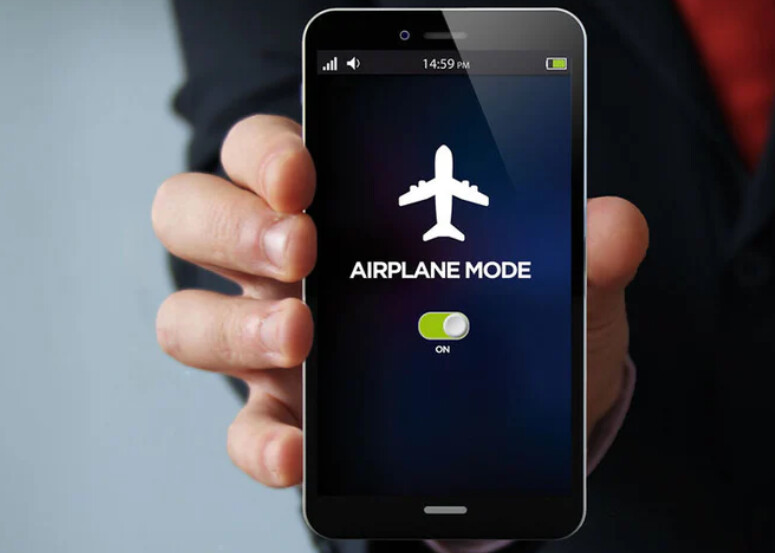
Enable WiFi on the Primary Phone if you need internet, but ensure Life360 cannot access cellular data.
Step3. Log In to Secondary: Now, log into your Life360 account on the spare device located at the “safe” spot. Life360 will pick up the GPS signal from this device.
Step4. Verify Status: Check the map from a friend’s account if possible. Your icon should be settled at the target location.
Critical Risk: The Stationary Problem
Life360 doesn’t just check GPS; it utilizes the accelerometer for “Drive Detection.” If your burner phone sits perfectly still on a desk for 12 hours while you are supposedly “out with friends,” the lack of micro-movements can look suspicious.
The Fix:
If possible, leave the burner device in a place where it might experience slight vibration (like near a computer fan or on a timer-controlled outlet) or simply accept that you won’t log any “drives” during this time.
Method 2: The Desktop Tethering Method
If you use an iPhone, you have likely noticed that there is no “Mock Location” setting in your menus. Apple restricts this heavily. For iOS users who cannot acquire a burner phone, the most reliable software method involves tethering your iPhone to a computer.
While tools like 3uTools or iAnyGo can help override your GPS, they may feel limited in flexibility or ease of use. If you’re looking for a more streamlined solution, Fonelora Location Changer offers a simple way to modify your device’s location on both iOS and Android.
Unlike basic tethering tools, it allows you to quickly simulate movement or teleport to any location without complex setup, making it especially useful for apps like Life360 that rely on consistent GPS data.
How to Use Fonelora Location Changer
1.Download and install Fonelora Location Changer on your computer.

2.Connect your iPhone or Android device via Wi-Fi, Bluetooth, or USB.

3.Launch the program and select mode.Enter your target location or choose a point on the map.

4.Click “Move” to instantly update your GPS position.

Once applied, your device will report the selected location across apps, helping you avoid common issues like “Location Paused” or inconsistent tracking.
Method 3: Android Mock Location Settings (The ‘Developer’ Trick)
If you are on Android and lack a second device, you can utilize the Mock Location settings found in Developer Options. However, you should know that Life360 fake location attempts often fail because the app is smarter than basic GPS tools.
Here is a critical insight: Life360 cross-checks GPS data with WiFi networks and cell tower signals. If your GPS says you are home, but your phone is pinging a cell tower 10 miles away, the app detects the discrepancy.
The “Airplane Mode” Logic (Expert Fix)
To bypass this multi-signal verification, you must isolate your location data sources.
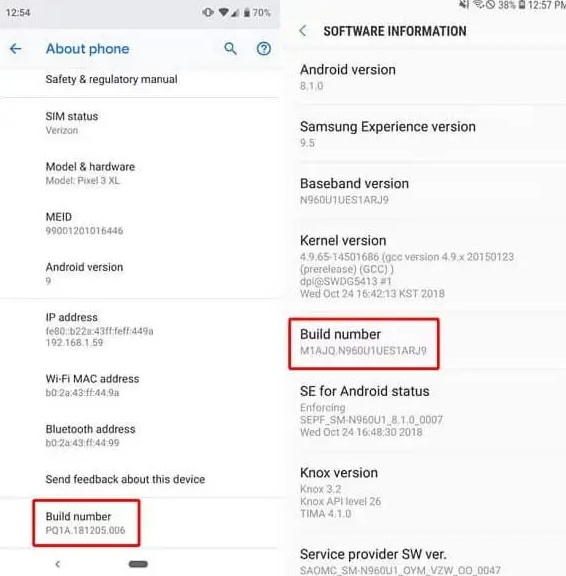
Step1. Enable Developer Options: Go to Settings > About Phone > Tap Build Number seven times.
Step2. Select Mock Location App: In Developer Options, select your preferred GPS spoofer (e.g., “Fake GPS Location”).
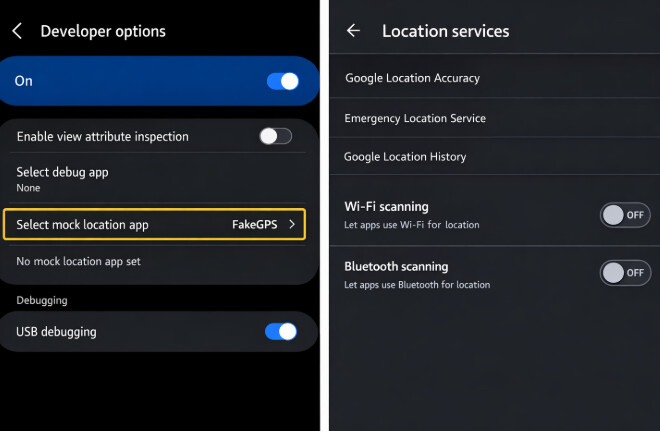
Step3. The Communication Blackout:
Before activating the fake location, turn on Airplane Mode. This cuts the connection to cell towers, preventing triangulation.
Manually turn WiFi back on.
While this hides your location effectively, you will not receive standard cellular calls or SMS texts. You will only be reachable via internet-based apps (WhatsApp, Messenger, Discord). This communication blackout can be a red flag to parents trying to call your real phone number.
What Do They See? Visualizing the Risks
In Jake’s story, the fear wasn’t just about being tracked, but about the confrontation that follows if the tracking fails. It is vital to understand exactly what Life360 circle members see on their screens when you tamper with settings.
Life360 does not send a notification saying “Jake is spoofing,” but it displays specific error states that imply it.
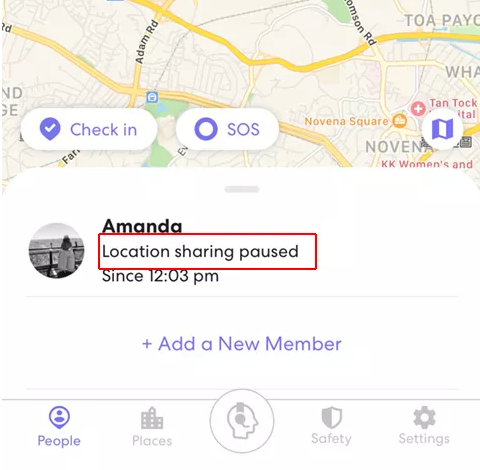
1. “Location Paused”
- What you did: You likely turned off GPS sensors or enabled “Data Saver” mode.
- What they see: Your avatar turns gray, and an exclamation mark appears. The text under your name explicitly changes to “Location Paused.” This is the most obvious sign of tampering.
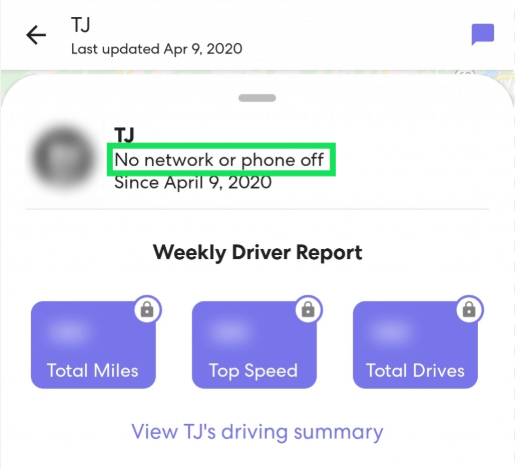
2. “No Network” / “Phone Off”
- What you did: Your battery died, or you have zero data connection (Airplane mode without WiFi).
- What they see: Your location freezes at the last known spot. After a short period, the status updates to “No Network” or “Phone Off.” While this looks like a connection issue, if it happens every Friday night at 10 PM, it becomes a pattern.
3. The Battery Monitor
- What you did: You left a burner phone plugged into the wall at home.
- What they see: Parents can see your battery percentage. If your battery stays at “100% Charging” for 6 hours while you are supposedly at a party, it is a dead giveaway that you aren’t carrying the device.
Why Is My Life360 Location Wrong? (Legitimate Fixes)
Not everyone looks into this topic to hide. Many users suffer from inaccurate tracking. If you are asking “Why is my Life360 location wrong or frozen?”, the culprit is usually the operating system’s aggressive battery management.
Fixing the ‘Stuck’ Location
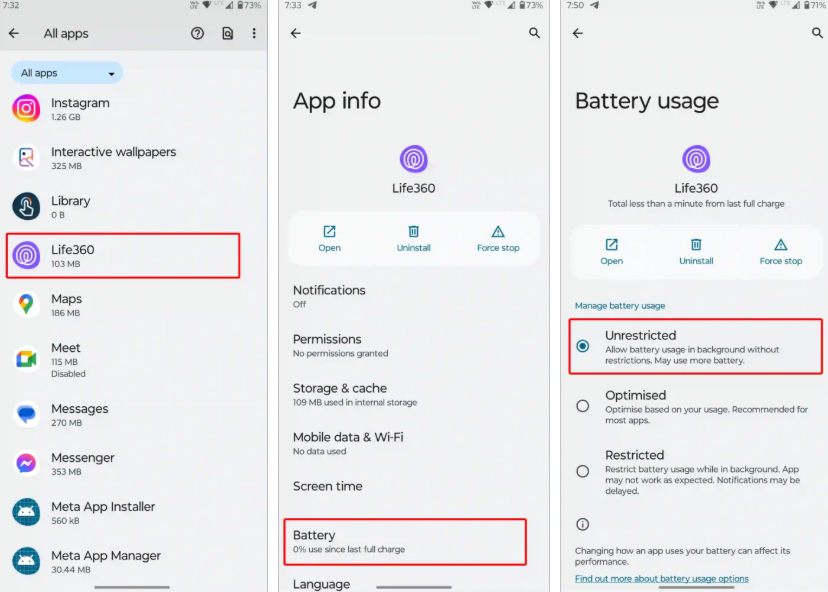
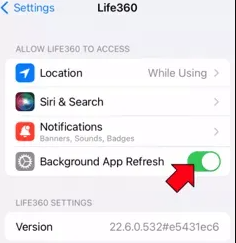
On Android 12+ and iOS 16+, phones kill background processes to save power. To ensure Life360 accuracy, you must exempt the app from these restrictions.
- Disable Battery Optimization (Android): Navigate to Settings > Apps > Life360 > Battery. Change the setting from “Optimized” to “Unrestricted.”
- Background App Refresh (iOS): Go to Settings > Life360 and ensure Background App Refresh is toggled ON.
- Keep WiFi On: Even if you aren’t connecting to a network, keep WiFi enabled. Phones use WiFi hotspots to triangulate position much faster than GPS satellites alone.
Life360 Location FAQs
1.Does Life360 notify the circle if I log out?
Life360 does not send a push notification saying “User Logged Out.” However, your location on the map will freeze, and your status may eventually change to indicate that location tracking is off or the phone is unreachable. It is safer to use the “Airplane Mode Handoff” (Method 1) rather than simply logging out.
2.Can I change my location on iPhone without a computer?
Generally, no. Because iOS is a “walled garden,” apps cannot override the system GPS without external hardware or jailbreaking (which compromises security). The safest method for iPhone users is the Desktop Tethering method described above or using a secondary burner device.
3.Will the “Airplane Mode” trick stop my calls?
Yes. If you use Method 2 (Android Mock Location with Airplane Mode), your phone disconnects from the cellular network to prevent tower triangulation. Calls to your phone number will go to voicemail, and green-bubble SMS texts will not come through. You will only be reachable via data-based apps (iMessage, WhatsApp, Telegram).
4.What happens if Life360 detects location tampering?
Life360 generally does not ban users for spoofing. Instead, it creates social friction by displaying error messages like “No Network” or “Location Paused.” These alerts act as a signal to parents that the tracking is no longer active, prompting them to text or call you.
Conclusion: Reclaiming Your Digital Privacy
Whether you’re troubleshooting a buggy app or setting healthier boundaries, learning how to manage your location on Life360 puts you back in control of your digital footprint. You don’t need to be a tech expert to deal with inaccurate tracking or regain a sense of privacy.
By understanding the difference between simple fixes (like data toggling) and more reliable methods such as the “Burner Strategy” or desktop-based tools, you can avoid triggering “Location Paused” alerts and the unnecessary stress that comes with them. If you’re looking for a simpler, more flexible option, tools like Fonelora Location Changer can help you adjust your location smoothly without complicated setup.
Ultimately, the goal is balance—making sure technology supports your safety without limiting your autonomy. Choose the approach that fits your situation, and take back control over what your device shares and when.
More Related Articles



Joy Taylor is a seasoned technical writer with over a decade of experience in mobile technology. At iMobie, she specializes in producing in-depth content on iOS data recovery, iPhone unlocking solutions, and iOS troubleshooting.
Product-related questions? Contact Our Support Team to Get Quick Solution >
