How to Change Location on Hinge: The Only Working Methods
Relocating to a new city and want your Hinge matches to reflect it? Discover the different ways to update your location, from adjusting in-app preferences to using location-changing tools. We compare the pros, limitations, and potential risks of each method, so you can connect with people in your new area smoothly and without compromising your account security.
You are weeks away from a move, a vacation, or a business trip. You want to line up dates before you arrive, but your phone is locking you to your current couch. This is a common frustration for high-intent daters.
Take Daniel, a 31-year-old consultant we worked with during our testing phase. With a transfer from Chicago to Seattle approaching, he updated his profile preferences hoping to match with locals in the Pacific Northwest. The result? He could see Seattle users, but they couldn’t see him. His profile remained buried in the Chicago stack because Hinge prioritizes physical GPS proximity above all else.
If you are struggling with hinge location not updating or want to know how to change location on hinge without booking a flight, this guide covers the reality of the situation. Unlike apps with paid “Passport” modes, Hinge ties your visibility to your device’s sensors. Below, we break down the only two ways to handle this—one for viewing, and one for matching.
Quick Decision Guide: Native Settings vs. GPS Tools
Before we get into the technical steps, let’s clear up the confusion that leads most users to dead ends. There is a massive difference between changing who you see and changing where you are located.
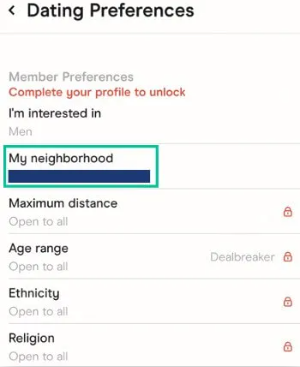
Method 1: Native Settings (The “Filter” Method)
- Action: Adjusting “My Neighborhood” inside the Hinge app.
- Result: You see people in a new city (e.g., Seattle).
- The Problem: Your profile card stays in your physical location (Chicago). You are essentially looking through a one-way mirror.
- Cost: Free.
Method 2: Desktop GPS Tools (The “Broadcast” Method)
- Action: Using software like Fonelora Location Changer to override phone sensors.
- Result: Your phone tells Hinge you are physically standing in Seattle.
- The Advantage: You appear in the local feed, allowing for mutual matching and conversations.
- Cost: usually requires a subscription ($9.9/month), though free trials exist.
Method 1: The “Soft” Change (Free, But Limited)
If you strictly want to browse profiles to gauge the dating pool—”scouting” the talent before you commit to a trip—you can use the native settings. Just remember: this will not get you matches in the new city unless a user there happens to have their distance filter set to “Global” or expansive ranges.
How to Change Your Neighborhood
Step1. Tap your photo icon to access Settings.
Step2. Select Preferences > My Neighborhood.
Step3. Pinch and zoom the map to drag your pin to the desired city.
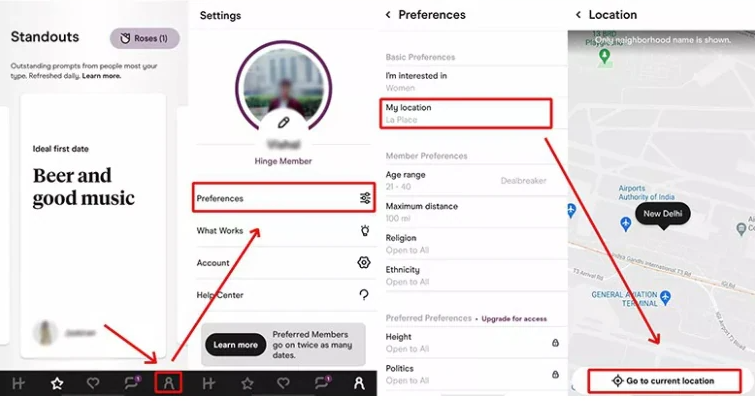
You must go back to “Preferences” and expand your search radius (Distance) to “Dealbreaker” if you want to strictly see people in that new zone.
Method 2: The Only Way to Match—Using GPS Spoofing Tools
To answer how do I change my location on hinge effectively, you must override the data the app receives from your operating system. Since Hinge does not allow manual entry of a city, you need a tool that acts as an intermediary between your phone and the GPS satellites.
The Recommended Solution: Desktop-Based Software – Fonelora Location Changer
While mobile-only “fake GPS” apps exist, they require jailbreaking (iOS) or rooting (Android), which compromises device security and triggers Hinge’s severe anti-cheat bans. Furthermore, standard desktop tools often cause your location to “rubber-band” back to reality, instantly raising flags.
Fonelora Location Changer addresses this by using advanced protocols that safely mask the spoofing layer. It natively supports modern iOS and Android versions (fully optimized for 2026 parameters), requires no jailbreak/root, and maintains a rock-solid, stable connection so your profile doesn’t trigger security protocols.
Step-by-Step Procedure with Fonelora:
Step 1: Preparation & Installation
Download and install Fonelora Location Changer on your PC or Mac. Launch the program.
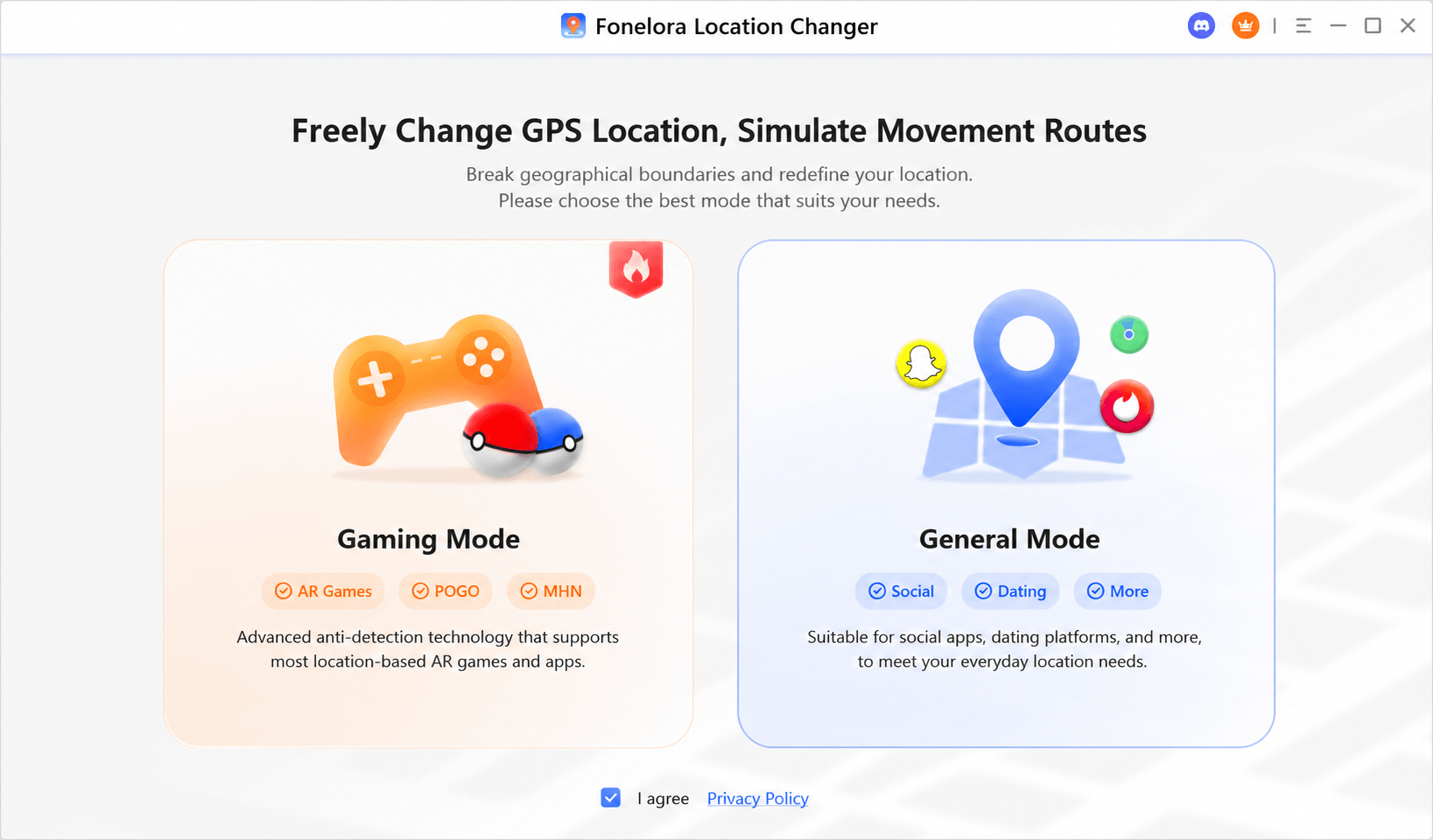
Step 2: Connect Your Device (The Handshake)
Connect your iPhone or Android device to your computer using a USB cable.
- iPhone Users: Tap “Trust this Computer” on your device screen and enter your passcode.
- Android Users: Ensure “USB Debugging” is toggled ON under your device’s Developer Options.
Once this initial connection is established, Fonelora allows subsequent connections over the same Wi-Fi network for ultimate convenience.

Step 3: Select Teleport Mode
On the map interface, navigate to the top-right corner and select Teleport Mode (represented by a target sight/pin icon). This mode forces a clean, immediate shift in coordinates.

Step 4: Execute the Global Shift
Type your target city or exact coordinates (e.g., “Seattle, WA”) into the search bar on the upper-left side. Click Move. Your phone’s system-level GPS is now anchored to that specific location.

Step 5: Verify & Open Hinge
- To ensure everything applied perfectly, open your phone’s native map app (Google Maps or Apple Maps). Look at the blue dot; it should be sitting precisely in your target city.
- Now, Force Close Hinge completely from your background apps, and then reopen it.
- Hinge will read the system-level coordinates fed by Fonelora as your legitimate, real-time physical location, instantly pushing your profile card into the local matching stack.
We recommend desktop-based tools because mobile-only “spoofing” apps often require jailbreaking (iOS) or rooting (Android), which compromises device security. Desktop tools are safer wrappers that use developer protocols to shift location.
Tested Tools: During our review for this guide, we verified success using Fonelora Location Changer and Wondershare Dr.Fone – Virtual Location. Both offer stable connections that don’t “jump” back to your real location, which is the #1 trigger for Hinge bans.
The Risks: VPNs and “Shadowbans”
A common mistake is trying to use a VPN to change location. Do not do this.
Why VPNs Fail
Hinge uses GPS data, not IP addresses, to determine location. If your VPN says you are in London (IP address) but your phone’s GPS says you are in New York, this mismatch triggers Hinge’s fraud detection.
Signs You Are “Shadowbanned”
If you used a low-quality spoofer or a VPN in the past, you might be flagged. Look for these signs:
- Network Error 403: You receive persistent connection errors even when your internet is fine.
- The “Loading” Spin: Profiles never load, or you get the “End of the line” message in a major city like NYC or LA.
- Zero Matches: You are swiping right, but receiving absolutely no engagement for days, which is statistically improbable in a dense area.
If this happens, stop using all tools. Force close the app, disconnect from Wi-Fi, and use mobile data at your real physical location to try and reset your “trust score” with the app.
Why Your Hinge Location Might Not Be Updating
Even with the correct tools, you might encounter lag. This is usually due to your phone attempting to save battery life.
Troubleshooting Checklist
1. Force Close the App:Hinge caches location data aggressively. After you change your location on the desktop tool, you must swipe the Hinge app closed completely and relaunch it.
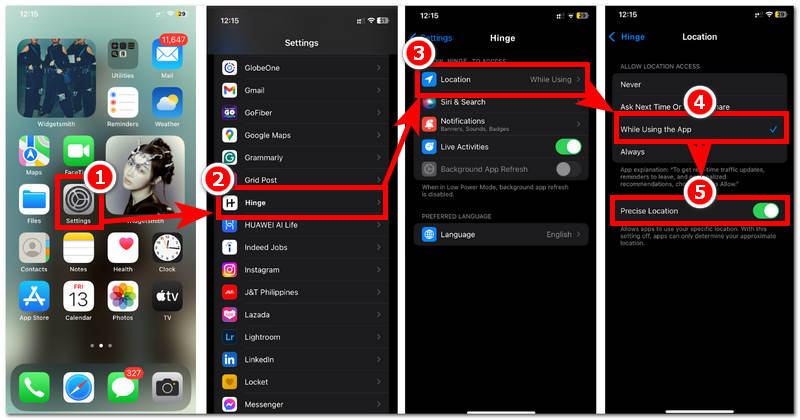
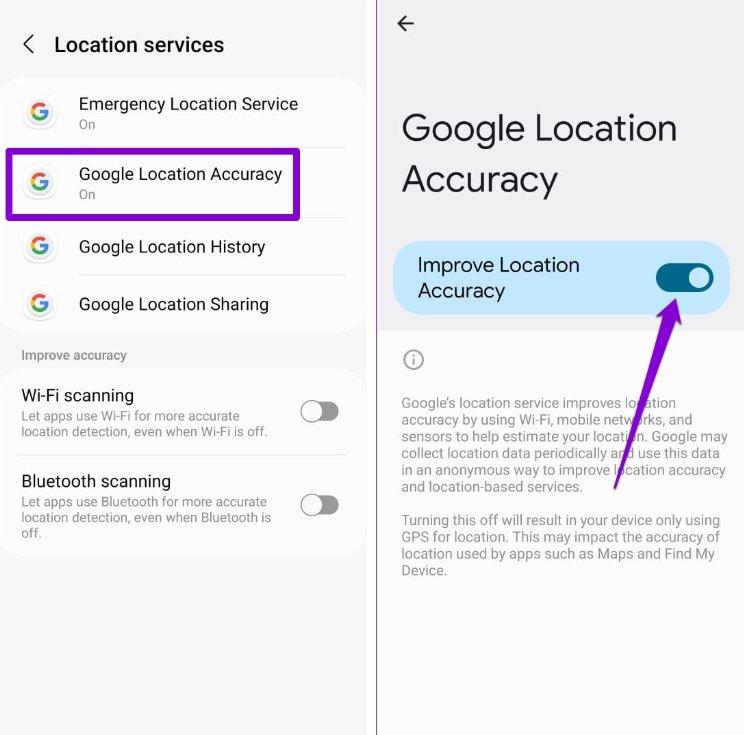
2. Check “Precise Location” Settings:If Hinge doesn’t have permission to see exactly where you are, it defaults to the last known location.
- iOS: Settings > Hinge > Location > Ensure “Precise Location” is toggled ON.
- Android: Settings > Location > Google Location Accuracy > Improve Location Accuracy.
Expert Insight: Why Hinge Makes This Difficult
To master the app, you have to understand its logic. Hinge’s slogan, “Designed to be Deleted,” isn’t just marketing—it drives their code. The algorithm is built to discourage “pen-pal” relationships.
In our analysis of dating app mechanics, we found that Hinge deliberately omits a “Travel Mode” to prioritize high-intent, immediate dates. The system assumes that if you are in Chicago, you want to date in Chicago tonight. By using the GPS tools mentioned above, you aren’t just “tricking” the app; you are manually overriding an algorithmic filter to assert your intent. You are telling the system, “I am a relevant match for people in this city.”
Frequently Asked Questions
1.Does Hinge automatically update your location?
Yes. Hinge updates your location automatically whenever you open the app, provided you have granted the necessary location permissions. It does not track you while the app is fully closed.
2.How do I change my location on Hinge manually?
You cannot manually type in a zip code or city. You must either physically travel to the new location or use the desktop GPS tools (like Fonelora Location Changer) described in Method 2 to simulate the travel.
3.Is it safe to use a VPN with Hinge?
No. Hinge detects commercial VPNs easily. Because a VPN changes your IP address but not your GPS coordinates, it creates a data mismatch that often leads to your account being flagged or banned.
4.Can you change your location on Hinge for free?
You can change your browsing preferences for free (Method 1), but to actually move your profile so others can see you, you generally need a paid GPS tool. Most reliable tools offer a limited free trial, but long-term use requires a subscription.
Conclusion: Take Control of Your Matches
For high-intent daters looking to get a head start on their next chapter, relying solely on Hinge’s native “My Neighborhood” filter is a half-measure that results in a one-way viewing mirror.
To truly master the algorithm and match before you pack your bags, your device’s hardware signal must perfectly reflect your future location. By leveraging Fonelora Location Changer, you safely align your system-level GPS with your dating goals—allowing you to confidently bypass restrictions, build meaningful matches, and schedule dates before your plane even touches the tarmac.
More Related Articles



Joy Taylor is a seasoned technical writer with over a decade of experience in mobile technology. At iMobie, she specializes in producing in-depth content on iOS data recovery, iPhone unlocking solutions, and iOS troubleshooting.
Product-related questions? Contact Our Support Team to Get Quick Solution >
