How to Change Location on OkCupid: The Tested Guide for App & Web
To change your location on OkCupid, you can update your profile location in the settings or use the Passport feature to match in different cities or countries. After changing it, refresh the app to see matches from your new selected area.
For many users, managing OkCupid location settings seems straightforward until it suddenly isn’t. You plan a move, update your profile city to your new destination, and expect to see new faces. Instead, you are confused and annoyed to find your feed still cluttered with matches from your old neighborhood.
If you are searching for “change location okcupid” late at night, worried that you are doing something wrong or risking a shadow-ban, you are not alone. The app’s behavior is notoriously inconsistent because it relies on a conflict between your profile data (what you type) and real-time GPS signals (where your phone is).
Does this sound like your situation?
- Matches are stuck: You changed your city to “Denver,” but you are still seeing people in “Austin.”
- Profile mismatch: Your profile text says one location, but the “Nearby” filter uses your physical GPS coordinates.
- Travel anxiety: You want to scout a new city before a trip but don’t want to pay for premium features if you don’t have to.

This guide solves these specific frustrations. Whether you need to execute an okcupid change city procedure for a permanent move or simply want to browse a new area, we have stress-tested the solutions below on both iPhone 15 (iOS 26) and Google Pixel 8 (Android 15).
Quick Decision: Native Settings vs. Travel Mode vs. GPS Tools
Before changing your settings, you must identify which solution fits your objective. OkCupid offers different ways to alter your location, and choosing the wrong one can lead to wasted time.
Here is the breakdown of the three primary techniques:
1. Manual Profile Override (Free)
Best for: Permanent moves or users who physically reside in the new city. This changes where your profile says you live. However, because OkCupid prioritizes GPS, this method requires a specific “Force Stop” workaround to prevent the app from reverting to your physical location.
2. OkCupid Passport / Travel Mode (Paid)
Best for: Temporary trips, vacations, or scouting a city before moving. This is the official feature designed for matching in a specific city while physically remaining in another. It guarantees visibility in the new location without messing with your phone’s permissions.
3. GPS Spoofer Tools (Technical)
Best for: Tech-savvy users who want “Travel Mode” features without the subscription cost. This involves third-party software to trick the OkCupid app into believing your device is elsewhere. It is effective but carries a higher technical barrier and a risk of account flagging.
Comparison of Methods
| Feature | Manual Override (Free) | Passport / Travel Mode | GPS Spoofing Tools |
| Best For | Permanent Moves | Temporary Trips / Scouting | Tech-savvy users avoiding fees |
| Cost | Free | Monthly Subscription | Free or One-time software cost |
| Success Rate | High (If steps followed) | High (Native Feature) | High (If configured correctly) |
| Risk Level | None | None | Moderate (Shadow-ban risk) |
| Platform | App & Web | App & Web | Android (Easier) / iOS (Harder) |
Method 1: The “Manual Override” for Free Users
If you are a free user, simply editing your profile text often isn’t enough. OkCupid’s algorithm prioritizes your GPS data over your typed profile location. To make the change stick, you must force the app to ignore your GPS and respect your manual input.
Follow this exact sequence to ensure the update takes effect.
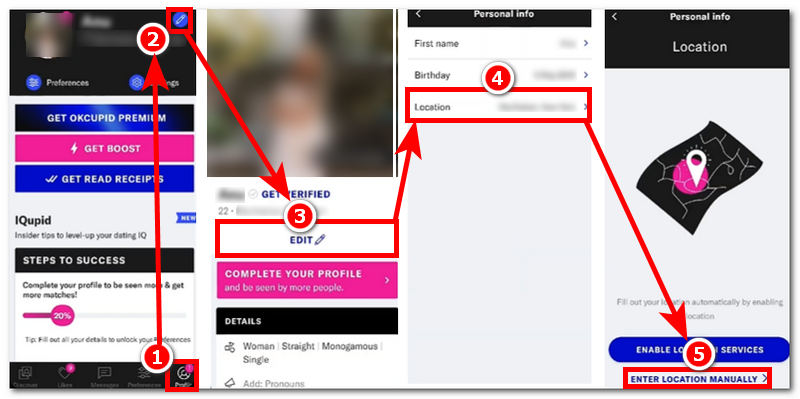
Step 1: Update Your Profile Text
- Open the OkCupid app and tap on the Profile icon (bottom right).
- Select Edit Profile under your photo.
- Scroll down to the Details or Basics section and tap on your current location.
- Enter your new city (e.g., “Denver, CO”) and save.
Step 2: Disable Location Permissions (The Critical Fix)
This is the step most guides miss. You must temporarily block OkCupid from reading your GPS so it defaults to the city you just entered.
- For iOS (iPhone): Go to Settings > Privacy & Security > Location Services > OkCupid. Switch this setting to “Never”.
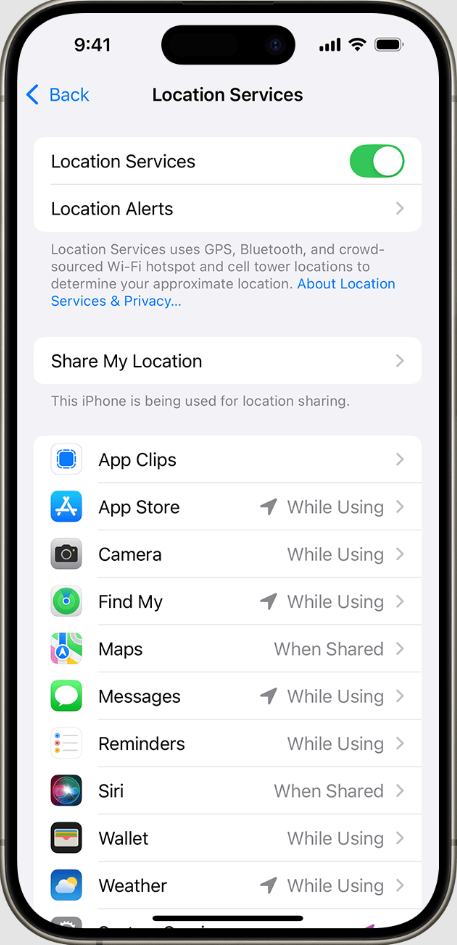
- For Android: Go to Settings > Location > App permissions > OkCupid. Select “Don’t allow”.
Step 3: Clear the Cache (Force Refresh)
Even with GPS off, the app “remembers” where you were five minutes ago. You must wipe this short-term memory.
- For Android: Go to Settings > Apps > OkCupid. Tap Storage ( On Samsung devices, you may need to tap Storage & Cache or look under a “Usage” subsection). Tap Clear Cache.
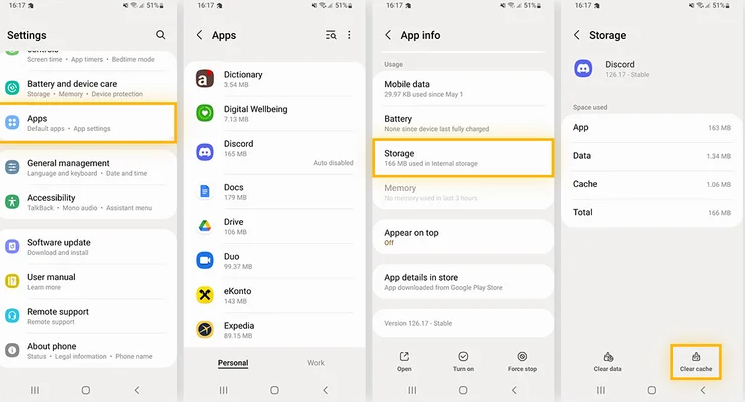
Do not tap “Clear Data” unless you want to log in again.
- For iOS: Apple does not offer a “Clear Cache” button. Instead, go to Settings > General > iPhone Storage > OkCupid. Tap Offload App. This deletes the temporary files while keeping your documents. Reinstall the app (it takes seconds) to finish the refresh.
Step 4: Check Your Match Distance
Relaunch OkCupid. With GPS disabled, the app is forced to use your profile text (“Denver”). However, if your “Search Distance” settings are too tight, you still might see nobody.
- Go to your Discovery/Preferences settings.
- Check the Distance slider.
- Ensure it is not set to “Current Location Only.” Set it to at least 5–10 miles within your new city to force the algorithm to populate a new list.
Why this works: By denying GPS access, you remove the conflict between “where you are” and “where you say you are.” The app has no choice but to use the manual location you provided in Step 1.
Method 2: Using OkCupid Passport (Travel Mode)
If the manual override feels too complicated, or if you want to keep your GPS active for other apps, OkCupid Passport (often referred to as Travel Mode) is the stress-free alternative.
This feature is specifically designed for users planning a move or a trip. Unlike Method 1, Passport overrides your device’s GPS signal entirely within the app ecosystem, ensuring you don’t have to toggle system settings.
How to Activate Travel Mode
Step 1:Navigate to your Profile and tap on Settings.
Step 2:Select the Paid Features or Subscription tab (location varies by app version).
Step 3:Look for the Passport or Travel option.
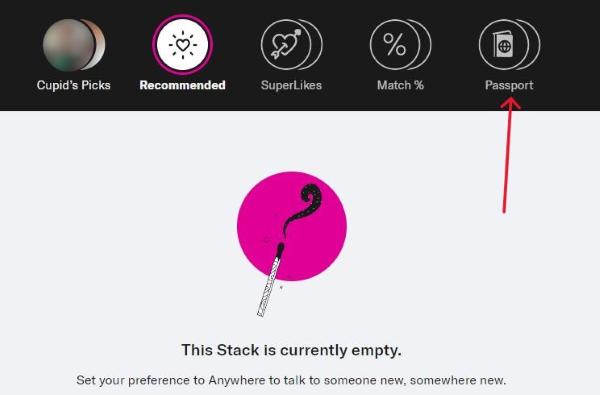
Step 4:Select “Change Location” and search for your desired city.
Step 5:Set the duration (e.g., 24 hours, 1 week).
When active, your profile is shown to users in the new location as if you were a local. This separates your physical coordinates from your discovery preferences, allowing you to secure matches in a new city before you pack your boxes.
Method 3: GPS Spoofing and VPNs – Do They Actually Work?
A common question from users trying to spoof location OkCupid without paying is: “Can I just use a VPN?”
The short answer is: No, a VPN is usually rarely sufficient for mobile apps.
Why VPNs Fail on Mobile
A VPN changes your IP address, which masks your general region (e.g., forcing your internet traffic to look like it’s coming from London). However, the OkCupid mobile app has permission to access your precise GPS hardware.
If your VPN says “London” but your GPS chip says “New York,” OkCupid detects the discrepancy. It will either default to the high-accuracy GPS data or flag your account for suspicious activity.
GPS Spoofing (The Advanced Workaround)
To successfully appear in a new city without Travel Mode, you must alter the GPS data itself.
For Android Users
Android’s open architecture makes this accessible.
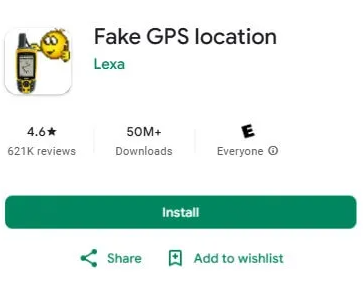
Step 1:Download a “Fake GPS” app from the Play Store.
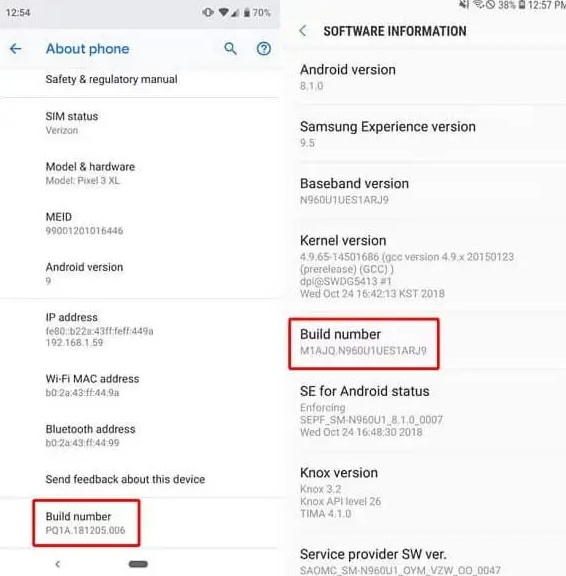
Step 2:Enable Developer Options on your phone (tap Build Number 7 times in Settings).
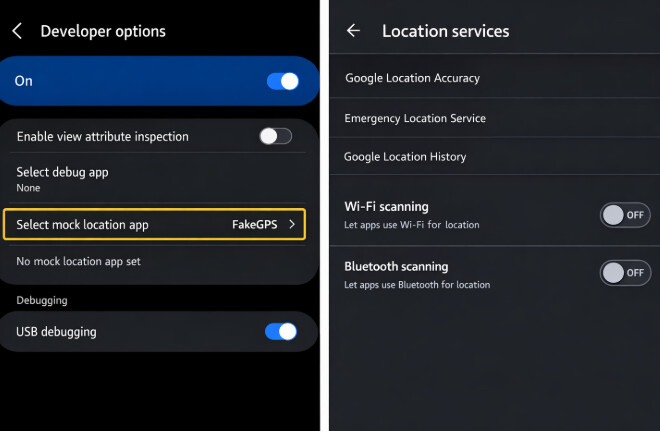
Step 3:Select “Select mock location app” and choose your downloaded tool.
Step 4:Set your pin to your target city.
You must force stop OkCupid and clear the cache (see Method 1, Step 3) before opening the app, or it may detect the jump.
For iOS Users
Apple’s system is restrictive. There are no “mock location” apps in the App Store.
Step 1:You typically need desktop software (like iTools or iAnyGo) tethered to your iPhone via USB.
Step 2:These tools override the location at the system level.
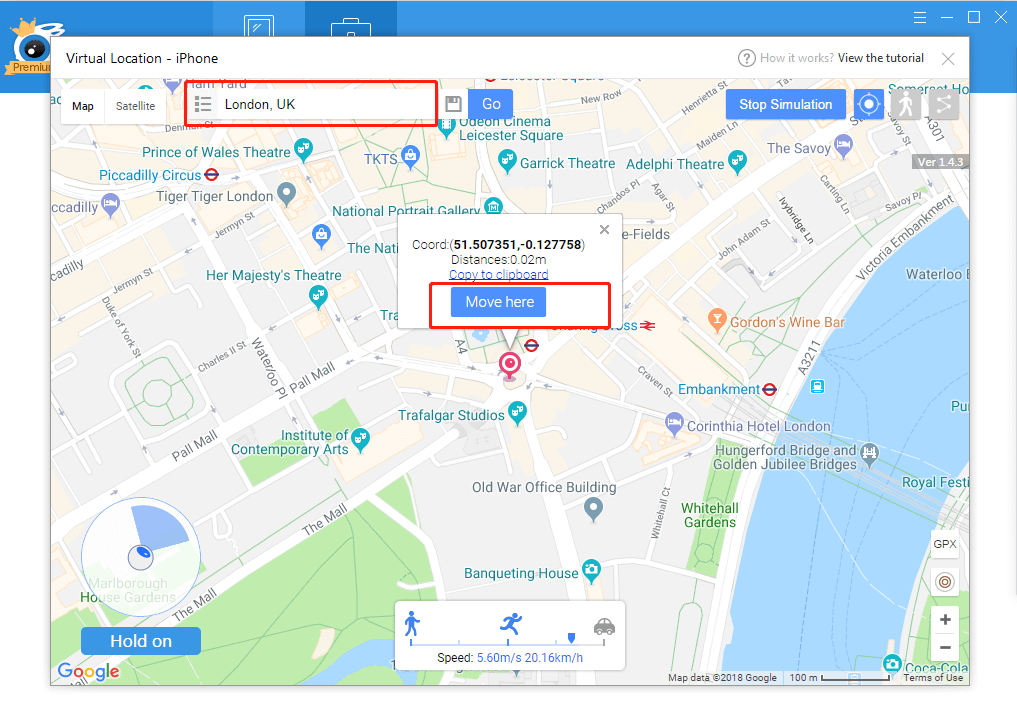
Step 3:Once the phone believes it is in the new city, open OkCupid.
Use these tools with caution. Dating apps frequently update their security to detect mock locations. Overusing this technique can lead to shadow-bans where your profile remains visible but receives zero matches.
A Simpler Desktop Option: Fonelora Location Changer
If you want to change your OkCupid location without relying on risky mobile fake GPS apps, Fonelora Location Changer is a practical desktop-based option. It lets you change the GPS location on iPhone or Android from a Windows PC or Mac, without jailbreaking or rooting your device.
- Install Fonelora Location Changer on your Windows PC or Mac.
- Connect your iPhone or Android device to the computer with a USB cable.

- Follow the on-screen guide to complete the device connection and required permissions.
- Select Teleport Mode and search for the city where you want to appear on OkCupid.

- Confirm the new virtual location before opening the OkCupid app.
- Force close and reopen OkCupid so the app can refresh your discovery location.
For dating apps like OkCupid, use GPS location tools carefully. Avoid switching cities too frequently, do not jump between distant countries in a short time, and keep your profile information consistent with the location you are using.
The Technical “Why”: Discovery vs. Display Location
If you are wondering why OkCupid makes this so difficult compared to other apps, it helps to understand the technology under the hood. OkCupid relies on two separate location signals:
- Discovery Location (Hidden): Driven by your device’s real-time GPS coordinates. This controls who you see in your feed.
- Location (Visible): The text label on your profile (e.g., “Austin, TX”). This tells other users where you live.
The “location not updating” error happens when these two signals drift apart. You might update your Display Location to Denver, but your Discovery Location remains cached in Austin.
By following Method 1, you are effectively severing the link to the Discovery Location (GPS), forcing the app to unify both signals based on your manual input. This is why clearing the cache and checking your distance settings are not optional steps—they are required to flush out the old GPS data.
Frequently Asked Questions
1.How do I change my location on OkCupid without traveling?
The most reliable method is using the “Passport” (Travel Mode) feature. For a free alternative, you must disable GPS permissions on your phone (Settings > Location > Never) and manually update your profile city, ensuring you clear your app cache to make the change stick.
2.Why does OkCupid keep showing my old city after I moved?
This is a caching issue. OkCupid stores your last known GPS coordinates to save battery and data. Even if you edit your profile text, the app prioritizes the cached GPS data. You must force-close the app and clear its storage (or offload it on iOS) to trigger a location refresh.
3.Does using a VPN actually work with OkCupid?
Rarely. OkCupid uses GPS data from your mobile device, not just your IP address. A VPN changes your IP, but your phone’s GPS will still reveal your true location unless you use a specific GPS spoofing tool.
4.Will changing my location affect my matches?
Yes. Changing your location resets your discovery queue. You will start seeing profiles in the new area, and your profile will be visible to users in that region. However, your existing conversations from your old city will remain active.
Conclusion: Landing Matches in Your New City
Navigating OkCupid location settings doesn’t have to be a confusing ordeal. The frustration usually stems from the app prioritizing where your phone is rather than where you want to be.
For a permanent move, the safest free method is still to update your profile city, disable OkCupid’s GPS permission, and clear the app cache so your new city can refresh correctly. For temporary trips, OkCupid Passport remains the official option if you want to browse another city without changing your phone settings.
However, if you want a more flexible way to change your device-level GPS location, Fonelora Location Changer is a practical choice. It allows you to change location on iPhone or Android from a desktop computer, without jailbreak or root, and can be useful when OkCupid continues to rely on your real GPS position instead of your manually entered city.
Whether you are relocating, planning a trip, or simply exploring the dating scene in a different city, choose the method that matches your risk tolerance. Keep your location behavior consistent, avoid excessive city switching, and use Fonelora Location Changer carefully if you need more control over where OkCupid thinks you are.
More Related Articles



Joy Taylor is a seasoned technical writer with over a decade of experience in mobile technology. At iMobie, she specializes in producing in-depth content on iOS data recovery, iPhone unlocking solutions, and iOS troubleshooting.
Product-related questions? Contact Our Support Team to Get Quick Solution >
