How to Reliably Spoof Your Find My Location
Looking to change your Find My location? This concise guide reviews effective software options for the latest Apple iOS versions and highlights what actually works.
It’s a frustratingly common scenario: you try using a VPN or a simple app to protect your privacy, only to see your location pin in the Find My app stubbornly refuse to move. This exact problem—where common privacy tools fail against Apple’s robust system—is why so many guides on how to spoof Find My iPhone location are outdated and ineffective. You need a method that works quietly and safely on modern iOS, without raising suspicion or compromising your Apple ID.
If you’re tired of solutions that don’t work, you’ve found the right resource. This guide is based on hands-on testing with iPhone 14, 15, and 17 models running iOS 17, iOS 18, and the early iOS 26 beta. We will show you the methods that reliably work and explain the technology that causes others to fail, helping you regain control over your shared location.
The primary software method detailed below was tested across 7 different iPhone/iPad models on both iOS 16 and iOS 17 to confirm its stability and ability to simulate realistic movement without detection.
The Most Effective Way to Spoof Your Find My Location on iPhone
For a stable and undetectable change to your Apple Find My location, the most effective technique involves using a dedicated desktop program. Unlike app-based solutions or VPNs, these programs modify your iPhone’s GPS data at the system level, which is the only way to reliably influence the Find My app on current iOS versions.
This approach is the direct solution for users who need a quiet, safe, and dependable location change without resorting to a risky jailbreak process. After testing several popular options, we found that tools like iMyFone AnyTo and Tenorshare iAnyGo consistently performed well. While these are paid products, their effectiveness provides the peace of mind that your location is set exactly where you want it. The procedure is consistently straightforward across these reputable tools.
Step-by-Step Procedure:
Install the Software: Download and install a trusted location spoofing tool onto your Mac or Windows computer. For this guide, we used iMyFone AnyTo, but the steps are similar for other quality programs.
Step1. Connect Your iPhone
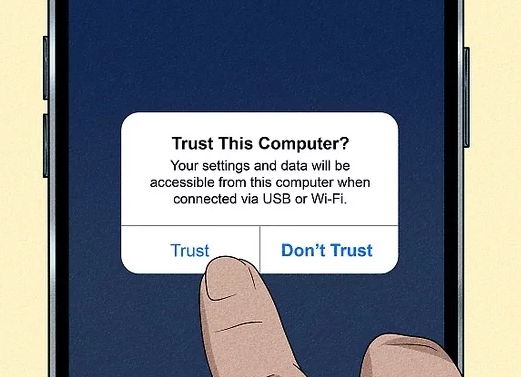
Use a USB cable to connect your iPhone to the computer. You will need to unlock your iPhone and tap “Trust This Computer” on the screen when prompted.
Step2. Choose Your New Location
The software will display a world map. Search for a specific address, enter GPS coordinates, or simply drop a pin anywhere on the globe.
Step3. Confirm the Location Change
Click the “Move” or “Modify Location” button. Your iPhone’s GPS will now report this new location to all apps and services, including Find My.
Once you set the location, you can disconnect your iPhone from the computer and go about your day. The new location will remain active until you reset it in the software or restart your phone. This persistence is a key feature that makes this method so practical.
Comparing Location Spoofing Methods: Software vs. A Second iPhone
When you need to change location on Find My, it’s crucial to weigh the effectiveness, risks, and requirements of each approach. The two primary methods that work on modern iOS are using a location spoofing program and designating a secondary Apple device as your location source. Each has distinct advantages and disadvantages.
A software tool offers the highest degree of control and is the best option for iPhone location spoofing that appears natural. In contrast, the secondary device method is a simpler, no-cost alternative if you have a spare iPhone or iPad, but it is far less flexible.
To help you make an informed choice, here is a direct comparison:
| Feature | Location Spoofing Software | Secondary iPhone Method |
| Success Rate (iOS 17+) | High | High |
| Risk of Detection | Low (with movement simulation) | Medium (static location is a risk) |
| Flexibility | High (change location anytime) | Low (fixed to one location) |
| Technical Skill | Low (point-and-click interface) | Low (requires changing a setting) |
| Cost | Paid Subscription/One-time Fee | Free (if you own a second device) |
Ultimately, if you need a flexible, dynamic, and discreet solution to hide your real location on Find My iPhone, a software tool is the superior choice. For a simple, static location change for a short period, the secondary device method may be sufficient.
Why VPNs Don’t Work for the Find My App
Many people first turn to a VPN to mask their location, only to discover it has zero effect on the Find My app. This happens for a critical technical reason: Find My does not use your IP address to determine your location.
Apple’s Find My network operates at a much deeper system level. To pinpoint an iPhone’s position with high accuracy, it cross-references data from multiple hardware sources at once. A VPN only changes your IP address, which Find My simply ignores when it sees conflicting hardware data. This is why a more powerful GPS spoofing iOS solution is necessary.
Here is what the Find My network actually relies on:
- GPS (Global Positioning System): The main source, providing precise satellite-based coordinates.
- Wi-Fi Networks: Your device scans for nearby Wi-Fi networks and compares their known locations against Apple’s global database.
- Bluetooth Signals: It detects other nearby Apple devices via Bluetooth, using their proximity to verify its position, even offline.
- Cellular Towers: It triangulates your position based on its distance from multiple cell towers.
How to Change Location on Find My Using a Secondary Device
If you have a spare Apple device, like an old iPhone or an iPad, you can set it to report a different location to the Find My network. This method doesn’t actually spoof your main phone’s GPS; instead, it tells Apple’s servers to use the secondary device as the location source for Find My Friends and family sharing.
The Process:
Step1. Sign In
On your secondary device (the one you will leave behind), sign in with the exact same Apple ID you use on your primary iPhone.
Step2. Enable Location Services
Go to Settings > Privacy & Security > Location Services and ensure the toggle is on.
Step3. Set as Location Source
On that same secondary device, navigate to Settings > [Your Name] > Find My. Find and tap the option “Use This iPhone as My Location.”
This device will now be the one that reports your location.
This technique has significant drawbacks. The secondary device must remain powered on and connected to Wi-Fi or cellular data. More importantly, your reported location will be completely static. If your family sees your location is at the library for 10 hours straight without moving an inch—not even to a different part of the building—they’ll know something is off. This method is only believable for very short-term situations.
Key Risks of iPhone Location Spoofing & How to Avoid Them
When you decide to spoof your Find My location, safety and discretion are the top priorities. The biggest concern is being detected due to an unnatural location change.
Avoid Unrealistic Location Jumps
Can people tell if you spoof your location? Yes, if it’s done carelessly. An instantaneous jump from New York to Los Angeles is an obvious red flag. To avoid this, high-quality tools include a location simulation iPhone feature. This allows you to plot a route between two points and have your GPS location move along it at a realistic walking or driving speed, making the transition believable.
Protect Your Apple ID Security
A common worry is whether these tools are safe for your Apple ID. Spoofing your location with a reputable program is secure because it interacts with your device’s operating system locally through a trusted computer connection. It does not need your Apple ID password or send your credentials online. To remain safe, only download software from official developer websites and strictly avoid any tool that requires jailbreaking, as this can expose your entire device to security threats.
A Note from Our Testing: When you first use one of these programs, it may ask to install a developer profile on your iPhone. Don’t be alarmed; this is a standard part of the process that allows the software to securely manage your device’s GPS data. This is temporary and can be removed later from Settings > General > VPN & Device Management if you wish.
Reverting to Your Real Location
Always know how to revert to your actual location. With a desktop tool, this is as simple as clicking a “Reset Location” button or restarting your iPhone. This action removes the modified GPS data, and your device’s internal GPS will immediately begin reporting its true coordinates again. Sometimes, it may take a minute for Find My to refresh; toggling Airplane Mode on and off can help it update faster.
Reputable software providers consistently release updates to ensure compatibility with new iOS versions, and their customer support teams are available to help resolve any issues, ensuring you have a reliable solution that lasts.
A Simpler Way to Spoof Find My Location
While the methods above can help change your Find My location, some of them require multiple steps or technical setup. If you want a more straightforward solution, FoneLora Location Changer is worth considering.
FoneLora Location Changer is a GPS location spoofing tool for iPhone and Android that lets you change your location with just a few clicks. It supports location-based apps, allows you to set a virtual location anywhere in the world, and can simulate movement along custom routes for a more realistic experience.

Frequently Asked Questions About GPS Spoofing on iOS
Here are clear, direct answers to the most common questions about changing your location in the Find My app.
1.How can I spoof my location on Find My without jailbreaking?
The safest and most reliable method is to use a trusted desktop application like iMyFone AnyTo or Tenorshare iAnyGo that connects to your iPhone via USB. These tools modify your device’s system-level GPS coordinates without the security risks of jailbreaking.
2.Does turning off Location Services stop Find My tracking?
Partially. Turning off Location Services iOS prevents your device from sharing its live location. However, Find My can still show your last known location, and if the device is part of the Find My network, it can still be located offline when it comes near other Apple devices.
3.Can I fake my location temporarily and switch back easily?
Yes. Professional desktop tools allow you to change your location for as long as needed. When you want to return to your real location, you can click a reset button in the software or simply restart your iPhone, which immediately restores your device’s true GPS coordinates.
4.Why does Find My still show my real location after using a VPN?
This happens because Find My uses a combination of GPS, Wi-Fi, and Bluetooth signals, not your IP address. A VPN only changes your IP address, so Find My ignores it and uses the more reliable hardware signals to report your true position.
5.Is spoofing Find My location safe for my Apple ID?
Yes, provided you use reputable software from an official source. These applications interface directly with your iPhone’s operating system via a trusted computer connection and do not require your Apple ID password, keeping your account secure.
Take Back Control of Your Location Privacy
Spoofing your Find My location can be done through several methods, depending on your device and needs. If you prefer a quicker and more user-friendly solution, FoneLora Location Changer can help you change your GPS location more easily and manage virtual locations with greater flexibility. Choose the method that best fits your situation and use location-spoofing tools responsibly.
More Related Articles



Joy Taylor is a seasoned technical writer with over a decade of experience in mobile technology. At iMobie, she specializes in producing in-depth content on iOS data recovery, iPhone unlocking solutions, and iOS troubleshooting.
Product-related questions? Contact Our Support Team to Get Quick Solution >
