How to Enable Mock Location on Android: A Tested Procedure
This guide explains how to enable Android developer options, fix missing mock location settings, and safely simulate GPS using apps without rooting, tested across major devices and systems successfully worldwide.
If you are trying to test a location-based app on your Android device, you might be frustrated by your inability to find or enable the mock location setting. Exploring your phone’s menus only to find a locked system when you need it most can be incredibly annoying. Many users struggle to locate developer options in their settings, or they discover that the specific mock location toggle is completely missing from their device. Add in the very real anxiety of misconfiguring critical system settings, and a simple testing task quickly becomes overwhelming.
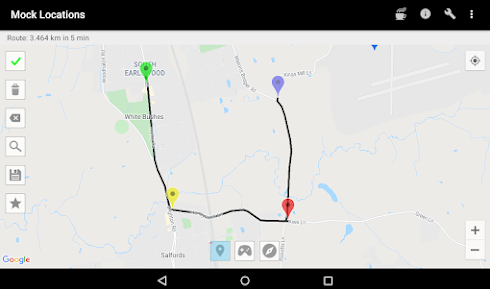
This guide provides a tested, step-by-step procedure to safely simulate your device’s location. Whether you are an app developer, a mobile gamer, or simply a privacy-conscious user, I will show you exactly how to bypass these hurdles, safely assign a reliable simulation app without rooting your device, and complete your testing successfully. These solutions have been personally verified across multiple vendor skins—including Samsung One UI, Google Pixel’s native Android, and Xiaomi MIUI.
Android Developer Options: Unlocking the Hidden Settings
If you want to handle your GPS spoofing directly on your smartphone for free, the very first step is accessing the administrative menus hidden within your operating system. A common misconception is that location spoofing settings are available right out of the box. Unlocking developer options is the first essential step before enabling any mock location features.
To reveal these hidden tools, follow this precise procedure:
- Open your device’s Settings application.
- Scroll down to the bottom and tap on About Phone (or About Device).
- Locate the field labeled Build Number.
- Tap the Build Number exactly seven times in rapid succession.
- Enter your phone’s PIN or lock screen password if prompted. Your screen will display a small notification stating, “You are now a developer!” .
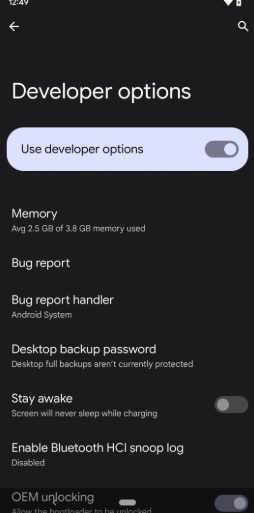
Once you unlock this mode, the biggest hurdle most beginners face is actually finding the newly revealed menu. Compatibility varies greatly, and some Android skins place these settings in entirely different locations. Here is exactly where to look based on your device manufacturer:
- Google Pixel / Stock Android: Navigate back to your main Settings screen, tap System, and then select Developer options.
- Samsung Galaxy (One UI): Navigate back to the main Settings screen. Scroll to the very bottom, and Developer options will appear as a brand new item directly below “About Phone.” (Note: To unlock it initially, your Build Number might be nested under Settings > About Phone > Software Information).
- Xiaomi / POCO (MIUI / HyperOS): Navigate back to the main Settings screen, tap Additional settings, and scroll down to find Developer options. (Note: To unlock it initially, you must tap the “MIUI Version” seven times instead of the standard Build Number).
Selecting and Assigning a Trusted Mock Location App
With the administrative menus successfully unlocked, your next step involves downloading a simulation application and granting it the correct system privileges.
There are hundreds of fake GPS apps available on the Google Play Store, but you must be careful. For basic mobile security, users should only grant mock location access to trusted apps to protect device integrity. Many free applications contain intrusive advertisements, run heavily in the background draining your battery, or attempt to harvest unrelated personal data.
Instead of guessing, I recommend starting with one of these two highly-rated, reliable options that I have personally tested:
Fake GPS location by Lexa: This is a fantastic, lightweight application that is incredibly easy to use. It handles basic coordinate changes perfectly and requires minimal system resources.
GPS Emulator by Rosark: This app features an excellent user interface, allows you to save favorite locations, and performs very stably over longer testing periods.
Once you have downloaded your preferred app, you must integrate it into your device’s location services configuration.
To assign your app properly without breaking any device functions:
- Open your newly discovered Developer Options menu.
- Scroll down approximately halfway until you find the “Location” or “Debugging” category.
- Tap on the specific option labeled Select mock location app (Note: On older Android versions, this might simply be a toggle switch named “Allow mock locations”).
- A pop-up list of eligible, installed applications will appear. Select the trusted app you just downloaded (e.g., Fake GPS location).
This finalizes the necessary permissions, officially authorizing your chosen third-party software to override your hardware’s actual GPS receiver.
Troubleshooting GPS Spoofing Errors and “Rubber-Banding”
Even when you follow the exact setup procedure, you might encounter situations where the selected app behaves erratically. The most common frustration is “rubber-banding”—a scenario where your location indicator briefly jumps to your fake coordinates, but then repeatedly snaps back to your actual physical location.
To fix this common error and ensure a stable connection, you must adjust a few specific core toggles on your phone.
Do not turn off your phone’s main GPS! Many users mistakenly disable their main device location services, assuming the downloaded app will handle everything. However, keeping your main location services active improves consistency when using mock locations. The Android operating system actually requires your main location toggle to remain ON so that your assigned mock provider has an active service pipeline to inject its simulated data into.
If the mock location option suddenly disappears from your menus entirely, verify that the master toggle at the very top of the Developer Options screen has not been accidentally switched off .
Manual Methods vs. Professional PC-Based Tools
While the built-in manual method outlined above is free and works wonderfully for basic app testing or geographic browsing, it is important to evaluate its limitations. Comparing the free phone-based approach to professional PC-based override tools will help you choose the most effective procedure for your specific needs.
The manual method requires adjusting internal settings and directly managing permissions. Furthermore, the success rate can vary widely depending on the specific application you are trying to spoof. Modern applications—especially augmented reality games, dating apps, and banking software—often utilize advanced anti-spoofing algorithms. They actively scan your device to see if “Developer Options” are enabled or if a mock location app is currently running. If detected, they will block your access or suspend your account .
Conversely, professional PC-based location override tools connect directly to your mobile device via a computer. Because these software solutions handle the location data externally and push it directly to the device via a USB connection, they completely bypass the need to alter internal files, unlock developer settings, or download mobile apps. For users testing highly secure applications, or for those who simply want a fast, reliable solution without touching their internal smartphone configurations, professional desktop tools provide a much higher success rate.
A Premium Alternative: Using Fonelora Location Changer
If you are struggling with the manual Android settings, if your targeted app is blocking your spoofing attempts, or if you simply want to avoid the anxiety of altering your phone’s core configuration, a professional tool is an incredibly efficient solution.
Fonelora Location Changer provides a highly reliable, external method for simulating coordinates. While it operates on a premium subscription model, its value lies in its data security, realistic movement simulations, and ability to bypass standard app-level spoofing detection. It allows users to instantly change their coordinates globally with just one click, without needing to root the device or permanently alter developer settings. The tool even includes a 360° GPS joystick for real-time navigation and a Multi-Spot Mode that simulates natural walking or driving speeds.
Here is the straightforward procedure to use this alternative setup:
1. Connect Your Device: Download and launch Fonelora Location Changer on your Windows or Mac computer. Connect your Android smartphone via a standard USB cable (or via Wi-Fi once initial setup is complete).

2. Choose a Location Mode: Select your preferred mode from the top right of the interface. Teleport Mode is excellent for instant geographic changes, while Multi-Spot Mode accurately simulates realistic travel routes.

3. Change Your GPS Location: Enter your desired destination address or specific global coordinates into the search bar, then click “Move.” Your phone’s GPS data will instantly update across all active applications.

By choosing an external desktop solution, you can simulate locations reliably and finish your testing safely, completely eliminating the fear of making a critical error on your mobile device.
Understanding Mock Location Settings and System Limitations
To truly master location simulation, it helps to understand what is actually happening under the hood of your device. When you assign an application in the developer menu, you are instructing the Android operating system to completely ignore the physical satellite signals received by your phone’s internal GPS antenna. Instead, the OS accepts the customized coordinate data provided exclusively by your designated fake GPS app.
However, you must recognize the historical context of this feature. These debugging settings were originally created strictly for app developers to test their own software safely without needing to drive to different cities. They were never built to bypass modern security protocols or geo-restrictions.
Today, advanced location features analyze secondary data sets—such as your IP address, nearby cellular tower connections, and Wi-Fi telemetry—to verify if your reported coordinates are genuine. This is precisely why traditional manual spoofing occasionally fails with modern commercial apps, and why keeping Wi-Fi scanning is so critical. Professional desktop override tools manage these complex variables more robustly, which is why external software is frequently recommended for high-stakes testing.
Frequently Asked Questions
To wrap up, let us review direct answers to the most common questions regarding Android location overrides and simulation safety.
What exactly is mock location on Android?
It is a hidden developer setting that allows approved third-party software to feed simulated GPS coordinates to the operating system, intentionally overriding the actual geographic data gathered by your phone’s physical hardware.
Is enabling developer options and mock locations safe?
Enabling the setting itself is completely safe; it is a standard feature built into the Android operating system by Google. However, the safety risk depends entirely on the third-party app you choose to assign. Only grant permissions to reputable, well-reviewed tools to avoid data privacy issues.
How do I fix my phone snapping back to my real location?
Ensure your device’s main location toggle is turned ON, confirm the specific app is assigned correctly in the developer menu, and dive into your location settings to completely turn off “Wi-Fi and Bluetooth scanning” to prevent the system from correcting your simulated coordinates.
Conclusion
Overcoming the confusion of configuring your phone for location spoofing does not have to be a frustrating experience. By unlocking your device’s hidden settings, navigating to the correct developer menus, and assigning a trusted application like Lexa or Rosark, you can simulate your coordinates accurately and entirely for free. Just remember to tweak your Wi-Fi scanning settings to ensure a stable connection.
However, if you still harbor concerns about misconfiguring your system, or if your required app detects and blocks your mobile spoofing attempts, shifting to a professional PC software method is highly recommended. Tools like Fonelora Location Changer empower you to regain control quickly and securely. Finally, remember to keep your device’s operating system updated and regularly check your chosen simulation software for patches. Location tracking technologies evolve rapidly, and staying updated ensures you can continue testing your applications seamlessly and securely.



Joy Taylor is a seasoned technical writer with over a decade of experience in mobile technology. At iMobie, she specializes in producing in-depth content on iOS data recovery, iPhone unlocking solutions, and iOS troubleshooting.
Product-related questions? Contact Our Support Team to Get Quick Solution >
