If you are newly single or just trying online dating for the first time, opening Tinder can feel completely overwhelming. You download the app, stare at the screen, and immediately wonder how the swiping system actually works. Maybe you are confused about how to set up a profile that actually gets matches, or you are staring at premium upgrades like Boost and Super Likes wondering if they are genuinely worth your money.
You aren’t alone. We have all been there. It is incredibly common to download the app and feel lost in a sea of unknown buttons, hidden swipe limits, and vague algorithms.

This guide is designed to strip away the confusion. We are going straight into the practical reality of how to use the app. You will get the exact steps, real-world pricing, actual interface walkthroughs, and genuine tips to help you start conversations that go somewhere. Read on for a clear, straightforward method to handle online dating with confidence.
Table of ContentsHide
Understanding the Tinder App: How It Works for Beginners
To start getting matches, you need to understand the basic engine running the app. The core premise relies strictly on location-based dating. When you give the application access to your smartphone’s GPS, it identifies your location and creates a customized stack of profile cards representing other active users within your chosen distance and age range.
Visibility on this app is a two-way street. The algorithm does not just show you random profiles; it evaluates your location, your profile completeness, and your activity levels.
But what does “frequent activity” actually mean? You do not need to swipe 50 times an hour—in fact, spamming the app like that makes you look like a bot and hurts your visibility. Instead, the algorithm rewards consistent, moderate use. Logging in once or twice a day for five to ten minutes, replying to your messages promptly, and making thoughtful swipes will keep your profile near the top of the local viewing queue. If you stop opening the app for a week, your profile naturally drops to the bottom of the stack.
Tinder Swiping Rules and Swipe Mechanics
Once you set your age and distance preferences, you will land on the main discovery screen. This is where you actually look at profiles. Let’s break down the actual UI buttons and swipe mechanics so you don’t make any accidental mistakes.
You can either physically swipe the profile card across your screen, or tap the brightly colored buttons at the bottom of the interface:
Swiping Right (The Green Heart Button): Dragging a profile card to the right—or tapping the green heart—means you are interested in that person.
Swiping Left (The Red X Button): Dragging a profile card to the left—or tapping the red X—means you are passing on that user. They will not know you swiped left.
Swiping Up (The Blue Star Button): Dragging upward or tapping the blue star activates a Super Like. This heavily highlights your profile to the recipient, ensuring they see your interest before they make their own decision.
The Yellow Rewind Button: If you accidentally swipe left on someone you liked, tapping this yellow circular arrow lets you take it back (Note: this is a premium feature).

Here is the most critical rule of the app: connections are strictly based on mutual matches. You will only get a chat window if both you and the other user swipe right (the green heart) on each other. One-sided interest goes nowhere.
Real-World Free Limits: If you are using the free version of the app, you do not have unlimited swipes. A free user typically gets between 50 to 100 right swipes every 12 hours, depending on their age, location, and the algorithm. Once you hit that limit, a screen will pop up telling you that you are out of likes, and you will have to wait until your timer resets or pay for a premium tier.
Setting Up for Success: Tinder Profile Setup
Many beginners overthink their profiles. However, creating a highly attractive profile comes down to a few basic principles: visual evidence and written context. The algorithm heavily favors profiles that regularly refresh their content. Swapping out a photo or updating a prompt once a week is an excellent method for maintaining high visibility.
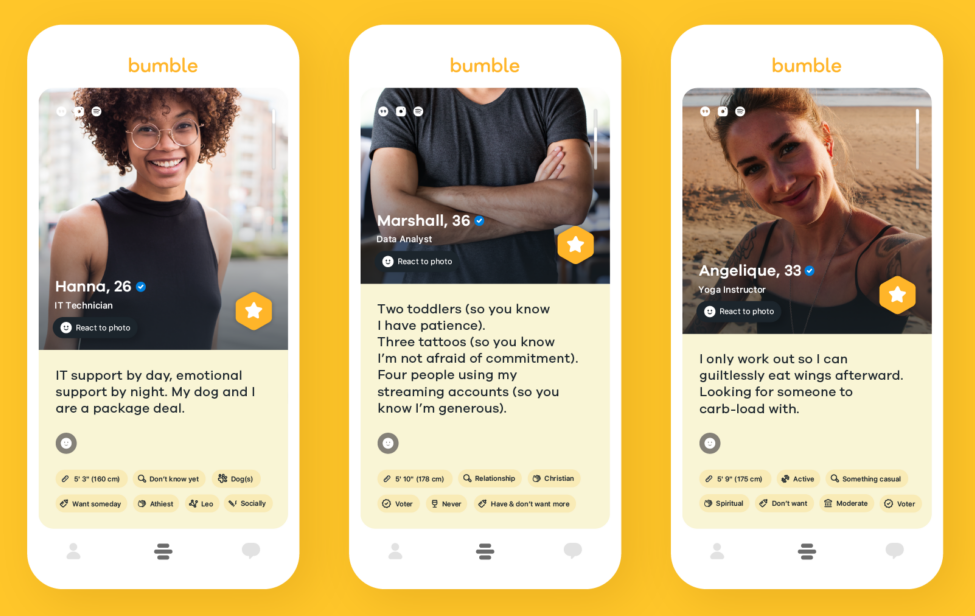
The Dos and Don’ts of Profile Optimization
To make this simple, here is a scannable checklist to set up your profile correctly without making rookie mistakes:
Visuals (Your Photos)
- DO: Use a clear, well-lit headshot as your very first photo. People need to see your face immediately.
- DON’T: Use a group photo for your primary picture. It creates instant confusion about who you are.
- DON’T: Hide behind sunglasses, hats, or heavy filters in every single picture.
- DO: Include at least one photo showing a hobby or interest (e.g., cooking, hiking, playing an instrument) to act as a natural conversation starter.
- DO: Upload four to six high-quality photographs that show a mix of close-ups and full-body shots.
Written Context (Your Bio and Prompts)
- DO: Keep your bio concise and detail-rich. Mention a specific weekend activity or a favorite local coffee shop.
- DO: Use the app’s built-in prompts. They are easier to read than a massive paragraph of text.
- DON’T: Write a list of demands or negative traits you “don’t want” in a partner. It comes across as bitter. Keep the tone positive.
- DON’T: Leave your bio completely blank. The algorithm penalizes empty profiles, and potential matches will assume you are a fake account.
Exploring Premium Features: Pricing and Is It Worth It?
When you run out of free daily swipes, the app will heavily prompt you to upgrade. Let’s look at the premium features through a practical time-cost lens. Please note that exact pricing fluctuates based on your age, location, and promotional offers, but these are the standard estimated monthly ranges.
Free vs. Paid Subscriptions
- Tinder Plus (Approx. $8–$10/month): This tier gives you unlimited right swipes, removes advertisements, and gives you the ability to use the Rewind button if you accidentally swipe left.
- Tinder Gold (Approx. $25–$30/month): Includes all Plus features, but adds the “Likes You” grid. This allows you to see a grid of users who have already swiped right on your profile, completely eliminating the guesswork.
- Tinder Platinum (Approx. $35–$40/month): Includes all previous features, plus priority likes (your profile is shown faster to people you swipe right on) and the ability to attach a short message to a Super Like before a mutual match even occurs.
Expert “I Wish I’d Known This” Tip: Be cautious with Tinder Gold. The free version of the app frequently pushes generic notifications saying “Someone liked you!” to tempt you into buying Gold to see who it is. Often, these likes are from people outside your preferred distance range. If you live in a populated city, the free tier is perfectly fine if you have patience. Only upgrade to Gold if you value your time over your money and just want to skip the swiping process.
The Power of the Boost
A Tinder Boost (roughly $7–$9 per single use, cheaper if bought in bundles) is a localized tool that temporarily forces your profile to the top of the swiping queue in your geographic area for 30 minutes. If you want maximum visibility, strategically timing a Boost on a Sunday or Thursday evening between 7:00 PM and 9:00 PM is a highly effective technique. It bypasses the standard algorithmic queue and places your profile in front of dozens of active users instantly.
Need More Control Over Your Tinder Location?
Tinder’s built-in location system is enough for most beginners: open the app, allow GPS access, set a distance range, and start swiping nearby profiles. Premium features like Passport can also help if you want to preview another city before traveling. However, there are situations where users need more control than the standard distance slider provides, especially when they want to test how Tinder refreshes location, avoid repeatedly opening the app in sensitive places, or check matches in a different area before moving.
In that case, Fonelora Location Changer can be a useful desktop-based option. It helps iPhone and Android users change the GPS location reported by their device from a computer without jailbreak or root access. Instead of relying on unstable mobile fake GPS apps, FLC lets you choose a target location on a map and apply it to your phone more cleanly.
The basic workflow is simple: install Fonelora Location Changer on your computer, connect your iPhone or Android device, choose a target city or neighborhood, apply the virtual GPS location, and then open Tinder to check how nearby profiles refresh. When finished, you can restore your real location by using the reset option or restarting your device.
Use location-changing tools responsibly. Tinder also provides official paid location features, such as Passport, and those are the safest option when available. Fonelora Location Changer is best used for GPS testing, privacy control, or situations where you need more flexible device-level location management.
Making the First Move: Tinder Messaging Rules
Getting a mutual match is great, but now you have to talk to them. A major point of frustration is figuring out how to open the conversation.
The golden rule of messaging is personalization. Avoid generic greetings like “Hey,” “Hi,” or “How are you?” These are boring and rarely get a response. Instead, use these three reliable formulas to start a successful chat:
1. The Observation
Notice an interesting background detail in their photo and ask about it.
Example: “Is that the hiking trail up near Mount Cutler in your third photo? The view looks amazing.”
2. The Question
Ask an open-ended question related to one of their bio prompts.
Example: “I saw your bio says you are trying to find the best tacos in the city. Have you tried the al pastor at that little truck downtown yet?”
3. The Shared Interest
If their profile mentions a hobby you also enjoy, highlight that common ground immediately.
Example: “Always good to match with a fellow runner! Are you training for any upcoming races, or just running for fun?”
Messaging Dos and Don’ts
- DO: Keep your first message short—usually one or two sentences.
- DON’T: Send multiple messages in a row if they haven’t replied yet.
- DO: Ask questions that require more than a “yes” or “no” answer.
- DON’T: Get overly personal or aggressive in the first few messages. Keep it light and friendly.
Staying Secure: Tinder Safety Features
Your safety and peace of mind are non-negotiable. The platform provides built-in tools to verify user authenticity, and you need to know exactly where to find them.
Your absolute first step should be Photo Verification. This proves to others that you are the person in your pictures.
How to verify your profile:
1. Open the app and tap your profile icon in the bottom right corner.
2. Tap the grey checkmark located right next to your name and age.
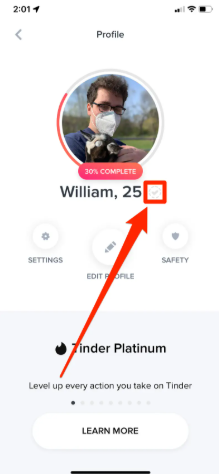
3. The app will prompt you to complete a quick video selfie, asking you to look at the camera and turn your head.
4. Once the system matches your facial geometry to your profile photos, you receive a blue checkmark.
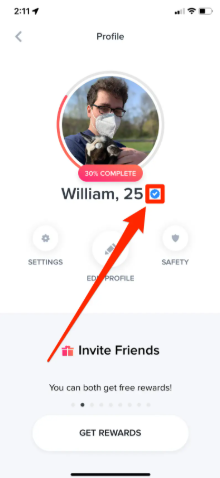
Always prioritize swiping on other users who display this blue checkmark. Furthermore, follow safe messaging rules. Keep all communications strictly within the application’s chat interface until you have established a solid foundation of trust. If a user immediately requests your phone number or pressures you to move to WhatsApp or Snapchat within the first three messages, view this as a major red flag.
If an interaction makes you uncomfortable, tap the blue shield icon in the top right corner of your chat window to access the Safety Center, where you can instantly unmatch or block the user.
Frequently Asked Questions About Using Tinder
- How does Tinder actually work?
- The app uses your phone’s GPS to show you nearby profiles. You swipe right if you are interested, and left if you are not. The system requires mutual right-swipes from both people to create a match and open a chat window.
- What happens when you run out of swipes?
- Free users are limited to around 50 to 100 right swipes every 12 hours. When you hit this cap, you must wait for the countdown timer to reset, or you can pay for a premium subscription like Tinder Plus to get unlimited swipes.
- How do premium features like Boost work?
- A Boost is a paid feature that pushes your profile to the very top of the swiping queue in your local area for 30 minutes. This significantly increases how many active users see your profile during that time block.
Conclusion
Getting the hang of online dating does not have to be a miserable experience. Now that you understand the reality behind the swipe limits, the algorithms, and the actual interface buttons, you are in a much better position to succeed. By skipping the blurry group photos, updating your prompts regularly, and sending personalized opening messages, you set yourself apart from the vast majority of users on the app. Remember to stay safe, verify your profile with the blue checkmark, and treat your daily swipes thoughtfully.
If you also need more flexible control over how your phone reports GPS location for testing or privacy reasons, Fonelora Location Changer can provide a desktop-based option beyond Tinder’s standard distance settings.
Open the app, apply these profile updates, and start finding meaningful connections today.


Hot Topics
