How to Fake Location on Life360 Without Them Knowing [2026 Stealth Guide]
Learn how to fake location on life360 with the stepwise guide in this article. You will get the full answer to fake location on life360 on both Android and iOS.
Constant digital surveillance creates immense pressure. Take Emily, a college student who values her family’s safety but feels suffocated by the “always-on ” nature of Life360 location sharing. She wanted to study late at the library without her parents worrying, yet she feared that turning off her GPS would trigger an immediate panic or a “Location Paused ” alert. Like many, she faced a difficult choice: sacrifice her autonomy or risk a confrontation.
If you are searching for how to fake a location on Life360 effectively, you likely share this frustration. You might have already tried a free GPS spoofing app that failed, resulting in your location “rubberbanding ” (snapping back to reality) or triggering a suspicious error message. Facing a locked ecosystem when you simply need a moment of privacy is a significant obstacle.
This guide provides tested, reliable solutions to spoof location on Life360 without alerting your circle. I have personally verified these methods on an iPhone 13 running iOS 17 and a Samsung Galaxy S21 running Android 13 to ensure they work against the latest security patches.
You may be interested in: Does Life360 Tell You When Someone Checks Your Location?
Method Comparison: Desktop Software vs. Mobile Apps
Before you attempt to change your coordinates, you must choose the right tool. Users often instinctively search the App Store for a mobile GPS spoofing app. However, Life360’s algorithms have become highly effective at detecting mobile-only overrides.
Mobile apps generally rely on the “Mock Location ” developer setting. Life360 can query your device to see if this specific setting is active. If it detects that the location data source is a “mock provider ” rather than the GPS hardware, it flags your account.
Expert Insight:
Life360 primarily detects spoofing through inconsistent GPS movement patterns and system-level mock location signals. Because of this, desktop-based location changers are significantly more reliable. When you tether your phone to a computer, the software modifies the location data at the system level (Virtual Location) before it reaches the app layer. This makes the signal appear indistinguishable from real GPS data.
Comparison: Which Tool Suits Your Needs?
| Feature | Desktop Location Changer (Recommended) | Mobile Mock Location App |
| Detection Risk | Low (System-level override) | High (Easily flagged by apps) |
| Movement Simulation | High (Joystick & Multi-spot) | Low (Often static/jumpy) |
| Stability | High (Rarely snaps back) | Low (Frequent “rubberbanding. “) |
| Cost | Paid (Free trials available) | Free / Freemium |
| Technical Difficulty | Medium (Requires PC/Mac) | Low (Directly on phone) |
While a mobile app might work for a quick prank, desktop tools provide the stability required to change location on Life360 for hours without detection.
ALSO READ: How to Hide IP Address-Updated Guide
Why Most Life360 Fake GPS Apps Get Detected
Most free fake GPS apps fail because they only override location coordinates without simulating realistic movement behavior.
Life360’s detection system analyzes:
- GPS consistency
- Movement speed
- WiFi positioning
- Mock-location signals
- Travel history patterns
This is why many users experience:
- “Location Paused” warnings
- Rubberbanding
- Sudden location snapping
- Delayed location updates
- Suspicious movement behavior
Safer Life360 spoofing relies on realistic GPS simulation instead of static fake locations.
The Safest Way to Spoof Life360 Location (iOS & Android)
For Emily, the goal was to appear safely in her dorm room while she was physically at the library. She selected a PC-based location changer because it offered specific features to mimic human behavior. This method serves as a robust iPhone location changer and also works for Android devices without requiring a complex “root ” or “jailbreak. ”
Recommended Software Tool for Life360 Location Spoofing
For users who want a more stable and realistic way to spoof Life360 location without triggering alerts, desktop-based GPS tools are generally the safest option.
Compared with traditional mobile fake GPS apps, desktop location changers modify GPS data at the system level, helping reduce common detection problems such as:
- Rubberbanding
- Sudden location snapping
- “Location Paused” warnings
- Unrealistic movement detection
- Mock-location flagging
Fonelora Location Changer currently supports both iPhone and Android devices without requiring root or jailbreak access.
Key features include:
- Teleport Mode for instant location changes
- Joystick movement simulation
- Multi-spot route planning
- Adjustable walking speed
- Stable GPS override for Life360
- iOS and Android compatibility
For users who want to spoof Life360 location naturally for extended periods, movement simulation features are especially important because they help mimic real human GPS behavior instead of showing a completely static pin.
How to Spoof Life360 Location with Fonelora
Step 1. Download and install Fonelora Location Changer on your Windows PC or Mac.
Step 2. Connect your iPhone or Android device to the computer using a USB cable.

Step 3. Launch the software and wait for the map interface to load your current GPS location.
Step 4. Select Teleport Mode in the upper-right corner.

Step 5. Search for the target location where you want your Life360 position to appear.
For example:
- Home
- Library
- Coffee shop
- Friend’s apartment
Step 6. Click Move to change your device GPS coordinates instantly.

Step 7. Open Life360 again and verify that your new location appears on the map.
Recommended Joystick Settings for Life360
To reduce detection risk and create more realistic movement behavior:
- Set walking speed to around 3–5 km/h
- Avoid sudden long-distance jumps
- Use short stop-and-go joystick movements
- Simulate natural movement patterns instead of remaining perfectly static
These small GPS movements help prevent suspicious location behavior that may trigger Life360 accuracy warnings or detection algorithms.
How to Use Life360 Fake Location Android Methods Without Detection
Many Android users search for reliable life360 fake location android methods because traditional GPS spoofing apps often trigger “Location Paused” warnings or severe rubberbanding issues.
The biggest problem with most Android fake GPS apps is that Life360 can detect mock-location signals directly from the operating system. This is why many users experience sudden location snapping, unstable movement behavior, or failed spoofing attempts after Android security updates.
Compared with basic mobile spoofers, desktop-based Android GPS changers provide more stable long-term location simulation with lower detection risk.
Warning: Use With Caution: If you do not have access to a computer, you can use a mock location Android configuration. However, please note that this method carries a higher risk of detection than the desktop method. We recommend this only as an emergency backup or temporary solution, as Life360 is better at detecting these apps than it was in previous years.
Procedure for Android Users:
Step 1. Enable Developer Options: Navigate to Settings > About Phone. Scroll down to “Build Number ” and tap it seven times rapidly until you see the message “You are now a developer. ”
Step 2. Select Mock Location App: Download a reputable GPS spoofing app from the Play Store (e.g., “Fake GPS location ” by Lexa). Go to Settings > System > Developer Options. Scroll down to the debugging section, tap “Select mock location app, ” and choose the app you just installed.
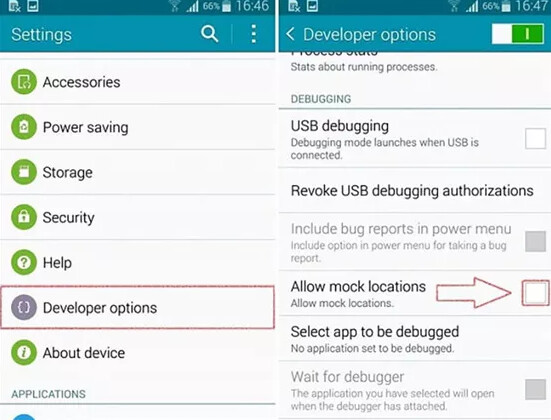
Step 3. Set Location: Open the spoofing app, search for your desired location, drop the pin, and press the “Play ” or “Start ” button.
The “Rubberbanding ” Risk:
A common issue with this method is “rubberbanding. ” This occurs when your phone’s real high-accuracy GPS sensor fights with the mock location app. Your avatar on Life360 may jump frantically between your real library location and your fake dorm location. This erratic behavior is a clear indicator of spoofing and may trigger alerts or show “Life360 location not updating ” errors to your circle.
The “Burner Phone ” Strategy: A Hardware Solution
For those who prefer not to alter software settings or pay for desktop tools, the “Burner Phone ” strategy offers a practical, low-tech alternative. This method involves using a spare smartphone or tablet to broadcast your location while you keep your primary device with you.
The Workflow
Step 1. Preparation: Acquire an old smartphone (iOS or Android) and install Life360.
Step 2. The Swap (Timing is Key): Ensure the secondary device is connected to the Wi-Fi at the location you want to be seen at (e.g., Home). Log in to your Life360 account on this secondary (burner) device.
Step 3. The Logout: Once the burner device is showing your correct “Home ” location on the map, log out of Life360 on your primary phone.
Life360 usually tracks the device with the most recent activity. Explicitly logging out of the main phone ensures it cannot accidentally override the burner phone’s signal.
Step 4. Freedom: Leave the burner device plugged into a charger at home. You are now free to leave with your primary phone.
Does Logging Out Trigger an Alert?
This is the most common anxiety for users. Life360 does not send a direct “User is spoofing location” alert, which is why many users rely on stealth-based fake GPS methods instead of simply disabling location sharing.
However, if you log out before setting up the second phone, your location simply freezes or shows a “Location Paused ” status, which looks suspicious. By ensuring the burner phone is logged in and active before you log out of the main device, the transition is seamless. The map simply continues showing you at home (via the burner phone) without any gap in history.
Step 1: Connect Old Phone to Home WiFi -> Step 2: Log In on Old Phone -> Step 3: Log Out of Main Phone.
This method is considered one of the most stealthy Life360 fake location strategies because the GPS signal comes from a real physical device instead of a detectable mock-location app.
Related: Why GPS Spoofing Sometimes Fails
Many users experience snapping back, drifting locations, or failed spoofing attempts because mobile fake GPS apps often conflict with real GPS hardware signals. Desktop-based location changers generally provide more stable results because they override GPS data before it reaches the app layer.
You can learn more here: How to Fake GPS Location on iPhone & Android
Can Life360 Detect Fake Location Apps? (How Detection Actually Works)
Users frequently ask, “Can Life360 detect fake location tools? ” The answer is yes, but usually through behavioral anomalies rather than detecting the tool itself. Life360 aggregates data from GPS, Wi-Fi, and cellular towers to pinpoint coordinates. When these data points conflict, the app flags the location.
Common Detection Indicators
- Impossible Travel: If your location jumps from New York to London in one second, the algorithm marks this as impossible speed. Always use a “cooldown ” period between long-distance jumps.
- Battery Status Conflicts: Life360 monitors battery levels. If your spoofed location shows you stationary for 8 hours but your battery level never drops (or drops too fast), it can look suspicious in detailed logs.
- Lack of Drift: Real GPS signals naturally drift a few meters due to satellite variance. A perfectly static pin that never moves a single inch for hours suggests a mock location Android or iOS override.
Counter-Measure Tip (Crucial for Wi-Fi):
Always keep the Wi-Fi toggle turned ON in your phone’s settings, even if you are not actually connected to a network. Phones use the visibility of nearby Wi-Fi networks (like your neighbor’s router or a shop’s hotspot) to triangulate positions. If you turn Wi-Fi off completely, your phone relies solely on GPS satellites, which is a rare behavior that Life360’s algorithm associates with spoofing attempts.
How to Stop Life360 Location Snapping Back on Android & iPhone
Even with the best tools, you might encounter technical hiccups. The most frequent complaint is: “Why does my Life360 location keep snapping back? ” This phenomenon occurs when the phone’s operating system overrides the fake signal with the actual GPS coordinates received from satellites.
Fixing Common Stability Issues
- Close Background Apps: Ensure no other map-heavy applications (like Google Maps, Waze, or Pokémon GO) are running in the background. They may force a GPS refresh that reveals your true spot.
- Disable Wi-Fi Scanning (Android): In your Location settings, look for “Wi-Fi and Bluetooth Scanning ” and turn it off. This prevents the phone from using local networks to correct your spoofed location.
- Check Connection Stability: If using a desktop changer, a loose USB cable can cause the connection to drop, instantly reverting your location. Use a high-quality data cable.
If you experience Life360 location not updating or freezing, restart the location changer software and reconnect your device. For persistent issues, a simple device restart often clears the cache interfering with the mock location signal.
Frequently Asked Questions About Life360 Spoofing
Q1. Will Life360 notify others if I spoof my location?
No, Life360 does not send a specific “User is spoofing ” notification. However, if your location jumps abruptly or behaves erratically (snapping back and forth), circle members may receive alerts about your arrival or departure from places unexpectedly. Using how to spoof Life360 location methods correctly requires simulating realistic travel times.
Q2. Can You Spoof Life360 Without Jailbreaking or Rooting?
Yes. Modern desktop-based GPS tools can change device location without requiring jailbreak or root access.
Many users prefer tools like Fonelora Location Changer because they provide:
- System-level GPS override
- Joystick movement simulation
- Stable long-term spoofing
- Reduced rubberbanding issues
Q3. Do these tools drain my battery?
Yes. Running a GPS spoofing simulation requires constant processing power. Your phone may consume battery faster than usual. If using a desktop tool, keep the phone plugged into the computer to maintain a charge.
Q4. Does Airplane Mode freeze my location?
Turning on Airplane Mode will cut your data connection. On Life360, this will likely show a “No Network ” or “Location Paused ” flag, which is highly suspicious to anyone monitoring the circle. It is not an effective way to fake Life360 location on iOS or Android if the goal is stealth.
Q5: What is the safest life360 fake location android method?
Desktop-based GPS changers are generally safer than traditional Android mock-location apps because they simulate GPS movement at the system level instead of relying entirely on detectable mock-location settings.
Conclusion
Maintaining personal privacy in a constantly connected world should not require risky APK downloads, unstable GPS apps, or complicated jailbreak procedures. Whether your goal is avoiding unnecessary surveillance, protecting personal boundaries, or simply gaining more control over your digital location, choosing a stable and realistic solution is essential.
Compared with traditional mobile spoofing apps, desktop-based GPS tools offer significantly better stability and lower detection risk because they modify location data at the system level instead of relying entirely on mock-location settings.
For users who want a more reliable way to spoof Life360 location on iPhone or Android, tools like Fonelora Location Changer provide practical features such as Teleport Mode, joystick movement simulation, route planning, and adjustable walking speeds. These tools help create more natural GPS behavior while reducing common issues like rubberbanding, location snapping, or suspicious movement patterns.
Combined with realistic movement simulation and proper location management, these methods allow users to regain privacy and flexibility without triggering unnecessary alerts or exposing themselves to unstable spoofing apps.
More Related Articles



Joy Taylor is a seasoned technical writer with over a decade of experience in mobile technology. At iMobie, she specializes in producing in-depth content on iOS data recovery, iPhone unlocking solutions, and iOS troubleshooting.
Product-related questions? Contact Our Support Team to Get Quick Solution >
