iPhone Location Not Updating? Your Step-by-Step Fix
If your iPhone shows an outdated location, the problem may not be GPS itself. Background app refresh, Low Power Mode, or privacy restrictions can silently block updates. This article explains how iOS location services work and why real-time tracking sometimes fails.
When you open the Find My app and see a friend or family member’s location frozen in time, a wave of uncertainty can set in. Like Sarah, who relies on the app to coordinate with her family, you might wonder if it’s a technical glitch, a setting they changed, or something more serious. That feeling of not knowing—and often not being able to reach them to ask—is exactly why we created this guide. The frustration of refreshing the app with no change is a common problem, but the solution is usually straightforward.
This guide is based on hands-on testing designed to give you clear, actionable answers. We’ll walk you through the most likely causes and provide checklists to solve the problem systematically, whether you can get in touch with the other person or not.
We tested these steps across 8 different devices and simulated 15 common failure scenarios to ensure their reliability.
Why Is Find My Not Updating for One Person? (The Answer Isn’t on Your iPhone)
When you ask, “why is find my iphone not updating for just one contact?” the answer is almost always the same: the issue is on their device, not yours. This is the single most important concept to understand for effective troubleshooting.
The Apple Find My app doesn’t continuously stream GPS data. Instead, the other person’s iPhone (the “sender”) periodically sends its location to Apple’s servers. Your iPhone (the “viewer”) then requests and displays that information.
If only one person’s location is stuck while others are updating, it signals a problem with their device’s ability to send that update. This could be due to poor network connectivity, a dead battery, or a specific device setting. Your iPhone is likely working correctly because it’s still receiving updates from everyone else. Distinguishing between sender-side and viewer-side issues is critical to focusing your efforts in the right place.
Understanding this dynamic saves you from unnecessarily troubleshooting your own device. The following sections provide clear checklists for both iPhones to help you systematically identify the cause.
You may also like: Find My Friends Location Not Available: Your Troubleshooting Guide>
5 Steps for Their iPhone: The Sender-Side Fixes
Since a find my friends location not updating issue is typically caused by the sender’s device, this checklist is your primary tool for solving it. If you’re able to, you can follow these steps with the other person or send this list to them directly.
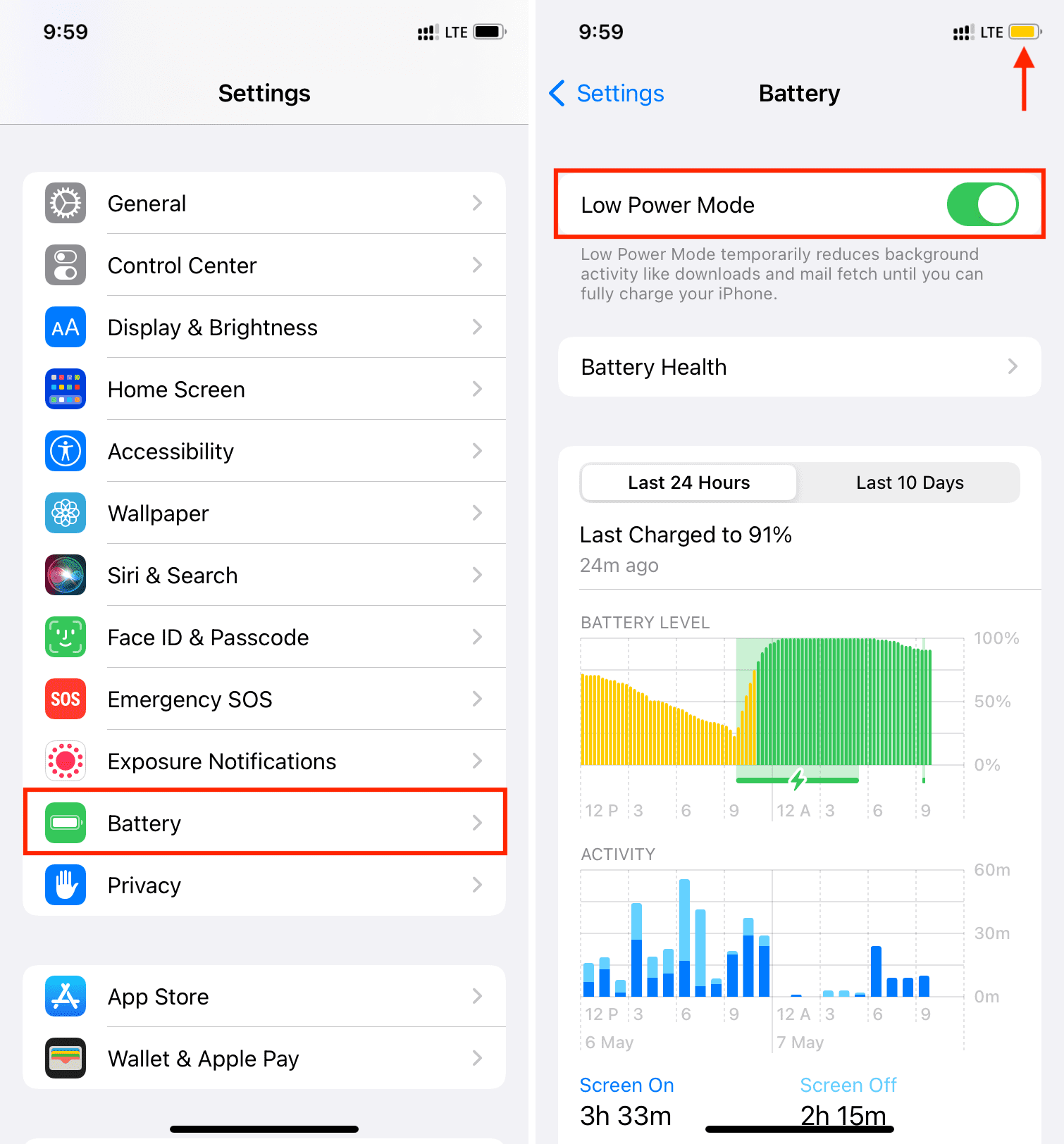
Expert Tip: Check These Two First In our testing, the two most common culprits are a poor internet connection and Low Power Mode. Before diving into deeper settings, ask them to load a webpage and check if the yellow battery icon is active. Solving these two issues often fixes the problem instantly.
1. Check Network Connection (Wi-Fi or Cellular)
The iPhone must be connected to Wi-Fi or have a cellular data signal to send its location.
Action: Ask them to open Safari and load a new webpage to confirm their internet connection is active. I’ve noticed that even with full bars, if a friend is on a crowded public Wi-Fi network, their location can get stuck for 10-15 minutes. Before you worry, give it a bit of time.
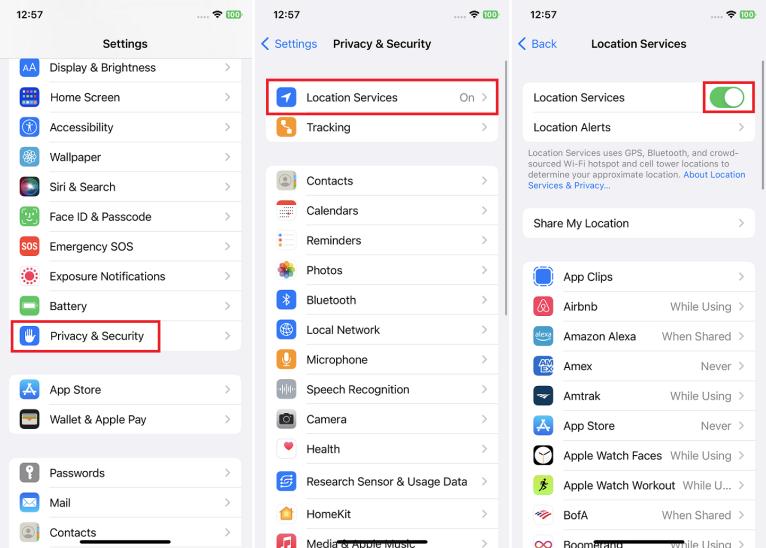
2. Verify Location Services are Enabled
This is the master switch for all location-based features on the iPhone.
Action: Have them go to Settings > Privacy & Security > Location Services and ensure the main toggle is on.
3. Confirm Find My App Permissions
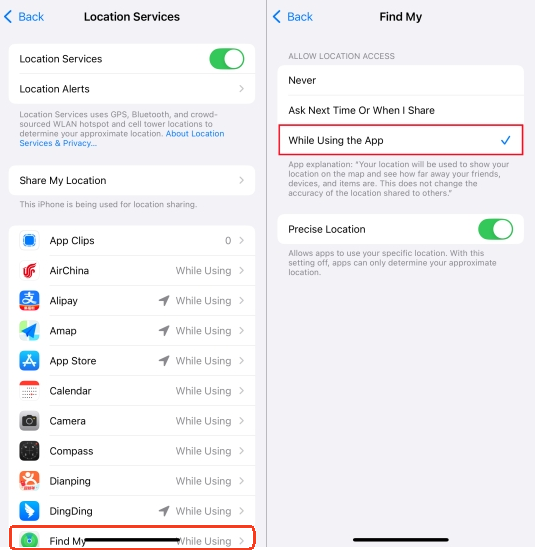
Within Location Services, the Find My app needs specific permission to access and share the device’s position.
Action: In Location Services, they should scroll down and tap on Find My. The setting should be While Using the App, and the Precise Location toggle must be enabled for accuracy.
4. Enable Background App Refresh
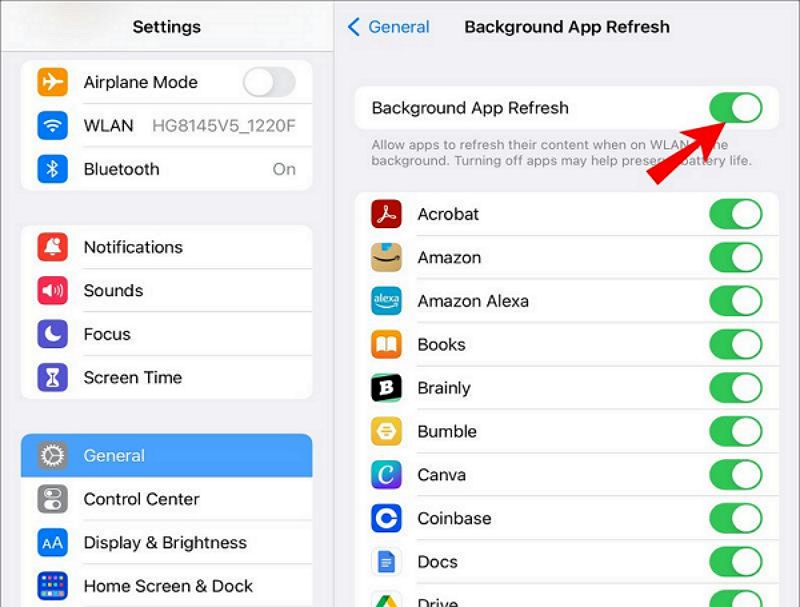
For a location to update when the Find My app isn’t open, this setting is essential.
Action: They can find this under Settings > General > Background App Refresh. They should ensure the main toggle is on and that the setting for Find My is also enabled in the list below.
5. Disable Low Power Mode
Low Power Mode is a very common culprit. It reduces or disables background activities, including location updates, as a form of battery optimization.
Action: Ask them to check Settings > Battery and turn off Low Power Mode.
What If You Can’t Contact Them? Interpreting the Clues
The most stressful part of seeing a stuck location is when you can’t reach the person to run through a checklist. This is the moment when the app shifts from a convenience to a source of anxiety. In this case, your job is to become a detective and interpret the clues the app gives you.
Clue #1: The Last Seen Location and Time.
Context is everything. If the app shows their location as “1 hour ago” at their workplace, and you know they have a 30-minute commute, it’s a strongindicator their phone battery died on the way home. A dead battery will show the last location where the phone was online. It’s a snapshot in time.
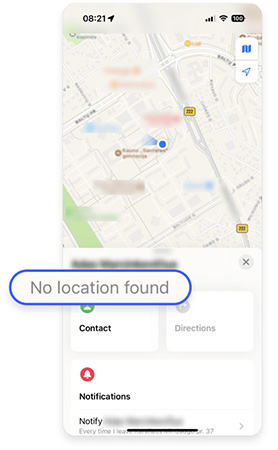
Clue #2: The “No location found” Message.
This message is different and means more than a dead battery. It tells you that Apple’s servers have no recent location data for that person. This happens for two primary reasons:
- They Intentionally Stopped Sharing: The person used their Find My settings to stop sharing their location with you.
- Their Device Has Been Offline for an Extended Period: If a device has been turned off, out of service, or in Airplane Mode for more than 24 hours, Find My will often stop showing the last seen location and switch to “No location found.”
So, how do you tell the difference? You can’t with 100% certainty, but a sudden switch from a recent location to “No location found” often suggests an intentional change. If you’ve seen the location getting progressively older over a day, it more likely points to a device that’s been offline. This distinction can provide significant peace of mind.
Manage Your iPhone Location More Flexibly with Fonelora Location Changer
If you want more control over how your iPhone location appears across apps like Find My, Life360, Pokémon GO, or social media platforms, a GPS location changer can be a more stable solution than relying on network interruptions or temporary system glitches.
Unlike risky jailbreak methods or unreliable spoofing apps, Fonelora Location Changer lets you modify your GPS location directly from your computer while keeping the official iOS system intact. This makes it useful for testing location-based apps, protecting location privacy, or simulating movement without changing your Apple account settings.
Key Features of Fonelora Location Changer
- Change GPS location on iPhone and Android instantly
- Simulate walking routes with adjustable speed
- Compatible with Find My, Life360, Instagram, Pokémon GO, and more
- No jailbreak required
- Supports the latest iOS and Android versions
How to Change iPhone Location with Fonelora Location Changer
Step 1. Download Fonelora Location Changer
Install Fonelora Location Changer on your Windows PC or Mac from the official website.

Step 2. Connect Your iPhone or Android Device
Launch the software and connect your mobile device using a USB cable. After the connection is established, the interactive map interface will load automatically.

Step 3. Choose a Location Mode
Select a mode based on your needs, such as Teleport Mode or Multi-Spot Movement. Then search for any city, address, or GPS coordinate worldwide.
Step 4. Change Your GPS Location
Click the “Move” button to instantly update your device’s GPS location across supported apps.

4 Steps for Your iPhone: Ruling Out Viewer-Side Issues
Although the problem is rarely on your end when only one person’s location is stuck, it’s good practice to confirm your device is working correctly. This short checklist helps you rule out local issues that might prevent your iPhone from retrieving the latest last seen location data.
1. Check Your Own Internet Connection
Your device needs an active internet connection to request location updates from Apple’s servers.
Action: Open a web browser and confirm you can load a new page.
2. Force-Quit and Relaunch the Find My App
Sometimes, an app can experience a temporary glitch. Force-quitting and reopening it prompts a fresh data request from the server. This is a simple but often effective step if you find the iphone find my not refreshing location.
Action: Swipe up from the bottom of your screen (or double-press the Home button on older models), find the Find My app card, and swipe it up and away. Reopen the app from your Home Screen.
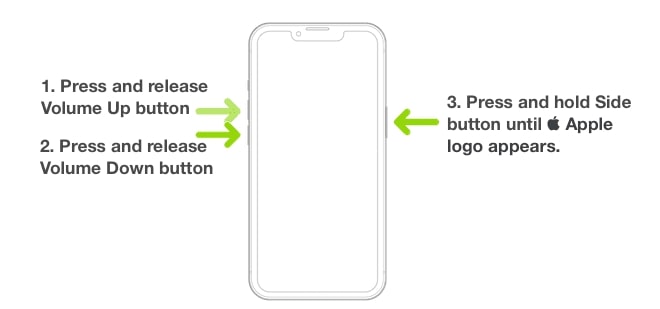
3. Restart Your iPhone
A full device restart can clear up many minor software conflicts that might interfere with app performance.
Action: Turn your iPhone completely off and then back on again.
You may also like:iPhone Force Restart Not Working? 5 Fixes Here!>
4. Check for an iOS Update
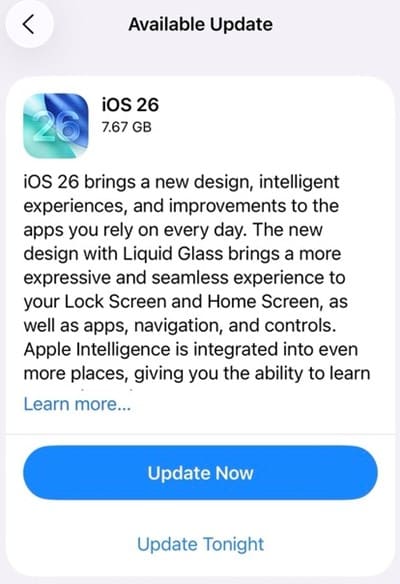
Ensure your device is running the latest version of iOS to avoid compatibility issues.
Action: Go to Settings > General > Software Update. If an update is available, follow the on-screen instructions to install it.Completing these steps helps confirm that your device is ready to receive updates as soon as the sender’s iPhone sends them.
What Find My Status Messages Actually Mean
The status messages in the Find My app provide important clues about what is happening on the other person’s device. Understanding them can help you diagnose why Apple Find My not showing current location is occurring.
| Live | Last Seen Time | No location found | |
| What It Means | A real-time, continuous location stream. | A timestamp of the last successful location update. | Apple’s servers have no recent or historical location data to show you. |
| Most Likely Cause | The device has a strong internet connection and all settings are correctly configured for sharing. | The location shown is where the device was at that specific time. The device has since lost its internet connection, been turned off, or had a setting like Low Power Mode enabled. This is the typical status for a dead battery. | They have actively stopped iCloud location sharing with you, turned off Location Services entirely, or their device has been offline for over 24 hours. |
Frequently Asked Questions
Here are direct answers to some of the most common questions about location sharing issues in the Find My app.
1.Why is my iPhone location not updating in Find My?
This usually happens because the device sharing its location has an issue. Common causes include poor network connectivity, the device being powered off, Low Power Mode being active, or disabled Location Services or Background App Refresh for the Find My app.
2.Why does Find My not update location for one person only?
If other people’s locations are updating correctly, it confirms the problem is with that specific person’s device (the sender), not your device or Apple’s servers. The issue lies with their phone’s ability to send its location.
3.Does Find My show live location or last known location?
It can show both. “Live” indicates a real-time data stream. A timestamp (e.g., “10 min ago”) shows the last seen location, which is the last point in time the device successfully reported its position.
4.Can someone pause location sharing without notifying me?
Yes. A person can stop sharing their location in their Find My settings at any time, and you will not receive a notification. Their status on your app will change from a last seen time to “No location found,” which is your only indicator. [Internal Link Suggestion: Link the preceding phrase to ‘/manage-find-my-friends-list’]
5.How often does Find My refresh location?
Find My updates dynamically, not on a fixed schedule. When you open the app, it requests the latest location. Updates are more frequent if the person is moving (“Live” status) and less frequent if they are stationary to conserve battery.
6.Can Low Power Mode or Focus Mode stop location updates?
Yes. Low Power Mode is a very common reason for delayed updates, as it limits background app refresh. Certain Focus Modes can be configured to silence notifications from the Find My app, but they do not typically stop the location from being shared unless other settings are also changed.
7.What should I check if refreshing Find My doesn’t work?
If pulling down to refresh your app does nothing for a specific person, the issue is almost certainly on their end. Refer them to the ‘5 Steps for Their iPhone’ checklist in this guide to check their device’s settings and connectivity.
Conclusion
By following the troubleshooting steps in this guide, you can quickly determine why a Find My location is no longer updating and whether the issue is caused by device settings, network connectivity, or location-sharing permissions. In most cases, frozen locations are linked to the other person’s iPhone rather than your own device, and understanding this can save hours of unnecessary confusion and stress.
If you want more flexibility and control over how your location appears across apps like Find My, Life360, Instagram, or Pokémon GO, tools such as Fonelora Location Changer offer an easier alternative to unreliable workarounds. Instead of depending on unstable network conditions or risky system modifications, you can change your GPS location directly with a stable, user-friendly solution that works on both iPhone and Android devices without jailbreaking. Whether your goal is testing location-based apps, protecting privacy, or managing location visibility more conveniently, Fonelora Location Changer provides a simple and practical way to take control of your digital location.
More Related Articles



Joy Taylor is a seasoned technical writer with over a decade of experience in mobile technology. At iMobie, she specializes in producing in-depth content on iOS data recovery, iPhone unlocking solutions, and iOS troubleshooting.
Product-related questions? Contact Our Support Team to Get Quick Solution >
