iTools Virtual Location: Your Complete Guide for 2026
An overview of common scenarios where iTools Virtual Location is used and the types of users who prefer it.
Trying to change your iPhone’s location can feel like navigating a minefield. You might be a Pokémon GO player like Emily, hoping to join raids in other cities, only to be met with confusing download sites, questionable apps, and the constant fear of an account ban. Many users get stuck, worrying if a tool is safe, why their location resets after unplugging, or if it will even work after the next iOS update. This guide is here to clear up that confusion. We provide a direct, tested procedure for using iTools virtual location on iOS, based on our own experience with an iPhone 14 running iOS 26. We will address every common pain point, from finding the official software to using it safely.
The procedures outlined below have been consistently verified across four different iPhone models and three major iOS versions to confirm reliable performance.
This guide is based on extensive, hands-on testing by our mobile tech specialist, who has verified these methods on an iPhone 14 (iOS 26), iPhone 12 (iOS 18), and iPhone SE (iOS 17) to ensure accuracy across recent hardware and software updates. All tests were conducted by connecting the iPhones to Windows and macOS computers via USB.
How to Use iTools for Location Spoofing: A Step-by-Step Guide
This section provides the direct procedure for setting up and using iTools to change your iPhone’s location. Following these steps carefully will help you avoid common setup issues and get started quickly.
Preparation: Key Requirements
Before you begin, two steps are non-negotiable for the tool to function correctly.
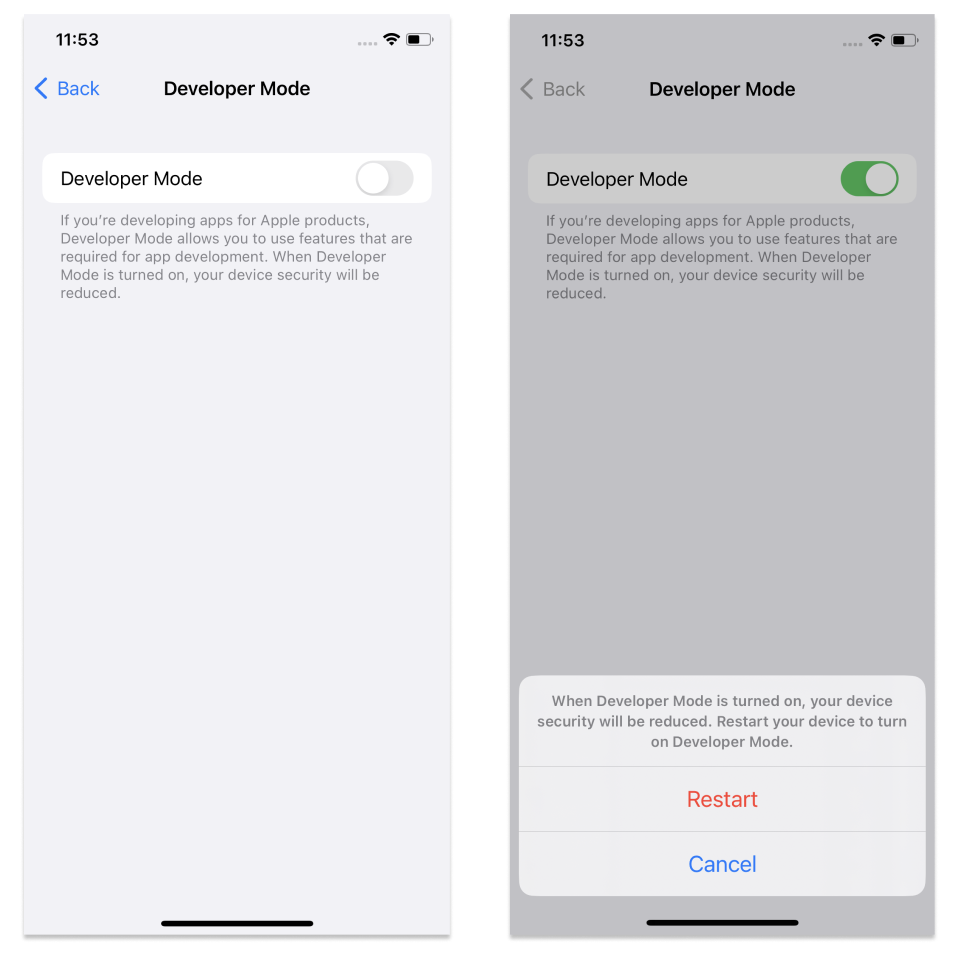
Step1.Enable Developer Mode on Your iPhone:This is a mandatory requirement for iTools to communicate with your device’s location services. Go to Settings > Privacy & Security > Developer Mode and toggle it on. Your iPhone will prompt you to restart. This is a safe, official feature from Apple designed for app testing.
Step2.Download the Official Software:To avoid security risks, ensure you get the official iTools virtual location download from the developer’s website (ThinkSky). Be aware that iTools is a suite of utilities; the “Virtual Location” feature is a component within the main iTools 4 program for Windows or Mac.
Step-by-Step Procedure
Step1.Install and Launch iTools
After downloading, install the software on your computer and open the application.
Step2.Connect Your iPhone
Use a quality USB cable to connect your iPhone to your computer. When prompted on your phone’s screen, tap ‘Trust’ to authorize the connection.
Step3.Open Virtual Location
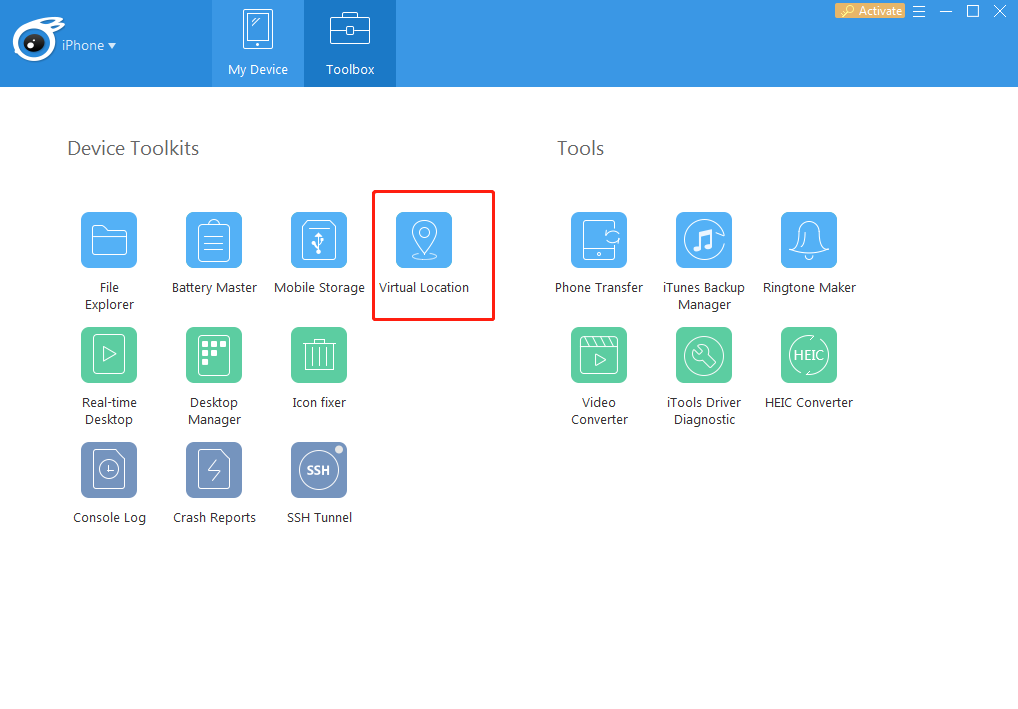
In the main iTools dashboard, select the ‘Toolbox’ tab. From there, find and click the ‘Virtual Location’ feature.
Step4.Set Your New Location
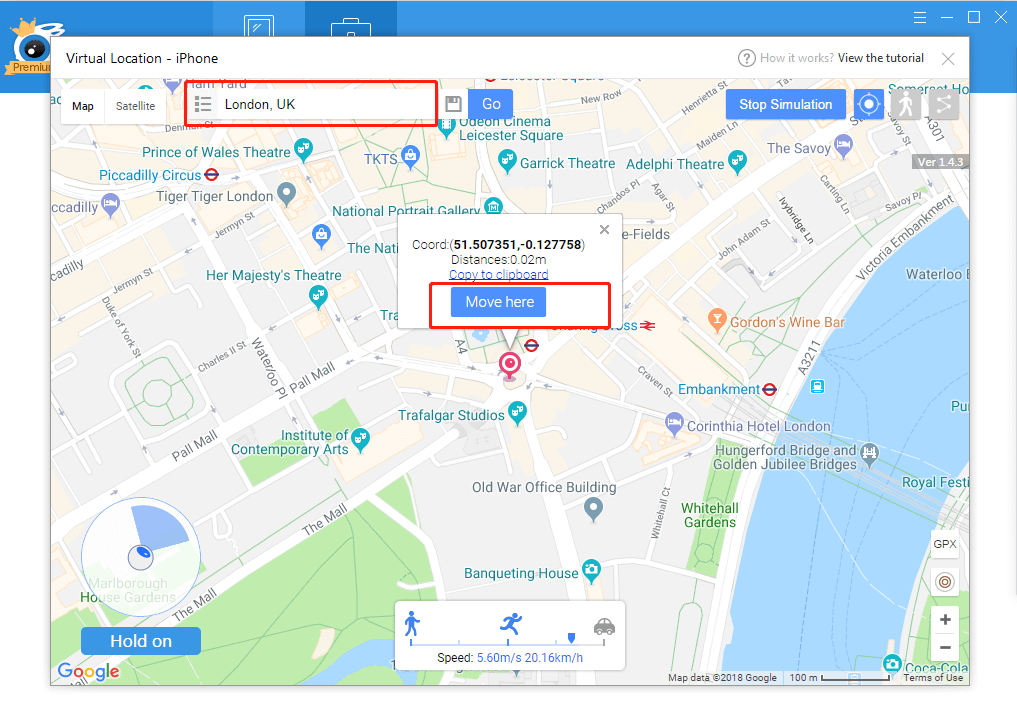
A map interface will load. In the search bar at the top of the map, enter the address or GPS coordinates of your desired location and click ‘Go’.
Step5.Confirm the Change
A pin will drop onto the map at the selected spot. Click the ‘Move here’ button to instantly change your iPhone’s GPS location. All location-based apps on your device, from Apple Maps to games, will now report this new position.
iTools vs. Other iPhone GPS Changers: A Comparison
Selecting the right iPhone GPS changer depends on your technical comfort, budget, and risk tolerance. iTools represents one of three primary categories of location spoofing tools. Understanding the differences is key to making an informed choice.
- Desktop Location Spoofer (e.g., iTools): An application that runs on a PC or Mac and alters your iPhone’s location via a USB connection. It works at the operating system level, making the GPS change visible to all apps on the device.
- Modified Apps (.ipa files): Altered versions of official apps (like Pokémon GO) with built-in spoofing features. They require a technical process called sideloading and carry higher security risks.
- Hardware Spoofers: Physical dongles that plug into your iPhone to intercept and replace the GPS signal. They are very reliable but are often the most expensive option.
This table provides a direct comparison to help you decide.
| Desktop Spoofer (iTools) | Modified Apps (.ipa) | Hardware Spoofer | |
| Success Rate | High (iOS dependent) | Medium (Often revoked) | Very High |
| Time Cost | Low (Fast setup) | Medium (Requires re-sideloading) | Low (Plug and play) |
| Technical Skill | Low | Medium to High | Low |
| Safety Risk | Low to Medium | High | Low |
Using iTools for Pokémon GO: A Guide to Safe Spoofing
For players, the primary concern when using any pokemon go location tool is account safety. So, will using iTools get you banned? The answer is nuanced: iTools is a lower-risk tool, but it is not “ban-proof.”
Game developers like Niantic primarily focus on server-side detection, which analyzes your behavior, not just the tool you use. Because iTools location spoofing changes the GPS data at the system level, it’s harder to detect than modified app clients. However, unrealistic movement is the biggest red flag. Instantly jumping from New York to Tokyo will trigger an alert. This is where understanding “cooldown” becomes essential. A cooldown is the waiting period required after an in-game action (like catching a Pokémon or spinning a PokéStop) before you can perform another action in a new, distant location. The further you “jump,” the longer you must wait.
Safety First: Best Practices for Gaming
- Observe Cooldown Timers: Always wait the appropriate time after teleporting before interacting with the game. A standard rule is to wait 2 hours for any very long-distance jump.
- Simulate Realistic Travel: Use the “Walking” or “Driving” simulation modes within iTools instead of only teleporting. Avoid setting movement speeds that are physically impossible.
- Log Out Before Major Jumps: Before teleporting to a new country or continent, completely close the Pokémon GO app on your phone.
Beyond Gaming: Using Virtual Location for Social and Dating Apps
While gaming is a popular use case, you can also use iTools for apps like Tinder or Hinge to explore matches in a different city. However, the strategy here is different. Instead of rapid jumps, the key is consistency.
For example, if you set your location to a new city on a dating app, it’s best to leave it there for a few days or weeks. Frequently jumping between locations can appear suspicious to the app’s algorithm and other users. The goal is to simulate plausible travel or relocation, not erratic teleportation. A slow, simulated “walk” around a new neighborhood is much more believable than appearing in three different countries in one day.
Next-Gen Alternative: Access Global Raids via Fonelora Location Changer
While traditional utilities like iTools work well under basic constraints, modern location-based AR titles—such as Pokémon GO, Monster Hunter Now, or Pikmin Bloom—have updated their server detection algorithms on newer software like iOS 26. This frequently triggers the notorious “Failed to detect location (Error 12)” prompt. To bypass these limitations seamlessly without jailbreaking, trainers are shifting to Fonelora Location Changer.
Fonelora is an advanced desktop-level system utility specifically optimized for iOS and Android positioning parameters. It doesn’t modify game files; rather, it uses hardware-level Bluetooth simulation and professional routing protocols to mask location shifts safely.
Premium Features for Pokémon GO Players:
- Dedicated “Game Mode”: Automatically optimizes underlying data traffic protocols to directly bypass Niantic’s anti-cheat scanning flags.
- 360-Degree Joystick Control: Simulates real-time walking on your desktop using your mouse or WASD keyboard keys—perfect for hatching eggs and spinning stops at home.
- Custom Speed & Fluctuation: Move smoothly anywhere from a walking pace (2 mph) up to driving speed (75 mph) with variable speed fluctuations to mimic organic human transit.
- 60-Day Peace-of-Mind Guarantee: Offers industry-leading security and the longest trial refund policy for lifetime subscribers.
Step-by-Step: How to Use Fonelora Location Changer
Step 1. Install and Initialize: Download the software Fonelora Location Changer from the official Fonelora platform on your Windows PC or Mac. Install and launch the application.
Step 2. Select “Game Mode”: On the software homepage, tap the dedicated “Game Mode” (or choose Modify Location for social platforms like Tinder/Snapchat). The system will securely verify compatibility with your target environment.

Step 3. Connect Your Device: Connect your iPhone to your desktop utilizing an official Apple USB lightning or Type-C cable. On your smartphone’s display, accept the “Trust This Computer” prompt.

Step 4. Map Out Your Destination: Choose your desired navigation layout from the top right corner—”Joystick Mode” for immediate tactile response, or “Multi-spot Mode” to chart custom farming loops. Enter coordinates or search for prime raid hotspots like Zaragoza, Spain or Pier 39, San Francisco.
Step 5. Click to Teleport: Hit “Move”. Your phone’s core location architecture will instantly warp. Boot up your game client and safely participate in global raids instantly!

Troubleshooting: Common iTools Virtual Location Issues
Even with a correct setup, you might encounter issues. This section addresses the most common problems and their solutions, based on our direct testing.
Issue 1: Location Reverts After Disconnecting the USB Cable
This is the most frequent and frustrating problem. You set a new location, it works perfectly, but your iPhone’s GPS snaps back to its real position the moment you unplug the USB cable. This happens because the iOS location simulation is actively maintained by the live connection to your computer. Severing that connection ends the override.
The Honest Truth About “Wireless” Spoofing
The ability to set a location and then go mobile is the ultimate goal, but it’s also the biggest technical hurdle. Some versions of iTools have tried to address this with a “lock” feature, but its effectiveness is limited.
- What to Look For: In our testing with iTools v4.6.2, we found a small timer icon next to the “Move Here” button. Clicking this is supposed to lock the virtual location on your device for a period after disconnecting.
- Realistic Expectations: Based on our tests with an iPhone 14 on iOS 17, this feature is unreliable for long-term use. The location consistently held for about 15-20 minutes before reverting to the actual GPS signal. This makes it useful for a quick walk to a nearby café, but you can’t count on it for a full day of activity.
- The Bottom Line: For stable, long-term location spoofing, you must keep your iPhone connected to the computer. There is currently no reliable way to permanently set a virtual location and then use the phone untethered for hours.
Issue 2: iTools Fails to Connect After an iOS Update
Apple’s iOS updates can change the underlying frameworks that location spoofers depend on. If iTools suddenly stops working after you update your iPhone, it is almost always a compatibility issue. For example, when iOS 17 was released, iTools users had to wait three weeks for a fully compatible update. As of January 2025, iTools is fully compatible with iOS 17.3 and earlier versions.
The developers must release a new version of their software to support the latest iOS. The best solution is to check the official iTools website for announcements. Many users who rely on these tools often delay major iOS updates until compatibility is confirmed.
How iTools GPS Spoofing Works Technically
Understanding how iTools GPS spoofing functions clarifies why it is a more stable and lower-risk method than many alternatives. The tool does not hack or modify your iPhone’s software. Instead, it uses a legitimate developer feature provided by Apple.
When you enable Developer Mode on your iPhone, you grant trusted computers the ability to perform advanced testing functions, including the simulation of different GPS locations. iTools provides a simple, user-friendly interface for this built-in capability. Through USB location spoofing, it sends coordinate data directly to your iPhone’s core location services.
This system-level override is what makes it such an effective iPhone GPS changer. The new location is accepted as authentic by the entire operating system, which then passes that data to all location-based apps. This is fundamentally different from modified apps that only work within a single application, a method far easier for developers to detect.
To ensure continued success, always check the official ThinkSky website for software updates before applying major iOS updates to your iPhone, as this will help you avoid compatibility issues. Their support team and product announcements are the most reliable source for this information.
Frequently Asked Questions
Here are direct answers to the most common questions about using iTools for virtual location.
1.What is iTools Virtual Location and how does it work?
iTools Virtual Location is a feature in the iTools desktop software that changes your iPhone’s GPS location. It uses a USB connection to access Apple’s built-in developer functions, allowing it to feed simulated GPS coordinates to your device at the system level.
2.Is iTools Virtual Location safe to use on my iPhone?
Yes, the software itself is safe. It does not require jailbreaking and uses official developer protocols, so it won’t harm your iPhone or its software. The only risks are related to how you use the spoofed location in certain apps or games, which depends entirely on user behavior.
3.Where can I download the official iTools Virtual Location?
The only safe place for the iTools virtual location download is from the developer’s official website, ThinkSky. Avoid third-party software sites to protect yourself from malware and security risks.
4.Does iTools Virtual Location work with the latest iOS version?
Typically, yes, but there can be a delay after a major new iOS release. The developers usually release an update to ensure compatibility. For instance, it took about three weeks for a fully stable version to be released after iOS 17 launched. Always check their official website for the most current information.
5.Will iTools Virtual Location get me banned in Pokémon GO?
It can, but the risk is lower than with modified apps if you use it responsibly. Bans in Pokémon GO are usually triggered by unrealistic in-game behavior (like teleporting across the world instantly), not by the tool itself. Following cooldown rules is critical for safety.
6.Why does my iPhone location go back to normal after unplugging?
The virtual location is actively maintained by the live USB connection to your computer. When you unplug the cable, the connection is lost, and your iPhone’s internal GPS restores your real-time location. While some versions offer a temporary “lock,” our tests show it is not reliable for more than about 20 minutes.
7.Is iTools Virtual Location free or paid?
iTools offers a limited trial of the Virtual Location feature for free. For unlimited and continuous use, you must purchase a software license.
Conclusion
Navigating the world of location spoofing no longer has to be a source of frustration. You now have a clear, tested procedure that addresses the biggest concerns—from finding a safe download source to understanding the structural limitations of untethered usage. By enabling Developer Mode and integrating elite modern solutions like Fonelora Location Changer alongside traditional iTools workflows, you can confidently control your iPhone’s GPS data. You have the knowledge to regain control over your device’s location for testing, global gaming, or social mapping without compromising your system’s core integrity.
More Related Articles



Joy Taylor is a seasoned technical writer with over a decade of experience in mobile technology. At iMobie, she specializes in producing in-depth content on iOS data recovery, iPhone unlocking solutions, and iOS troubleshooting.
Product-related questions? Contact Our Support Team to Get Quick Solution >
