If iMyFone AnyTo is not working, the problem is usually caused by a failed device connection, outdated location drivers, Pokémon GO Error 12, or GPS conflicts on iPhone and Android.
In this guide, you’ll learn how to fix AnyTo connection problems, stop GPS rubber-banding, solve Error 12, and restore normal location changing on iOS and Android devices.
Quick Diagnostics: Why Is Your GPS Spoofing Not Working?
Before diving into complex fixes, let’s quickly identify the source of the problem. Wasting time on the wrong solution is just as frustrating as the initial error. Most issues with a location changer like iMyFone AnyTo fall into one of four distinct categories. Use this framework to pinpoint the root cause and jump directly to the correct solution.
1. Device & Connection Problems: Is the AnyTo software unable to see your phone at all? Error messages like “Device Not Detected” or “iMyFone AnyTo connection failed” point directly to a physical or settings-related disconnect. This is often caused by a faulty USB cable, an incorrect USB port, or a required device setting that has been overlooked.
2. App-Specific Errors (e.g., Pokémon GO): Does AnyTo confirm a successful teleport, but the app you’re using still shows your real location or a specific warning? For Pokémon GO players, this is the classic failed to detect location Pokémon GO (Error 12). This means the app has its own security measures that successfully identify and block the spoofed GPS data.
3. Core Software Glitches: Is your device connected properly, but the AnyTo application itself freezes, crashes, or fails to launch? This indicates the problem lies within the AnyTo software on your computer. The issue could range from needing administrative permissions to a corrupted installation.
4. GPS Rubber-Banding: Does your location teleport successfully for a moment, only to snap back to your actual position? This “rubber-banding” effect means your phone’s own location services are fighting with AnyTo’s mock location, creating a frustrating conflict.
Common Reasons Why AnyTo Stops Working
A stable physical and digital connection is the bedrock of this process. If AnyTo can’t communicate with your phone, nothing else will work. This is the most common starting problem, but the fix is usually simple. The steps differ slightly for iOS and Android.
For iPhone (iOS) Users
An iPhone location changer error is almost always related to trust permissions or hardware. Follow these steps methodically.
1. Check Your Hardware: Use an official Apple MFi-certified Lightning or USB-C cable. Cheap, uncertified cables are a frequent cause of data transfer failures. Try a different USB port on your computer to rule out a faulty port.
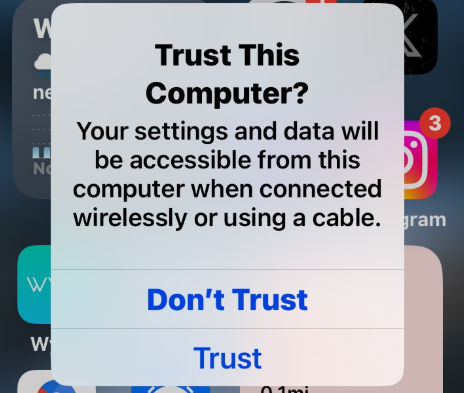
2. Establish Trust: When you connect your iPhone to a computer for the first time, a “Trust This Computer” prompt appears on your phone’s screen. You must tap “Trust.” If you accidentally hit “Don’t Trust,” simply disconnect and reconnect your phone to see the prompt again.
3. Update Apple Drivers (for Windows): On a Windows PC, iTunes contains the necessary Apple mobile device drivers for your computer to communicate with your iPhone. Ensure you have the latest version of iTunes installed and running.
Pro-Tip: “Trust” Prompt Not Appearing?
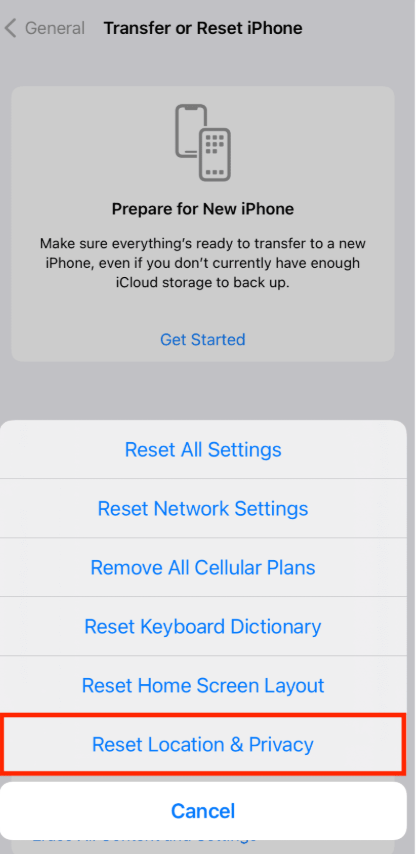
If the “Trust This Computer” pop-up stubbornly refuses to appear, you can force it. On your iPhone, go to Settings > General > Transfer or Reset iPhone > Reset > Reset Location & Privacy. This action will make your phone forget all previously trusted computers, forcing the prompt to appear on your next connection.
For Android Users
For Android, the solution typically involves enabling a specific developer setting. This is the most common mock location Android fix.
1. Enable Developer Options: Navigate to Settings > About Phone. Scroll down and tap on the Build Number entry seven times in a row. You’ll see a small message confirming, “You are now a developer!”

2. Enable USB Debugging: A new menu is now unlocked. Go to Settings > System > Developer Options. Find the USB Debugging toggle and switch it on. This setting explicitly allows your computer to send commands to your phone via USB.
3. Set Mock Location App: In the same Developer Options menu, find and tap on the Select mock location app option. From the list that appears, choose AnyTo.
How to Fix Pokémon GO Error 12
This is a classic gamer’s problem. Your phone is connected, AnyTo says you’ve teleported, but the game greets you with the infamous red banner: “Failed to detect location (12).” This error means Pokémon GO knows the location data it’s receiving isn’t authentic. If your AnyTo teleport is not working in-game, the cause is almost always a version mismatch between the game’s security and the spoofer’s capabilities.
Here is the most reliable iMyfone AnyTo error fix for gamers:
1. Update Everything (Critically Important): Niantic, the developer of Pokémon GO, is in a constant battle against spoofing. An app update can render old spoofing methods useless overnight. Your first and most important step is to ensure both your Pokémon GO app (from the App Store/Play Store) and your iMyFone AnyTo desktop software are updated to their absolute latest versions.
2. Restart the App Correctly: Don’t just minimize Pokémon GO after teleporting. You must fully force-quit the application. On either iOS or Android, open your recent apps switcher and swipe the Pokémon GO app away. This forces it to completely reload and fetch the new, spoofed GPS coordinates when you reopen it.
A Crucial Tip: Respect the Cooldown Timer
Jumping from New York to Tokyo in two seconds is physically impossible, and Pokémon GO’s servers know this. AnyTo includes a “Cooldown Timer” to prevent this mistake. This feature calculates the real-world travel time you should wait after a long-distance jump before interacting with the game (spinning a PokéStop, catching a Pokémon, etc.). Ignoring this timer is the fastest way to get your account temporarily soft-banned, which also results in errors. Always wait for the cooldown to expire.
How to Fix Device Detection Problems
If your phone connects but the AnyTo program on your computer is unstable, the problem lies with the desktop software itself. An updated program that still crashes or freezes points to issues with permissions, system resources, or a corrupted installation.
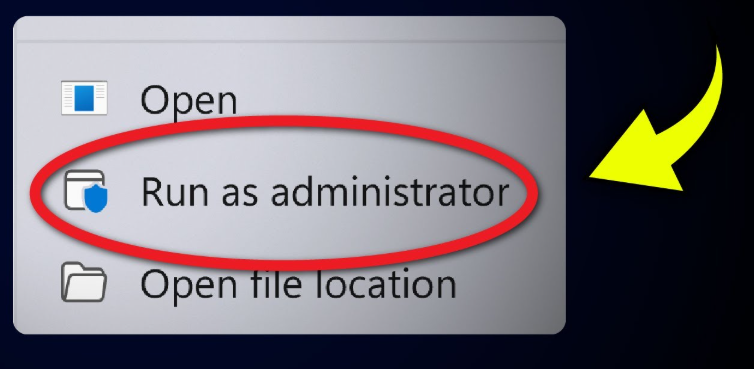
1. Run as Administrator (Windows): Sometimes, the software needs higher privileges to control device drivers. Right-click the iMyFone AnyTo shortcut and select “Run as administrator.”
2. Check System Requirements: Ensure your PC or Mac meets the minimum system requirements listed on the AnyTo official website. Older computers may struggle to run the software smoothly.
3. Perform a Clean Reinstallation: A file may have become corrupted during a previous installation or update.
- Fully uninstall iMyFone AnyTo using your computer’s standard “Add or remove programs” (Windows) or by dragging it to the Trash (Mac).
- Navigate to the installation directory and delete any leftover folders.
- Restart your computer.
- Download a fresh copy of the installer from the official iMyFone website and reinstall it.
How to Stop GPS Rubber-Banding
This is one of the most maddening issues. You successfully teleport, but seconds later your in-app location snaps right back to where you actually are. This “rubber-banding” happens when your phone’s built-in location services override the mock location provided by AnyTo. Here’s how to stop that fight.
For Android Users (The Most Common Fix)
Android’s high-accuracy positioning is usually the culprit. You need to tell it to rely only on GPS data, which AnyTo is controlling.
1. Navigate to Settings > Location on your Android device.
2. Tap on Location Services.
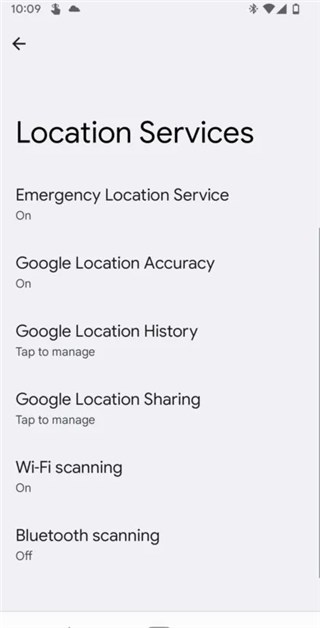
3. Turn OFF the toggles for both “Google Location Accuracy” and “Wi-Fi scanning.” Disabling these prevents your phone from using local Wi-Fi networks and other signals to “correct” the mock GPS data from AnyTo.
For iPhone (iOS) Users
This issue is less common on iOS, but it can happen. The fix usually involves ensuring other apps aren’t interfering and resetting the service if needed.
1. Close All Other Apps: Before you start, force-close every app running in the background, especially Maps or any other app that uses location services.
2. Toggle Airplane Mode: A quick way to reset all network connections is to turn Airplane Mode on for 10 seconds, then turn it off again.
3. Reset Location Services: As a last resort, use the same trick from Solution 1: go to Settings > General > Transfer or Reset iPhone > Reset > Reset Location & Privacy. This will reset all location permissions and can clear up underlying conflicts.
AnyTo Connected but GPS Still Not Changing
Some users notice that iMyFone AnyTo successfully connects to their device, but the GPS location still does not change inside apps. In most cases, this happens because the phone continues using its original location services instead of the spoofed coordinates.
On Android devices, disabling Google Location Accuracy and Wi-Fi scanning usually fixes the problem. On iPhone, restarting the device and reconnecting AnyTo often refreshes the GPS service correctly.
If the issue only happens inside one app, fully close the app before changing location in AnyTo, then reopen it after the teleport is complete.
AnyTo Works on Maps but Not in Pokémon GO
If the spoofed location appears correctly in Apple Maps or Google Maps but Pokémon GO still shows your real position or displays Error 12, the issue is usually related to Pokémon GO’s anti-spoofing detection.
This commonly happens after a recent Pokémon GO update. Updating AnyTo to the latest version may improve compatibility with newer game security checks.
It is also important to avoid teleporting long distances too quickly. Sudden location jumps may trigger temporary cooldown restrictions or cause the game to ignore the spoofed GPS signal entirely.
For better stability, fully close Pokémon GO before changing location, then reopen the game only after the new GPS position has been applied successfully.
How to Prevent Future AnyTo Problems
Solving an issue is good, but preventing it is better. Adopting a few best practices will ensure a smoother virtual location tool troubleshooting experience.
✅ Check for Updates Before Every Session: Make it a habit. Before you connect your phone, check for updates to iMyFone AnyTo and the target app. This is the single most effective preventive measure.
✅ Use a High-Quality Data Cable: The USB cable is the physical bridge. A frayed or cheap cable will cause intermittent data drops and connection failures. Stick to the official cable.
✅ Follow the Correct Sequence of Operations:
- Fully close the location-based app (e.g., Pokémon GO) on your phone.
- Connect your phone to your computer and launch AnyTo.
- Select your desired location in AnyTo and click “Move.”
- Only then should you open the app on your phone.
✅ Understand Game-Specific Rules: For gamers, this is non-negotiable. Abide by cooldown timers and avoid suspicious actions after a teleport.
✅ Disable Conflicting Services: Temporarily turn off any VPN or proxy services on both your computer and your mobile device before using AnyTo.
By following this comprehensive guide, you can move from frustration to resolution. We’ve covered the most common hurdles—from simple connection failures and tricky in-game errors to persistent software glitches and GPS rubber-banding. You now have a clear, tested procedure to diagnose the root cause and apply the correct fix. Stop letting technical glitches dictate your experience and use these solutions to get back in control of your virtual location in minutes.
When AnyTo Still Doesn’t Work
Sometimes, connection failures, GPS rubber-banding, or Pokémon GO Error 12 issues may continue even after reinstalling the software and updating the device.
In these situations, some users switch to alternative desktop GPS tools with newer location simulation methods for iPhone and Android.
Fonelora Location Changer is one of the tools commonly used for changing GPS location without modifying the Pokémon GO app itself. It supports location simulation, joystick movement, route planning, and Bluetooth-based positioning methods designed for newer iOS versions.

For users experiencing persistent AnyTo compatibility problems, trying a different desktop-based location changer may help restore stable GPS spoofing performance.
Frequently Asked Questions About AnyTo Errors
Why is iMyFone AnyTo not working?
iMyFone AnyTo may stop working because of connection problems, outdated software versions, GPS conflicts, or app detection systems on iPhone and Android devices.
Why won’t AnyTo detect my iPhone?
This usually happens when the iPhone has not trusted the computer, the USB cable is unstable, or Apple device drivers are outdated on Windows. Reconnecting the device and resetting Location & Privacy settings often fixes the issue.
Why is AnyTo stuck on loading map?
If AnyTo gets stuck on the loading map screen, the problem is commonly related to unstable internet access, disabled location permissions, VPN conflicts, or temporary server communication issues.
Why does AnyTo keep changing back to my real location?
This GPS rubber-banding issue is usually caused by Google Location Accuracy, Wi-Fi scanning, or unstable device connections overriding the spoofed GPS signal.
Why is my location not changing in Pokémon GO?
This normally happens when Pokémon GO detects unsupported location data or when the AnyTo version is no longer fully compatible with the latest game update.
Why does Pokémon GO show Error 12 with AnyTo?
Error 12 appears when Pokémon GO detects abnormal or unsupported GPS location data from a spoofing tool. Updating both the game and AnyTo may help reduce the issue.
Can AnyTo still work with Pokémon GO in 2026?
AnyTo may still work in some situations, but compatibility depends on the latest Pokémon GO security updates and the spoofing method being used.
How do I fix AnyTo connection problems?
Reconnect the device, restart both devices, update AnyTo, enable USB debugging on Android, or reset Location and Privacy settings on iPhone.
Does updating AnyTo fix most problems?
Yes. In many cases, installing the latest version of AnyTo helps resolve compatibility issues, connection failures, and location detection problems caused by recent iOS, Android, or Pokémon GO updates.


Hot Topics
