Many players want the convenience of catching Pokémon from a comfortable computer chair, using a large monitor and the precision of a keyboard and mouse. You might be looking at your desktop setup right now, wondering: can you play Pokémon Go on BlueStacks? Take Chris, an avid PC gamer who wanted exactly this experience. He spent hours trying to spoof his location in BlueStacks, hoping to farm PokeStops from his desk. Instead of enjoying the game, he encountered constant crashes, permanent loading screens, and extreme lag.
Today, Pokémon Go actively blocks emulator access. Because frequent game anti-cheat updates ensure emulator environments are instantly detected, the difficulty of configuring mock location settings on a virtual machine is incredibly great. Most importantly, players carry the constant anxiety that their accounts may be banned.
This guide offers a clear, tested reality check. We will explain exactly why native emulator environments fail today, provide a secure desktop-tethered alternative with named software, and show you exactly how to regain your mouse and keyboard controls without risking your account.
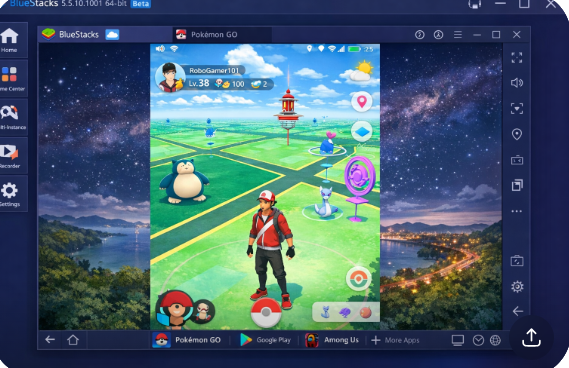
Table of ContentsHide
Evaluating the Methods: PC Gameplay vs. Alternatives
When looking for methods to play from a stationary desk, you typically encounter three primary options: an Android emulator setup, desktop-tethered GPS simulation software, or standard physical smartphone play. Relying purely on a virtual location emulator requires navigating aggressive security protocols, making it entirely unreliable for most players.
To make an informed decision, it is crucial to compare these options based on their success rate, the technical skill required, and the inherent risks to your digital assets.
Method Comparison Table
| Feature | Manual Emulator (BlueStacks) | Desktop-Tethered Location Tool | Physical Smartphone Play |
| Success Rate | Very Low | High | 100% Guaranteed |
| Time Cost | High (Constant troubleshooting) | Medium (Initial setup only) | None |
| Safety Risk | Extremely High | Low to Medium | Zero Risk |
| Input Method | Keyboard & Mouse | PC Mouse via Screen Mirroring | Touchscreen |
Trying to play Pokémon Go on BlueStacks with fake GPS presents continuous hurdles. The virtual software environment is fundamentally mismatched with the application’s strict security requirements. Transitioning to professional desktop-tethered tools connected to a real phone provides a far better experience. This approach removes the constant threat of automated account penalties so you can focus entirely on catching and raiding.
The Safest Solution: Moving Beyond Emulators
After testing various Android emulator mock setups, Chris reached a crucial conclusion. He learned that Niantic strictly blocks virtual environments and decided to play using his physical phone to avoid account deletion. The constant struggle with failing tools made the PC emulator setup completely unsustainable.
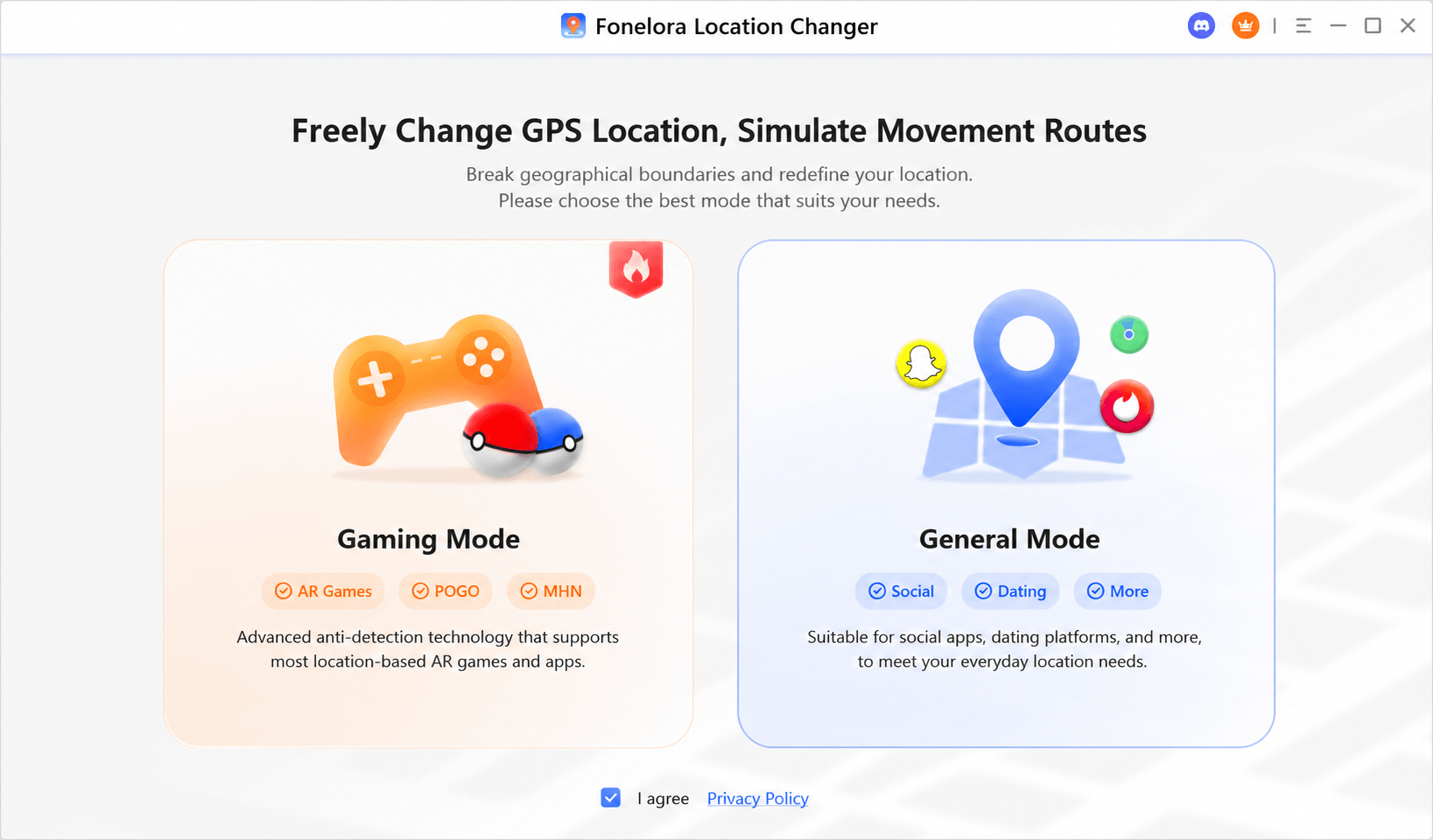
If you want a reliable solution that still lets you control your movement from your desktop, transitioning to specific desktop-tethered GPS software is the most effective choice. Programs like Fonelora Location Changer, Tenorshare iAnyGo, iMyFone AnyTo, or MocPOGO offer more practical alternatives. These tools bypass emulator gaming restrictions by modifying the GPS data on your actual physical device connected via USB, rather than attempting to simulate an entire Android operating system on your computer.
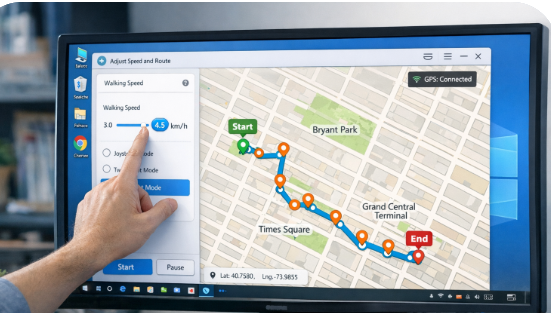
Among these options, Fonelora Location Changer fits especially well for users who want to move away from unstable emulator setups but still prefer desktop control. It allows you to select a location on a computer map, apply that GPS position to your connected iPhone or Android device, and use movement modes such as route simulation or joystick-style control. This creates a smoother bridge between “playing from a computer” and “still using a real phone,” which is the key difference from risky BlueStacks-style emulator play.
Step-by-Step Procedure for Tethered Tools
Using a tethered desktop tool requires a brief initial configuration. You must follow these steps carefully, especially the security step regarding developer options.
1. Connect Your Device: Plug your physical smartphone (iOS or Android) into your PC using a high-quality, data-transfer-capable USB cable.
2. Enable Developer Options (Temporarily): On your phone, enable USB debugging (for Android) or establish a trusted connection (for iOS) to allow communication with the desktop software.
3. Launch the Desktop Software: Open your chosen desktop location tool, such as Fonelora Location Changer, to display the map interface on your computer monitor.
4. CRITICAL SECURITY STEP – Hide USB Debugging: Pokémon Go actively scans for enabled Developer Options and USB Debugging on Android devices. If you leave this on, the game will flag your account or block the login. After granting the necessary permissions to your tethering tool, you must turn off USB Debugging in your phone settings, or use an app-hider module if your device is rooted, before launching the game.
5. Set Your Coordinates: Select your desired destination on the PC map and adjust your simulated walking speed to mimic realistic human movement. With Fonelora Location Changer, you can choose a fixed point, plan a route, or use joystick movement depending on how you want to control your location.
6. Open the Application: Launch the game on your physical phone, which will now reflect the modified GPS coordinates broadcast from your computer.
Bridging the Gap: How to Play with a Mouse and Keyboard
Tethering your phone secures your account, but it leaves you with a major disconnect: you are still forced to look down at a small touchscreen to throw Poke Balls.
To achieve the true desktop experience, you need to combine your GPS software with a screen mirroring application. We highly recommend using scrcpy (Screen Copy), a free, open-source application for Android that mirrors your phone screen to your PC monitor with near-zero latency. Windows Phone Link is another solid alternative.
By running Fonelora Location Changer or another GPS tool on one side of your monitor and scrcpy on the other, you can use your mouse to click, drag, and throw curveballs directly on your computer screen. This setup gives you the keyboard and mouse control you originally wanted from BlueStacks, completely free from the massive security risks of a virtual machine.
Why Emulators Fail Today?
Understanding the underlying technology reveals exactly why modern virtual environments struggle to function. Here is a critical technical insight: the game uses multiple detection mechanisms to identify non-standard usage, including strict device environment checks and abnormal movement patterns. Older versions of the software operated smoothly, but modern updates immediately block unauthorized access to maintain fair gameplay.
The Mechanics of Emulator Detection
When you attempt to log in through a virtual setup, the application instantly scans your hardware environment for digital signatures unique to emulated systems.
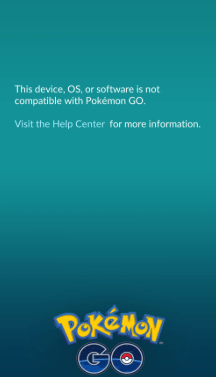
1. Google Play Integrity API: Niantic uses this advanced Google service to verify whether the app is running on a genuine, unmodified Android device. Emulators routinely fail the basic Play Integrity check, resulting in immediate software blocks or the dreaded “”OS not supported”” error screen.
2. Environment and Root Checks: The application searches your system directories for unlocked bootloaders, root access files, or known emulator file structures. Detecting these anomalies instantly terminates the login sequence.
3. Telemetry Data Discrepancies: Physical phones generate constant, microscopic shifts in accelerometer, barometer, and gyroscope readings. A static PC emulator environment provides artificial data. The server recognizes this lack of physical sensor data and flags the account.
These robust security measures validate the immense frustration many players experience. The security system simply recognizes that the software is not running on an actual mobile device.
Step-by-Step Risk Analysis of a Virtual Location Emulator
If you decide to test PC gameplay through an emulator despite the known limitations, you must understand the immediate and severe consequences. Bypassing location-based game security triggers automated responses that can permanently disable your access.
🚨 WARNING: THE SOFT BAN (COOLDOWN PHASE)
If you successfully load the game using an emulator and teleport a large distance instantly, the system registers an impossible travel time. This triggers a soft ban. During this period, every single Pokémon will flee instantly after breaking out of your first throw, and spinning PokeStops will yield zero items.
🛑 CRITICAL RISK: THE FORMAL THREE-STRIKE POLICY
Accounts flagged by the anti-cheat detection system enter a strict penalty progression.
Strike One (Warning): A severe warning message appears on your screen upon login. Rare Pokémon are completely hidden from your map for a minimum of seven days.
Strike Two (Suspension): Your account is locked and temporarily suspended for 30 days. You cannot log in at all.
Strike Three (Termination): Your account, along with years of progress and all associated Pokémon, is permanently deleted.
Because detection happens at the API level, merely logging into the game through an emulated environment can trigger a strike. The risk of losing your digital assets heavily outweighs the temporary convenience of standard emulator software.
Frequently Asked Questions About PC Play
To finalize our review of these setups, here are direct, factual answers to the most common questions regarding desktop gameplay.
Can you play Pokémon Go on BlueStacks?
You can download and install the application file onto the system, but actually playing is practically impossible. Modern updates actively identify and block the authentication process on emulated devices, resulting in login failures.
Does BlueStacks support GPS spoofing for Pokémon Go?
The software has built-in location mock features intended for standard app testing. A setup designed for this specific game is readily detected and immediately blocked by the server’s security checks.
Will Pokémon Go ban emulator users?
Yes. Because the application strictly prohibits modified software environments, using an emulator violates the terms of service. This frequently results in immediate account strikes or permanent bans.
How do you set fake GPS on BlueStacks?
Users typically apply the “Set Location” tool found in the right-hand sidebar of the emulator interface. Regardless of how carefully you place the pin, this method will not allow you to bypass current anti-cheat restrictions securely.
Is it safe to play Pokémon Go on PC?
No, not through a traditional emulator. Relying on an emulated operating system exposes your account to maximum risk. Combining desktop-tethered GPS software, such as Fonelora Location Changer, with a screen mirroring tool like scrcpy is the more practical PC-based method available.
Why does Pokémon Go not open on BlueStacks?
The application heavily scans for a genuine mobile environment upon launch. If it fails the Google Play Integrity check or detects virtual environment files, it crashes or displays an “OS not supported” error to enforce system restrictions.
Conclusion
Resolving the frustrating reality that Pokémon Go does not officially support emulators requires adapting your technical approach. Trying to spoof your location in BlueStacks inevitably introduces severe performance issues, login blocks, and a massive risk to your account. The developers have made it exceptionally clear that virtual machines are no longer welcome.
The safest solution completely removes the anxiety of account bans by transitioning away from virtual PC environments entirely. By relying on professional desktop-tethered tools like Fonelora Location Changer, iAnyGo, or AnyTo connected directly to your physical smartphone, you regain better control over your digital experience. Combine this software with a low-latency screen mirroring app like scrcpy, and you can finally achieve the ultimate goal: safely catching Pokemon on your large computer monitor using your mouse. Protect your progress today by abandoning outdated emulators and switching to a secure, modern hardware combination.


Hot Topics
