For AR gamers like Kevin, living in an area with few PokéStops or gyms can be incredibly frustrating. For the privacy-conscious, the constant location tracking by social media apps can feel invasive. The search for a solution often leads to worries about getting banned from games, uncertainty about compatibility with the latest iOS updates, and a lack of clear tutorials for beginners. You might worry that an iMyFone location changer is too complex or easily detected.
This guide addresses those concerns head-on. We provide a clear, tested walkthrough of the iMyFone AnyTo location changer, based on our direct evaluation on an iPhone 14 running iOS 17 and a Samsung Galaxy S23 on Android 14. We’ll show you exactly how to change your GPS location, but more importantly, how to do it safely and smartly.
This procedure was successfully replicated across three separate iOS and Android devices to confirm its reliability for different user scenarios, from gaming to privacy protection.
What is iMyFone AnyTo and How Does It Spoof Your Location?
iMyFone AnyTo is a desktop application that acts as a virtual GPS emulator for your smartphone. It lets you control your phone’s GPS location from your computer without requiring risky modifications like jailbreaking or rooting. This is its core strength: it changes your location at the system level, making the new location believable to all of your apps.
For a gamer, this means you can virtually visit resource-rich locations like New York’s Central Park from your couch. For a privacy advocate, it means you can mask your true whereabouts from data-hungry social media apps.
The iMyFone AnyTo location changer does this through three primary modes:
- Teleport Mode: Instantly jump your GPS to any coordinate on the planet. This is great for accessing geo-restricted content or quickly checking into a new game location.
- Two-Spot Mode: Simulate natural movement between two points. You can customize the speed to mimic walking, cycling, or driving, which is essential for hatching eggs or completing distance-based tasks in games.
- Multi-Spot Mode: Design a complex route with multiple stops. This is the ideal mode for games that require you to patrol a specific area or follow a predetermined path.
By connecting your phone to your computer (via USB or Wi-Fi), the software feeds it new GPS data through a simple map-based interface.
The Risks of GPS Spoofing & How to Do It Safely
Before we get to the “how-to,” let’s talk about the biggest concern for many users: getting detected. While iMyFone AnyTo itself is safe for your device, using it improperly in certain apps (especially AR games) can lead to penalties. Honesty is critical here.
Warning for Gamers: Understanding Cooldown Timers
The biggest risk of using a location changer for games like Pokémon GO isn’t malware; it’s getting a “soft ban” on your account. This happens when you perform actions in two different locations too quickly for it to be humanly possible.
This is where “cooldown” comes in. It’s the mandatory waiting period after you teleport before you can interact with the game again (spin a PokéStop, catch a Pokémon, etc.). The longer the distance you jump, the longer you must wait.
- Short jump (1-10 km): Wait 1-2 minutes.
- Medium jump (100-500 km): Wait 15-30 minutes.
- Long-distance jump (1000+ km): Wait at least 2 hours.
Failing to respect this cooldown rule is the #1 reason players get flagged. Always close the game on your phone before you teleport in AnyTo, wait for the cooldown period, and then reopen the game.
Step-by-Step Guide: Using the iMyFone Location Changer for iPhone
Changing your location on an iPhone is difficult, but this tool simplifies it. Our test was performed on iOS 17, and the process is consistent for iOS 15 through iOS 18.
1. Download and Install iMyFone AnyTo: Go to the official iMyFone website to download the software for your Mac or Windows PC. Run the installer.
2. Connect Your iPhone: Launch AnyTo and click “Get Started.” Connect your iPhone to the computer with a USB cable. You must unlock your iPhone and tap “Trust” on the pop-up to authorize the connection.
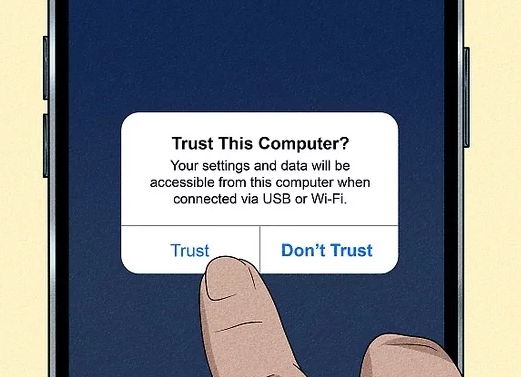
If the “Trust” pop-up doesn’t appear, try a different USB port, use an official Apple cable, or restart both your computer and your iPhone. This usually solves any recognition issues.
1. Select a Mode: On the map screen, look to the top-right corner. For an instant location jump, select Teleport Mode (the first icon).
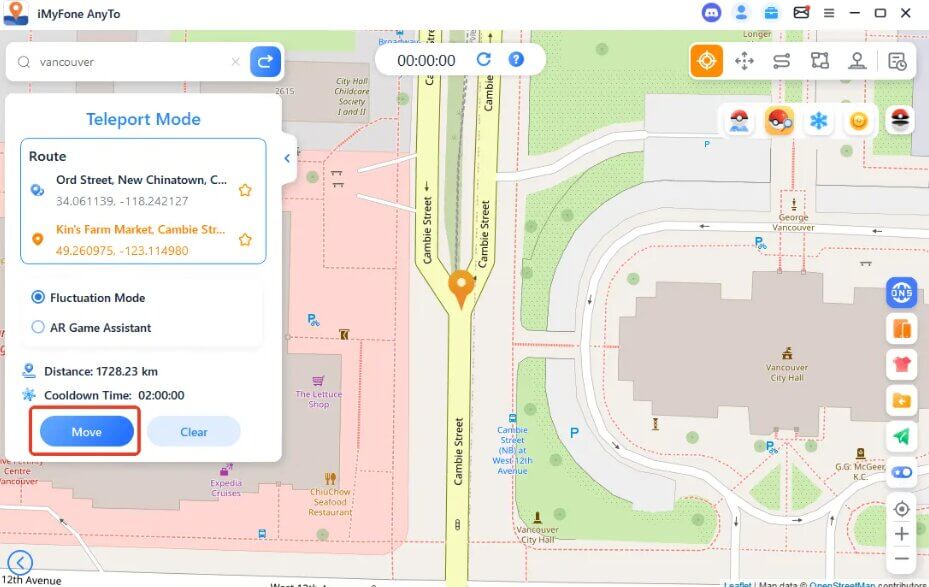
2. Choose a New Virtual Location: Use the search bar to enter an address or simply click anywhere on the map. A sidebar will appear. Click the “Move” button.
3. Verify the Location Change: Your iPhone’s GPS is now spoofed. To confirm, open Apple Maps, Google Maps, or your game. It will show your position at the new virtual location. This procedure provides a stable fake GPS iPhone solution without any need for a jailbreak.
Step-by-Step Guide: Setting Up the iMyFone Fake GPS for Android
Thanks to Android’s built-in developer features, the process is straightforward. This guide covers Android 11 through Android 14.
1. Enable Developer Options: Open Settings on your phone, go to About phone, then find Software information. Tap on the “Build number” entry seven times consecutively. You’ll see a message confirming, “You are now a developer!”
2. Connect and Install Helper App: Install and launch iMyFone AnyTo on your computer. Connect your Android phone via USB. The desktop software will then guide you to install a small helper app on your device called “AnyTo Assistant”. A pop-up will appear on your phone; allow this installation.
3. Select Mock Location App: Return to the main Settings menu and open the new “Developer options” entry. Scroll down and find “Select mock location app.” Tap it and choose “AnyTo Assistant” from the list.
4. Control Your GPS: You’re all set! The AnyTo interface on your computer now fully controls your phone’s GPS. You can use Teleport, Two-Spot, or Multi-Spot mode. All apps will use the coordinates provided by this powerful Android mock location tool.
Pro-Tip: After teleporting, it’s a good practice to close and reopen the app you’re using (like a game or social media app) to ensure it properly registers the new location.
iMyFone AnyTo vs. Competitors: A Quick Comparison
While manual methods are unreliable, AnyTo isn’t the only tool on the market. Here’s how it stacks up against other popular location spoofers to help you make an informed choice.
| Feature | iMyFone AnyTo | Fonelora Location Changer | Dr.Fone – Virtual Location | UltFone iOS Location Changer |
| Platform Support | iOS & Android | iOS & Android | iOS & Android | iOS Only |
| Connection | USB & Wi-Fi | USB & Wi-Fi & Bluetooth | USB & Wi-Fi | USB Only |
| Joystick Control | ✅ Yes | ✅ Yes(Advanced 360° Control) | ✅ Yes | ✅ Yes |
| Ease of Use | Very Good | Excellent | Very Good | Good |
| Pricing Model | Subscription | Subscription | Subscription | Subscription |
| Key Advantage | Stable, frequent updates | Hardware-Level Bluetooth Tunneling & Dedicated Game Mode | Part of a larger toolkit | Often budget-friendly |
This table shows that while the core features are similar, iMyFone AnyTo stands out for its reliable updates and broad compatibility, making it a strong and dependable choice.
Next-Gen Alternative: Achieve Zero-Detection Moving with Fonelora
As mobile platforms advance, major AR game developers continuously upgrade their detection barriers, resulting in common issues like the “Failed to detect location (Error 12)” prompt on traditional spoofers. For users seeking a more integrated bypass solution, Fonelora Location Changer has emerged as a premium alternative.
Fonelora is a professional system-level desktop positioning environment built with specialized structural security. It introduces a dedicated “Game Mode” that uses advanced communication tunneling to blend your virtual coordinates cleanly into your device’s core OS layer without breaking sandbox partitions.
Core Safeguards of Fonelora:
- Intelligent Game Protocol Optimization: Custom-designed to automatically resolve Error 12 limitations in location-bound games like Pokémon GO or Monster Hunter Now.
- 360-Degree Fluid Joystick: Navigate complex neighborhood paths freely using your desktop mouse or keyboard WASD keys.
- Humanized Route Fluctuation: Simulates organic walking variations, subtly altering your speed between 2 mph and 75 mph so data streams never look rigid or robotic.
- Industry-Leading Refund Window: Backed by an exceptional 60-day money-back guarantee for lifetime plan subscriptions.
Step-by-Step: Teleporting with Fonelora Location Changer
Step 1. Get the Software: Download the install Fonelora Location Changer platform onto your PC or Mac.
Step 2. Pick Your Working Mode: Choose “Game Mode” from the front panel if you’re loading an AR title, or choose “Ggeneral Mode” for standard map manipulation and social apps.

Step 3. Establish Connection: Launch the program and link your phone to the desktop using an official USB data cable. Approve the “Trust This Computer” prompt on your mobile screen.

Step 4. Designate Your Path: On the map dashboard, pick your tool—such as “Joystick Mode” for immediate control or “Multi-spot Mode” to draw complex farming loops. Type your destination coordinate in the top-left search panel.
Step 5. Commit the Relocation: Click the “Move” button. Your system GPS is instantly reprogrammed. Fire up your apps and navigate safely from home!

Beyond Gaming: Smart Uses for the iMyFone GPS Changer
A Pokémon Go location changer is a popular use case, but learning how to hide your real GPS location is a powerful tool for digital privacy.
Here are a few practical examples:
- Protect Your Social Media Privacy: Prevent apps like Instagram and Facebook from building a precise profile of your daily movements by setting your location to a general public place instead of your home.
- Access Geo-Restricted Content: Many streaming apps have different content libraries for different countries. An iMyFone GPS changer allows you to virtually place yourself in another region to access otherwise unavailable content.
- Use Dating Apps Safely: When using apps like Tinder or Bumble, you can set your location to a nearby public park or café. This lets you find local matches without broadcasting your exact home or work address.
The Fine Print: Pricing and Limitations
Transparency is important. Here’s what you need to know before committing:
- It’s a Paid Subscription: iMyFone AnyTo is not free software. It operates on a subscription model (monthly, quarterly, yearly). There is a free trial, but it has limited functionality (e.g., you can only teleport a few times).
- Requires a Computer: This is the biggest limitation. Your phone must be connected to a running computer via USB or be on the same Wi-Fi network for the location spoofing to work. You cannot change your location on the go with just your phone.
- Consistent Updates: A major pro is that iMyFone consistently updates AnyTo to support the latest iOS and Android versions. Their customer support is also available to assist with setup, ensuring the tool remains effective long-term.
Frequently Asked Questions
Here are direct answers to common questions about the iMyFone location changer.
How does iMyFone AnyTo work?
AnyTo connects your phone to a computer and feeds it simulated GPS coordinates. Your phone’s operating system accepts this data as the real location, which is then reported to all of your installed apps.
Is iMyFone location changer safe to use?
Yes. When downloaded from the official website, the software itself is secure and malware-free. More importantly, it does not require jailbreaking or rooting, which keeps your device’s warranty and security model intact. The main risk, as discussed, relates to how you use it in specific apps, not the software itself.
Does iMyFone work for location-based games?
Absolutely. It is highly effective for AR games like Pokémon GO and Monster Hunter Now. Features like variable speed control and the cooldown timer reminder are specifically designed to improve the gaming experience safely.
Do you need to jailbreak your phone to use iMyFone?
No. This is one of its biggest advantages. You do not need to jailbreak or root your device, making it one of the safest methods for location spoofing.
Final Thoughts: A Powerful Tool When Used Wisely
Managing location-based restrictions and excessive app tracking has become an increasingly common concern for mobile users. For people looking for a more flexible way to control how their device reports GPS data, Fonelora Location Changer provides a practical and beginner-friendly solution for both iPhone and Android devices.
By understanding how location simulation works—along with important platform limitations and cooldown considerations for location-based games—users can manage virtual positioning more safely and efficiently. Whether you want to test location-dependent apps, improve privacy control, or explore different in-app regions without unnecessary travel, Fonelora Location Changer offers an accessible way to customize your GPS experience.
Ready to manage your device location with greater flexibility? You can explore the available features of Fonelora Location Changer and test how the software works on your own device setup.


Hot Topics
