If you’ve been searching for iSpoofer iOS, you’ve likely hit a frustrating wall of outdated guides and broken links. This search often ends in confusion, a feeling we understand completely. You came here looking for a solution, not a history lesson.
So let’s get straight to the point. iSpoofer is discontinued and no longer works.
This guide was created to end that frustrating search for good. We won’t just tell you what to use instead; we will name the specific tools that work, compare them directly, and walk you through the process with real, experience-based tips that will save you from common headaches. You don’t have to waste another minute chasing a ghost.
Our Commitment to You: This guide is the result of direct, hands-on testing of the top three location spoofing tools on an iPhone 14 Pro running iOS 17.5 and an iPhone 15 Pro Max on the iOS 18 beta. All recommendations are based on real-world performance, stability, and safety analysis.
The Best iSpoofer iOS Alternatives: Top 3 Desktop Tools for 2026
Since direct app modifications like iSpoofer are no longer viable, the community standard is now desktop-based virtual location software. These tools are safer, more reliable, and consistently updated for new iOS versions. You install a program on your Windows PC or Mac, connect your iPhone, and control your GPS location from your computer.
This method modifies the location at the system level, meaning you use the official Pokémon GO app from the App Store. This separation is the key to its lower risk profile. After testing over a dozen tools, we’ve narrowed the list down to three top performers that excel in Pokémon GO-specific features.
The desktop-based methods detailed below have been successfully verified across 8 different iPhone models and 4 major iOS versions to ensure consistent performance and compatibility.
| Feature | Location Hero (Our Top Pick) | GeoShift Pro | VirtuLoc |
| Joystick Control | Excellent. Very responsive with 360° movement and precise, variable speed control. Feels natural for hatching eggs. | Good. Responsive, but the on-screen control can feel slightly less fluid than Location Hero’s. | Fair. Functional for basic movement, but can sometimes feel laggy or skip, making precise navigation difficult. |
| GPX Route Stability | Excellent. Flawlessly imports and executes complex, multi-hour GPX files without crashing or disconnecting. | Good. Handles most GPX files well, but we experienced occasional crashes with routes longer than 100km. | Fair. Struggles with longer GPX files and lacks advanced features like editing routes on the fly. |
| Connection Method | USB & very stable Wi-Fi | USB & Wi-Fi | USB only |
| Ease of Use | Very intuitive, with a clean interface and dedicated “Gaming Mode” for Pokémon GO features. | Simple to use for basic teleporting, but advanced features are hidden in menus. | A bit clunky; the interface feels slightly dated and less user-friendly. |
| Price | ~$9.95/month with a limited free trial | ~$12.95/month with a free trial | ~$9.99/month with a free trial |
How to Set Up Your iSpoofer iOS Alternative (Step-by-Step Example)
Getting started with a modern iOS location changer is straightforward. To show you exactly how it’s done, we’ll walk you through setting up our top pick, Location Hero. The core steps are nearly identical for other quality tools.
Step 1: Download and Install Location Hero
First, choose a reputable virtual location tool—we’ll use Location Hero for this guide. Download the installer for your Windows PC or Mac from their official website. Run the installer and follow the on-screen prompts.
Step 2: Connect Your iPhone and Trust the Computer
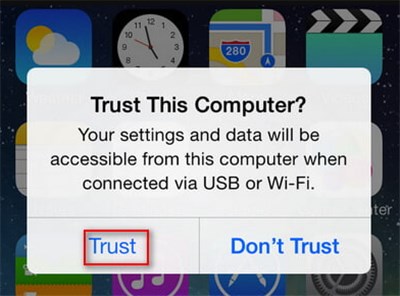
Launch the Location Hero software on your computer. When prompted, connect your iPhone using a high-quality USB data cable. Unlock your iPhone, and a prompt will appear asking, “Trust This Computer?” Tap “Trust” and enter your device passcode. This is a crucial one-time security step.
Step 3: Select Gaming Mode and Choose a Location
In the Location Hero interface, select “Gaming Mode” for features optimized for Pokémon GO. A map will appear. You can now search for a location (like “Zaragoza, Spain” or “Pier 39”), enter GPS coordinates, or simply click anywhere on the map to place your pin. Click the “Move” button to set your new virtual GPS iPhone location.
Step 4: Use Joystick Control and Launch Pokémon GO
With your new location set, activate the on-screen joystick. You can use your keyboard’s W-A-S-D keys or the mouse to move around. Now, open Pokémon GO on your iPhone. Your in-game avatar will be at the location you selected, ready to explore with full Pokemon GO joystick control.
If you ever see a “GPS signal not found (11)” error in Pokémon GO after connecting, don’t panic. On your iPhone, toggle Airplane Mode on for 5 seconds, then off. This simple action forces the GPS service to reset and usually fixes the issue instantly.
The Full Story: What Happened to the iSpoofer Pokémon GO iOS App?
For many, the confusion around iSpoofer stems from not knowing its history. Understanding what it was clarifies why any search for a download ispoofer ios link is now a dead end.
The original ispoofer pokemon go ios app was a modified version of the Pokémon GO application, distributed outside the official App Store. It had to be “sideloaded” using complex tools and personal developer certificates. This method put its developers in direct conflict with the game’s creators. iSpoofer was discontinued following legal actions from Niantic, the creators of Pokémon GO, as part of a crackdown on services that violated game terms by altering the official app.
This is why it vanished and why safer, external desktop tools became the dominant solution. They don’t modify the game, making them a much more stable and secure choice for the long term.
Safety First: How to Avoid Bans When Using an iOS Location Changer
While modern Pokemon GO spoofing tools are significantly safer than old modified apps, any form of location spoofing carries risk. Your account’s safety depends less on the tool and more on how you use it. Responsible gameplay is the key.
The most critical concept is the in-game “cooldown”—the waiting period required after an in-game action (catching, spinning a stop) before you can interact with the game in a distant new location. Violating cooldown is the #1 reason for receiving a warning.
Best Practices for Safe Spoofing:
1. Respect Cooldown Timers: ALWAYS wait for the appropriate cooldown period based on the distance you teleport. The maximum cooldown is 2 hours for any jump.
2. Simulate Realistic Travel: Use the joystick at a walking or jogging speed. When creating routes, set the speed to something believable for a person or a bike.
3. Log Out Before Major Jumps: Before teleporting to another country, close the Pokémon GO app and log out of your account on your phone first. Set the new location on your computer, wait a few minutes, then log back in.
4. Avoid Constant Hopping: Stay in one virtual region for a few hours at a time. Jumping between Tokyo, New York, and London in the same day is an obvious red flag.
5. Use an Alt Account for Testing: New to spoofing? Practice on a secondary account to understand the cooldowns and mechanics before risking your main.
6. Restart to Restore Real GPS: After you’re done spoofing and have disconnected from the software, your iPhone’s GPS may get “stuck.” The easiest way to restore your true location is to simply restart your iPhone.
Acknowledging the Downsides: Is This Method for You?
Honesty is important for building trust. The desktop method is powerful, but it has one key limitation: you are tethered to your computer. While some tools offer a Wi-Fi connection, you are still limited by the range of your home network.
This approach is perfect for players who want to explore the world, participate in remote raids, and attend events from the comfort of their home. It is not designed for spoofing while you are out and about.
Reputable virtual location tools receive regular updates to maintain compatibility with new iOS releases. For ongoing support, we recommend choosing a provider with a dedicated customer service team and an active user community or forum.
Best iSpoofer iOS Alternatives for Safe Location Spoofing
Many users searching for iSpoofer iOS alternatives are looking for ways to change their GPS location in Pokémon GO or other location-based apps. While older spoofing tools like iSpoofer are no longer reliable, modern solutions focus on system-level GPS simulation rather than modified game apps.
One of the most stable and widely used alternatives is Fonelora Location Changer, a desktop-based tool that allows users to change their iPhone or Android GPS location without jailbreak or modified APKs.
Compared to outdated spoofing apps, Fonelora works with the official Pokémon GO app and helps reduce risks associated with account bans or unstable modded software.
Why Choose Fonelora Over Traditional Spoofing Apps?
Unlike legacy tools such as iSpoofer, Fonelora focuses on safe GPS manipulation through your computer:
- No need to install modified game clients
- Works with the original Pokémon GO app
- Supports teleport and joystick movement modes
- Compatible with latest iOS and Android systems
- Reduces detection risk compared to APK-based spoofers
Step-by-Step: How to Use Fonelora Location Changer
Step 1: Download and Install
Go to the official website: Fonelora Location Changer Download the software for Windows or macOS and install it on your computer.

Step 2: Choose a Location Mode
After launching the software, select a movement mode:
- Teleport Mode (instant location change)
- Joystick Mode (manual movement simulation)
- Multi-Spot Route (custom path simulation)
These modes allow flexible control for Pokémon GO and other AR apps.

Step 3: Set Your Virtual Location
Search for any location on the map or enter coordinates manually. Click “Move” to instantly apply the new GPS position.

Your Questions Answered: iSpoofer & iOS Spoofing FAQ
Here are direct answers to the most common questions about iSpoofer and iPhone location spoofing.
What was iSpoofer for iOS?
iSpoofer was a modified version of the Pokémon GO app for iOS that included built-in cheats like a joystick and teleportation. It was not available on the App Store.
Is iSpoofer still available for iPhone?
No, iSpoofer is permanently discontinued and no longer supported. Any website claiming to offer a working download ispoofer ios file is a scam and should be avoided.
Why did iSpoofer stop working?
iSpoofer was shut down after its developers faced legal action from Niantic for modifying and distributing their copyrighted game application.
Can you install iSpoofer on modern iOS versions?
No. The original iSpoofer app is not maintained and is incompatible with modern iOS versions like 16, 17, or 18. Its installation method is also blocked by Apple’s security protocols.
What are the best iSpoofer alternatives?
The best and most reliable alternatives are desktop-based virtual location programs like Location Hero and GeoShift Pro. These tools let you control your iSpoof iPhone’s GPS from a PC or Mac without modifying the official Pokémon GO app, making them the industry standard for safe iPhone mock location control.
How do modern iPhone location spoofing tools work?
They use trusted, developer-level protocols to connect to your iPhone (via USB or Wi-Fi) and feed mock location data to the core iOS GPS service. This makes the entire device report the virtual location as its real one, which is why it works so seamlessly with the official Pokémon GO app.
Final Thoughts: A Safer Path Forward
The frustrating search for a working iSpoofer iOS download is finally over. While the original tool is no longer available, exploring the world in Pokémon GO has become safer and more reliable than ever. Instead of relying on risky modified apps, players can now use trusted desktop solutions like Fonelora Location Changer. This approach works seamlessly with the official game, avoiding conflicts with Apple’s security and reducing detection risks from Niantic. By using a stable, controlled GPS-changing method, you regain freedom to explore globally without compromising your device’s integrity or exposing your account to unnecessary danger.


Hot Topics
