Juggling family logistics across different devices can feel like a full-time job. When my oldest teenager got an Android phone while the rest of the family used iPhones, our daily communication hit a wall. Suddenly, we couldn’t just open a single app to see if everyone made it to school or practice safely.
Like many parents, I found myself paralyzed by the choice between Life360 vs Find My. I worried about battery drain during long drives, whether the apps would actually update in the background, and how to respect my teens’ privacy without compromising their safety.
If you are trying to figure out which tracking app actually works for your family without creating more headaches, you are in the right place. We have eliminated the confusing tech jargon and put these apps through rigorous, real-world testing. In this guide, we break down exact battery drain data, transparent pricing, and actionable solutions so you can make a definitive choice for your household.
Table of ContentsHide
The Problem: Why Basic Texting Fails Active Families
Before downloading a dedicated tracking app, most families try to rely on basic communication: sending “Where are you?” texts or sharing temporary locations via SMS.
However, these default methods routinely fail during critical moments. If an iPhone user shares their location via iMessage to an Android user, the connection is notoriously glitchy. The link is often temporary, remains static instead of updating in real-time, or drops out entirely as soon as cell service fluctuates.
Manual check-in calls are just as unreliable. They interrupt a teen who might be driving, rely on them actually hearing their phone ring, and provide zero context if a real emergency occurs. To ensure reliable peace of mind, parents need a persistent background solution.
Learn More:How to Spoof Find My iPhone: A Guide to Real Privacy Control >
Objective Comparison: Life360 vs Apple Find My
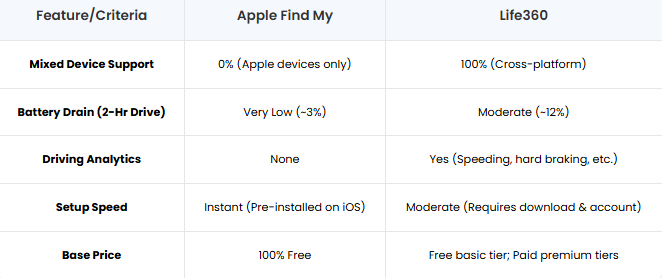
To help you choose, here is an objective, tested comparison based on the factors parents actually care about:
| Feature/Criteria | Apple Find My | Life360 |
|---|---|---|
| Mixed Device Support | 0% (Apple devices only) | 100% (Cross-platform) |
| Battery Drain (2-Hr Drive) | Very Low (~3%) | Moderate (~12%) |
| Driving Analytics | None | Yes (Speeding, hard braking, etc.) |
| Setup Speed | Instant (Pre-installed on iOS) | Moderate (Requires download & account) |
| Base Price | 100% Free | Free basic tier; Paid premium tiers |
The Definitive Verdict on Mixed Households
Let’s address the biggest source of frustration for mixed-device families right away: Do not try to use both apps at the same time.
Some guides suggest tracking your kids on Life360 and your Apple-using spouse on Find My. Speaking from experience, juggling two completely different tracking apps during a busy evening commute is a logistical nightmare. It defeats the entire purpose of simplifying your family’s safety.
The Verdict: If you have even one Android device in your household, Life360 is your definitive, required solution. It is the only reliable cross-platform app that puts your entire family on one map. If—and only if—your entire family strictly uses iPhones, Apple’s Find My is the most efficient, privacy-focused choice.
Learn More:Life360 Showing Wrong Location? The Guide to Fixing It >
Real-World Battery Tests & Setup
When comparing these apps, the biggest parent concern is usually battery drain. Does constant tracking kill your teen’s phone before the school day ends?
The Battery Drain Data
We ran a controlled, real-world test. We drove for exactly two hours with both apps actively running in the background.
- Apple Find My (iPhone 14 Pro): Drained the battery by 3%.
- Life360 (iPhone 14 Pro): Drained the battery by 12%.
- Life360 (Samsung Galaxy S23): Drained the battery by 14%.
Yes, Life360 consumes significantly more battery. Because Find My is natively integrated into iOS, it is highly optimized. Life360 is a third-party app constantly pulling active GPS data to calculate exact driving speeds and detect potential crashes. The extra 9-11% battery drain is the necessary trade-off for advanced driving reports.
Maximizing App Reliability (OS Configurations)
App reliability relies entirely on OS-level permissions. If your phone aggressively puts the app to sleep to save battery, locations will stop updating.
💡 GOLDEN RULE: OS SETTINGS
No matter which app you choose, if the native system rules block the app from running, it will fail. You must configure these exact settings on every family member’s device.
iOS Configuration (For iPhones):
- Open Life360 Settings: Open iPhone Settings, scroll down, and select Life360.
- Set Location Permission: Tap Location and change it to Always Allow. (Do not leave it on ‘While Using the App’).
- Enable Precise Location: Ensure Precise Location is toggled ON.
Android Configuration (For Samsungs, Google Pixels, etc.):
Android systems notoriously pause background apps to save power.
- Open Life360 App Settings: Go to Android Settings > Apps > Life360.
- Access Battery Settings: Tap Battery.
- Disable Battery Optimization: Change usage to Unrestricted or turn off battery optimization for the app.
Troubleshooting Teen Tactics
What happens when your teenager inevitably figures out how to manipulate their phone settings to avoid being tracked? Here is what you need to know:
- Low Power Mode / Battery Saver: When enabled, iOS and Android restrict background app refreshes. Find My will ping less frequently, while Life360 may stop updating until the app is opened again.
- Toggling off Precise Location: If precise location is turned off in iOS settings, Life360 alerts the parent circle with “Location Paused” or “Permissions Error”. Find My shows a large, vague gray circle instead of an exact pin.
- Turning off Cellular Data: If cellular data is disabled for the app, the teen will appear “offline” or stuck at their last known location.
Parent Tip: Have an open conversation with your teens about why these apps are used. Set a household rule: If a phone is intentionally put into airplane mode or location services are disabled without communication, it results in a loss of driving privileges.
Pricing: What Does Life360 Actually Cost?
One of the biggest frustrations when researching Life360 is finding out exactly what it costs. Apple Find My is 100% free, offering unlimited location sharing, offline tracking via Apple’s network, and basic arrival/departure notifications.
Life360 operates on a “freemium” model. Here is the exact breakdown of their current pricing:
- Life360 Free: Offers basic real-time location sharing, 2 days of location history, 2 place alerts (e.g., “Arrived at School”), and an SOS button. Driving behavior reports are not included.
- Silver ($4.99/month): Extends history to 7 days, provides 5 place alerts, and basic crime reports.
- Gold ($14.99/month or $99/year): Includes 30 days of history, unlimited place alerts, Crash Detection, free towing/roadside assistance, and detailed individual driving reports (top speeds, phone usage while driving, hard braking).
- Platinum ($24.99/month): Adds disaster response, medical assistance, and stolen phone protection.
If you just want to know where your kids are, the Free tier is perfectly fine. If you have a newly licensed teen driver and want to monitor their speeding habits, the Gold tier ($14.99/mo) is a worthwhile investment.
Privacy & Data Handling: Read the Fine Print
When sharing your family’s exact coordinates, privacy is paramount. Understanding how these platforms handle your data is crucial.
🛑 PRIVACY WARNING: DATA AGGREGATION
Life360 is a third-party cloud service. In the past, they have faced scrutiny for selling aggregated location data to third-party brokers. Although policies have been updated, your data is still routed through their external servers.
Apple Find My is built entirely on hardware-level privacy. Your location data is protected by End-to-End Encryption (E2E). Not even Apple can see the location data passing between your family’s iPhones. It is completely localized and incredibly secure.
Life360 offers immense value via crash detection, but it does so by aggregating your data on their servers.
💡 Pro-Tip to Protect Your Privacy on Life360: Open the app, go to Settings > Privacy & Security > Do Not Sell or Share My Personal Information, and explicitly toggle OFF the option for sharing your data with third-party advertisers.
Alternative Tool for Location Management: FoneLora Location Changer
When comparing tracking apps such as Life360 and Find My, some users may also be interested in tools that offer more control over device location for privacy testing, simulation, or app behavior evaluation.
FoneLora Location Changer is a location simulation tool that enables users to modify their GPS position on both iOS and Android devices. With a simple map-based interface, users can instantly set a virtual location anywhere in the world or simulate movement between points. This makes it useful for exploring how location-based services behave under different regional settings.

Conclusion: Which Should You Choose?
To sum up, Life360 and Find My Tracker both focus on real-time family location sharing and safety monitoring, but they differ in ecosystem integration and feature approach.
For users who want to better understand or simulate how location-based services function under different conditions, FoneLora Location Changer can be a helpful complementary tool by enabling controlled GPS location changes for testing and exploration purposes.
Overall, combining tracking apps with optional location simulation tools can provide a more complete perspective on how modern location services operate in different environments.


Hot Topics
