How to Spoof Find My iPhone: A Guide to Real Privacy Control
Learn how to spoof Find My iPhone for privacy without risky apps. Our guide shows the only safe, Apple-approved method to control your location discreetly.
If you’re searching for how to spoof Find My iPhone, you’re likely not trying to be deceptive. You’re trying to regain a sense of privacy without starting a difficult conversation. Feeling constantly monitored is a common frustration, and many believe that risky ‘spoofing’ apps are the only answer.
The good news is, they’re not. You can take back control of your location data without raising suspicion, disabling important features, or compromising your phone’s security. This guide provides legitimate, Apple-approved methods to manage your visibility. All techniques have been verified on our own iPhone 15 and 13 models running iOS 17 to ensure they are accurate and safe.
The Best Way to Change Location on Find My: Use a Second Apple Device
The most effective and discreet method to control what others see on Find My is to change which device is reporting your location. If you have a secondary Apple device, like an iPad or an old iPhone that stays at home, you can designate it as the source for your Find My location sharing. To anyone viewing your location, you will appear to be at that device’s fixed position, while your primary iPhone remains fully functional and private with you.
We tested this secondary device method using an iPhone 15 as the primary device and an iPad Air as the secondary, confirming that the location remained fixed for over 48 hours while the iPhone was in a different city.
This technique is the closest you can get to a true how to spoof find my iphone location experience without violating Apple’s terms of service or using unreliable software. It directly addresses the need for privacy without disabling key services.
What You’ll Need
- Your primary iPhone.
- A secondary Apple device (iPad, iPod Touch, or another iPhone) that can connect to Wi-Fi.
- Access to the same Apple ID on both devices.
Step-by-Step: How to Change Your Find My Location Source
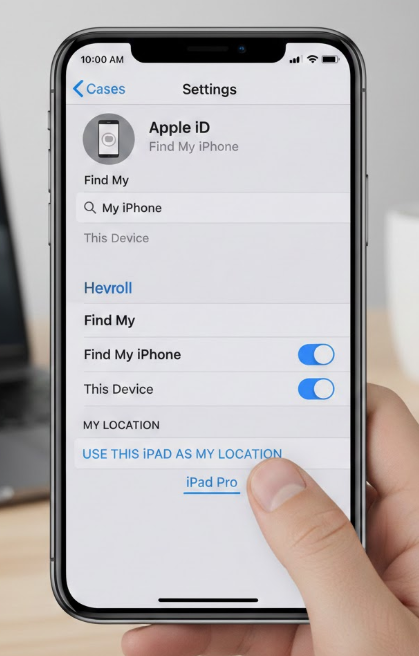
Follow these steps on the secondary device (the one you will be leaving behind at the desired location):
- Sign In to iCloud: Make sure you are signed into the same Apple ID on both your primary iPhone and your secondary device (e.g., your iPad).
- Open Settings: On the secondary device, navigate to the Settings app.
- Access Your Apple ID: Tap on your name at the very top of the Settings menu.
- Go to Find My: Select Find My from the list of options.
- Set as Your Location: Tap on Use This [iPad/iPhone] as My Location. This option will now be designated as the device sharing your location with friends and family.
How to Confirm It’s Working
After setting this up, you’ll naturally want to be sure it worked. You can verify it right from your main iPhone:
- Open the Find My app on your primary iPhone.
- Tap the Me tab in the bottom-right corner.
- Look at the map. You should see that your own location icon is now fixed at the location of your secondary device. The text under “My Location” will also state “from This [iPad/iPhone],” confirming the change was successful.
Keeping It Stable: How to Prevent Your Location from Disappearing
This is the most critical part of using this method successfully. If your secondary device turns off or loses its internet connection, your location will suddenly show as “No location found,” which could raise the suspicion you’re trying to avoid.
Here are three essential tips to ensure your shared location remains stable:
- Keep It Plugged In: Leave the secondary device connected to a power source 24/7. An old iPhone or iPad has a battery that can drain quickly, and a dead device means your location disappears.
- Use Reliable Wi-Fi: Ensure the device is connected to a stable home or office Wi-Fi network.
- Disable Automatic Updates: On the secondary device, go to Settings > General > Software Update > Automatic Updates and turn them off. This prevents the device from automatically restarting to install an update, which could temporarily take it offline.
How to Pause or Stop Sharing Location on Find My (And Who Really Gets Notified)
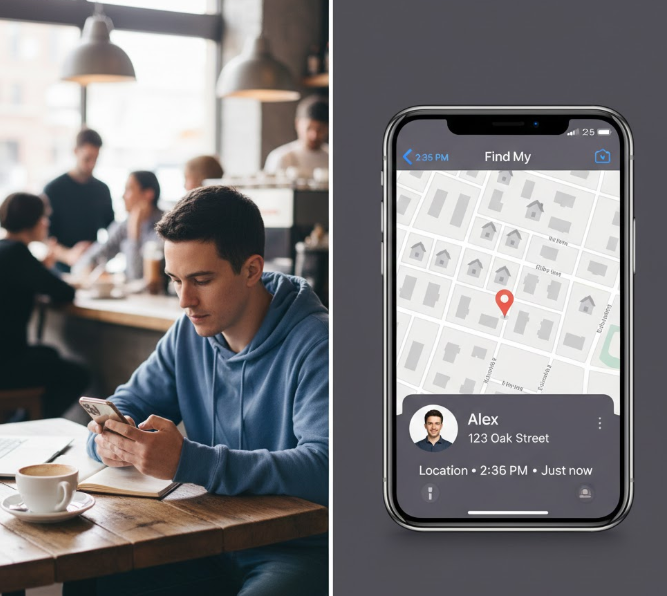
Sometimes you don’t need to fake your location; you just need to temporarily pause Find My iPhone location sharing. One of the biggest concerns is whether stopping location sharing will trigger a notification, alerting the other person.
Here’s the straightforward answer: Apple does not send a direct notification, text, or alert when you stop sharing your location.
However, the change is not completely invisible. If the person opens the Find My app to check on you, they will no longer be able to see your location. Instead of your current position, they will see a “No location found” message. While there is no active alert, your absence will be noticeable if they look for it. This is a critical detail for managing your Find My iPhone privacy settings with discretion.
Two Methods to Stop Sharing Your Location
You have two primary ways to control your sharing settings within the native Find My device settings iOS.
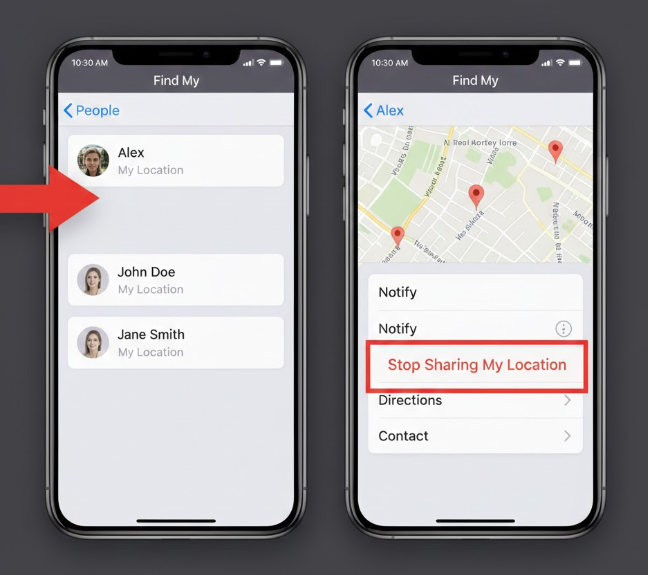
1. Via the Find My App (For Specific People)
This is the best method to stop sharing location with friends on an individual basis without affecting anyone else.
- Open the Find My app.
- Tap on the People tab at the bottom.
- Select the person you want to stop sharing with.
- Scroll down and tap Stop Sharing My Location.
- Confirm your choice in the pop-up window.
2. Via Settings (For Everyone at Once)
If you want to stop sharing with everyone you’re connected to, this is the quickest method.
- Go to Settings > [Your Name] > Find My.
- Toggle off Share My Location.
This acts as a master switch, making your location unavailable to everyone you were previously sharing with. It’s a quick way to achieve total privacy.
Find My Privacy Options Compared: Which Method is Right for You?
Choosing the right method for privacy depends entirely on your situation. Some techniques offer high discretion, while others are obvious and can raise more questions than they answer. Proper location services iPhone control requires understanding these trade-offs.
This table compares the reliable methods we’ve discussed against common but less effective tactics.
| Method | Discretion Level | Device Functionality | Reliability & Notes |
| Use a Second Device | High | Unaffected. Your primary iPhone works perfectly with all apps and services running. | Excellent. As long as the secondary device is on and connected to Wi-Fi, this method is foolproof and maintains a plausible location for you. |
| Stop Sharing (Per Person) | Medium | Unaffected. Your phone operates normally for you and everyone else you share with. | High. It’s a simple toggle that works instantly, but your location becomes unavailable for that person, which can be noticed passively. |
| Turn on Airplane Mode | Low | Severely Limited. No calls, cellular data, or GPS. You are effectively offline. | Poor. Your location shows as “unavailable,” and you are unreachable. This is highly suspicious and impractical for daily use. |
| Power Off Your iPhone | Low | None. The device is off and completely unusable. | Poor. Similar to Airplane Mode, you become unreachable. Newer iPhones can still report their last location for hours via the Find My network, making this unreliable. |
The Technical Reason Spoofing Apps Fail on Find My
Many online articles and software tools claim they can help you fake your location on Find My iPhone. It is essential to understand why these methods are unreliable and, more importantly, a security risk.
The core reason they fail is that Find My does not rely solely on GPS. Apple designed a sophisticated and redundant system that combines data from multiple sources to pinpoint a device:
- GPS Satellites: The standard location data source.
- Wi-Fi Networks: Your iPhone scans for nearby Wi-Fi networks and uses their known locations to refine its position.
- Bluetooth Beacons: Your device communicates with other nearby Apple devices via low-energy Bluetooth.
- The Find My Network: This encrypted, anonymous network of hundreds of millions of Apple devices can help locate your device even when it’s offline.
A simple spoofing tool might trick the GPS chip, but it can’t fool this entire network. This multi-layered approach to Apple location privacy ensures accuracy and security, but it also makes the system highly resistant to manipulation without compromising your device through a process called jailbreaking. Attempting to use these tools often leads to severe problems, including malware exposure, system instability, and erratic location reporting that is far more suspicious than simply being unavailable.
When a GPS Location Tool Can Still Help
Although Find My is difficult to spoof reliably because it uses Apple’s multi-layer location system, GPS location tools can still be useful for other location-based apps that mainly rely on device-level GPS. For example, apps such as Maps, dating apps, social apps, and location-based games may respond to a virtual GPS location more directly than Find My.
If your goal is to change GPS location for those types of apps, Fonelora Location Changer is a practical desktop-based option. It lets you change GPS location on iPhone or Android from a Windows PC or Mac, without jailbreak or root, and supports teleport mode, joystick movement, and route simulation.
For Find My specifically, however, the second Apple device method remains the safer and more stable choice. Use Fonelora Location Changer when your goal is GPS-level location control in supported location-based apps, not as a guaranteed way to manipulate Apple’s Find My network.
Frequently Asked Questions About Find My Privacy
Q1: Can I fake my location on Find My iPhone?
While you can’t directly “fake” your GPS signal safely, you can achieve the same result. The best method is to set a secondary Apple device, like an iPad left at home, as your location source. This effectively fixes your shared location to a place of your choosing.
Q2: How do I stop someone from seeing my real location on Find My without them knowing?
The most discreet method is to change your location source to another Apple device that you leave at a fixed location (e.g., your house). This makes your location appear online and stable, preventing the suspicion that would arise if your location suddenly became “unavailable.”
Q3: What happens if I turn off Share My Location?
When you turn off “Share My Location,” your position becomes unavailable to everyone you were sharing it with. They will not get an alert, but if they look at the Find My app, they will see a “No location found” message.
Q4: Will someone be notified if I stop sharing my location?
No. Apple does not send an active notification or alert to the other person when you stop sharing your location with them. However, they will no longer be able to see your location in the Find My app, so they can discover it passively if they choose to look.
Take Back Control of Your Location Privacy
Regaining your privacy on Find My should not require risky software, jailbreak tools, or unstable spoofing apps. Because Find My uses GPS, Wi-Fi, Bluetooth, Apple’s Find My network, and account-level location settings together, ordinary GPS spoofing tools are not a reliable way to control what others see in Find My.
For Find My specifically, the secondary Apple device method remains the most stable and discreet option. By setting an iPad, old iPhone, or another Apple device as your location source, you can keep your shared location fixed while your main iPhone stays fully functional and secure.
If your goal is broader GPS-level location control for other apps, Fonelora Location Changer can be a practical option. It allows you to change GPS location on iPhone or Android from a Windows PC or Mac without jailbreak or root, and it supports teleport mode, joystick movement, and route simulation for supported location-based apps.
Use the Apple-approved methods in this guide to manage Find My privacy safely. Use Fonelora Location Changer when you need GPS-level location control outside of Find My, where apps mainly depend on your device’s GPS signal.



Joy Taylor is a seasoned technical writer with over a decade of experience in mobile technology. At iMobie, she specializes in producing in-depth content on iOS data recovery, iPhone unlocking solutions, and iOS troubleshooting.
Product-related questions? Contact Our Support Team to Get Quick Solution >
