Quick Answer: If Life360 is showing the wrong location, it is usually caused by weak GPS signal, indoor Wi-Fi positioning errors, Low Power Mode, disabled Precise Location, restricted background activity, or aggressive battery optimization. In most cases, it does not mean the person is actually at the wrong address. To fix it, check the location settings on the phone that is being tracked, enable Precise Location, allow background updates, keep Wi-Fi on, disable battery restrictions, and restart the device.
With a strong outdoor GPS signal, Life360 can often be accurate within about 10–30 feet. Indoors, in apartments, schools, malls, or dense city areas, Wi-Fi positioning and cell tower fallback can make the pin appear hundreds of feet away from the real location.
Seeing a Life360 wrong location for a family member can cause a moment of panic. One minute, you’re checking to see if your child arrived safely at school; the next, their icon is pinned to a strange house down the street. That jolt of fear is common, but a Life360 incorrect location is rarely a sign of a real emergency.
More often, it is a technical issue with a clear solution. This 2026 step-by-step guide explains why Life360 shows the wrong location, how to identify whose phone needs fixing, and how to fix Life360 inaccurate location on iPhone and Android.
Before You Start: Whose Phone Needs Fixing?
Before changing settings, answer one important question: whose location is wrong? If Life360 is showing the wrong location for your child, partner, friend, or family member, the issue usually comes from their phone, not yours.
Did you recently pause location on Life360? Forgetting to turn it back on is a common reason your avatar is stuck in the wrong city.
When you see an incorrect location, your first instinct might be to check your own phone’s settings. However, in most cases, the inaccuracy comes from the settings on the phone you are trying to locate.
This means the fixes below need to be applied to your family member’s phone if their Life360 location is wrong. We understand this can require a conversation, especially with a teenager. A better approach is to frame it as a team effort: “Let’s check these settings together to make sure the app is working right for both of us.”
By making sure their phone is configured correctly, you ensure the whole family gets the peace of mind Life360 is meant to provide.
Quick rule: If your family member appears in the wrong place, fix settings on their phone. If your own avatar appears wrong to others, fix settings on your phone.
The 3-Step Quick Fix Checklist
Before diving into complex settings, run through this simple checklist. These three steps solve many Life360 location issues without needing advanced troubleshooting.
- Check Their Battery Level in the App: This is one of the most common causes of sudden location problems. Tap on their icon in your Life360 app and look at their battery percentage. If it is below 20%, their phone may have entered a low power mode. These modes often restrict background apps and GPS usage to save power, causing location inaccuracies.
- Ask if They Have Wi-Fi On: A phone’s Wi-Fi radio is important for accurate indoor location. Even if they are not connected to a network, the phone can scan for nearby Wi-Fi signals to improve positioning. Ask them to keep Wi-Fi enabled.
- Restart Their Phone: A simple reboot can resolve temporary software glitches that interfere with GPS, Wi-Fi scanning, background refresh, and Life360 updates.
If you have tried these steps and the Life360 location is still off, it is time to check the phone’s core location settings.
Learn More:Life360 “No Network or Phone Off” Meaning Explained>
Understanding How Life360 Finds a Location
Before changing any settings, it’s critical to understand how Life360 finds a location. Life360 does not rely on only one signal. It blends GPS, Wi-Fi positioning, and cell tower data, constantly switching based on signal strength and device conditions.
Most Life360 wrong location problems happen when the phone is forced to use a less accurate method.
Here’s the breakdown, from most to least accurate:
- GPS: This is the most accurate method. By communicating with satellites, GPS can often pinpoint a location within 10-30 feet. It works best outdoors with a clear view of the sky.
- Wi-Fi Positioning: When indoors, a phone scans for nearby Wi-Fi networks and checks them against a location database to estimate its position. This is usually less precise than GPS. A Wi-Fi positioning error can occur if a router’s location is outdated in Google’s or Apple’s database, which is also a common reason behind Life360 location update delays.
- Cell Tower Triangulation: As a last resort, the phone estimates location based on nearby cellular towers. This is the least precise method, and the result can be hundreds or even thousands of feet off.
Expert Insight: When Life360 shows a location that is slightly off, it usually means the phone has a weak GPS signal and is relying on Wi-Fi or cell tower data. This is not always an app failure. It is often the phone making its best estimate based on limited signal quality.
Decoding the Map: What the Accuracy Circle Means
The best clue to what is happening is often right on your screen. Life360 places a circle around each person’s profile icon to show its location confidence. The size of this circle tells you how accurate the location may be.
- Small, Tight Circle: This usually means the phone has a strong GPS signal. The location is more likely to be accurate and may pinpoint the person to a specific building, parking lot, or part of a park.
- Large, Wide Circle: This means the app is less confident. The phone may be indoors, blocked by buildings, or relying on Wi-Fi or cell tower data. The person’s actual location is likely somewhere inside that larger circle.
Understanding this visual cue is key. If you see a large circle, you do not need to immediately assume the person is at the neighbor’s house. The app may simply be estimating based on weak or indirect location data.
Learn More:Life360 Not Updating Location? The Proven Fix>
How to Fix Life360 Inaccurate Location on iPhone
On an iPhone, Life360 inaccurate location problems are often caused by settings designed to preserve battery life at the expense of precision. To fix the issue, review the settings on the phone that is reporting the incorrect location.
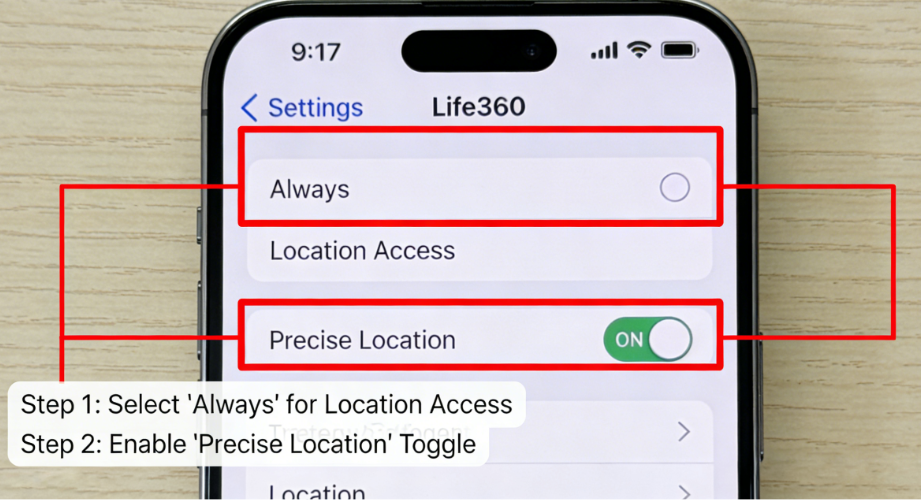
1. Enable Precise Location for Life360
This is the single most important iPhone setting for Life360 accuracy. When Precise Location is turned off, iOS may only provide an approximate region, which can be thousands of feet wide.
- Open the Settings app.
- Go to Privacy & Security > Location Services.
- Scroll down and tap Life360.
- Set location access to Always. This is important for Life360 to update when the app is not actively open.
- Make sure the Precise Location toggle is switched on.
2. Activate Background App Refresh
Background App Refresh allows Life360 to update location when the app is not open. If this setting is disabled, the app may show stale or delayed locations.
- Go to Settings > General > Background App Refresh.
- Find Life360 in the list.
- Make sure its toggle is turned on.
3. Keep Wi-Fi Enabled
Even when not connected to a Wi-Fi network, the iPhone uses Wi-Fi scanning to improve its location estimate. Disabling Wi-Fi can reduce Life360 accuracy indoors, especially in schools, malls, apartments, and office buildings.
Ask the person to keep Wi-Fi enabled from Control Center or from Settings > Wi-Fi.
A Note on Battery Usage: Setting location access to “Always” and enabling background refresh may use more battery. However, this is the necessary trade-off for receiving timely and accurate location updates.
How to Fix a Life360 Wrong GPS Position on Android
Android’s battery optimization can be aggressive, especially on Samsung, Google Pixel, Xiaomi, OnePlus, and other devices. If you previously tried to pause Life360 location updates or restrict background activity manually, those settings may still be affecting location accuracy.
A Life360 wrong GPS position on Android is frequently the result of power-saving mode, denied location permission, disabled precise location, or restricted background activity. Follow these steps on the phone that is showing the wrong location.
1. Set Location Permissions to “Allow All the Time”
Life360 requires consistent location access to function reliably. If the app can only access location while open, the map may show outdated or inaccurate positions.
- Press and hold the Life360 app icon.
- Tap the App info button.
- Select Permissions, then tap Location.
- Choose Allow all the time.
- Make sure Use precise location is enabled.
2. Enable Google Location Accuracy
Google Location Accuracy uses Wi-Fi, mobile networks, and sensors to improve location accuracy where GPS signals are blocked or weak.
- Open the phone’s Settings app.
- Go to Location.
- Tap Location services.
- Select Google Location Accuracy.
- Make sure Improve Location Accuracy is turned on.
3. Disable Battery Optimization for Life360
This is one of the most common causes of Life360 inaccurate location on Android. You need to tell the system not to put Life360 to sleep.
- Go to Settings > Apps > Life360.
- Tap Battery.
- Select Unrestricted.
This prevents Android from limiting Life360’s background activity and helps the app update location more consistently.
Optional Solution for Persistent GPS Drift
If Life360 still shows the wrong location after checking permissions, battery settings, Wi-Fi, background activity, and GPS accuracy, the issue may be persistent GPS drift rather than a simple app setting problem.
Persistent GPS drift can happen when the phone keeps switching between GPS, Wi-Fi positioning, and cell tower data. This is common indoors, in dense city areas, near large buildings, or when the phone receives unstable location signals.
Before using any external tool, first make sure the basics are already fixed:
- Life360 has location access set to Always.
- Precise Location is enabled.
- Wi-Fi remains turned on.
- Battery Saver or Low Power Mode is off.
- Life360 is allowed to run in the background.
- The phone has been restarted after changing settings.
If the location still jumps, freezes, or repeatedly appears at the wrong address, a desktop-based GPS management tool such as Fonelora Location Changer can be used to check and manage device GPS behavior on iPhone and Android. Treat it as an optional device-location management tool, not as the first fix for every Life360 error.
Fonelora Location Changer
Manage GPS location on iPhone and Android from a computer. Useful for GPS behavior checks, location-based app testing, device positioning review, and troubleshooting recurring location drift without jailbreak or root.
Important: If Life360 is wrong because of weak GPS, indoor Wi-Fi positioning, or battery restrictions, fix those settings first. A GPS management tool may help with persistent positioning tests, but it should not replace basic troubleshooting on the phone that is showing the wrong location.
Common Scenarios: Why Life360 Shows the Wrong Address
Even with perfect settings, you may occasionally see that Life360 shows the wrong address. This is known as Life360 location drift and often appears together with “No Network or Phone Off” Life360 errors when indoor signals become unstable.
Remember the story of Mark, who saw his daughter’s location at a house near her school? His daughter was safely inside the building, but the concrete and steel blocked the GPS signal. Her phone automatically defaulted to Wi-Fi positioning. The strongest signal it detected was from a router in a neighboring home, causing the pin to land there.
Here are common real-world situations where you can expect location drift:
- Large Buildings: Schools, malls, hospitals, offices, and stadiums can block satellite signals. Inside, a phone often relies on Wi-Fi and cell data, which can make the pin show a nearby address.
- Dense Urban Areas: Tall buildings can block the phone’s view of the sky and cause GPS signals to bounce, which can confuse the phone’s receiver.
- Apartment Complexes: In a multi-story building with dozens of Wi-Fi networks, a phone might lock onto a neighbor’s router one floor above or below, causing the location pin to appear slightly offset.
- Low Battery Situations: When a phone enters Low Power Mode or Battery Saver, Life360 may not update as frequently, causing stale or inaccurate location data.
- Poor Cellular Coverage: If the phone has weak mobile data, Life360 may struggle to send fresh GPS information to the app.
Frequently Asked Questions
Here are direct answers to the most common questions about Life360 wrong location, inaccurate GPS, wrong address, and location drift.
Q1: Why is Life360 showing the wrong location?
Most often, Life360 shows the wrong location because of restrictive phone settings, Low Power Mode, disabled Precise Location, poor GPS signal, indoor Wi-Fi positioning errors, or battery optimization. In many cases, the person is not actually at the wrong address. The app is showing an estimated location based on limited signal data.
Q2: How accurate is Life360 GPS tracking?
With a strong GPS signal, Life360 can often be accurate within 10-30 feet. However, accuracy depends on the technology the phone is using. Wi-Fi positioning can be less precise, while cell tower triangulation can be off by hundreds or thousands of feet.
Q3: How do I fix Life360 inaccurate location on iPhone?
On iPhone, go to Settings > Privacy & Security > Location Services > Life360. Set location access to Always and turn on Precise Location. Then enable Background App Refresh and keep Wi-Fi on.
Q4: How do I fix Life360 wrong location on Android?
On Android, open Settings > Apps > Life360 > Permissions > Location. Choose Allow all the time and enable Use precise location. Then enable Google Location Accuracy and set Life360 battery usage to Unrestricted.
Q5: Why does Life360 show the wrong address indoors?
Indoor GPS signals are often weak because buildings block satellite communication. When this happens, the phone may rely on Wi-Fi positioning or cell tower data, which can cause the pin to appear at a nearby house, building, or street.
Q6: Can Low Power Mode make Life360 location wrong?
Yes. Low Power Mode on iPhone or Battery Saver on Android can restrict background activity and location updates. This can cause Life360 to show a stale, delayed, or inaccurate location.
Q7: Why is my child’s Life360 location slightly off?
A slightly off location usually means the phone is indoors, surrounded by tall buildings, low on battery, or using Wi-Fi positioning instead of GPS. Check the accuracy circle around the icon. A large circle usually means the app is less certain about the exact position.
Q8: What should I check first when Life360 location is wrong?
Start with the quick-fix checklist: check the person’s battery level, make sure Wi-Fi is on, and restart their phone. If that does not work, check location permissions, Precise Location, background refresh, and battery optimization settings.
Q9: Can Life360 show a fake wrong location?
Life360 can show an inaccurate location because of GPS drift, weak signal, or Wi-Fi positioning errors. However, if someone is using a GPS changer or mock location tool, Life360 may also receive a virtual location instead of the real one.
Q10: What if Life360 still shows the wrong location after all fixes?
If Life360 still shows the wrong location after checking permissions, battery settings, Wi-Fi, background refresh, and GPS accuracy, the issue may be persistent GPS drift. In that case, a desktop-based GPS management tool like Fonelora Location Changer can help stabilize and refresh device positioning.
Conclusion
Seeing a Life360 wrong location can feel alarming at first, but in most situations, it is caused by weak GPS signals, indoor Wi-Fi positioning errors, aggressive battery optimization, Low Power Mode, or outdated location permissions rather than a real emergency.
By understanding how Life360 combines GPS, Wi-Fi, and cellular positioning data, you can diagnose inaccurate location updates much more confidently. Simple fixes such as enabling Precise Location, allowing background activity, disabling battery restrictions, keeping Wi-Fi enabled, and restarting the phone will resolve most tracking inconsistencies for both iPhone and Android devices.
For users who continue experiencing recurring GPS drift or unstable positioning behavior after all basic fixes, a desktop-based GPS management tool like Fonelora Location Changer can be considered as an optional way to review and manage device positioning on iPhone or Android.
With the correct settings, realistic expectations about indoor GPS behavior, and reliable location management tools, Life360 becomes significantly more accurate and far less stressful for everyday family communication and safety.
Fonelora Location Changer
Realistic GPS movement simulation, flexible route control, easy no-modification setup, and support for gaming, social, privacy, and location-based testing in one platform.