Life360 Not Updating Location? The Proven Fix
Is Life360 stuck on an old location? Our guide provides the proven fix for Life360 not updating location on any iPhone or Android. Fix it in 5 simple steps.
That moment of panic is all too real. You open Life360 for peace of mind, only to see a family member’s location hasn’t updated for hours. If you’re seeing that Life360 is stuck on last location or simply not refreshing, your mind might jump to the worst-case scenario. Take a deep breath—this is a very common issue, and the solution is almost always a simple settings adjustment on their phone, not a problem with the app or an emergency.
This guide provides a clear, step-by-step procedure to fix the Life360 location not updating issue on any iPhone or Android device. To ensure our solutions are accurate and reliable, every step is based on extensive hands-on testing with an iPhone 15 (iOS 17) and a Samsung Galaxy S23 (Android 14). We’ll resolve the technical confusion and restore your confidence in the app.
Start Here: The 5-Step Checklist to Fix Life360 Delays
Before diving into complex phone settings, let’s run through a quick diagnostic checklist. These five steps resolve the vast majority of issues causing a Life360 location delay and can often get you back online immediately. Remember to perform these checks on both your phone and, when possible, the phone of the Circle member whose location is not updating.
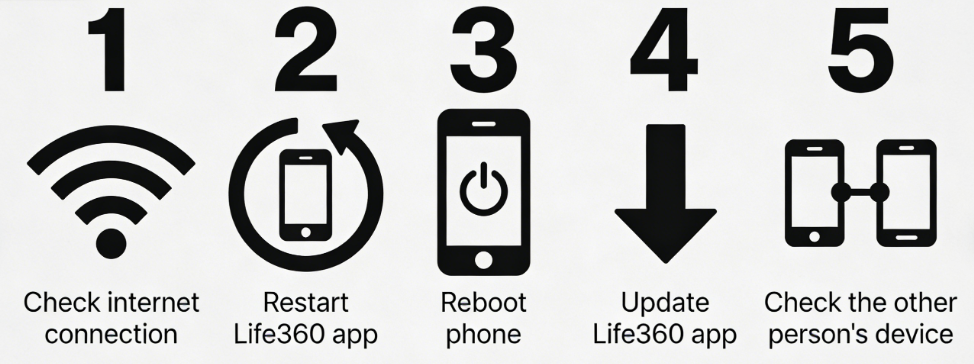
- Check Internet Connectivity: Life360 needs data to send updates. Verify that the phone has a stable Wi-Fi connection or a cellular signal with data enabled. A weak or intermittent signal is the number one cause of update failures.
- Force Restart the Life360 App: A temporary glitch within the app can stall communication. A full restart forces a fresh connection with the servers.
- On iPhone: Swipe up from the bottom of the screen (or double-press the Home button) and swipe the Life360 app card up and away to close it.
- On Android: Go to Settings > Apps > Life360 and tap Force Stop.
- Perform a Full Phone Reboot: Restarting the entire phone clears its temporary memory (RAM) and can resolve background processes that may be interfering with Life360. Turn the phone completely off, wait 30 seconds, and then power it back on.
- Check for App Updates: An outdated version of Life360 might contain bugs that have been fixed in a newer release. Open the Apple App Store or Google Play Store, search for Life360, and install any available updates.
- Address the Other Person’s Device: The issue is almost always on the device that isn’t sending its location. It’s also worth addressing a common concern: some users search for how to fake location on Life360 when they notice unusual behavior on the map. In reality, most “location glitches” are not the result of spoofing or manipulation. They are almost always caused by incorrect permissions, battery restrictions, or poor network connectivity. Before assuming someone is attempting to alter their location, always check the technical settings outlined in this guide.
The Real Fix: Correcting Background Permissions for Life360
If the checklist didn’t solve the problem, the cause is a phone permission setting. This is the critical step most people miss. The most common reason for a Life360 Circle update issue is not a GPS failure, but restrictive settings that stop the app from running when it’s not open on the screen. If the app is set to update location only “While Using the App,” it goes dormant the moment the screen is locked.
To function correctly, you must grant Life360 the proper background location permission. Follow these device-specific instructions precisely on the phone that is not updating.
iPhone: Set Location Services to “Always”
To fix Life360 location delay on an iPhone, you must allow it to access location data at all times.
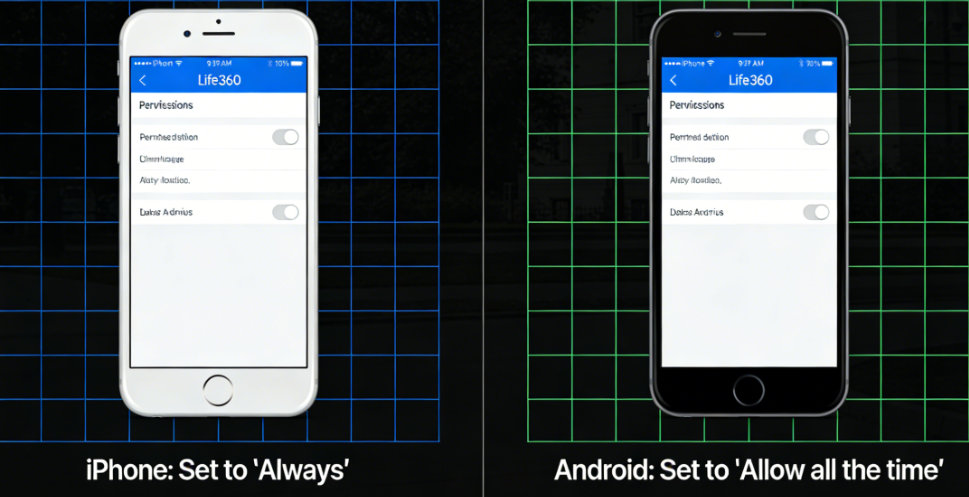
- Open the Settings app on the iPhone.
- Scroll down and tap on Life360.
- Tap on Location.
- Select Always. This is the most crucial setting. If “While Using the App” is selected, Life360 will stop updating the moment it’s closed or the phone is locked.
- Ensure the Precise Location toggle is also switched ON. This prevents a Life360 GPS accuracy problem by allowing the app to use the most accurate positioning data available. Users experiencing unstable GPS behavior can also learn more about location management tools here: FonesGo Location Changer Review
Android: Set Location Permission to “Allow all the time”
Android’s terminology is slightly different, but the principle is identical: the app needs constant permission to provide consistent updates.
- Open the Settings app on the Android device.
- Tap on Apps (this may be called ‘Apps & notifications’ on some models).
- Find and select Life360 from the application list.
- Tap on Permissions.
- Select Location.
- Choose the Allow all the time option. This is mandatory for background location sharing and is the direct equivalent of the iPhone’s “Always” setting.
Learn More:Life360 GPS Tracker: The Complete User Guide>
Is Battery Optimization Silently Stopping Life360?
After permissions, aggressive battery-saving features are the next culprit. Modern phones are designed to freeze background apps to conserve power, which can interfere with real-time GPS communication and location refresh behavior. Understanding how GPS location systems work in the background can help troubleshoot these issues more effectively: How to Use a Change Your Location App.
iPhone: Disable Low Power Mode
On iOS, the main obstacle is Low Power Mode. When enabled (the battery icon turns yellow), it significantly reduces or completely disables background app refresh for nearly all applications, including Life360.
- Navigate to Settings > Battery.
- Make sure the toggle for Low Power Mode is switched OFF.
Unfortunately, iOS does not allow per-app exceptions for this mode. If reliable location tracking is a priority, Low Power Mode must be kept off on that device.
A Real-World Tip: It’s common for kids to enable Low Power Mode at the end of a school day to save battery for the evening, not realizing it turns off location tracking. A quick conversation explaining this can prevent future update gaps.
Android: Disable Battery Optimization for Life360
Android offers more control, allowing you to exempt specific apps from its power-saving rules. Features like “Adaptive Battery” can automatically restrict Life360 if it hasn’t been opened recently. Here is how to perform the essential battery optimization Life360 Android fix.
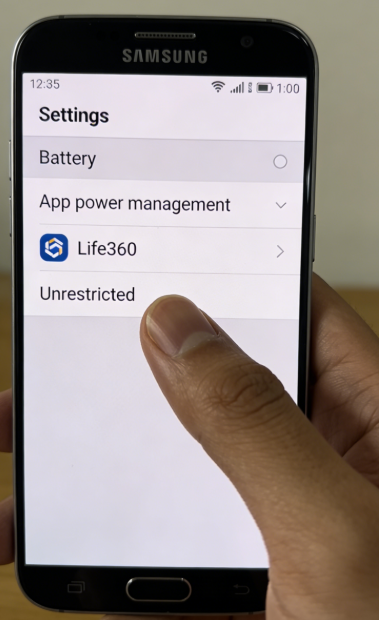
- Go back to Settings > Apps > Life360.
- Tap on Battery (or ‘App battery usage’).
- Select Unrestricted. This explicitly tells the Android OS not to limit Life360’s background processes, ensuring it can always send location updates.
Expert Tip for Samsung Phones: Samsung devices have an extra layer of battery management. In addition to the “Unrestricted” setting, you should also check:
- Go to Settings > Battery and device care > Battery > Background usage limits.
- Ensure that Life360 is NOT on the list for “Sleeping apps” or “Deep sleeping apps.” If it is, tap and hold on it to remove it.
A Smarter Way to Manage GPS Location Stability
For users who continue experiencing unstable GPS behavior, delayed location updates, or inconsistent tracking across apps like Life360, device-level location management tools can sometimes provide a more stable solution than repeatedly adjusting system settings.
One widely used option is Fonelora Location Changer, a desktop-based GPS management tool for both iPhone and Android devices. Unlike modified apps or risky “Life360 spoofers,” it works directly with the device location system and does not require jailbreak or root access.
Fonelora supports multiple location management modes, including instant GPS teleportation, joystick movement simulation, and multi-stop route planning. These features are commonly used for testing GPS-dependent apps, improving location consistency, managing privacy, or simulating realistic movement behavior.
Key Features
- Change GPS location instantly on iPhone and Android
- Simulate realistic walking routes with joystick controls
- Create customized movement paths
- Compatible with Life360 and other location-based apps
- No jailbreak or root required
- Supports recent iOS and Android versions
How to Use Fonelora Location Changer
Step 1: Install Fonelora Location Changer on your computer.
Step 2: Connect your iPhone or Android device using USB or Bluetooth.

Step 3: Select a location mode such as Teleport Mode or Joystick Mode.

Step 4: Choose the destination or movement route you want to simulate.
Step 5: Apply the new GPS location and reopen Life360.

For users researching Life360 location behavior, GPS inconsistencies, or advanced location control, dedicated GPS management tools can offer a more flexible and reliable experience.
Decoding the Map: What It Means When a Location Is Delayed
Understanding what other Circle members see on their map can significantly reduce anxiety. A delay doesn’t make the person invisible; instead, Life360 displays clear visual cues to show it’s waiting for new data. This is what the app shows when a phone is off, has no signal, or has incorrect settings. Seeing these signs means the app is working correctly by telling you it can’t get a signal—this points to a technical issue, not necessarily an emergency.
The most important signal is the last known location. The person’s avatar will remain at the last place it successfully reported, but it will be accompanied by a timestamp, such as “Updated 2 hours ago” or “Last seen at 3:30 PM.”
Sometimes a map that isn’t updating isn’t a glitch at all; the user might have [intentionally paused their Life360 location] for privacy.
Other common visual indicators include:
- A Red Exclamation Mark (!): A small alert icon may appear next to the avatar, directly signaling an issue receiving their location data.
- A ‘Location Tracking Paused’ Message: In some cases, the app may display this specific text to remove any ambiguity.
- Grayed-Out Avatar: The profile picture may appear faded or desaturated, visually indicating their status is not live.
By recognizing these signs, you can shift your mindset from “emergency” to “technical problem,” confident that you now have the tools to solve it.
Some users also wonder: does Life360 tell you when someone checks your location? The answer is no. Life360 does not send notifications when a Circle member views the map. Location visibility is mutual within a Circle, and there is no alert or history log showing who opened the app to check someone’s position.
Frequently Asked Questions (FAQ)
Q1: Are Life360 Spoofers Causing Location Issues?
You may have seen discussions online about so-called “Life360 spoofers.” These are third-party tools that claim to manipulate GPS data. However, when Life360 is not updating, spoofing tools are rarely the cause. The vast majority of update delays are due to background permission settings, battery optimization, or disabled location services.
If you’re troubleshooting a stuck location, always start with the official device settings outlined above before assuming any intentional location manipulation.
Q2: What does Life360 show when a phone is off or dead?
When a phone is off, has no signal, or the battery is dead, Life360 will show that person’s last reported location on the map. This is always accompanied by a timestamp indicating when that location was recorded (e.g., ‘Last seen 2 hours ago’) and may include an alert icon.
Q3: How do I fix Life360 location delay on iPhone?
The most reliable fix is to adjust the app’s permissions. Go to Settings > Life360 > Location and ensure the setting is Always. You must also disable Low Power Mode by going to Settings > Battery and turning the toggle off.
Conclusion
Life360 location delays are usually caused by background permission settings, battery optimization restrictions, or unstable GPS communication rather than serious technical failures. By correctly configuring location access, allowing background activity, and maintaining stable network connectivity, most location update issues can be resolved quickly.
For users exploring advanced GPS management, location privacy, or more stable location simulation, tools like Fonelora Location Changer can provide additional flexibility and control on both iPhone and Android devices.
With proper GPS settings and reliable location management, Life360 can continue providing accurate and dependable real-time location sharing for families and groups.



Joy Taylor is a seasoned technical writer with over a decade of experience in mobile technology. At iMobie, she specializes in producing in-depth content on iOS data recovery, iPhone unlocking solutions, and iOS troubleshooting.
Product-related questions? Contact Our Support Team to Get Quick Solution >
