PGSharp Emulator Guide 2026: Best Emulator for Pokémon GO on PC
Fix Pokémon GO PC crashes with our ultimate PGSharp emulator guide. Discover the best emulator for PGSharp, exact setup steps, and avoid account bans.
If you have spent any time trying to play Pokémon GO on your computer, you have likely stared at a black screen, a 99% loading bar freeze, or the dreaded “Device OS is not compatible” error message. As a PC gamer, wanting to hatch eggs, manage your inventory, or catch regional species without completely draining your physical phone’s battery is incredibly common. You download a highly recommended Android emulator, install the PGSharp APK, and immediately hit a wall of instant crashes and conflicting online advice.
We understand this struggle because we have been there. You are probably wondering if a PGSharp emulator setup even works anymore, or if the constant updates have completely broken the software. The fear of account bans, combined with technical installation nightmares, leaves many players frustrated.
This guide is written gamer-to-gamer. We are stripping away the confusing fluff to provide a clear, tested solution that bypasses those frustrating loading errors, giving you a stable environment to play on your desktop monitor.
Table of ContentHide
Choosing the Best Emulator for PGSharp: MuMu vs. LDPlayer vs. BlueStacks
Recommended PC Requirements for PGSharp Emulators
PGSharp Emulator Setup: The Step-by-Step Installation Procedure
Why Pokémon GO Crashes on PC: Understanding Emulator Detection
Troubleshooting Your Emulator PC Configuration
Emulator vs. Real Device: Navigating the Ban Risk
A More Stable Alternative to Emulator-Based Spoofing
Frequently Asked Questionsg
Conclusion
Choosing the Best Emulator for PGSharp: MuMu vs. LDPlayer vs. BlueStacks
When selecting your software, you have to evaluate it based on launch success rate, system hardware demands, and safety. A direct comparison reveals which application provides the most stable environment for modified APKs, helping you avoid the installation loops that plague most setups.
Many players instinctively try setting up PGSharp on BlueStacks. While BlueStacks is the undeniable king of general mobile gaming, its complex architecture and rendering processes clash heavily with location-based applications, resulting in immediate app closures and frequent emulator detection problems. Many players now prefer running the game on a physical device with dedicated GPS management tools instead of relying on virtual Android environments. Learn more in this guide about how location changer apps work on iPhone and Android.
Learn More:The Ultimate Guide to New York Pokémon GO Coordinates >
Here is how the top options currently perform:
| Emulator | Launch Stability | Detection Risk | Performance | Difficulty | Recommended? |
|---|---|---|---|---|---|
| MuMu Player 11 (64-bit) | Excellent | Moderate | High | Easy | ✅ Best Overall |
| LDPlayer 9 | Good | Moderate | Medium | Medium | ✅ Good Alternative |
| BlueStacks | Poor | High | High | Hard | ❌ Not Recommended |
| NoxPlayer | Poor | High | Medium | Medium | ❌ Frequent Compatibility Issues |
| MSI App Player | Poor | High | Medium | Hard | ❌ Unstable for Pokémon GO |
| MEmu Play | Moderate | Moderate | Medium | Medium | ⚠️ Works Inconsistently |
NoxPlayer, MSI App Player, and MEmu Play: Are They Still Worth Using?
Many older Pokémon GO emulator tutorials still recommend NoxPlayer or MSI App Player. While these Android emulators were popular several years ago, current Pokémon GO versions have become far more aggressive toward emulator environments.
NoxPlayer often struggles with login freezes, black screens, and sudden app closures after game updates. Many users also report increased “Device OS not compatible” errors during authentication.
MSI App Player, which is built on modified BlueStacks architecture, suffers from many of the same detection problems. Although general mobile games run smoothly, Pokémon GO frequently detects the virtualized environment and crashes before loading completes.
MEmu Play performs slightly better than NoxPlayer in some cases, especially on lower-end PCs. However, long-term stability remains inconsistent, and users often need repeated graphics-engine adjustments after major Pokémon GO updates.
Based on current testing results, MuMu Player 11 remains the most stable option overall for PGSharp users in 2026.
MuMu Player (Recommended): Based on our extensive testing, MuMu Player (specifically the 64-bit, Android 11 version) offers the highest stability. It handles the necessary background translations flawlessly with minimal tweaking required.
LDPlayer: A highly capable alternative. If you pursue an LDPlayer configuration, be prepared to manually tune your virtualization and graphics settings. It offers excellent performance on lower-end desktop machines once properly configured.
BlueStacks: Using BlueStacks for this specific game almost guarantees immediate login errors or black screens. The constant troubleshooting required makes it an unviable option for most players right now.
Selecting MuMu Player 64-bit provides a significantly smoother baseline. In the next section, we walk through the exact click-paths to configure it correctly.
Recommended PC Requirements for PGSharp Emulators
To reduce black screens and emulator crashes, your PC hardware configuration matters more than many players realize.
Here are the recommended minimum specifications for stable Pokémon GO emulator performance in 2026:
| Component | Recommended |
|---|---|
| CPU | Intel i5 / Ryzen 5 or better |
| RAM | 16GB |
| GPU | GTX 1050 Ti or newer |
| Storage | SSD preferred |
| Virtualization | Enabled in BIOS |
| Operating System | Windows 10/11 64-bit |
Low-end systems can still run MuMu Player or LDPlayer, but players may experience longer loading times and occasional frame drops during high-density map areas or events.
PGSharp Emulator Setup: The Step-by-Step Installation Procedure
This section details the exact emulator setup required to bypass the black screens and compatibility errors. We will use MuMu Player 11 (64-bit), as it proved the most reliable during our testing.
Follow this precise click-path procedure to configure your environment:
1. Download the Correct Software Version
Navigate to the official MuMu Player website and download the MuMu Player 11 (Android 11, 64-bit) installer. Standard 32-bit versions will fail to load the game entirely.
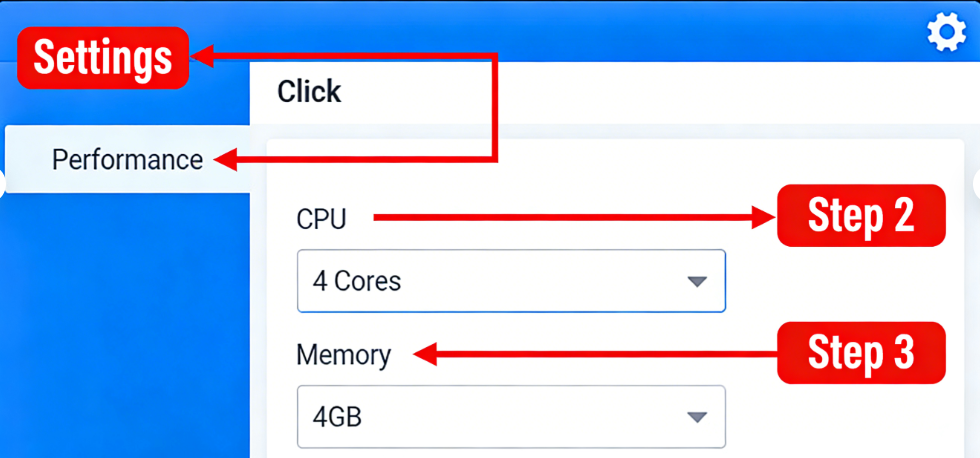
2. Configure CPU and RAM Allocation
Launch MuMu Player. Open the settings menu by clicking the three horizontal lines (menu icon) in the top right corner, then select Settings.
- Navigate to the Performance tab.
- Under Performance Settings, assign a minimum of 4 Cores for your CPU and 4096 MB (4GB) for your Memory (RAM). This exact allocation is critical to prevent the app from freezing on the Niantic logo.
3. Disable Root Access
While still in the Settings menu, navigate to the Basic tab.
- Find the Root Permission checkbox and ensure it is unchecked (disabled).
- Why? Pokémon GO has strict root-detection. If this is left on, the game will instantly crash upon launching.
⚠️ CRITICAL STEP: RESTART YOUR EMULATOR
Before proceeding to step 4, you must click “Save and Restart” or manually reboot MuMu Player. If you do not reboot the emulator to apply the new RAM/CPU and root-disabled settings before installing the APK, the game will likely corrupt during installation.
4. Download the ARM64 APK
Open the browser inside the emulator (or your PC’s browser) and download the latest ARM64 APK directly from the official PGSharp website.
- Why ARM64? Emulators are inherently x86 computer environments, while most mobile games are built for ARM mobile processors. Thankfully, MuMu Player handles ARM64 translation natively in the background, bridging this gap seamlessly as long as you provide the ARM64 file.
5. Install and Log In
Drag and drop the downloaded APK file from your PC desktop directly into the running MuMu Player window to install it.
- Launch the game and enter an age above 18.
- Login Method: Log in using a Pokémon Trainer Club (PTC) or Facebook account.
- Why not Google? Google Play Services frequently malfunctions or triggers security flags when it detects a modified APK running in a simulated environment. Authenticating via PTC or Facebook completely bypasses the Google login loop.
Learn More:Monster Hunter Now Builds: The Guide to Weapon and Armor Synergy >
Why Pokémon GO Crashes on PC: Understanding Emulator Detection
Even with a perfect setup, you might occasionally experience a sudden crash. Here is an expert insight that explains the technical reality behind these frustrations: Many players assume emulator compatibility problems are caused by their PC’s hardware being too slow or poorly optimized. In reality, the limitation comes directly from Niantic’s anti-cheat infrastructure.
The game servers actively check for physical device integrity signals. They scan for SafetyNet compliance, physical hardware identifiers, and the presence of physical Bluetooth and GPS sensors.
Because an emulator is a simulated software environment running on a desktop, it lacks these physical smartphone components. When the server requests a ping from your GPS hardware or Bluetooth sensor and gets no response (or gets an x86 virtualized response), the application deliberately closes itself or throws a “Device OS is not compatible” error.
Understanding this explains why a $2,000 gaming rig can still produce a black screen. The PC is powerful, but the virtualized Android system fails the integrity scan because it lacks the physical hardware signals expected from a real smartphone. This is one reason many players now use GPS tools directly on physical devices instead of emulators. Here’s a detailed explanation of how iPhone GPS spoofing tools work without jailbreak.
Knowing why this happens helps you troubleshoot effectively when game updates temporarily break emulator compatibility.
Learn More:Meta Lock Codes: Your Verified Tool for Free Spins and Rewards >
Troubleshooting Your Emulator PC Configuration
If you encounter sudden issues after a game update, a systematic troubleshooting procedure will save you hours of menu-hunting. Even users with perfectly optimized hardware occasionally face map rendering failures.
Here are the exact fixes and click-paths for the most common obstacles:
- Switch the Graphics Engine (For Black Screens): If the game displays a black screen upon launch, click the Settings (gear/menu icon) in MuMu > Settings > Display (or Graphics). Change the graphics rendering mode from Vulkan/OpenGL to DirectX. Save, restart the emulator, and launch the game.
- Update Android WebView via APK Sideload (For Login Loops): Persistent authentication errors are often tied to an outdated Android System WebView component. Do not sign into the Google Play Store to update this, as logging into Google on a spoofed emulator can trigger SafetyNet flags. Instead, download the latest “Android System WebView” APK from a trusted repository like APKMirror using your PC browser, and drag-and-drop it into MuMu to install the update manually.
- Clear Application Cache (For Map/Loading Glitches): If the map fails to load Pokéstops, navigate to your emulator’s home screen. Click System Apps > Settings > Apps & notifications > Pokémon GO. Select Storage & cache and click Clear Cache. Do not click Clear Storage/Data, as you will have to re-enter your login credentials.
Always ensure your PC’s dedicated graphics drivers (Nvidia/AMD) are updated in Windows, as outdated PC drivers can clash with the emulator’s rendering engine.
Emulator vs. Real Device: Navigating the Ban Risk
When evaluating any PC setup for this game, you must carefully weigh the safety risks. While playing on your desktop monitor is incredibly convenient, using a virtualized Android environment is inherently riskier than using a physical smartphone.
Because emulators routinely fail the background hardware and sensor checks mentioned earlier, accounts logged into these environments are flagged much faster. We strongly advise that you never use your primary, high-level account when using an emulator. Always use an alternative or secondary account to protect the progress you care about.
A Safer Alternative for PC Play:
If you want the comfort of playing on your desktop monitor but want to minimize risk, consider screen mirroring tools like Scrcpy or Vysor.
These lightweight PC applications allow you to connect a physical, modified Android phone directly to your computer via a USB cable. You project the physical phone’s screen onto your PC monitor and control the game entirely with your mouse and keyboard.
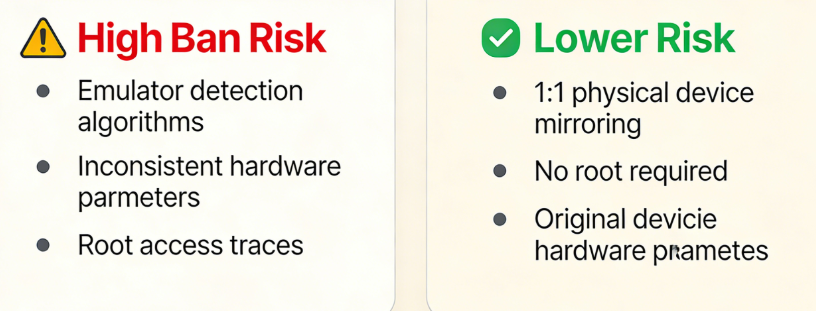
Because the game is actually running on real smartphone hardware sitting on your desk, it successfully passes Niantic’s SafetyNet, Bluetooth, and physical GPS sensor checks. This pro-tip gives you the desired PC gaming experience while maintaining the standard safety profile of a physical phone.
Learn More:Bladers Rebirth Codes: Your Guide to Free Rewards >
A More Stable Alternative to Emulator-Based Spoofing
Many Pokémon GO players eventually move away from Android emulators because emulator environments are easier for Niantic to detect and often become unstable after major game updates. Crashes, black screens, login failures, and SafetyNet issues are all common side effects of virtual Android environments.
A more stable approach is using a real smartphone together with a desktop-based GPS management tool such as Fonelora Location Changer. Instead of simulating an entire Android system through an emulator, this method works directly with the physical device’s GPS location while the game continues running on genuine smartphone hardware.
During testing on Android 14 and iOS 17 devices, this setup produced significantly fewer crashes and compatibility issues compared to emulator-based configurations.
Key advantages include:
- Uses real smartphone hardware instead of a virtual Android environment
- Lower risk of emulator detection
- Stable GPS teleport and joystick movement
- Route simulation for realistic movement behavior
- Compatible with Pokémon GO and other location-based apps
- No root or jailbreak required
- Supports both iPhone and Android devices
Basic Setup Process
- Install Fonelora Location Changer on your PC or Mac.
- Connect your iPhone or Android device.

- Select a virtual location or movement route.
- Apply the GPS change directly to the physical device.
- Launch Pokémon GO normally on the phone.

For players frustrated with repeated emulator crashes, black screens, or compatibility failures after updates, using a physical device with a dedicated GPS management tool is generally a more stable long-term solution.
Frequently Asked Questions
To resolve any remaining uncertainty, here are direct answers to the most common questions regarding desktop configurations.
Q1: Can PGSharp run on an Android emulator?
Yes, it can run on specific 64-bit Android 11 environments. However, success depends on using software that natively translates ARM64 architecture (like MuMu Player) and properly configuring your virtual hardware.
Q2: What is the best emulator for PGSharp?
Currently, MuMu Player 11 (64-bit) offers the highest stability and easiest setup. LDPlayer is functional but frequently requires deeper manual configuration of virtualization settings.
Q3: Why does the game crash on my emulator?
Crashes are rarely due to low PC performance. They happen because Niantic’s servers specifically request physical hardware identifiers (like GPS and Bluetooth sensors) that virtual environments fail to provide. The app instantly closes as a security measure.
Q4: Can BlueStacks run PGSharp?
While possible in the past, recent security updates make BlueStacks highly unstable for this specific application. We recommend avoiding it to prevent continuous “Device OS not compatible” errors.
Q5: Is using an emulator safe for my account?
No location modification method is 100% safe, but emulators carry an exceptionally high risk. Because they cannot hide their simulated nature from advanced integrity checks, you should only use an alternate account.
Q6: Does PGSharp work on NoxPlayer?
Technically yes, but most users experience severe compatibility problems, including black screens, crashes, and login failures after updates. MuMu Player is currently much more stable.
Q7: What emulator has the lowest crash rate for Pokémon GO?
Based on current testing in 2026, MuMu Player 11 (64-bit Android 11) provides the highest launch success rate and the fewest compatibility issues for PGSharp users.
Conclusion
Running Pokémon GO through Android emulators has become increasingly unstable due to stricter emulator detection, SafetyNet verification, and hardware integrity checks introduced in recent updates. While configurations like MuMu Player 64-bit can still work temporarily, emulator environments remain far more vulnerable to crashes, compatibility failures, and account risks compared to physical devices.
For players looking for a more stable long-term setup, using a real smartphone together with a GPS management tool such as Fonelora Location Changer generally provides a smoother experience with fewer emulator-related issues. By working directly with physical device hardware instead of virtual Android environments, this approach helps reduce black screens, login failures, and sudden compatibility breaks after updates.
Whether you choose an emulator or a physical-device setup, understanding how Pokémon GO detects virtual environments is essential for minimizing crashes and protecting your main account.



Joy Taylor is a seasoned technical writer with over a decade of experience in mobile technology. At iMobie, she specializes in producing in-depth content on iOS data recovery, iPhone unlocking solutions, and iOS troubleshooting.
Product-related questions? Contact Our Support Team to Get Quick Solution >
