Living in a rural area often means missing out on rare spawns and exciting community events. For a long time, the lack of local activity completely drained my excitement for Pokémon GO. I watched friends battle in exclusive global raids while I stared at an empty radar in my small town. I knew I needed a reliable way to simulate my location, but I was terrified of getting my account banned.
This guide is built entirely from that hands-on experience. I will explain exactly how the Pogo Wizard tool works, where to download it, what it costs, and the specific daily workflow I use to avoid account strikes. By the end, you will have a clear, tested method to participate in global events from anywhere without relying on outdated, risky methods.
Table of ContentsHide
Evaluating Your Options: Pogo Wizard vs. PGSharp and iAnyGo
When players want to change their in-game coordinates, deciding on the correct software is often the first and most confusing hurdle. Many older guides suggest “manual developer modifications,” but in 2025, nobody actually does that. The real decision comes down to using modified game clients versus tethered desktop solutions.
To make an informed decision, you need to understand how Pogo Wizard compares to other popular tools on the market:
-
Modified Clients (e.g., PGSharp): Tools like PGSharp require you to uninstall the official Pokémon GO app and download a modified version directly to your phone. While convenient, this carries a massive safety risk. Niantic’s anti-cheat algorithms can easily detect unauthorized versions of their software, frequently resulting in immediate account strikes.
-
Tethered Desktop Solutions (e.g., iAnyGo & Pogo Wizard): Pogo Wizard falls into this category. It is a desktop application installed on your PC or Mac. You plug your phone into your computer, and the software feeds modified GPS data directly to your phone’s operating system. Because you are playing on the official Pokémon GO app downloaded from the legitimate app store, the ban risk drops significantly.
Transparency on Pricing and Access
It is important to be completely transparent about what this tool is and what it costs. Pogo Wizard is not a free, magical fix. You can download the official installer directly from pogowizard.com. They offer a limited free trial that allows you to test a few basic teleports to ensure your device connects properly. However, accessing the ongoing features—like the joystick and automated route planning—requires a premium subscription, which currently runs around $9.95 per month. This investment grants you a reliable, actively updated system for ongoing virtual gaming.
The Official Pogo Wizard Install Guide for Android and iOS
A major issue in the community is that online resources fail to explain what you are actually installing. Pogo Wizard is primarily a desktop tethering app. You run the main program on your PC or Mac, and it controls the GPS of the phone plugged into it.
Here is exactly how to set it up, complete with the specific technical troubleshooting steps I encountered during my own testing.
Step-by-Step Android Setup Procedure
For Android, the desktop software needs to push a tiny companion “bridge” app to your phone to handle the mock location data.
1. Download the Desktop Client: Go to the official website and download the Windows or Mac installer.
2. Enable Developer Options: On your Android phone, navigate to Settings > About Phone. Tap the “Build Number” seven times until the developer prompt appears.
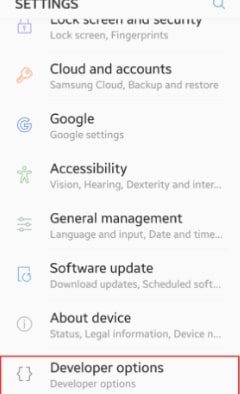
3. Allow USB Debugging: Inside the new Developer Options menu, turn on “USB Debugging.”
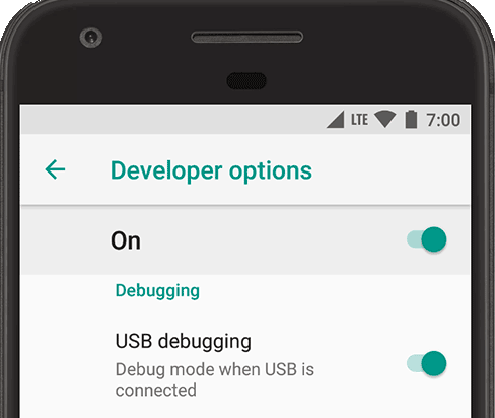
4. Connect Your Device: Plug your smartphone into your computer using a high-quality data cable. A prompt will appear on your phone asking to “Allow USB debugging” from this computer’s RSA key fingerprint. Check “Always allow” and tap OK.
5. Install the Companion App: Open Pogo Wizard on your computer. The desktop software will automatically install a small companion app (often simply named “GPS Assistant” or similar) onto your phone.
6. Select Mock Location App: Go back into your phone’s Developer Options. Scroll to “Select mock location app” and select the newly installed companion app.
7. Start Your Session: Use the map on your computer screen to enter your desired coordinates.
Real-World Troubleshooting: When using my S23 on Android 14, Pogo Wizard sometimes dropped the mock location if I switched apps too fast. To fix this, open your Android recent apps menu and lock the companion app so it constantly runs in the background memory.
Step-by-Step iOS Setup Procedure
iOS does not require a companion app. Instead, the desktop software mounts a hidden developer disk image to your iPhone to alter the GPS at the system level.
1. Install the Desktop Client: Download and install the software to your Mac or Windows PC.
2. Connect Your iPhone: Use an MFi-certified cable to connect your iOS device to the computer.
3. Trust the Computer: Unlock your iPhone. A prompt will ask if you “Trust This Computer.” Tap Trust and enter your device passcode.
4. Enable Developer Mode (iOS 16+): Go to Settings > Privacy & Security > Developer Mode. Turn it on. Your iPhone will restart.
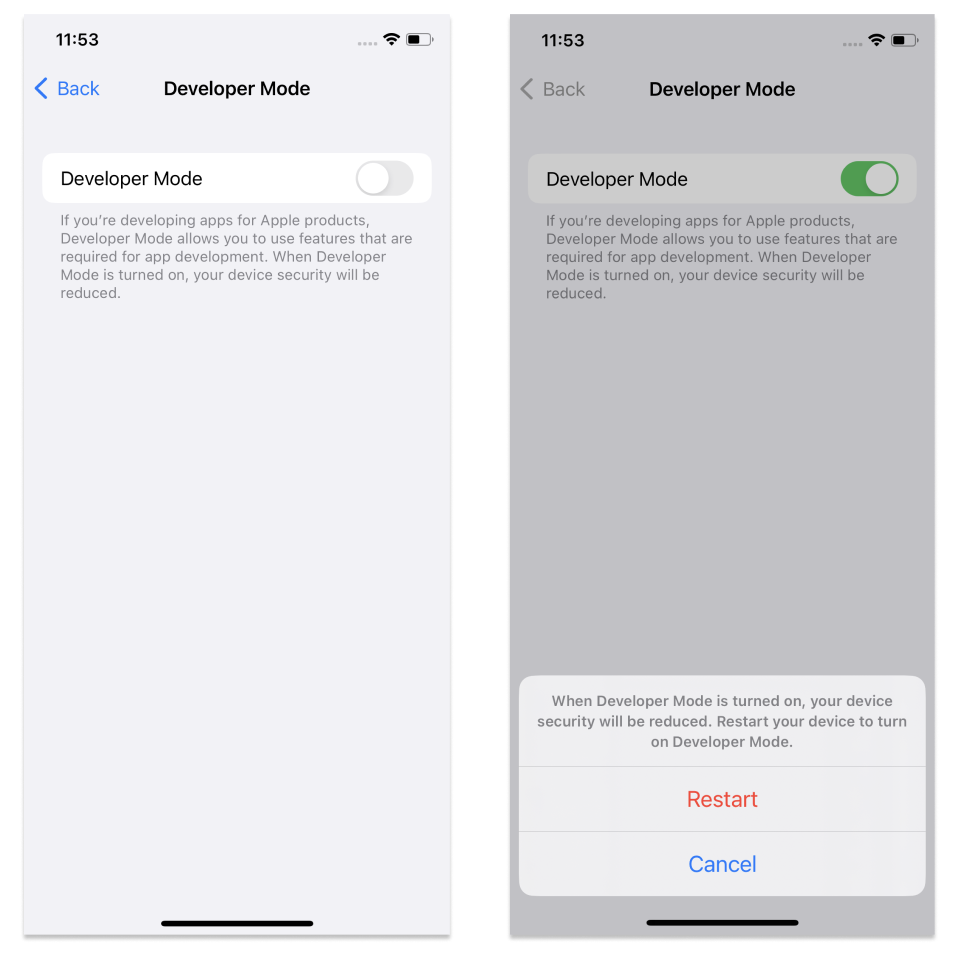
5. Load the Interface: Open the software on your computer, wait for it to recognize your device, and input your desired starting coordinates on the desktop map.
This structured procedure ensures the connection between your PC and your phone is stable, getting you safely into the game.
Mastering Pokémon GO Map Navigation: Cooldowns and Joystick Movement
Understanding how to navigate the in-game world safely is just as critical as the installation. The fastest way to lose your account is by ignoring cooldown timers. Mobile gaming analysts note that tools like Pogo Wizard are designed to modify location data to simulate player movement rather than directly altering the game server. Because of this, the game strictly monitors how fast you travel.
If you instantly travel across the globe and try to catch a Pokémon, the server recognizes the impossible speed and issues a soft ban—meaning all Pokémon will flee and PokéStops will not yield items.
WARNING: The Golden Rule of Cooldowns
To prevent an account ban, you must strictly observe cooldown periods based on real-world travel distances. The absolute maximum cooldown is 2 Hours.
If you play in London, close the game, and teleport to New York, you must wait exactly 2 hours before spinning a PokéStop, throwing a Pokéball, or placing a Pokémon in a gym. If you interact with the game before those two hours are up, you will trigger an immediate soft ban.
My Safe Daily Workflow
Instead of making erratic jumps, I rely on the software’s built-in tools to create a realistic workflow. Here is exactly how I play to keep my account safe:
1. Set the Spawn and Wait: I input my desired location (for example, Central Park, New York) into the desktop map before I even open the Pokémon GO app on my phone.
2. Check the Cooldown: After jumping, I wait the required two hours. I then open the game and spin a single PokéStop. If it gives me items, I know my cooldown has cleared successfully.
3. Use the Joystick: I never jump from neighborhood to neighborhood. Instead, I use the desktop software’s joystick feature. I set my walking speed to 4 km/h to mimic a normal human pace.
4. Plan Realistic Routes: When hunting for specific spawns, I use the route planning feature to create a walking loop through high-density areas. I let the avatar walk automatically at 4 km/h while I monitor the screen for rare catches.
By maintaining realistic movement patterns and strictly observing cooldown periods between teleports, I transformed the software from a simple teleporting app into a highly effective tool for joining community raids safely.
Why Older Pokémon GO Teleport Tools Fail Today
If you still worry about violating policies when using third-party tools, understanding the mechanics behind software failures will provide valuable clarity. Game developers constantly refine their detection algorithms.
Older apps fail because they try to inject code directly into the gaming client. When the game scans your device’s background processes, it immediately detects these unsafe anomalies and flags your account.
Modern solutions solve this problem by operating entirely outside the game client. Pogo Wizard supplies clean, modified GPS data directly to the operating system’s location services. Because the official game simply requests coordinates from your phone’s OS—and the OS provides the simulated data seamlessly—the software remains undetected.
However, experts emphasize that updates to Pokémon GO frequently change how external tools behave. Compatibility can shift rapidly. Always verify that Pogo Wizard has released a patch compatible with the latest Pokémon GO update before relying on mobile location simulation for the day.
Frequently Asked Questions About the Pogo Wizard Tool
When exploring virtual coordinates, having quick access to accurate information is essential. Below are the most common questions regarding this desktop tethering software.
-
Is Pogo Wizard a mobile app or a desktop program?
-
It is primarily a desktop application for your Mac or Windows PC. You must plug your phone into your computer to manipulate your GPS coordinates safely
-
Does it require jailbreaking my iPhone or rooting my Android?
-
No. The software is designed to work on standard, unrooted Android devices and non-jailbroken iOS devices by using built-in developer testing features.
Conclusion: Enhance Your Spawn Exploration Today
Overcoming geographical limits no longer requires putting your main account at massive risk with modified, easily detected mobile apps. By using a tethered desktop solution, you bypass the severe risks associated with directly altering the game client.
This tool provides a secure, straightforward method for mobile location simulation. By understanding the critical importance of the two-hour cooldown rule and using the built-in joystick at realistic walking speeds, you can regain control of your gaming experience. Do not let physical boundaries keep you from participating in global community events. Download the official desktop software from their verified site today, follow our setup instructions carefully, and securely jump into your next virtual adventure.


Hot Topics


