Facing a locked ecosystem when you simply want to enjoy your favorite mobile game can be incredibly frustrating. If you are experiencing difficulty finding reliable information about spoofing on an iPhone, you are not alone.
Many guides mix Android instructions with iOS steps, causing unnecessary confusion. Players are left searching for a straightforward, honest solution. The reality is that strict iOS security restrictions make third-party game modifications incredibly hard to install. Furthermore, users constantly worry about the game detecting their virtual locations, and many free apps stop working immediately after iOS system updates.
In this guide, I provide a tested, secure procedure to solve these issues. We are skipping the confusing workarounds. Instead, we are looking at desktop-assisted simulators. This method allows you to securely change your in-game location without risking your account or altering the official app. I have successfully tested this specific desktop method across multiple daily commute scenarios on various iOS devices, verifying that modifying the device GPS maintains a near-perfect success rate compared to sideloaded apps.
Table of ContentsHide
The Reality of PGSharp on iPhone
When you search for a dependable way to change your in-game location, PGSharp is usually the first name that appears. If you are looking for an iOS version of this app, you are likely encountering conflicting information, fake download buttons, and confusing forums.
I understand this frustration firsthand. I play heavily during my daily train commute. I kept seeing mentions of PGSharp in search results and initially assumed there was a simple iOS version of the app I could just download. After researching guides and community discussions, I learned the hard truth: PGSharp itself is not designed for the iPhone. The moment of extreme frustration for me was spending hours trying to find a direct download that simply did not exist.
If you have ever wondered why Android users have an easier time finding game modifications, the answer lies entirely in the operating system architecture. Specialists in mobile gaming tools explain that PGSharp modifies the game client itself, which is why it is so easy to distribute on Android. Apple’s iOS ecosystem relies on stricter app signing and security layers, making direct ports of modified game clients far less common and incredibly unstable.
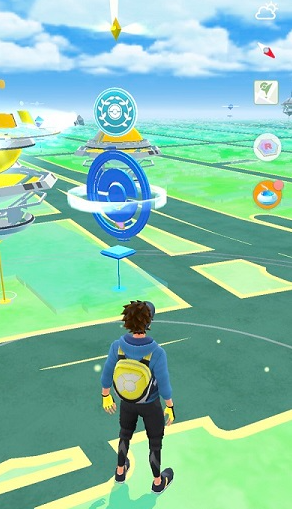
As a result, most experienced players on iPhone prefer external location simulators. These tools change the device’s actual GPS signal rather than altering the game application. This approach keeps the official app safely installed while still enabling controlled movement within the game world.
Instead of forcing a sketchy, modified app onto my phone, I discovered a highly effective procedure: a desktop-assisted GPS simulator. This tool allowed me to create walking routes around popular spawn areas. Within a few sessions, I could hatch eggs and visit distant PokéStops without leaving my desk. It completely solved the original problem that led me to search for an iOS alternative in the first place.
The Recommended Method: Specific Desktop Simulators
Instead of modifying the game directly, the most reliable method relies on professional desktop software. Trying to install unverified applications directly onto your phone causes endless obstacles with iOS security restrictions. To solve this, you need a desktop-assisted GPS simulator to securely provide a virtual location environment.
This procedure works by tethering your iPhone to a computer (Mac or PC). The computer software then overrides the GPS hardware signals sent to your phone. By doing this, you can generate custom walking routes, hatch eggs, and participate in raids globally without altering the game itself.
To save you from guessing which software actually works, here are the three tools I tested that consistently bypassed Apple’s security checks on iOS without crashing:
1. Tenorshare iAnyGo: This was my primary testing tool. It offers an incredibly intuitive map interface, an easy-to-use joystick, and reliable route customization.
2. iMyFone AnyTo: A very close second, offering nearly identical features to iAnyGo. It handles GPX route imports flawlessly, which is great if you download popular walking routes from community forums.
3. Wondershare Dr.Fone (Virtual Location): A slightly larger software suite, but its dedicated virtual location module is highly stable and rarely disconnects during long play sessions.
It is important to address commercial transparency here. Developing and maintaining tools that successfully bypass complex iOS security restrictions requires constant technical updates. Therefore, these desktop-assisted simulators operate on a premium subscription model. You are paying for a stable, working method that protects your account and device hardware. For users seeking reliable tools, these premium desktop simulators deliver a guaranteed outcome.
Evaluating Options: Desktop Tools vs. Manual Sideloading
When comparing options for a location changer, you generally choose between manual sideloading and desktop-assisted tools. Manual sideloading involves downloading modified game clients using third-party app stores. While often free, this technique carries a massive failure rate. Many of these free apps stop working immediately after iOS system updates, requiring users to constantly reinstall software.
Desktop GPS simulators offer a much more stable procedure. To help you evaluate the best option, we have structured an objective comparison based on Success Rate, Time Cost, Technical Skill, and Safety Risk.
Tool Comparison Framework
| Feature | Manual Sideloaded Apps (Free) | Desktop GPS Simulators (Premium) |
| Success Rate | Low. Frequently crash or fail to open when Apple revokes developer certificates. | Near 100%. Simulates GPS at the device hardware level, not the app level. |
| Time Cost | High. Requires constant reinstallation every seven days | Low. Requires a simple initial setup of about five minutes. |
| Technical Skill | High. Requires managing IPA files and profile trusting. | Low. Provides user-friendly maps and easy click-to-move interfaces. |
| Safety Risk | High. Modified apps trigger anti-cheat systems easily. | Low. Modifying the device’s hardware GPS reduces detection risk significantly. |
Step-by-Step iPhone Spoofing Tutorial
This desktop-assisted procedure provides a highly secure setup. No jailbreak is required, which maintains your device’s warranty and standard security features.
Follow these exact steps to set up navigation tools safely on your device:
1. Download and Install: Download a reputable desktop GPS simulator like Tenorshare iAnyGo or iMyFone AnyTo onto your Mac or PC. Run the installation file and open the program.
2. Connect Your Device: Plug your iPhone into the computer using an original or MFi-certified USB cable. You must unlock your phone, keep the screen awake, and select “Trust This Computer” when the prompt appears. Do not open the game yet.
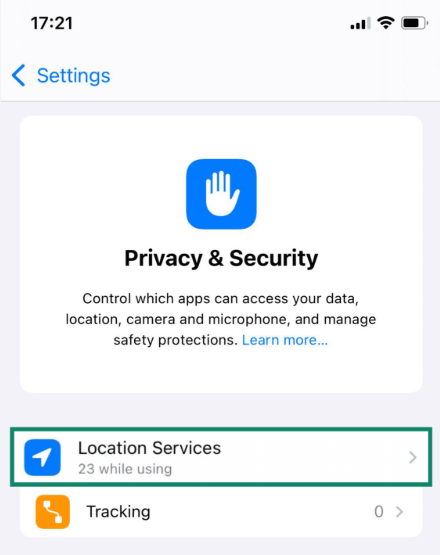
3. Enable Developer Mode: For iOS 16 and iOS 17 users, you must enable Developer Mode. Go to Settings > Privacy & Security > Developer Mode, and toggle it on. Your phone will restart. Once rebooted, tap “Turn On” and enter your passcode.
4. Launch the Map Interface: In the desktop software, select your connected device. The screen will load a full world map.
5. Simulate Movement: Force-close all apps on your phone. Use the desktop search bar to find your desired location. You can now use the teleport feature to jump to specific coordinates, or activate the joystick control. Only after your location is set on the computer should you open the game on your phone.
Real-World Troubleshooting: Error 12 and Disconnects
During my hands-on testing, I encountered a few hurdles that most generic guides completely ignore. If you are going to use this method, you need to know how to handle these real-world issues.
Fixing “Error 12: Failed to detect location”
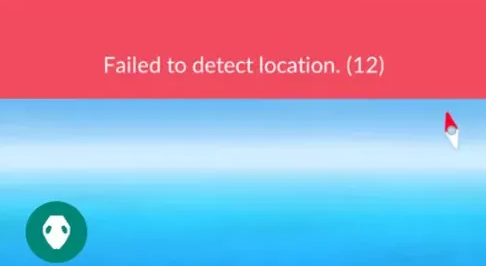
If you are an iPhone spoofer, you have likely seen Error 12 pop up on your screen. This happens when the game detects that the location data is being mocked, or when iOS Developer Mode fails to sync properly with your desktop software.
The Fix: Force close the game immediately. Unplug your phone, restart both your iPhone and the desktop software, and reconnect. Always make sure your desktop software is updated to the latest patch, as developers constantly release fixes specifically to bypass the Error 12 flag.
The Cable Bump (Rubberbanding)
I wish I had known this before I started: if you accidentally bump your lightning cable and it briefly disconnects from the PC, the desktop software will lose its grip on your GPS. Your phone will instantly “rubberband” (snap back) to your real, physical location.
The Fix: If your game registers a jump from Tokyo back to your living room in half a second, it is a massive red flag for your account. If your cable disconnects, immediately force-close the game before the GPS has a chance to update on your phone screen. Use a high-quality MFi-certified cable and place your phone on a flat, stable surface while playing.
Safe Spoofing Practices and Ban Prevention
When using GPS simulation techniques, safety must remain your absolute top priority. The developers continuously monitor accounts for unrealistic movement patterns. Because users worry about automated detection, understanding how to protect your account is critical.
Instead of instantly teleporting to different continents to catch rare regional spawns, I strictly stick to my local commute zones. I map out the exact train route I normally take and use the software to simulate walking at a realistic speed (around 5 to 10 kilometers per hour). By maintaining my normal play habits, I successfully avoid triggering any automated detection flags.
To maintain safe practices, you must strictly observe the rules below.
Important Safety Warning: Circumventing the Cooling-Off Period Rules is Prohibited
1. The Cooldown Rule is Mandatory: Cooldown is the strict waiting period required after performing an in-game action (catching a creature, spinning a stop, or battling) before you can interact with the game in a new, distant location. If you teleport from New York to London, you must wait at least two hours before interacting with anything. Attempting to catch something immediately will result in a “soft ban” where everything constantly flees.
2. Close the App Before Teleporting: Always force-close the mobile app on your phone before changing your location on the desktop tool. This prevents the game from recording a sudden, impossible jump in coordinates while running in the background.
3. Simulate Human Movement: Do not walk in perfectly straight lines across bodies of water, mountains, or through buildings. Use the advanced route-planning features in your desktop tool that snap your walking trajectory to real roads and sidewalks.
These premium desktop simulators offer dedicated customer support and frequent software patches to ensure long-term stability against new game updates and iOS security changes, which helps keep your account safe over the long term.
An Alternative GPS Solution for Pokémon GO Players
As covered in PGSharp Pokémon GO Guide, many players look for location-control tools to access raids, regional Pokémon, and event zones more efficiently. However, modified game clients often raise concerns about account stability, compatibility, and long-term reliability.
Because of this, some players prefer external GPS simulation tools such as Fonelora Location Changer, which focus on device-level GPS movement instead of modifying the Pokémon GO application itself.
Why Some Players Choose Fonelora Instead
According to the official Fonelora website, the software supports:
- GPS Teleport Simulation
- Real-Time Joystick Control
- Multi-Point Auto Routes
- GPX Route Import
- Adjustable Walking Speeds
- Cooldown Assistance Features
The platform advertises support for:
- iPhone 17 series
- iPad
- Android smartphones
- iOS 18 and iOS 26
- Android 15+
Unlike modified APK-based tools, desktop-assisted GPS software works separately from the game client itself.
Key Highlights for Pokémon GO Exploration
Route-Based Exploration Instead of Static Teleports
One challenge with aggressive teleport-only behavior is unrealistic movement patterns. Fonelora emphasizes route simulation, allowing players to create movement paths between PokéStops, gyms, and nests.
GPX Import for Community Farming Routes
Many Pokémon GO communities share GPX files for:
- Community Day loops
- Stardust farming
- raid circuits
- nest routes
Fonelora supports importing these predefined routes for easier navigation.
Multi-Device Compatibility
The software supports both:
- iOS devices
- Android devices
without requiring jailbreak or root modifications.
Better Control Over Movement Speed
Users can simulate:
- walking
- jogging
- cycling
- driving patterns
with customizable movement speed controls.
How to Use Fonelora Location Changer for Pokémon GO
Step 1: Install the Program
Download and install Fonelora Location Changer on your Windows or Mac computer.

Step 2: Connect Your Mobile Device
Connect your iPhone or Android phone using:
- USB
- Wi-Fi
- Bluetooth
depending on your preferred setup.

Step 3: Select a GPS Simulation Mode
Available modes include:
- Teleport Mode
- Joystick Mode
- Multi-Spot Movement
- GPX Route Navigation

Step 4: Click “Move” to complete the location change.

Frequently Asked Questions About iPhone Spoofing
Understanding how to navigate an iOS setup involves specific technical details. Here are direct answers to the most common questions players have when trying to verify compatibility.
- Why are modified game clients mainly available for Android devices?
- Android allows users to easily install third-party modified applications. Apple’s strict security and app-signing requirements prevent modified game clients from running stably, which is why external desktop simulators are preferred for iOS.
- How do iOS updates affect location tools?
- System updates frequently break free mobile spoofing apps, causing them to crash. Premium desktop simulators update their software continuously to maintain compatibility with the newest iOS patches, ensuring uninterrupted access.
Conclusion
Finding a reliable method to change your location should not require risking your account or following confusing tutorials. By understanding that direct iOS downloads of Android-based tools are not possible, you can avoid unreliable solutions and focus on safer approaches.
A desktop-assisted GPS simulator provides more stable control and reduces the risk of inconsistent location behavior. Tools like Fonelora Location Changer offer route-based movement, device-level GPS simulation, and better compatibility with newer systems. With the right setup, you can map routes, manage movement more naturally, and explore the game world with greater confidence.


Hot Topics
