The Ultimate Guide to Safe Kid Games: Protecting Your Child’s Digital Play
This guide helps parents choose safe, child-friendly mobile games by evaluating content risks, avoiding misleading ads, and using curated recommendations to ensure secure, educational, and age-appropriate screen time for kids.
Every parent knows the sheer panic of walking into the living room, glancing at their child’s screen, and seeing an unmoderated chat window full of messages from strangers. Or perhaps you have watched them play an innocent-looking cartoon game, only to see them accidentally tap a tiny, fake “X” on an ad that immediately redirects them to a violent app store page.
Finding games that are both engaging and free from harmful content is incredibly difficult. After trying multiple applications filled with aggressive monetization and misleading safety standards, I realized that relying solely on automated app store age ratings is a recipe for disaster. I wanted my children to enjoy fun and educational gameplay, and I needed to feel confident about their safety and privacy. By applying strict, criteria-based evaluation methods and using curated resources, we transformed our family’s screen time. This guide provides the exact steps, tools, and recommended games to help you protect your child’s digital play.
What Makes Safe Games for Kids Truly Secure? Core Evaluation Criteria
A game is not inherently safe simply because it features bright colors or animal mascots. I once downloaded a cute, pet-care game that looked perfectly appropriate, only to find it aggressively harvesting device IDs and serving unskippable advertisements with deceptive exit buttons. Parents must adopt a proactive approach when selecting titles.
Child psychology experts indicate that games with positive reinforcement and no violent content help improve emotional stability and learning outcomes. When assessing child development games, always examine the core gameplay loop. Look for mechanics that encourage problem-solving and creativity rather than aggression or addictive repetition.
From a cybersecurity perspective, parents should prioritize games with strict data policies and no third-party tracking. Many “free” applications generate revenue by harvesting user data—such as browsing habits and device IDs—and selling it to advertising networks.
Practical Safety Checklist and Real Resources
Do not rely on the app store’s automated rating. Instead, use these specific steps to evaluate age-appropriate content before hitting the download button:
- Check Independent Review Sites: Go directly to trusted, independent databases like Common Sense Media or the Family Gaming Database. These platforms provide detailed breakdowns of actual in-game content, monetization tactics, and chat features written by other parents and experts.
- Identify “Dark Patterns”: Many games use deceptive design features called dark patterns. Teach yourself and your child to spot fake “X” buttons on ads, or massive green “Play” buttons that are actually banners for external downloads.
- Search the Privacy Policy for Red Flags: Be realistic—no parent has the time to read a 10-page legal document for every 99-cent app. Instead, open the privacy policy in your browser, press Ctrl+F, and search for the keywords “third-party”, “sell”, and “COPPA” (Children’s Online Privacy Protection Act). If the policy states they share data with third-party advertising partners, do not download it.
Unmoderated chat rooms are the primary way online strangers contact children. Disabling a device’s GPS does nothing to stop predators in a chat box. Only approve games with pre-written, “canned” chat options (where kids select phrases from a drop-down menu), or disable the chat entirely in the game’s settings.
Setting Up Parental Controls for Educational Play
After selecting appropriate titles, configuring your device’s built-in restrictions is the next vital step. Educational experts note that interactive games that combine problem-solving and creativity provide the best developmental benefits. However, to maximize these benefits, you must balance educational games with strict screen time management to prevent digital fatigue.
Active involvement is your best defense. Co-playing with children helps parents evaluate game safety in real-time, opens up conversations about digital boundaries, and builds stronger relationships. Spend the first 15 minutes playing any new game together.
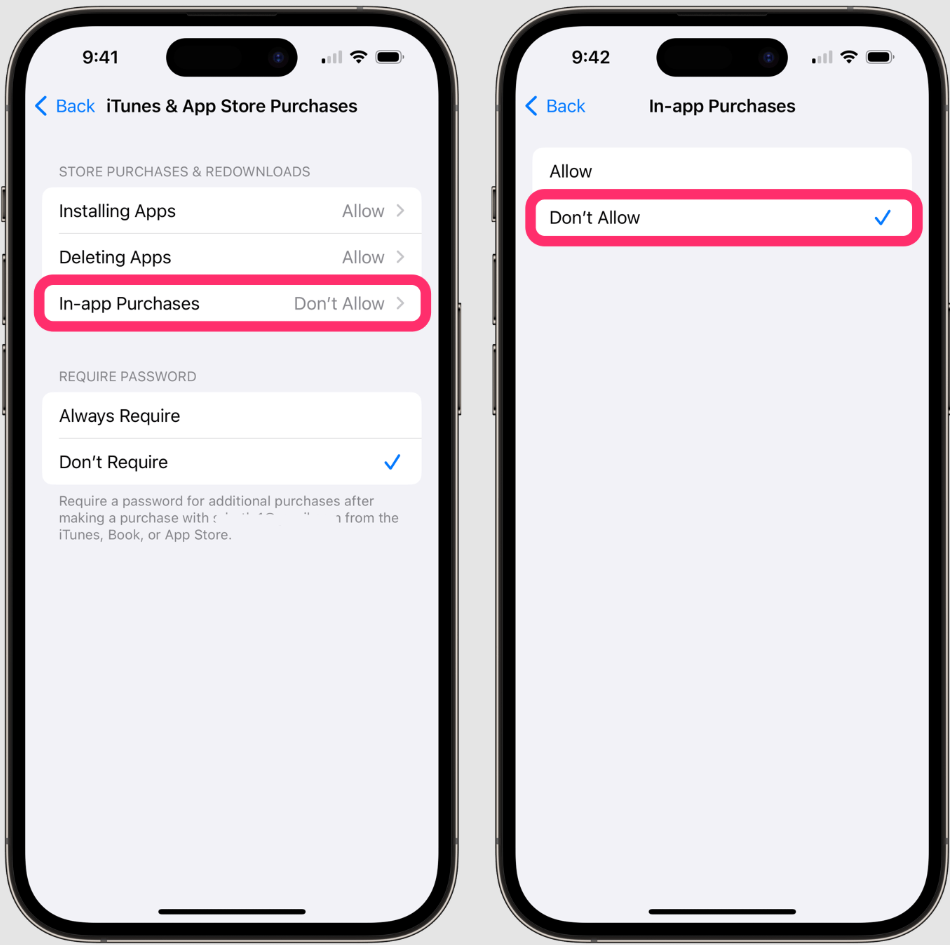
Here is how to set up device-level parental controls across major operating systems to enforce screen limits and block accidental $50 in-app purchases:
iOS 16 and Above
- Open Settings and select Screen Time.
- Tap Content & Privacy Restrictions and toggle it on.
- Navigate to iTunes & App Store Purchases and set “In-app Purchases” to Don’t Allow.
- Use the App Limits section to define daily time allowances for specific gaming categories.
Android 13 and Above (Google Family Link)
- Open the Family Link app on the parent device.
- Select your child’s profile and go to Controls.
- Under App limits, configure daily screen time for installed games.
- Navigate to Content restrictions > Google Play and require approval for all content downloads and purchases.
Windows 11 Home
- Open Settings > Accounts > Family.
- Add your child’s Microsoft account.
- Access the Family Safety dashboard to manage Screen time limits and toggle on Require approval for purchases.
Chrome OS (Stable Channel)
- Open settings and select People > Parental Controls.
- Click Set up to link the Chromebook to Google Family Link.
- Apply screen time management limits and web filtering directly through the prompt.
Trusted Kids Games: A Parent-Tested Comparison for All Ages
After trying multiple apps with ads and unclear safety standards, I researched more deeply into trusted recommendations. I needed specific, non-violent games that actually protected my family’s privacy across different age brackets.
Finding fun and safe games is highly achievable when you know what to look for. Below is a breakdown of highly rated games based on peer-to-peer recommendations and rigorous safety standards, categorized by age group:
Safe Games for Toddlers & Preschoolers (Ages 3-7)
These games focus heavily on early cognitive development and operate in completely closed environments.
- PBS Kids Games: This app is a gold standard for educational gameplay. It features zero ads, zero in-app purchases, and focuses entirely on curriculum-based problem-solving.
- Toca Boca Series: While these require an initial purchase, apps like Toca Life World operate in a safe gaming environment. They encourage open-ended creativity without the pressure of third-party tracking or competitive chat rooms.
- LEGO Duplo World: Designed specifically for toddlers, this application focuses on cognitive development. It features a locked parental gate to access settings, ensuring children cannot accidentally navigate to external stores.
Safe Gaming Configurations for Older Kids (Ages 8-12)
Older kids naturally want to play popular multiplayer titles. Instead of outright banning them, you can lock down their settings to create a much safer experience.
- Minecraft (Creative & Offline Modes): Minecraft is excellent for problem-solving and spatial awareness. To make it safe, navigate to your Microsoft/Xbox Family settings and disable “Join Multiplayer Games” and “Add Friends.” Keep the game in Single-Player “Creative Mode” to remove combat and focus purely on positive reinforcement and building.
- Roblox (With Strict Account Restrictions): Roblox is a massive platform, meaning safety varies by the specific experience. To secure it, open the Roblox app settings, go to Privacy, and turn on Account Restrictions. This locks the account so the child can only play a curated list of games verified by Roblox for all ages. Under the same menu, change all Communication settings (Who can message me? Who can chat with me in app?) to No one.
Safety for Location-Based AR Games (Like Pokémon GO)
It is crucial to state that masking your device’s physical GPS coordinates will not protect your child from a chat room predator. However, if your older children enjoy Augmented Reality (AR) or geo-based games like Pokémon GO or Pikmin Bloom, you face a very different privacy issue: real-time location tracking.
If you turn off the GPS completely, these games become unplayable. If you leave it on, the app (and potentially third-party trackers) logs your child’s exact physical coordinates as they walk around your neighborhood.
For families who want to play these specific AR games without broadcasting their home address, a dedicated location modification tool is highly effective. Fonelora Location Changer is a premium software tool that allows you to control your device’s location without requiring a complicated jailbreak. By using its Safe Game Mode, the software simulates movement in a controlled environment. This obscures real GPS data from third-party tracking, solving the location-harvesting gap in modern AR titles without breaking the game’s functionality.
Procedure to Configure Location Privacy
- Connect Your Device: Download and launch Fonelora Location Changer on your Windows or Mac computer. Connect the target iOS or Android device using a USB cable, Wi-Fi, or Bluetooth.
- Choose a Location Mode: Select the appropriate simulation option from the interface. For gaming privacy, activate the Safe Game Mode.
- Change Your GPS Location: Input a public, safe destination (like a popular downtown park) and click “Move.” The device will update its location, allowing the game to function without revealing your actual neighborhood.
A More Reliable Uber GPS Spoofing Solution: Fonelora Location Changer
As mentioned earlier, desktop-based tools are generally the most dependable option for modifying GPS location on Uber. Compared to mobile apps that rely on easily detectable “Mock Location” settings, desktop solutions tend to deliver a more stable and consistent signal.
If you’re looking for a simpler and more reliable alternative, Fonelora Location Changer is a solid option to consider.
Instead of relying on basic spoofing techniques, Fonelora changes your device’s GPS location through a computer connection. This approach helps minimize common problems like location jumping (rubber-banding) and reduces the likelihood of immediate detection.
Why Choose Fonelora Location Changer?
Fonelora focuses on stability and realistic movement—two key factors when modifying location-based apps like Uber:
- Change GPS location instantly with one click
- Compatible with both iOS and Android devices
- No need to root or jailbreak your phone
- Built-in movement simulation for more natural behavior
- Adjustable speed and customizable routes
- Helps reduce sudden location resets or “snapping”
It’s especially useful for:
- Drivers aiming to position themselves in high-demand areas
- Users testing location-based features or scenarios
- Anyone seeking a smoother alternative to mobile spoofing apps
How to Use Fonelora to Change GPS Location on Uber
Follow these simple steps to get started:
Step 1: Download and Install
Download Fonelora Location Changer from the official website and install it on your computer.

Step 2: Connect Your Device
Connect your iPhone or Android device using a USB cable.
- On iOS: Tap “Trust This Computer” when prompted
- On Android: Enable USB Debugging

Step 3: Choose a Location
Open the map interface in the software:
- Enter a specific location (such as an airport or busy area)
- Or select a point directly on the map

Frequently Asked Questions About Safe Mobile Games
Creating a secure digital environment often involves answering common, recurring questions. Here are clear answers to the most frequent concerns regarding family-friendly apps.
What makes a game safe for kids?
A safe gaming environment requires strict data privacy (no harvesting of device IDs or contacts), the complete absence of unmoderated chat rooms, locked or removed in-app purchases, and age-appropriate content that excludes violence or deceptive dark patterns.
Can safe games still be educational and fun?
Absolutely. Games heavily focused on creative mechanics, logic puzzles, and story-building ensure they are highly engaging. When combined with parental control features, these titles provide immense benefits for child development.
Secure Your Child’s Digital Playground Today
Protecting your child from hidden ads, predatory chat rooms, and unauthorized purchases does not have to be a constant source of stress. By replacing unverified downloads with highly rated games vetted by platforms like Common Sense Media, you instantly elevate your family’s digital well-being. Lock down your device’s operating system to block in-app purchases, disable all unmoderated communication in multiplayer games like Roblox, and always co-play new titles to spot deceptive dark patterns early. By taking these deliberate, informed steps, you create an environment where your children can explore, learn, and play with absolute confidence. Take control of your device’s safety settings today and give your family the secure digital playground they deserve.



Joy Taylor is a seasoned technical writer with over a decade of experience in mobile technology. At iMobie, she specializes in producing in-depth content on iOS data recovery, iPhone unlocking solutions, and iOS troubleshooting.
Product-related questions? Contact Our Support Team to Get Quick Solution >
