Quick Answer: To update your Snapchat location, open Snapchat while location permission is enabled, refresh Snap Map, and make sure your phone has a stable network and accurate location access. If your goal is real-time background sharing, use Snapchat’s Live Location or background location sharing options with trusted friends. If Snap Map is delayed or stuck, check app permissions, battery settings, network connection, and whether Snapchat has recently received fresh location data.
Many users search for how to update Snapchat location because Snap Map may show an old place, a delayed Bitmoji position, or a location that does not refresh after moving. In most cases, this does not mean your phone is broken. It usually means Snapchat has not received a fresh location update from your device yet.
This guide focuses on refreshing your real Snapchat location. It does not require changing your GPS location or using a location spoofing tool. If your goal is to show a different place on Snap Map, see the related guide on changing Snapchat location instead.

Can You Manually Update Snapchat Location?
Yes, you can often refresh your Snapchat location manually by opening Snapchat, allowing location access, refreshing Snap Map, and giving the app a stable network connection. However, Snapchat does not provide a dedicated “Update My Location Now” button.
In practice, a Snapchat location update usually depends on three things:
- App activity: Snapchat needs a chance to request fresh location data from your phone.
- Location permission: Your phone must allow Snapchat to access location.
- Network connection: Snapchat needs to send the updated location to its servers.
If any of these are blocked, Snap Map may keep showing an old position, a delayed location, or a “last active” place instead of your current location.
| Goal | What to Do | Best Page to Read |
| Refresh your current real location | Open Snapchat, refresh Snap Map, and check permissions. | This guide |
| Understand when Snap Map updates | Learn update timing, app-open behavior, and background location rules. | When Does Snap Map Update? |
| Fix location stuck or not refreshing | Check permissions, battery settings, cache, and app issues. | Snapchat Location Not Updating |
| Show a different location | Use Snap Map settings or a GPS location method. | Change Snapchat Location |
How Snapchat Location Updates Normally
Snapchat location is not always a constant, second-by-second broadcast for everyone on Snap Map. Your location visibility depends on your Snap Map settings, device permission, app activity, and whether you are using standard Snap Map sharing or Live Location.
For standard Snap Map sharing, friends usually see the most recent location Snapchat received from your device. If you have not opened Snapchat recently, or if location permission is limited, Snap Map may continue showing an older location for a period of time.
Snapchat’s own help information notes that location duration can depend on device permissions. For example, if permission is set to “Only while using,” the location may expire after 24 hours. If background or “Always” location is enabled for selected sharing, location behavior can be different.
Why Snap Map May Look Delayed
- You have moved, but Snapchat has not been opened again.
- Your phone has weak GPS, Wi-Fi, or cellular signal.
- Battery saver is limiting background activity.
- Snapchat does not have the right location permission.
- Ghost Mode or friend visibility settings are limiting what others can see.
- Live Location is not enabled for the person expecting real-time updates.
If you mainly want to know the timing rules, read when Snap Map updates. If your location does not update even after trying the steps below, read Snapchat location not updating fixes.
How to Refresh Snapchat Location Manually
If you want to update your current Snapchat location, start with a manual refresh. This is the quickest way to make Snapchat request new location data from your phone.
Step 1. Check Your Internet Connection
Make sure your phone has a stable Wi-Fi or cellular connection. If the connection is weak, Snapchat may fail to send or receive fresh location data.
- Turn Wi-Fi off and on again.
- Switch between Wi-Fi and cellular data.
- Toggle Airplane Mode on for a few seconds, then turn it off.
- Open another app or webpage to confirm the internet is working.
Step 2. Close and Reopen Snapchat
Close Snapchat completely instead of only returning to the home screen. Then reopen the app so it can request fresh location data.
- On iPhone, swipe up from the bottom of the screen and swipe Snapchat away.
- On Android, open recent apps and swipe Snapchat away.
- Wait a few seconds, then open Snapchat again.
Step 3. Open Snap Map
Open Snap Map after relaunching Snapchat. This gives the app a direct reason to check location data and update the map view.
- Open Snapchat.
- Swipe to Snap Map or tap the Map icon.
- Wait a few seconds for the map to load.
- Zoom in or move the map slightly if the location indicator does not refresh immediately.
Step 4. Keep Snapchat Open Briefly
Do not close the app immediately after opening Snap Map. Keep Snapchat active for a short time so it can read your phone location and sync the update.
Step 5. Ask a Friend to Check Again
If you are checking what a friend sees, ask them to close and reopen Snapchat as well. Sometimes the issue is not your update, but their app showing an older cached map view.
If you need your location to update continuously in the background for a selected friend, standard Snap Map refresh may not be enough. Use Live Location or background location sharing options instead.
Check Location Permission on iPhone and Android
If Snapchat does not have location access, it cannot refresh your real location correctly. Check your phone’s location permission before assuming Snap Map is broken.
On iPhone
- Open Settings.
- Scroll down and tap Snapchat.
- Tap Location.
- Choose the permission option that matches how you want Snapchat to update.
- Turn on Precise Location if you want more accurate Snap Map positioning.
If location is set to Never, Snapchat will not be able to update your location. If it is set to While Using the App, Snapchat can update while you are actively using it, but background behavior may be limited.
On Android
- Open Settings.
- Go to Apps.
- Choose Snapchat.
- Tap Permissions.
- Tap Location.
- Select the permission option that matches your use case.
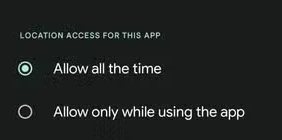
On some Android phones, you may also see an option for approximate or precise location. Choose precise location if you want Snap Map to update more accurately.
Check Network, Battery, and Background Settings
If your Snapchat location updates only sometimes, your phone may be limiting the app in the background. This matters especially when you are using Live Location or background location sharing.
Turn Off Low Power Mode on iPhone
Low Power Mode can limit background activity. If you are trying to share location in the background, turn it off temporarily and check whether Snapchat updates more reliably.
- Open Settings.
- Tap Battery.
- Turn off Low Power Mode.
Check Background App Refresh on iPhone
- Open Settings.
- Tap General.
- Tap Background App Refresh.
- Make sure Snapchat is allowed if you rely on background activity.
Check Battery Restrictions on Android
Android battery optimization can stop apps from refreshing in the background. If Live Location or background updates are delayed, check Snapchat’s battery setting.
- Open Settings.
- Go to Apps > Snapchat.
- Tap Battery.
- Choose an option that allows more background activity if needed.
Check Data Saver and Cellular Data
If Snapchat cannot use mobile data, Snap Map may stop updating when you leave Wi-Fi.
- Make sure cellular data is enabled for Snapchat.
- Turn off Data Saver temporarily.
- Test again while connected to a stable network.
Live Location vs Standard Snap Map Update
Standard Snap Map and Live Location are not the same. Understanding the difference helps you choose the right fix.
| Feature | How It Works | Best For |
| Standard Snap Map | Shows the latest location Snapchat has received based on your settings and app activity. | General location sharing with friends. |
| Live Location | Shares more continuous location updates with selected trusted friends for a set period or based on available options. | Letting someone follow your real-time movement. |
| Ghost Mode | Hides your location from friends on Snap Map. | Privacy when you do not want friends to see your location. |
| Device Location Permission | Controls whether Snapchat can access location data from your phone. | Allowing or limiting Snapchat’s ability to update location. |
If you want friends to see your movement while the app is not actively open, check whether Live Location or background location sharing is enabled for the right people. If you only want a normal Snap Map refresh, opening Snapchat and Snap Map may be enough.
How to Check Live Location Sharing
- Open Snapchat.
- Open the chat with the friend you want to share with.
- Tap their profile or map-related option.
- Check whether Live Location is available and enabled.
- Choose the duration and confirm if you want to share.
Use Live Location only with people you trust. If you no longer want background sharing, stop the Live Location session from the same chat or adjust your device location settings.
What If Snapchat Location Still Won’t Update?
If your location still does not update after checking permissions, network, and battery settings, try the following fixes.
1. Clear Snapchat Cache
Cached app data can sometimes make map behavior look stuck.
- Open Snapchat.
- Tap your profile icon.
- Tap the Settings gear.
- Scroll to cache settings.
- Clear cache and restart Snapchat.
2. Update Snapchat
Open the App Store or Google Play and check whether a Snapchat update is available. App updates can fix map, permission, and background behavior issues.
3. Restart Your Phone
A restart can refresh GPS, network, and background services. After restarting, open Snapchat and check Snap Map again.
4. Check Ghost Mode and Friend Visibility
If friends cannot see your location, it may be a visibility setting rather than an update problem. Ghost Mode hides your location from friends, while “My Friends, Except…” and “Only These Friends…” limit who can see it.
5. Compare with Your Phone’s Map App
Open Apple Maps or Google Maps and see whether your phone itself shows the correct location. If your phone map is also wrong, the issue may be device GPS rather than Snapchat.
6. Read the Not Updating Fix Guide
If your Snapchat location is still stuck, delayed, or not refreshing, read the full Snapchat location not updating guide for deeper troubleshooting.
This page is about refreshing your real location. If you want Snapchat to show a selected different place, use the change Snapchat location guide instead.
Frequently Asked Questions
How do I update my Snapchat location?
Open Snapchat, make sure location permission is enabled, open Snap Map, and keep the app active briefly so it can read and sync your current location. If it still does not update, check network, battery, cache, and app settings.
Can I manually refresh Snap Map location?
There is no separate refresh button, but you can manually trigger a new check by closing and reopening Snapchat, opening Snap Map, and making sure your phone has an accurate GPS and network connection.
Why is my Snapchat location not updating?
Your location may not update because Snapchat lacks location permission, the app has not been opened recently, your network is weak, battery saver is limiting background activity, or Snap Map is showing older cached information.
Does Snapchat update location when the app is closed?
It depends on your settings and whether you are using background location sharing or Live Location. Standard Snap Map behavior may be more limited when the app is not active.
Does Ghost Mode update Snapchat location?
Ghost Mode does not refresh your location for friends. It hides your location from friends on Snap Map. Snapchat may still have access to location depending on your device permission settings.
How do I make Snapchat location update faster?
Use a stable network, allow location access, open Snapchat directly, open Snap Map, and keep the app active for a short time. If you need continuous updates, use Live Location with selected trusted friends.
Why does Snapchat show my old location?
Snapchat may be showing the last location it received from your device. This can happen if you have not opened the app recently, location permission is limited, or your phone could not send fresh location data.
How often does Snapchat location update?
The update frequency depends on app activity, device permission, network connection, and whether you are using standard Snap Map or Live Location. For timing details, read the Snap Map update guide.
Will turning off Low Power Mode help Snapchat location update?
It can help if battery settings are limiting background activity, especially for Live Location or background sharing. For a standard Snap Map refresh, opening Snapchat and checking location permission are usually more important.
Is updating Snapchat location the same as changing location?
No. Updating Snapchat location means refreshing your real current location. Changing Snapchat location means making Snapchat show a different selected place, which is a separate topic.
Conclusion
To update Snapchat location, start with the basics: open Snapchat, refresh Snap Map, allow location permission, and make sure your phone has a stable network connection. Most delayed Snap Map issues come from old app data, limited permissions, weak signal, or battery restrictions.
If you want continuous background updates for a trusted friend, check Live Location or background location sharing settings instead of relying only on standard Snap Map. If your location still does not refresh, clear Snapchat cache, update the app, restart your phone, and review the detailed Snapchat location not updating guide.
If your goal is not to refresh your real location but to show a selected different place on Snap Map, use the separate guide on how to change Snapchat location. Keeping these intents separate helps you choose the right method and avoids unnecessary settings changes.