If you use a modern Galaxy device, you have likely seen the “Secured by Knox” logo when turning on your phone. In simple terms, Samsung Knox is a defense-grade security system built directly into both the hardware and software of your device. Its primary purpose is to protect your most sensitive user data—such as passwords, biometric data (like your fingerprint or face scan), and payment information—from malware, malicious apps, and unauthorized access.

Quick Answer: What is Samsung Knox?
Samsung Knox is a built-in, hardware-level security vault that isolates and protects your private data on Galaxy phones. It constantly monitors the device for unauthorized software changes. If it detects tampering (such as rooting), it permanently “trips” a physical hardware component called an e-fuse. This irreversible action permanently disables Knox-dependent features like Samsung Pay and triggers strict lockouts like Factory Reset Protection (FRP).
Unlike standard security apps that you download from an app store, Knox is integrated into the phone at the factory level and runs silently in the background. You do not need to turn it on or actively manage it for baseline protection; it is simply part of how modern Samsung devices operate.
While Knox offers peace of mind, its strict rules can sometimes cause confusion, especially when users forget their passwords, try to modify their device’s operating system, or get locked out. In this guide, we will explore exactly how Knox works behind the scenes, what happens when its security limits are triggered, and what safe options you have if a Knox-enforced security protocol locks you out of your own phone.
Hardware vs. Software: Inside the Knox Vault
To understand why Samsung Knox is so difficult to bypass, it helps to know the difference between standard software security and hardware-level protection.
Most Android security features rely on software. If a hacker or malicious app finds a vulnerability in the Android operating system, software-based protections can sometimes be bypassed. Samsung Knox goes a step further by using an isolated physical environment called the Knox Vault.
Think of the Knox Vault as a digital safe hidden inside a heavily fortified physical bank vault. It operates entirely separately from the main Android operating system, complete with its own processor and memory. Even if the main OS is completely compromised by a virus, the isolated hardware inside the Knox Vault remains locked and unaffected.
This high-level hardware security is what powers some of the most sensitive everyday features on your Galaxy phone. When you use Samsung Pay, store private files in the Secure Folder, or save passwords in Samsung Pass, that data is not floating around in your phone’s general storage. It is locked inside the Knox hardware, accessible only when you provide the correct, authorized credentials.
What Does “Tripping Knox” Mean? (The E-Fuse Explained)
If you browse Android forums, you will often see warnings about “tripping Knox.” Tripping Knox refers to the blowing of a physical hardware component known as an e-fuse (electronic fuse) located on the phone’s motherboard.
Samsung Knox constantly checks the integrity of the device’s operating system to ensure it hasn’t been tampered with. If Knox detects unauthorized modifications—such as “rooting” the phone, using unofficial software to flash and reinstall Android OS, or installing a custom ROM—it permanently blows this e-fuse.
The consequences of a tripped Knox are immediate and severe:
- Permanent loss of Knox-dependent services: You will permanently lose access to Samsung Pay, Secure Folder, Samsung Pass, and Samsung Health.
- Voided warranty: In most regions, a tripped Knox e-fuse voids your device’s hardware warranty.
- Data lockdown: Any data previously encrypted inside the Knox Vault may become permanently inaccessible.
The most important limitation to understand is that tripping Knox is irreversible. Because it is a physical, hardware-level change, no software tool, factory reset, or firmware flash can “un-trip” the e-fuse. Once it is blown, the Knox-dependent features are gone for the lifespan of that specific motherboard.
How Knox Enforces Screen Locks and FRP
While the Knox Vault and e-fuse protect against hackers, Knox security also heavily governs what happens when you simply forget your PIN or reset your phone. Knox acts as the enforcer for Android’s Factory Reset Protection (FRP) and screen lock protocols.
For example, imagine you forget your screen pattern and decide to force a factory reset using the phone’s recovery mode. Because Knox detects an unauthorized reset (a reset performed without unlocking the screen first), it instantly triggers FRP. When the phone reboots, it will be stuck in a verification loop where you cannot login Google after factory reset, demanding the Google account credentials that were previously synced to the device.
Signs your device is in a Knox-enforced FRP lock:
- Recovery Mode Reset: You forced a factory reset using the hardware buttons without unlocking the screen first.
- Mandatory Wi-Fi: You cannot skip the Wi-Fi connection step during the initial phone setup screen.
- Google Account Demand: The device explicitly asks you to verify your identity with the previously synced Google account.
- Unauthorized Reset Warning: A warning message indicates that an unauthorized factory reset has been performed.
This is incredibly frustrating for legitimate owners who have simply forgotten their passwords. However, it is vital to understand the difference between consumer locks and enterprise locks:
- Consumer FRP and Screen Locks: These are triggered by standard user accounts. If you are the authorized owner, you can often bypass these locks by using official recovery tools or guided third-party software.
- Knox MDM (Mobile Device Management) Locks: These are corporate locks placed by businesses or schools. If a device has an MDM lock, it is strictly managed by an IT administrator, and consumer bypass tools cannot remove it.
If you are trapped by a consumer FRP or screen lock on your own phone, the high security of Knox means you cannot simply bypass it with a basic reset. You must follow specific recovery paths.
What to Do If Knox Security Locks You Out
If a Knox-enforced security protocol—like a forgotten screen PIN or a Google FRP lock—blocks you from accessing your own Samsung phone, you have a few safe options.
First, always try the official paths. If you forgot your PIN, check if you have Samsung SmartThings Find enabled to remotely unlock your device. If you are stuck on an FRP lock, try Google Account recovery or take the device to an authorized Samsung service center with your original proof of purchase.
If official recovery methods are unavailable and you are the authorized owner of the device, you can use a guided Android toolkit like DroidKit to regain access. DroidKit features dedicated modules that can help bypass Android screen locks or Google FRP on supported Samsung devices.

DroidKit – Unlock Android Screen in 1 click
The complete Android solution to save your lost data, revive your dead phone, and optimize your mobile experience in a way simple, smart, and secure.As a complete Android solution, DroidKit can easily help you recover lost data with/without backup.
Guided Workflow for Locked-Out Owners:
1. Check Compatibility: Confirm that your device model, Android version, and security patch are supported by checking DroidKit’s current requirements.
2. Select the Module: Open DroidKit on your computer and choose either DroidKit Screen Unlocker (for forgotten PINs/patterns) or DroidKit FRP Bypass (for Google account verification loops).
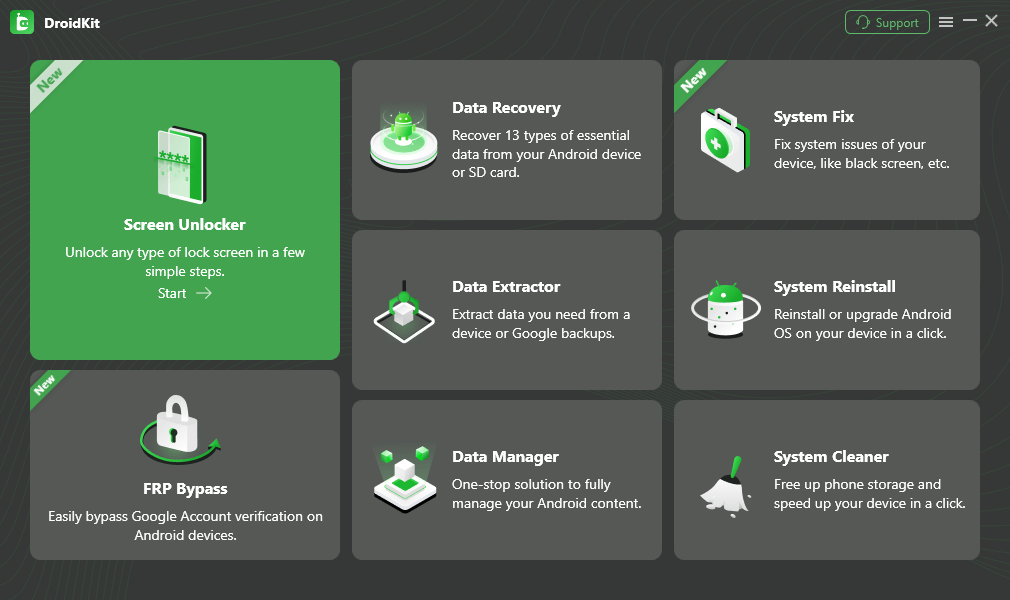
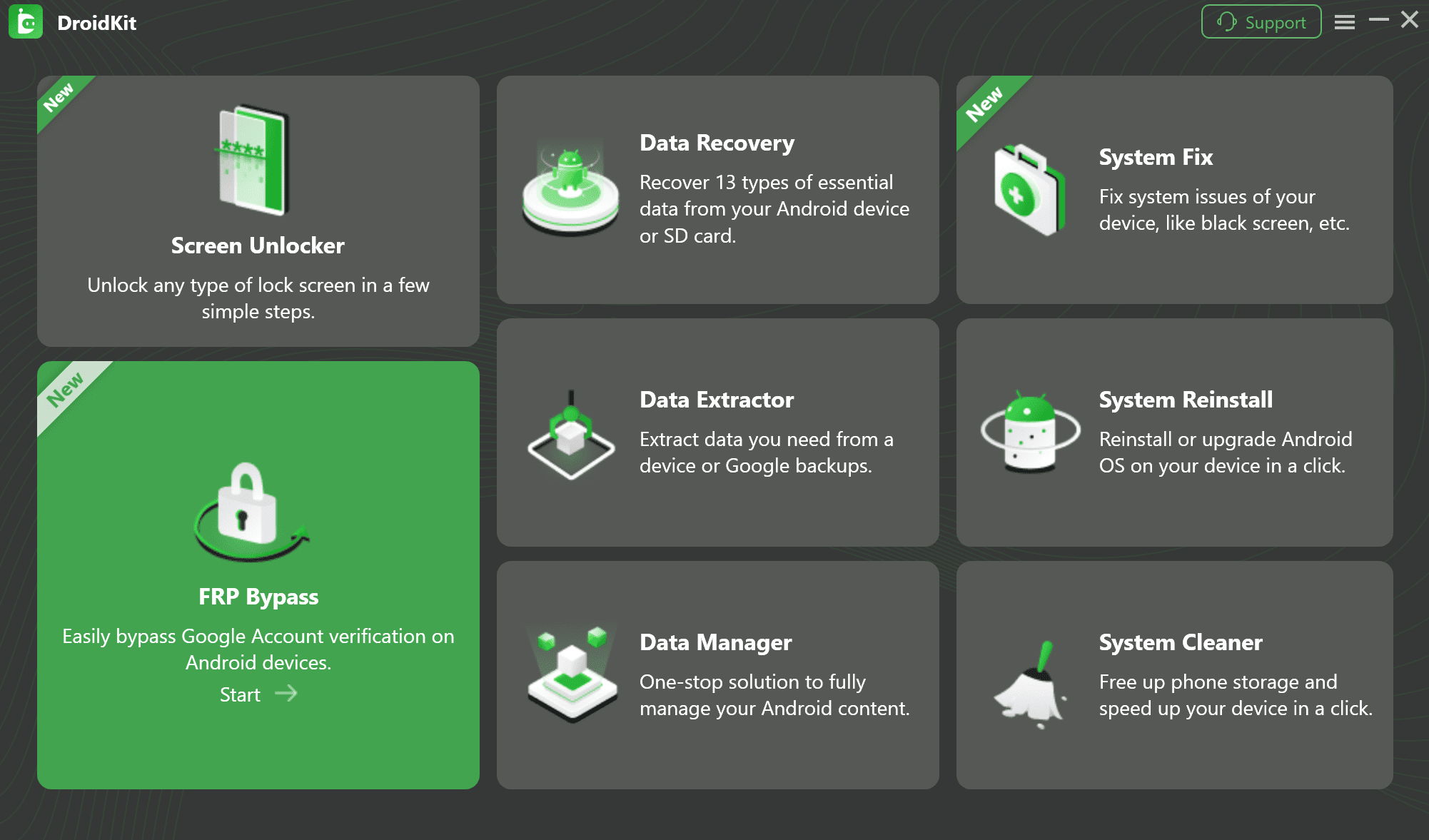
3. Connect Your Device: Use a USB cable to connect your owned or authorized Samsung phone to the computer.
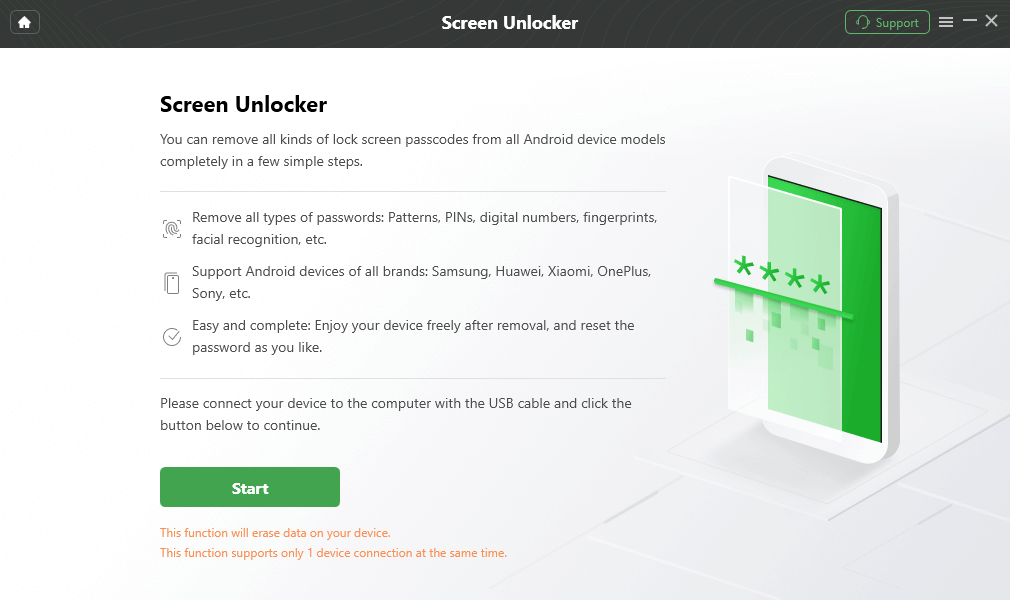
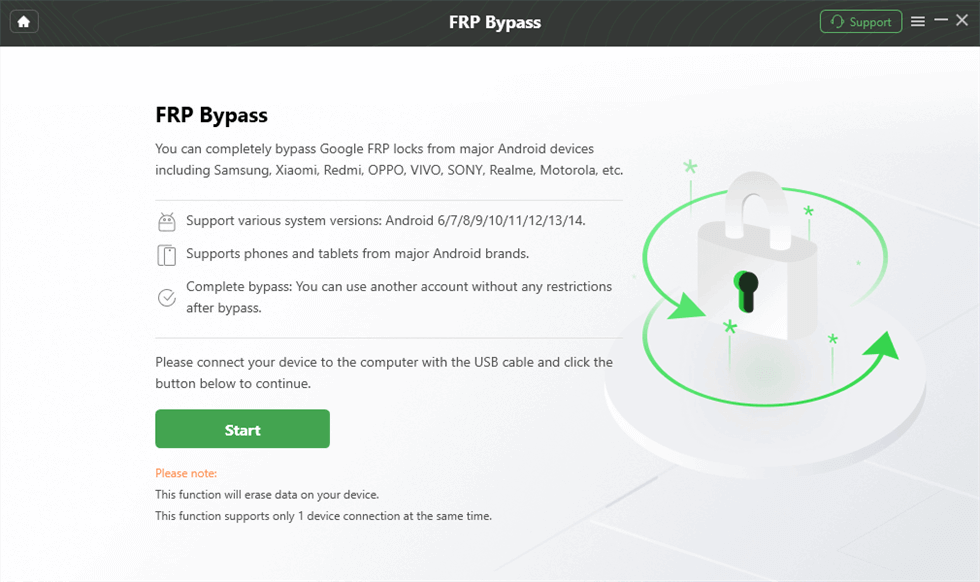
4. Follow the On-Screen Prompts: DroidKit will guide you through the device-specific steps needed to bypass the lock.
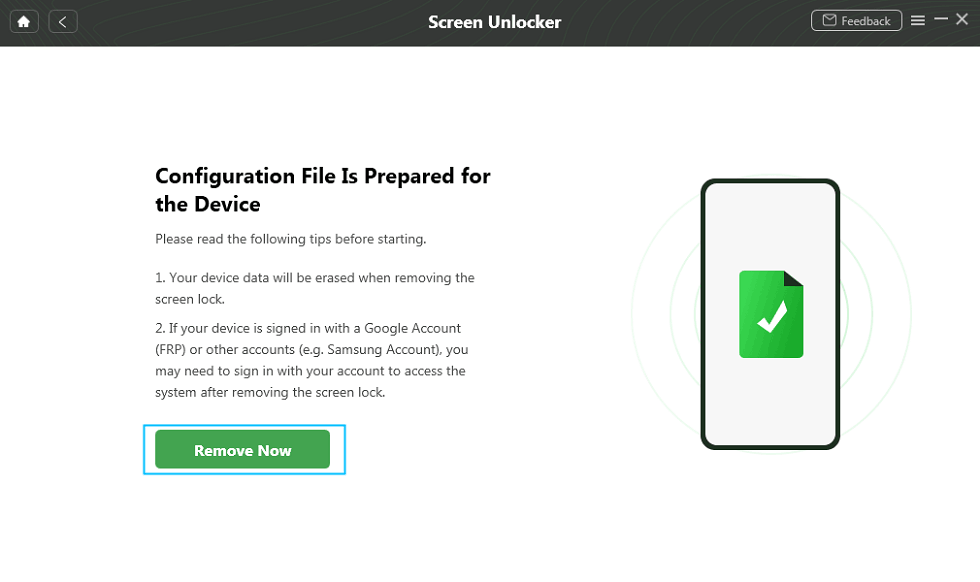
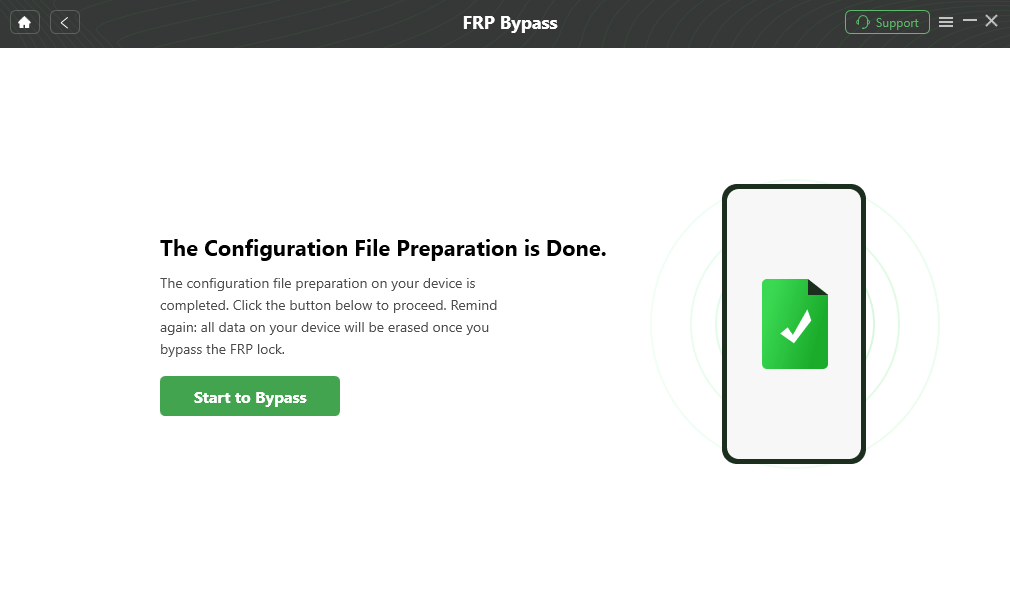
5. Acknowledge Data Risk: Note that bypassing a screen lock usually requires wiping the device’s data to respect baseline Android security.
Important Boundary: DroidKit is designed strictly for consumer lockouts. It does not “un-trip” a blown Knox e-fuse, and it cannot bypass corporate MDM (Mobile Device Management) locks.
Common Misconceptions About Knox Security
Because Samsung Knox is a complex system, there is a lot of bad advice on forums regarding how to handle lockouts and warranties. Here is a checklist of common myths versus the actual reality:
- Myth: Software tools can un-trip the Knox e-fuse.
Reality: Tripping Knox blows a physical piece of hardware on the motherboard. No software download, script, or flash tool can repair a physical hardware change. - Myth: Bypassing an FRP lock will un-trip Knox.
Reality: FRP bypass and the Knox e-fuse are separate things. Bypassing an FRP lock allows you to regain access to your operating system, but if your e-fuse was already blown (due to rooting in the past), it will remain blown. - Myth: Any unlock tool can bypass Knox MDM.
Reality: Consumer troubleshooting tools are designed for standard user lockouts (like forgotten PINs or consumer Google accounts). Corporate MDM enterprise locks are deeply integrated with Knox and require administrator authorization to remove. - Myth: A factory reset clears all Knox security.
Reality: An unauthorized factory reset from recovery mode is exactly what triggers Knox to lock the device down via FRP. It does not wipe the security rules away.
Samsung Knox FAQs
Q1: Do I have to use Samsung Knox?
Yes and no. The baseline Knox security runs automatically in the background to protect your device. However, you do not have to use the optional user-facing features, such as Secure Folder or Samsung Pass, if you prefer not to.
Q2: Does Samsung Knox drain battery?
No. Because Knox is deeply integrated into the phone’s hardware and optimized by Samsung, its background security checks have a negligible impact on battery life and device performance.
Q3: Can Samsung Knox be removed or?
You cannot remove or disable Knox on a modern Galaxy device without rooting the phone. Rooting the phone will permanently trip the e-fuse, voiding your warranty and breaking secure apps.
Final Thoughts: Living with Samsung Knox
Samsung Knox is one of the most powerful, hardware-backed security systems available on consumer smartphones. By isolating your most sensitive data in the Knox Vault, it ensures that your passwords, payment methods, and private files remain secure even if the phone’s main software is compromised. However, this high level of security means that credential management is crucial, as tripping the Knox e-fuse by modifying the firmware is a permanent, irreversible hardware change.
If you find yourself locked out of your own Galaxy device because Knox has enforced a strict screen lock or FRP protocol, do not panic. Always attempt your official account recovery options first. If those paths are unavailable, authorized owners can turn to guided troubleshooting toolkits like iMobie DroidKit as a practical fallback to safely regain access to their supported devices.
DroidKit – Unlock Android Screen in 1 click
- Bypass FRP lock on Samsung, Xiaomi, Redmi, OPPO, POCO, Motorola, Lenovo, VIVO devices without Password.
- Remove all types of lock screen on Android devices without password.
- Fix system issues for Samsung, Xiaomi, Redmi, devices safely.
- Transfer, back up, and manage all Android data in 1 handy place.
More Related Articles


 DroidKit