Why Does iPhone Ask to Trust This Computer?
The trust this computer iPhone prompt appears when you connect iPhone to computer for secure communication. It protects data by requiring approval before access. If iPhone not trusting computer issues occur, check cable, unlock status, and settings. Trust only safe devices to ensure privacy and proper device connection and syncing.
The Trust This Computer Prompt Protects Your iPhone Data
The Trust This Computer prompt appears when an iPhone needs your permission before allowing a connected computer to communicate with it in a trusted way. It is a privacy checkpoint, not an error.
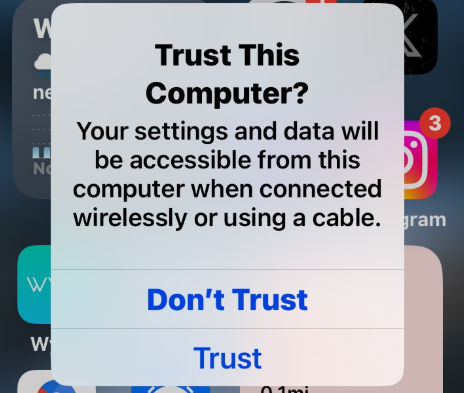
Tap Trust only when the computer is yours or belongs to someone you genuinely trust. If you tap Don’t Trust, the iPhone can still charge, but the computer may not be able to access certain device data or perform trusted management tasks.
Quick rule:
- Trust your own Mac or PC when you need syncing, backup, restore, or device management.
- Do not trust public, shared, or unknown computers.
- If the prompt does not appear, check the cable, USB port, device unlock state, and trust settings.
- If the iPhone is locked and you cannot unlock it, the trust prompt cannot be used as a shortcut into private data.
What Happens When You Tap Trust
When you tap Trust, the iPhone allows the connected computer to establish a trusted relationship with the device. This can enable actions such as syncing, backup, file access through supported apps, device management, and restore-related communication.
You usually need to unlock the iPhone and confirm the prompt on the device. This prevents someone from connecting your locked iPhone to an unknown computer and accessing data without your approval.
Trusting a computer does not mean the computer owns your iPhone. It means the device allows that computer to communicate with it in a deeper way than simple charging.
Use Trust when:
- You are connecting to your personal computer.
- You need to back up or restore the iPhone.
- You are using Finder, iTunes, or a trusted desktop utility.
- You understand why the computer needs device access.
What Happens When You Tap Don’t Trust
If you tap Don’t Trust, the iPhone blocks trusted communication with that computer. Charging may continue, but the computer may not be able to read supported device data, create a backup, sync content, or complete certain device management steps.
This is the safer choice when:
- The computer is public or shared.
- You do not recognize the computer.
- You connected only to charge.
- You are not sure what software is running on the computer.
If you accidentally tapped Don’t Trust on your own computer, you can usually disconnect and reconnect, unlock the iPhone, and check whether the prompt appears again. If it does not, reset location and privacy settings on the iPhone when you can access Settings.
Why the Trust Prompt May Not Appear
The trust prompt may not appear for several practical reasons. Start with the simple checks first:
1. Unlock the iPhone and keep it on the Home Screen.
2. Try a different cable.
3. Try a different USB port.
4. Restart the iPhone and computer.
5. Update Finder, iTunes, or the computer system if needed.
6. Reset Location & Privacy settings if you can access the iPhone.
7. Check whether the device is already trusted by that computer.
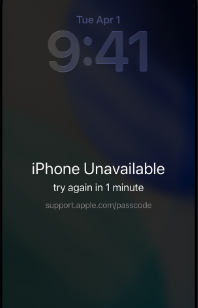
If the iPhone is locked, disabled, or showing iPhone Unavailable, you may not be able to tap Trust. In that situation, the issue is not the trust prompt itself; it is the device lock state.
Trust This Computer vs iPhone Lockout
The Trust This Computer prompt is often confused with iPhone lockout. They are related only because both affect computer communication.
| Situation | What it means | What helps |
| Trust prompt appears | The iPhone is asking whether to trust the connected computer | Tap Trust only if the computer is safe |
| Prompt does not appear | Cable, port, software, settings, or device state may be blocking it | Troubleshoot connection first |
| iPhone is locked or unavailable | You cannot approve trust normally | Use a passcode recovery path |
| iPhone Locked to Owner appears | Activation Lock is active | Use Apple Account/ownership recovery |
A computer trust prompt does not remove Activation Lock, recover a forgotten passcode, or bypass MDM by itself.
Does AnyUnlock Need the Trust Prompt?
It depends on the workflow. Some iOS workflows require trusted device communication because the phone must allow the computer to interact with it normally. Other recovery workflows may use recovery mode or device-state-specific steps instead.
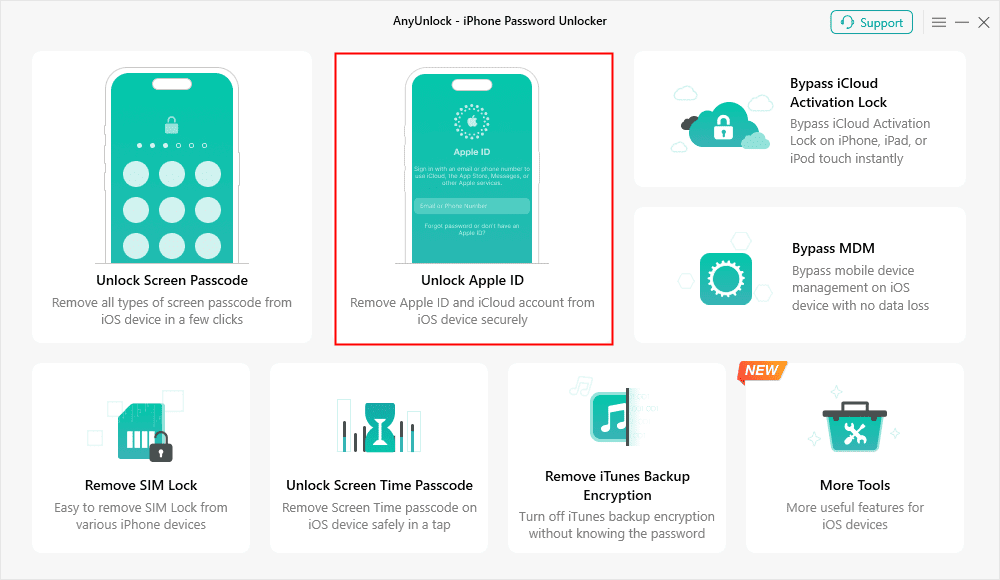
For AnyUnlock, the exact requirement depends on the module:
- Screen passcode removal may involve a recovery-style workflow and will erase the device.
- Screen Time passcode removal and some account-related workflows may need normal device access.
- Find My iPhone turn-off requires that you know the screen passcode and can access the device normally.
- MDM and Activation Lock workflows depend on the device state and supported process.

AnyUnlock – One-stop iOS Unlocker
What if you get locked out of your iPhone? Or what if you forgot your Apple ID and its password? No worries, AnyUnlock unlocks any iOS lock for you with 1 click. No technology required. Only 3 steps.
The practical takeaway: do not assume the Trust prompt is always required, and do not assume it can be skipped for every task. Start by identifying the lock screen and choosing the matching workflow.
How to Stay Safe When Trusting a Computer
A trusted computer may be able to interact with your iPhone more deeply than a charging-only connection. Use a simple safety rule: trust fewer computers, and remove trust when you no longer need it.
Good habits:
- Trust only your own computer.
- Avoid trusting computers in hotels, libraries, repair shops, or public spaces unless necessary.
- Disconnect after the task is complete.
- Reset trusted computer permissions if you are unsure.
- Keep your iPhone and computer updated.
This is especially important if your device contains work data, family photos, saved passwords, or sensitive messages.
FAQ
Why does my iPhone ask to Trust This Computer?
It asks because the computer is requesting trusted communication with your iPhone. The prompt protects your data from unknown computers.
Should I tap Trust or Don’t Trust?
Tap Trust only for a computer you own or fully trust. Tap Don’t Trust for public, shared, or unknown computers.
Can I charge my iPhone without trusting the computer?
Usually yes. Don’t Trust may still allow charging, but it blocks deeper computer access.
Why is the Trust This Computer prompt not showing?
Common causes include a locked iPhone, bad cable, USB port issue, outdated Finder/iTunes, existing trust settings, or a device state that prevents confirmation.
Can I trust a computer if my iPhone is locked?
Normally you need to unlock the iPhone and confirm the prompt. A locked or unavailable iPhone cannot use the trust prompt as a shortcut into private data.
Does AnyUnlock always need Trust This Computer?
No. Some workflows may need normal trusted communication, while others use recovery-style steps. The requirement depends on the lock type and module.
Final Takeaway
The Trust This Computer prompt is a data-protection checkpoint. Trust only safe computers, troubleshoot connection issues calmly, and remember that the prompt does not unlock a disabled iPhone or remove Activation Lock by itself.
AnyUnlock – Unlock Any iOS Password
Quickly and easily unlock your iPhone/iPad/iPod touch from various locks such as screen lock, MDM lock, iCloud activation lock, Apple ID, iTunes backup password, and more.
Free Download for all windows & 100% safe
Free Download for all mac & 100% safe
Free Download 100% Clean & Safe



Wanda Norris is a junior author in iMobie specializing in iOS tips and solutions. She keeps a close eye on every iOS update to provide practical, easy-to-understand guides that help users solve problems and master their Apple devices.
Product-related questions? Contact Our Support Team to Get Quick Solution >
