The Short Answer: What Is Android Keystore?
Android Keystore is a highly secure, hardware-backed vault built directly into your Android device. It does not store your actual files, photos, or messages. Instead, it stores the cryptographic “keys” needed to unscramble and read that data. Without the correct lock screen PIN, password, or biometric scan, these keys remain locked away, making your phone’s storage completely unreadable.
If you read highly technical developer documentation, Android Keystore sounds incredibly complicated. But in plain English, you can think of it as a physical safe inside your phone. Your private data is locked in a secure room, and the Keystore holds the only key to the door. This system acts as the ultimate gatekeeper, ensuring that no one can walk away with your digital life just because they have your phone in their hands.
How Android Keystore Protects Your Data
To understand why Android Keystore matters, you need to understand how modern Android devices handle your privacy. By default, all the data on a modern Android phone is encrypted. This means your text messages, downloaded files, and camera roll are scrambled into an unreadable mess of code.
For that scrambled code to turn back into your actual photos and messages, the phone needs to decrypt it. The Android Keystore system is what manages and protects the encryption keys that do this unscrambling.
Because the Keystore is hardware-backed—meaning it exists in an isolated, highly secure chip inside your device—it cannot simply be “hacked” via software by plugging a USB cable into a computer. Malicious apps, thieves, and even unauthorized repair tools cannot extract these keys. The Keystore will only release the keys to unscramble your data when you prove you are the owner, typically by entering your lock screen PIN, pattern, or fingerprint.
When Is the Keystore Triggered on Your Phone?
The Keystore isn’t just working in the background when your phone is turned off. It actively engages in several everyday situations to keep your personal information secure.
Here are the most common scenarios where Android Keystore is actively working:
- Booting up your device: When you restart your phone and enter your PIN for the very first time, you are actually unlocking the Keystore. This allows the system to fetch the keys and decrypt your phone’s storage so it can finish turning on.
- Using biometrics for sensitive apps: When you use your fingerprint or face to log into a banking app, authorize a payment, or open a secure folder, the app asks the Keystore to verify your identity before allowing access.
- Factory Reset Protection (FRP): If someone tries to wipe your phone from the recovery menu without your permission, Android’s security architecture (which works alongside these hardware protections) triggers an FRP lock. This prevents unauthorized users from simply resetting and selling a stolen device without the original credentials, often leading to a strict Google account verification after reset.
The Hard Truth: What Happens If You Forget Your Android PIN?
Forgetting your lock screen password is a frustrating experience, and the reality of modern Android security is harsh: forgetting your PIN almost always means permanent local data loss.
Because the Android Keystore physically locks the encryption keys away, there is no “backdoor” to bypass the lock screen and save your files. If you cannot provide the correct PIN to unlock the Keystore, your data remains scrambled forever.
Many users search for unlocking tools hoping to magically extract their photos from a locked phone if they forgot password. Unfortunately, the encryption is doing exactly what it was designed to do: keeping data safe from unauthorized access. Without the PIN, neither a hacker, nor a repair shop, nor law enforcement can easily unscramble that local data. Accepting this reality is the first step toward deciding how to proceed—whether that means finding an official cloud backup or choosing to wipe the phone so you can use it again.
Common Misconceptions About Keystore and Data Recovery
When users are locked out, they often find outdated advice or false claims online. Here are the most common misconceptions about bypassing Android Keystore and data encryption:
- Misconception: Keystore stores my personal data.
Correction: It only stores the cryptographic keys. Your data lives on the phone’s storage, scrambled and unreadable without those keys. - Misconception: A repair shop can plug in a cable and extract my photos without the PIN.
Correction: Because the encryption is hardware-backed, raw data extraction is impossible without the PIN. The files will just look like gibberish. - Misconception: Doing a factory reset will let me bypass the lock screen and save my data.
Correction: A factory reset completely wipes all the data and encryption keys from the device. It makes the phone usable again, but the local data is gone. - Misconception: FRP (Factory Reset Protection) can be easily skipped without authorized access.
Correction: FRP is deeply tied to Android’s security ecosystem. Bypassing it requires the original Google credentials or highly specific authorized software workflows.
Official Ways to Recover Data if You Are Locked Out
Before you take any drastic measures that will erase your device, you should check for official recovery paths. Even if the Keystore has locked your local data, your cloud data remains safe.
Pre-Reset Cloud Backup Checklist:
Before committing to a factory reset, go to a computer or another device, log into your Google or manufacturer account, and check these specific locations to see what data is safely backed up:
- Check Google Photos: Visit photos.google.com to see if your camera roll synced recently.
- Check Google Contacts: Visit contacts.google.com to ensure your phone numbers are tied to your account, not just the physical device.
- Check Google Drive: Log into drive.google.com to look for synced PDFs, downloads, or app backups.
- Check Manufacturer Cloud (e.g., Samsung): If you use a Samsung device, log into your Samsung account or SmartThings Find on a computer. Check for synced data, or see if you had “Remote Unlock” enabled, which allows you to unlock your screen remotely without losing data.
- Check with Carrier/Manufacturer for FRP Support: If you are completely locked out of your Google account and need to bypass an FRP lock after a reset, your manufacturer or carrier can sometimes unlock the phone officially if you provide legal proof of purchase.
How to Regain Device Access When All Else Fails
If official paths have failed, you must factory reset your device to regain access, which means accepting the loss of your local data.
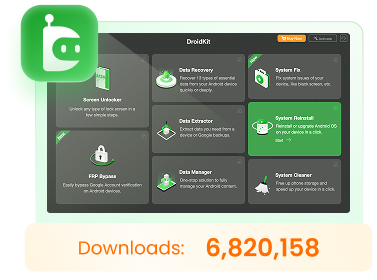
If you are locked out of your own authorized device and need a clear, safe path forward, a modular toolkit like DroidKit can help you through this process. DroidKit provides a guided desktop workflow to remove forgotten PINs, patterns, and passwords.

DroidKit – Unlock Android Screen in 1 click
The complete Android solution to save your lost data, revive your dead phone, and optimize your mobile experience in a way simple, smart, and secure.As a complete Android solution, DroidKit can easily help you recover lost data with/without backup.
Here is how the guided workflow works for supported devices:
1. Open DroidKit: Launch the software on your computer and select the Screen Unlocker module.
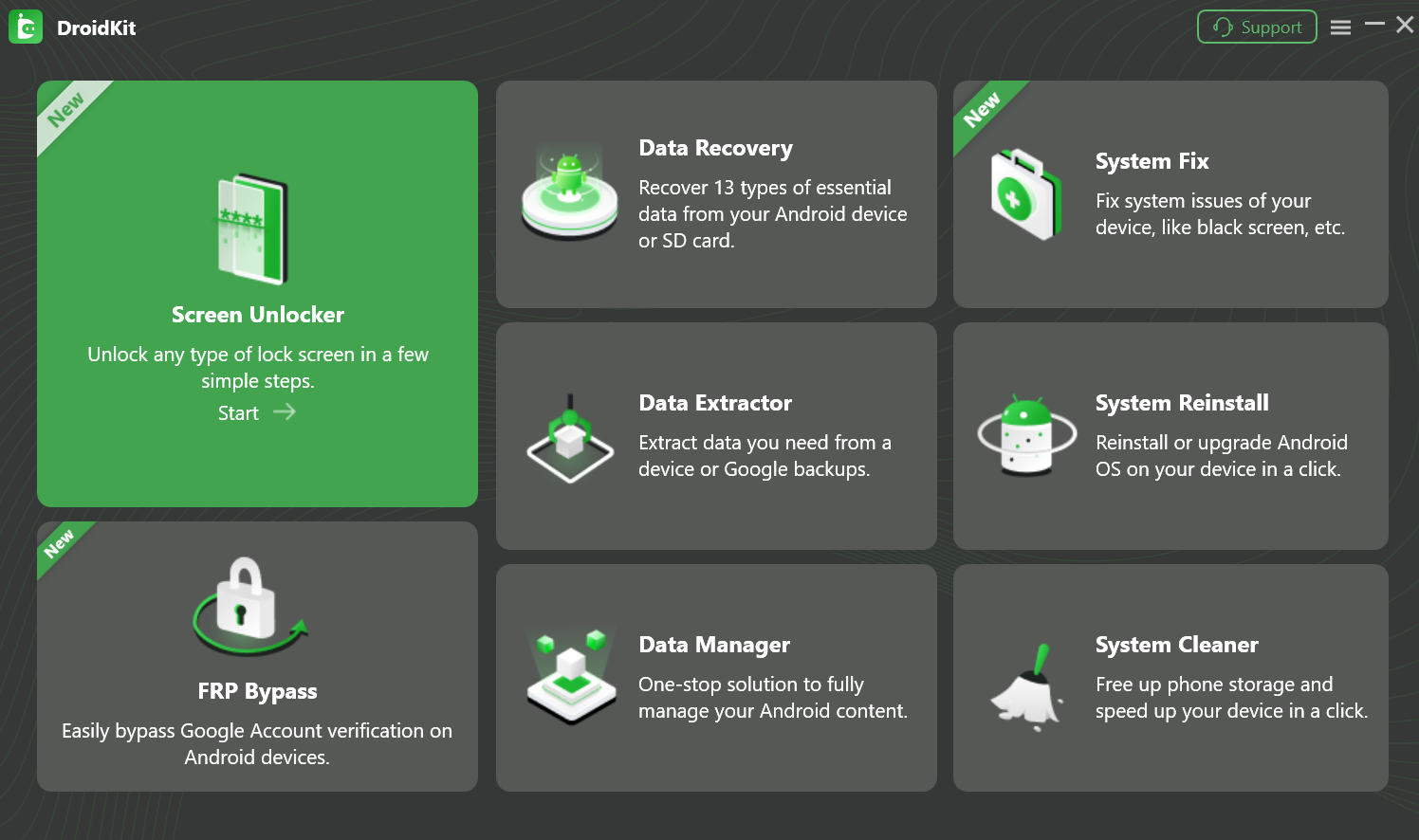
2. Connect your device: Plug your authorized Android phone in via USB cable.
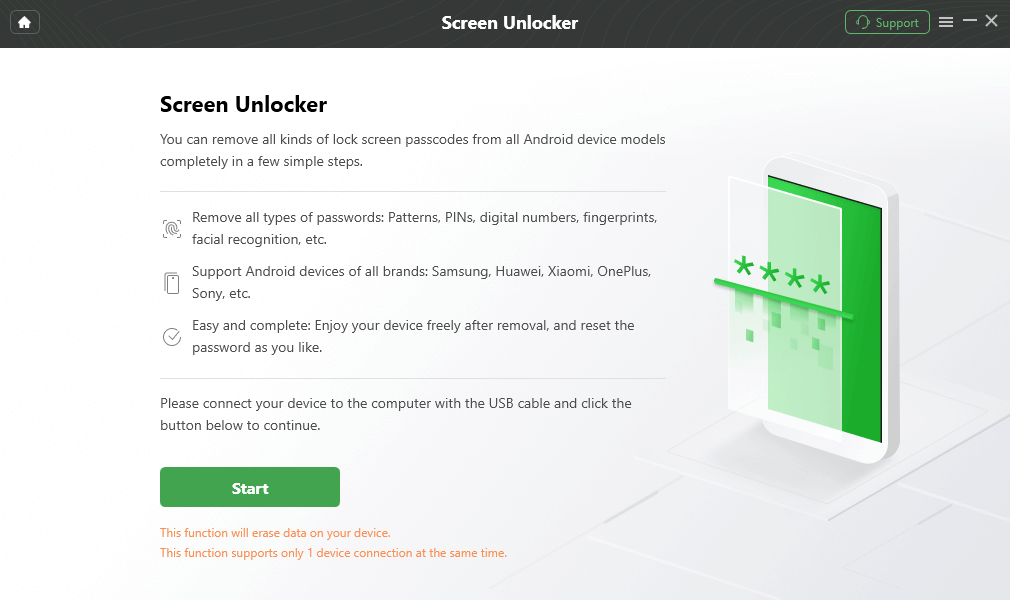
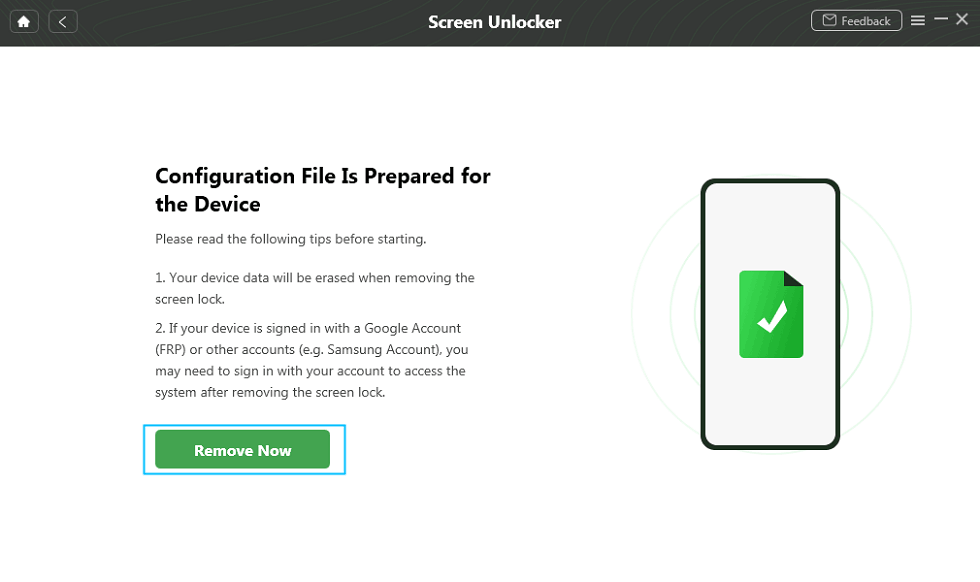
3. Follow the on-screen steps: DroidKit will provide device-specific instructions to put your phone in recovery mode and safely remove the screen lock.
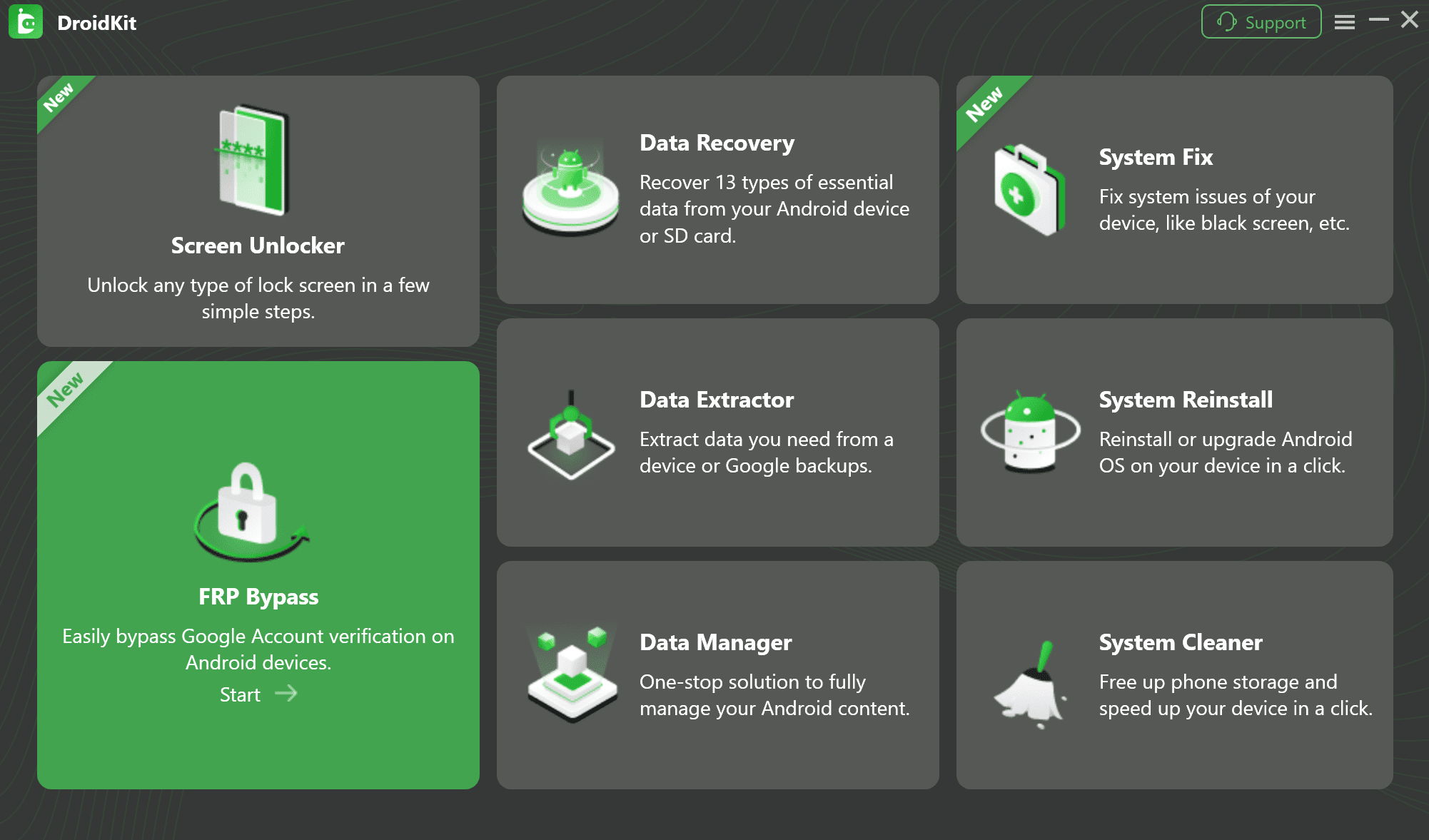
4. Bypass FRP if needed: If your phone restarts and demands the previous Google account credentials (an FRP lock) and you do not know them, you can switch to DroidKit’s FRP Bypass module to finish setting up the device.
While DroidKit cannot perform impossible data recovery on a locked, encrypted phone, it helps non-technical users start fresh and regain control of their hardware. Check the official DroidKit page to ensure your device model and Android version are supported before beginning.
Frequently Asked Questions
Q1: What is the difference between Android Keystore and iOS Keychain?
Both serve similar security purposes, acting as secure hardware-backed vaults for cryptographic keys. Android Keystore is built into the Android operating system to manage decryption keys, while Apple’s Keychain performs a similar duty for iOS devices, protecting passwords and app data.
Q2: Can Android Keystore be bypassed or extracted?
No. On modern Android devices, the Keystore is hardware-backed and deeply integrated into the security chip. It cannot be bypassed, hacked, or extracted via software without severe exploits that do not exist for everyday consumers.
Q3: Does unlocking my phone without a PIN erase my data?
Yes, always. Because you cannot provide the PIN to unlock the Keystore, the only way to remove the lock screen is to perform a factory reset, which permanently deletes the encrypted data.
The Bottom Line: Security vs. Convenience
Android Keystore is a powerful piece of technology that does exactly what it was designed to do: keep your private data locked away from unauthorized access. While it offers incredible peace of mind against thieves and hackers, it is incredibly unforgiving if you forget your lock screen PIN.
This strict security highlights why regular cloud backups to Google Drive or Google Photos are essential. Local encryption is permanent, but cloud data can always be restored.
If you find yourself permanently locked out of your own authorized device and have accepted the reality of data loss, you do not have to throw the phone away. Tools like DroidKit offer a clear, guided path to bypass the lock screen, handle FRP verification, and help you regain full access to your hardware so you can start fresh.
DroidKit – Unlock Android Screen in 1 click
- Bypass FRP lock on Samsung, Xiaomi, Redmi, OPPO, POCO, Motorola, Lenovo, VIVO devices without Password.
- Remove all types of lock screen on Android devices without password.
- Fix system issues for Samsung, Xiaomi, Redmi, devices safely.
- Transfer, back up, and manage all Android data in 1 handy place.
More Related Articles


 DroidKit