If you just turned on your phone and were greeted by a scary warning screen stating your device is corrupt or can’t be trusted, you are likely encountering Android Verified Boot (AVB). Put simply, AVB is a core Google security feature built into the Android operating system that acts as a digital security checkpoint every time your phone turns on.
During startup, AVB scans your device’s core software. If it detects that the system has been subjected to unauthorized modifications, corruption, or missing essential files, it immediately halts the boot process to protect the device and your data. While being stuck in a boot loop or staring at a “device is corrupt” error is incredibly stressful, it does not mean your phone is permanently dead or suffering from physical hardware damage. In most cases, the system is simply doing its job by blocking a compromised software environment from running, and this software issue can be repaired.
Why Does Android Block Modified Software?
A common misconception about Android Verified Boot is that Google built it purely to annoy users who want to install custom ROMs or modify their devices. In reality, its primary goal is protecting the average user from malware, data theft, and stealthy rootkits.
AVB works using a concept called a “chain of trust.” From the moment you press the power button, each stage of the startup process verifies the cryptographic signature of the next stage before handing over control. If a piece of malicious code has secretly infected your boot partition, the signatures will no longer match Google’s or the device manufacturer’s official keys. The chain of trust is broken, and AVB stops the boot sequence to prevent the malware from accessing your personal data.
While this strict security mechanism does inherently block unverified custom ROMs by default, modern Android prioritizes protecting millions of everyday users from severe security threats over keeping the system open for easy modification.
Decoding Android Boot States: Green, Yellow, Orange, and Red
When Android Verified Boot detects an anomaly, it displays a specific warning screen to tell you exactly what is happening. Diagnosing your device’s “boot state” color is the first step to knowing how severe your issue is and what to do next.
| Boot State | On-Screen Warning Message | What It Means | Next Action |
|---|---|---|---|
| Green | (No warning screen) | Normal boot. The device is locked, unmodified, and running official software. | None needed. |
| Yellow | “Your device has loaded a different operating system.” | The device is using a custom root of trust. Often seen with alternative secure operating systems. | Press the power button once to pause or continue the boot process. |
| Orange | “Your device has been unlocked and can’t be trusted.” | The bootloader has been intentionally unlocked. This is normal and expected if you are a modder who unlocked the device. | The phone will automatically continue booting after a 10-second delay. |
| Red | “Your device is corrupt. It can’t be trusted and will not boot.” | System emergency. AVB detected actual system file corruption or unauthorized tampering. The device will not boot to protect your data. | System repair is required. You must completely replace (reflash) the corrupted system files with official ones. |
If you are seeing an Orange state, your phone is functioning exactly as it should after a bootloader unlock. However, if you are stuck on a Red state warning, you are facing genuine system corruption that requires action.
Why Did My Phone Hit a ‘Red State’ If I Didn’t Root It?
It is a frustrating scenario: you turn on your phone, see the terrifying “Your device is corrupt” Red State warning, and think, “But I never tried to hack or root my phone!” While modders who make a mistake during flashing often see this screen, average users can unexpectedly encounter system corruption too.
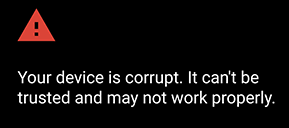
Here are the most common reasons a non-rooted device hits a Red State block:
- Failed OTA (Over-The-Air) Updates: This is the most common culprit. If your phone loses battery power, drops its Wi-Fi connection, or crashes in the middle of installing a routine system update, the core software files are left partially written and unreadable.
- Sudden System Crashes or Storage Wear: Physical wear on older flash storage chips or a severe software crash can cause essential system files to become corrupted over time.
- Failed Manual Modifications: For those who did try to modify their device, flashing the wrong boot image file or failing a root attempt will immediately trigger AVB’s security block.
Regardless of how you got here, the reality of a Red State is the same: the only way to fix it is to completely replace the broken operating system files with fresh, official ones.
The Traditional Fix: Manual Flashing (ADB, Fastboot, and Odin)
Because a Red State means your device’s current software is irreparably corrupted, the official repair method is to flash and reinstall Android OS directly onto the device’s storage.
Traditionally, tech-savvy users and repair shops do this using manual flashing tools like ADB (Android Debug Bridge), Fastboot (via command line), or Odin (specifically for Samsung devices). While these are powerful, official methods, they are notoriously complex and intimidating for the average user.
The limitations of manual command-line flashing include:
- Sourcing the correct firmware: You must manually find and download the exact firmware package that matches your specific device model, region, and carrier. Flashing the wrong file can hard-brick the device permanently.
- Driver installation issues: You have to manually install specific USB drivers on your computer to ensure it can communicate with the phone in bootloader mode.
- Command-line complexity: Tools like Fastboot require typing exact, case-sensitive text commands in a terminal window, leaving a massive margin for human error.
These methods are not inherently bad, but their steep learning curve leaves many everyday users searching for a safer, more guided alternative.
A Simpler Alternative for ‘Red State’ Recovery: Guided System Repair
If you are intimidated by command-line interfaces or worried about choosing the wrong firmware file, a guided graphical tool is often a safer path. For users stuck in a boot loop or facing a Red State warning, DroidKit System Fix offers a dedicated, step-by-step workflow to flash official stock firmware without the complexity of manual ADB/Fastboot commands.

DroidKit – Unlock Android Screen in 1 click
The complete Android solution to save your lost data, revive your dead phone, and optimize your mobile experience in a way simple, smart, and secure.As a complete Android solution, DroidKit can easily help you recover lost data with/without backup.
It is important to clarify that DroidKit does not “bypass” Android Verified Boot to install custom ROMs or unauthorized software. Instead, it helps resolve the AVB block by automatically matching, downloading, and installing the correct official stock firmware for your supported device, which satisfies AVB’s security check so the phone can boot normally again.
How the guided DroidKit System Fix workflow works:
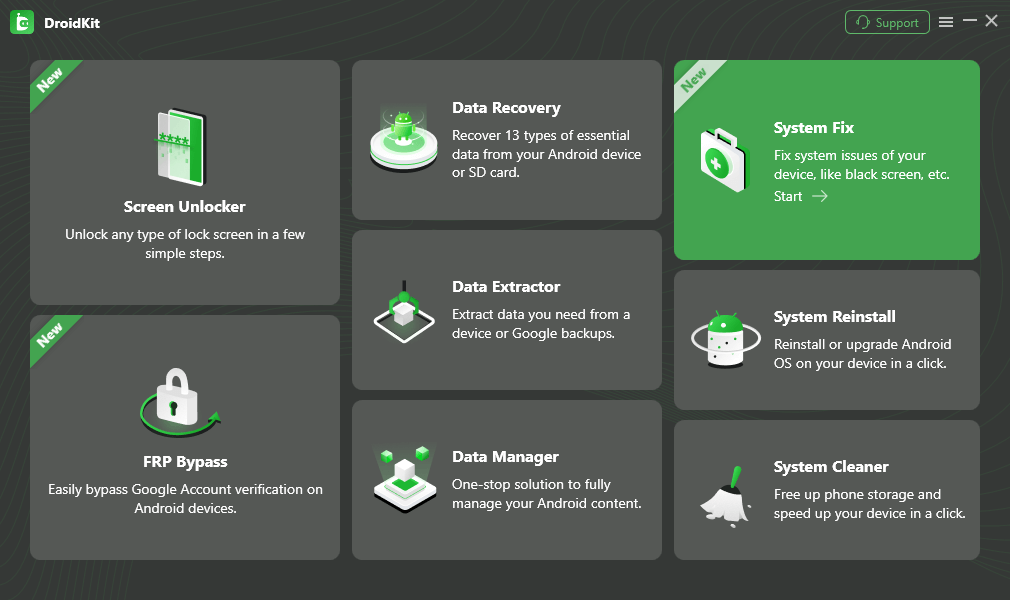
1. Open DroidKit on your computer and select the System Fix module.
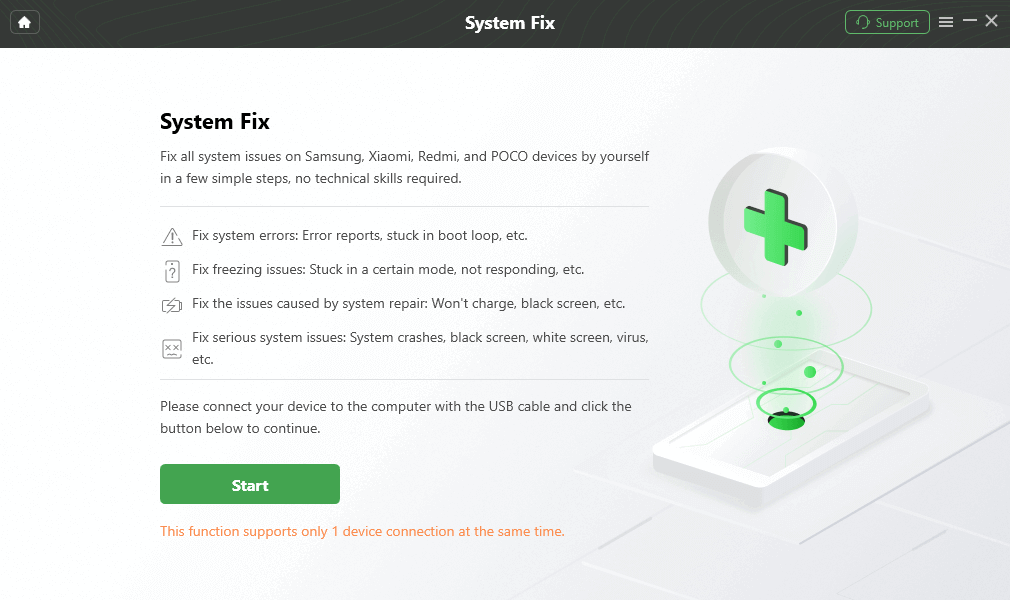
2. Connect your corrupted Android device using a USB cable.
3. Review the on-screen compatibility notes.
Repair success depends on your specific device model and whether the issue is strictly software-related
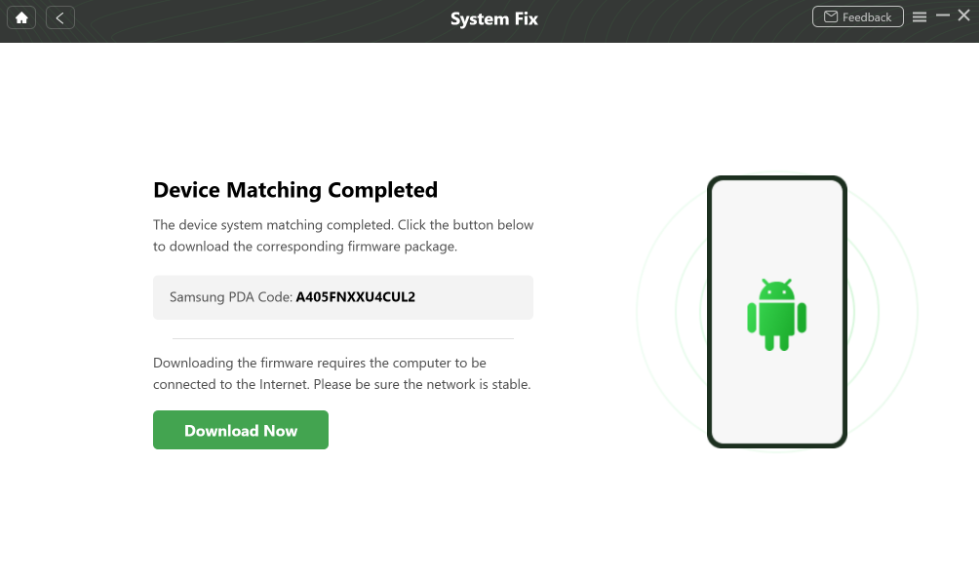
4. Allow DroidKit to identify your device and automatically download the matching official firmware package.
5. Follow the simple on-screen prompts to start the flashing process and restore your system.
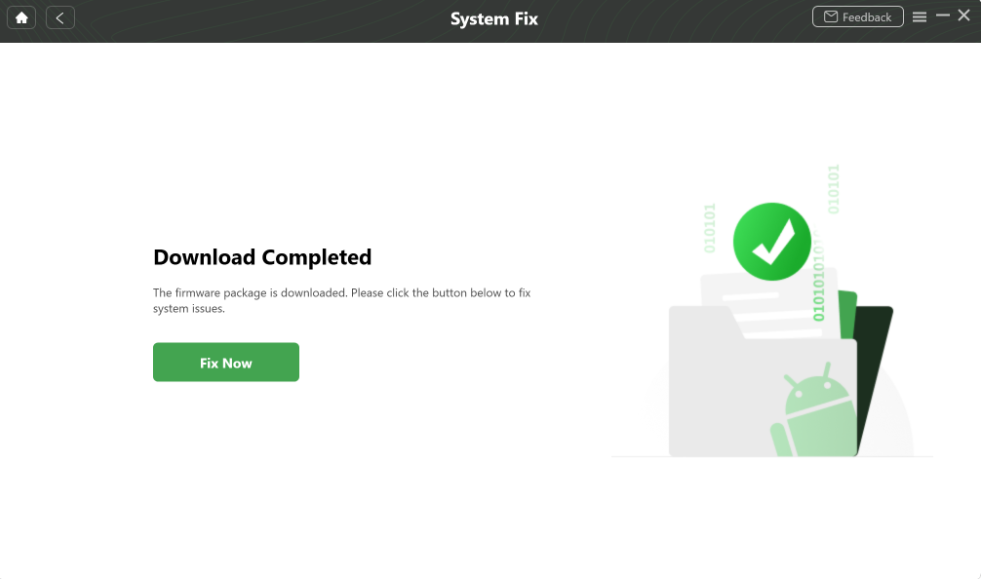
By handling the firmware matching and installation in the background, DroidKit removes the risk of typing wrong command codes, providing a clearer next step for non-technical users to bring their phones back to life.
Frequently Asked Questions (FAQs)
Q1: What is Android Verified Boot?
Android Verified Boot (AVB) is a security feature that checks your device’s core software during startup. If it detects unauthorized changes, missing files, or malware, it halts the boot process to protect your data.
Q2: Can Android Verified Boot be?
AVB cannot be fully from within the Android settings. It is only bypassed by officially unlocking the device’s bootloader, which triggers the “Orange State” warning on every startup and typically factory resets your device to protect local data.
Q3: How do I fix the ‘your device is corrupt’ error?
A “Red State” corruption error is fixed by reflashing the official stock firmware. This replaces the broken system files with clean ones, satisfying the AVB security check.
Final Thoughts: Don’t Panic Over a Boot Warning
Seeing a sudden boot warning screen can be alarming, but understanding that Android Verified Boot is acting as a security guard—not a bug—makes the situation much easier to handle.
If you encounter a warning, first identify your boot state color. If it is Orange and you recently modified your phone, it is functioning as intended. If you are stuck on a Red “device is corrupt” screen, your system files need to be repaired. Because software tools cannot fix physical hardware damage, a Red State specifically points to a software emergency that can usually be resolved by reflashing official firmware.
For your next step, choose the repair path you are most comfortable with. If you have technical experience, manual tools like ADB, Fastboot, or Odin are standard solutions. However, if you are looking for an Android repair app to avoid command-line errors and the stress of manually hunting for firmware files, a guided graphical tool like DroidKit System Fix offers a much simpler, more confident path to getting your phone working again.

DroidKit – Unlock Android Screen in 1 click
- Bypass FRP lock on Samsung, Xiaomi, Redmi, OPPO, POCO, Motorola, Lenovo, VIVO devices without Password.
- Remove all types of lock screen on Android devices without password.
- Fix system issues for Samsung, Xiaomi, Redmi, devices safely.
- Transfer, back up, and manage all Android data in 1 handy place.
More Related Articles


 DroidKit