Fix Code 43 USB Errors in Windows 10 & 11: A Verified Guide (2026)
Seeing a Code 43 USB error on Windows 10 or 11 usually means the system has stopped the device because it reported a problem—but that doesn’t always indicate permanent hardware failure. This guide explains what Code 43 really means, the most common causes behind it, and step-by-step fixes that work on modern Windows systems. Follow the methods in the right order to restore USB functionality without risking data loss.
Few technical issues trigger anxiety quite like plugging in a storage device containing critical files, only to be met with a malfunction notification rather than your data. If you are staring at a screen where the windows have stopped, this device code 43 USB error is preventing access, and you are likely feeling a mix of frustration and fear. You connected your drive expecting to transfer essential work files, but instead faced the prospect of total data loss when your system refused to recognize the drive.
Whether you are trying to fix code 43 USB Windows 11 or Windows 10, the panic is understandable, but often unnecessary, especially if you still need to recover data from a damaged Hard Drive storage on that device. This error indicates a communication failure between the hardware and the operating system, not necessarily a destroyed drive. By systematically isolating the issue, you can restore the connection and regain control of your files.
Diagnosing the Cause: Hardware Failure vs. Driver Issues
Before you begin uninstalling drivers or modifying registry settings, it is vital to perform a triage of your device. Many guides immediately suggest software fixes, but this approach causes unnecessary headaches if the physical connection is the root cause.
Expert Insight: While code 43 USB often presents as a driver issue, many cases are actually hardware-level descriptor failures caused by unstable power, dirty contacts, or a failing USB cable. If the device cannot identify itself (send a descriptor) due to a bad connection, Windows defaults to a driver error.
Use the table below to determine if you should focus on Hardware Isolation or Software Troubleshooting first:
| Symptom | Probable Cause | Recommended Action |
| Device feels hot to the touch | Hardware Malfunction | Disconnect immediately; test on a distinct PC. |
| Error appeared after Windows Update | Driver/Software | Proceed to Phase 3 (Device Manager fixes). |
| Cable is frayed or loose | Physical Connection | Replace cable; check port stability. |
| Intermittent connection sound | Power/Port Failure | Test rear motherboard ports or remove hubs. |
| Device appears/disappears repeatedly | Unstable Power Supply | Proceed to Phase 1 and Phase 2 immediately. |
If your symptoms point to hardware, attempting to force a driver update will not solve the issue. Confirming the physical integrity of the device prevents you from pursuing a solution that cannot yield results.
Phase 1: Physical Isolation & Port Checks
When users encounter the Unknown USB Device error, the instinct is often to spend hours searching for software patches. However, in many verified cases, the solution is physical, not digital. A common scenario involves USB hubs not supplying enough power to the drive, causing the descriptor failure and triggering messages like “disk you attached was not readable” on some systems.
To replicate this success and rule out hardware failure, follow this checklist:
- Bypass USB Hubs: If you are using a USB hub or extension cable, remove it. Plug the device directly into the computer. Hubs are a common point of failure for power-hungry devices like external SSDs.
- Use Rear Motherboard Ports: On a desktop PC, front-panel USB ports rely on internal cabling that can degrade signals. Plug your device into the USB ports on the back of the tower, which are soldered directly to the motherboard.
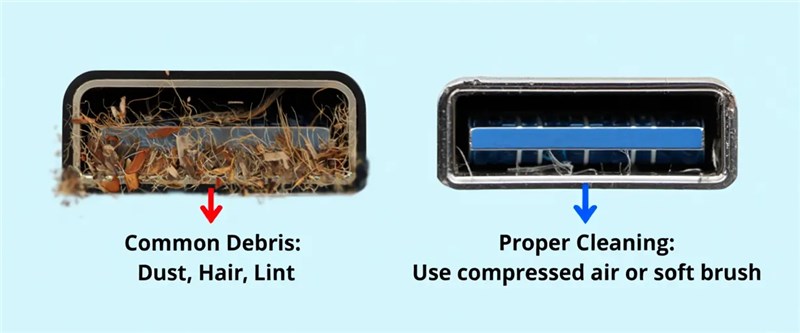
- Clean the Contacts: Physical debris is a frequently overlooked culprit. Inspect the USB connector on your device. If you see dust or lint, gently clean the contacts with a small amount of isopropyl alcohol and a soft tool. A dirty contact prevents the “handshake” between the drive and the PC.
- Inspect the Cable: Swap the USB cable with a verified working one. A code 43 USB device not recognized error is frequently triggered by a single broken wire inside a connector.
- The Second PC Test: Plug the device into a completely different computer. If the device works there, your hardware is safe, and the issue lies within your original computer’s Windows configuration.
Phase 2: The Motherboard Power Drain (Cold Boot)
If physical checks didn’t resolve the issue, you may be dealing with a “confused” USB controller. Sometimes, the motherboard hardware responsible for managing USB ports enters a hung state and holds a static charge. Simply restarting Windows via the Start menu does not clear this state.
You must perform a full power drain to force the hardware to reset. This is often the most effective fix for stubborn Code 43 errors.
1. Shut Down Completely: Turn off your computer using the “Shut Down” command in Windows.
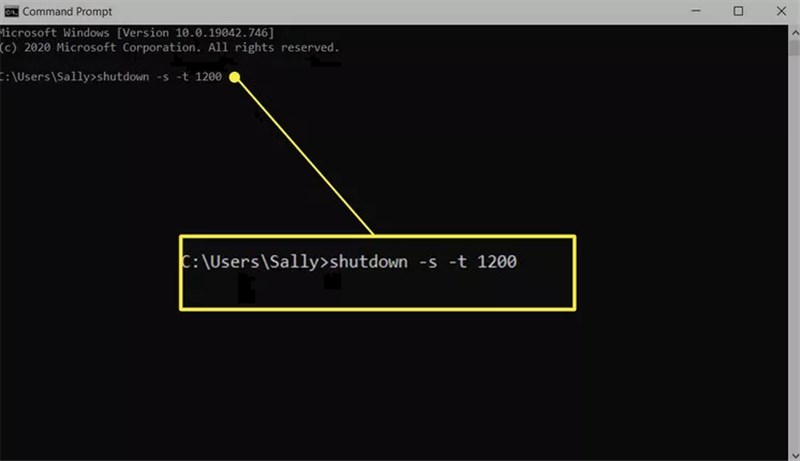
2. Unplug from the Wall: This is the most critical step. If you have a desktop, pull the power cable out of the power supply unit. If you have a laptop with a removable battery, take the battery out. (For laptops with non-removable batteries, simply unplug the charger).
3. Hold the Power Button: With the computer unplugged, press and hold the power button on the case for at least 30 to 60 seconds. This drains the capacitors on the motherboard, clearing any residual static charge that might be locking up the USB controller.
4. Reconnect and Boot: Plug the power cable back in (or replace the battery) and turn the computer on.
Once Windows loads, plug your USB device in again. In many cases, the fresh hardware initialization resolves the descriptor failure immediately.
Phase 3: Fixing ‘Unknown USB Device’ Drivers in Windows
If you have confirmed your hardware is functional and performed a power drain, the issue is likely a corrupted driver instance within Windows. The most effective software solution for the usb device descriptor request failed code 43 error involves forcing Windows to reinstall the device configuration, so you can recover files from a USB drive once the connection is restored.
Follow these steps to perform a clean driver reinstall via Device Manager:
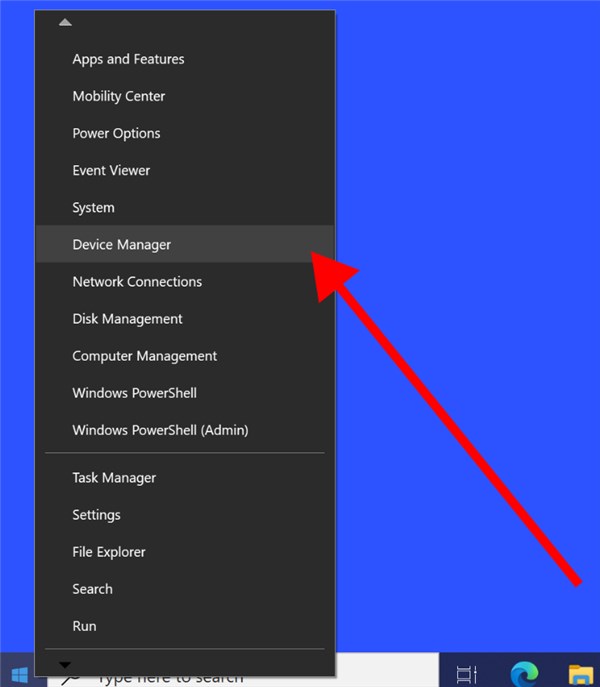
1. Open Device Manager: Right-click the Start button and select “Device Manager” from the menu.
2. Locate the Faulty Device: Look for the “Universal Serial Bus controllers” section. You will likely see an entry labeled Unknown USB Device (Device Descriptor Request Failed) with a yellow warning triangle.
3. Uninstall the Device: Right-click the unknown device and select “Uninstall device.” Confirm the action if prompted. The device will disappear from the list.
4. Scan for Changes: In the top menu bar, click “Action” and select “Scan for hardware changes.” Windows will detect the connected hardware and attempt to install a fresh, corruption-free driver.
The “USB Host Controller” Reset
If uninstalling the specific “Unknown Device” does not work, you must reset the port manager itself.
1. In the same “Universal Serial Bus controllers” section, look for entries named USB Host Controller (e.g., “Intel(R) USB 3.1 eXtensible Host Controller”).
2. Right-click and Uninstall this controller.
Warning: This may temporarily disable your mouse and keyboard if they are connected via USB. They should reconnect automatically after a restart, or you may need to force a restart using your PC’s power button.
3. Restart your computer. Windows will automatically reinstall the Host Controllers upon reboot, resetting the entire USB bus.
Phase 4: Adjusting USB Selective Suspend & Power Management
A common cause for Code 43 unknown usb device errors is Windows aggressively attempting to save power. The operating system may cut power to a USB port if it believes the device is idle, but sometimes it fails to wake the device back up properly. This often results in the system reporting a hardware malfunction or the device repeatedly disconnecting and reconnecting.
To resolve this, you must disable the USB selective suspend feature.
Step 1: Edit Power Plan (Windows 10 & 11)
Note for Windows 11 Users: While the Settings menu has changed visually, the legacy Power Options panel is still the most reliable way to change this setting.
- Access Power Options: Press the Windows Key, type “Edit Power Plan,” and press Enter. This will open the classic Control Panel window regardless of your OS version.
- Advanced Settings: Click “Change advanced power settings.”
- Disable Suspension: Expand “USB settings” > “USB selective suspend setting.” Change the status to Disabled and click Apply.
Step 2: Device Manager Power Settings
Additionally, you should adjust the power management USB settings directly in Device Manager to ensure the hardware isn’t turned off at the driver level:
- Return to Device Manager and expand “Universal Serial Bus controllers.”
- Right-click on your “USB Root Hub” (repeat for all instances) and select “Properties.”
- Navigate to the “Power Management” tab.
- Uncheck the box that says: “Allow the computer to turn off this device to save power.”
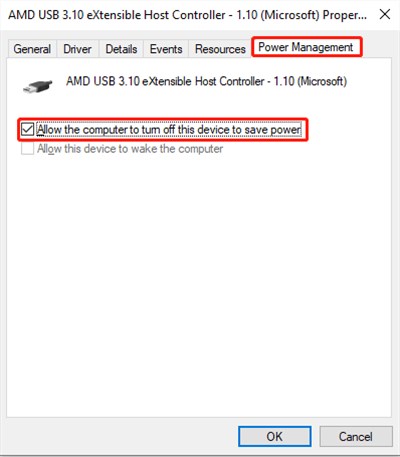
This ensures your external drive or peripheral maintains a consistent power supply, preventing the disconnection loop that triggers the error.
Advanced Fixes: Chipset Drivers and BIOS Updates
If you have exhausted the previous methods and the code 43 USB device not recognized error remains, the issue may lie deeper in the system architecture—specifically with the chipset drivers or the BIOS (Basic Input/Output System).
The chipset acts as the traffic controller between your processor and external peripherals. If these drivers are outdated, the USB controller itself may fail to interpret signals correctly.
Updating Chipset Drivers
Identify your motherboard manufacturer (e.g., ASUS, Dell, MSI) and visit their official support page. Download the latest “Chipset” driver installation package for your specific model. Installing this provides the operating system with the most current instructions for managing USB traffic.
BIOS Updates
Updating the BIOS is a more advanced procedure that refreshes the firmware, initializing your hardware.
- Ensure your computer is connected to a stable power source (UPS or fully charged battery) during this process. A power loss during a BIOS update can damage the motherboard.
- Check your manufacturer’s instructions for “BIOS Flash” or “Firmware Update” procedures.
These steps address the root cause when the USB controller is at fault, ensuring the system can properly engage with external devices.
Code 43 USB Frequently Asked Questions
Q1. What does Code 43 mean for a USB device?
Code 43 is a generic error code generated by Device Manager when Windows stops a device because it reports a problem. Essentially, the hardware told the OS, “I am malfunctioning,” or the OS lost communication with the device entirely.
Q2. Why does it say “Device Descriptor Request Failed”?
A device descriptor is like a digital ID card. When you plug a device in, Windows asks for this ID. If the connection is unstable (bad cable, dirty port, or low power) or the controller is glitching, the device cannot send the ID, leading to the USB device descriptor request failed code 43 message.
Q3. How do I fix USB Code 43 in Windows 11?
The solutions for Windows 11 are identical to Windows 10. The interface for Device Manager remains the same. When accessing power settings, searching for “Edit Power Plan” will bypass the new Settings app and take you directly to the correct Control Panel menu needed to disable USB Selective Suspend.
Q4. How do I recover files if an external drive shows Code 43?
Do not format the drive. Code 43 is often a connection or driver issue, meaning your data is likely intact on the platters or chips. Focus on getting the device recognized (fixing the connection) first. If the device remains unreadable on multiple computers, professional data recovery services may be required.
Q5. Can a bad USB cable cause Code 43?
Yes. A cable with damaged internal wiring can provide power (lighting up the device’s LED) while failing to transmit data. This partial connection confuses Windows, resulting in the error code. Always swap the cable and clean the contacts first.
Conclusion
Encountering a Code 43 USB error disrupts your workflow and raises valid concerns about data safety. However, by following the structured approach outlined here—starting with the critical hardware verification and the motherboard power drain—you have directly addressed the root causes of the connectivity failure. You have ruled out physical damage, refreshed the Unknown USB Device drivers, and optimized your system’s power management.
If your device is now recognized, we recommend immediately backing up your critical files to a cloud service or secondary drive, and keeping USB Flash Drive recovery tools in mind in case the connection drops again. Connectivity issues can sometimes be a warning sign of aging hardware, so taking action now ensures your data remains secure, regardless of future hardware hiccups.



Joy Taylor is a seasoned technical writer with over a decade of experience in mobile technology. At iMobie, she specializes in producing in-depth content on iOS data recovery, iPhone unlocking solutions, and iOS troubleshooting.
Product-related questions? Contact Our Support Team to Get Quick Solution >
