How to Change Location in Pokémon Go: A Tested 2026 Guide
This 2026 Pokémon Go location guide breaks down what Niantic detects, common mistakes, and how players reduce ban risk on iOS and Android
As a long-time Pokémon Go player and tech editor, I’ve spent hundreds of hours testing location-changing tools on both my own and my friends’ accounts. From iPhones on iOS 15 to the latest Google Pixels on new Android builds, I’ve personally vetted these methods against Niantic’s detection systems to see what actually works and what gets you flagged. This guide is built on that direct, hands-on experience.
For dedicated players like Alex, who lives in a rural area with few PokéStops, the game can feel limiting. Missing out on region-exclusive Pokémon or global Community Day events is a common frustration. Many search for a way to use a Pokémon Go fake location, but are met with confusing, outdated guides and the constant worry of account warnings or a permanent ban. This guide cuts through that uncertainty. It provides a clear, tested procedure for altering your GPS location safely and effectively. We will show you how to participate in the game’s full experience without putting your account at risk.
Understanding Niantic’s Anti-Cheat GPS to Avoid Bans
To safely change location in Pokémon Go, you must first understand how Niantic detects suspicious activity. The system is less concerned with the use of a location-changing tool itself and more focused on flagging behavior that is physically impossible. Niantic primarily identifies a Pokémon Go GPS spoof based on illogical movement patterns, not simply the presence of spoofing software.
When you perform an in-game action, like catching a Pokémon or spinning a PokéStop, your coordinates are logged on Niantic’s servers. If your next action occurs in a different country just seconds later, this impossible travel time triggers a flag. This server-side plausibility check is the foundation of the Niantic anti-cheat GPS.
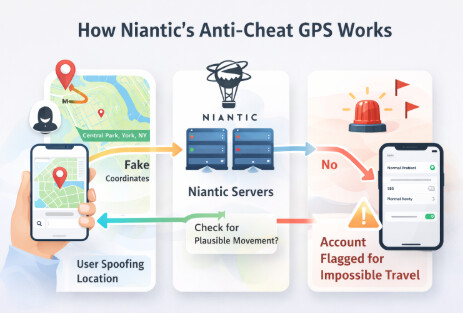
Key detection mechanisms you need to be aware of include:
- Cooldown Timers: This is a mandatory waiting period you must observe after a long-distance location jump. The game prevents you from interacting (catching, spinning, raiding) until a realistic amount of “travel ” time has passed. Ignoring this is the fastest way to receive a warning.
- Rubber-Banding: This issue is more common on Android. It happens when your device’s true GPS signal conflicts with the mock location, causing your in-game avatar to snap back and forth between two points. This erratic movement is a clear red flag to Niantic’s servers.
- Server-Side Location Checks: Every action you take is analyzed. The system logs your speed, altitude, and travel history to build a movement profile. A sudden, instantaneous Pokémon Go teleport location change is the easiest anomaly to detect and the most common cause of account suspension.
A Comparison of Pokémon Go Location Changer Methods
Choosing the right tool to spoof location in Pokémon Go depends on your device, technical comfort, and risk tolerance. There is no single best solution; each presents a different balance of safety, cost, and complexity. This comparison provides a clear framework to help you select the most suitable approach.
| Method | Safety Risk | Technical Skill | Success Rate | Best For |
| Desktop Software | Low | Low-Medium | High | iOS users and Android users seeking stable, feature-rich control without modifying their phone’s OS. |
| Modified Apps | High | Medium-High | Medium | Tech-savvy Android users who accept the higher risk and potential need to root their device. |
| Hardware Dongles | Low-Medium | High | High | Advanced users who want a system-level solution and are comfortable with a more complex, costly setup. |
We recommend desktop software for most users, especially those on iPhone, as it doesn’t require a jailbreak and offers robust features for simulating natural Pokémon Go map movement. These tools provide the best balance of safety and usability.
How to Choose a Reputable Location Changer
Being told to “choose a reputable app ” isn’t helpful. Here’s a quick checklist to empower you to find a safe and effective tool:
- ✅ Recent Updates: Check the software’s website for recent updates. It should explicitly state support for the latest iOS and Android versions. Tools that haven’t been updated in months are a red flag.
- ✅ Independent Reviews: Look for user reviews on platforms like Reddit (e.g., in r/PokemonGoSpoofing) or Trustpilot. Be wary of reviews found only on the product’s own website.
- ✅ Core Safety Features: Does the tool have a built-in cooldown timer display, variable speed controls, and a joystick for manual movement? These are essential for safe spoofing.
- ✅ Free Trial: A trustworthy developer will often offer a limited free trial so you can confirm that the software works with your specific phone and computer before you purchase.
Step-by-Step: How to Change Location in Pokémon Go on iPhone (iOS)
For many Pokémon GO players, location can directly impact gameplay opportunities. Certain Pokémon, raids, events, and PokéStops may only be available in specific regions, making it difficult for trainers to access all of the game’s content. While Android users often have several GPS-mocking options, iPhone users face stricter system restrictions because iOS does not include a built-in mock location feature and does not allow most App Store apps to modify GPS data system-wide.
As a result, desktop-based location changers have become one of the most practical solutions for iOS users. Among them, Fonelora Location Changer offers an easy way to modify your iPhone’s GPS location without jailbreaking your device. The software works by changing location data at the system level through a secure connection between your iPhone and computer. In addition to simple location teleportation, it includes route simulation, multi-spot movement, joystick controls, and customizable movement speeds, making it useful for trainers who want more flexibility when exploring Pokémon GO.
Follow these steps to get started:
1. Download and Install Fonelora Location Changer
Download and install Fonelora Location Changer on your Windows PC or Mac. Once the installation is complete, launch the software and select the location-changing feature.

2. Connect Your iPhone
Connect your iPhone to the computer using a USB cable. When prompted, tap “Trust This Computer” on your device and enter your passcode to establish a secure connection.

3. Choose Your Desired Location
After your iPhone is detected, a map interface will appear. You can search for a city, landmark, or GPS coordinate anywhere in the world, or simply click a location directly on the map.

4. Instantly Change Your GPS Location
Click “Move” to update your iPhone’s GPS location. Your device will begin reporting the selected location, allowing Pokémon GO to recognize the new position.

5. Create Realistic Walking Routes
Fonelora Location Changer also supports route simulation. You can create custom paths between PokéStops, Gyms, or spawn locations and set realistic movement speeds to simulate walking, jogging, or cycling.
6. Explore Pokémon GO From Your New Location
Open Pokémon GO and confirm that your new location has been applied successfully. You can switch locations, modify routes, or return to your original GPS position whenever needed.
Step-by-Step: How to Spoof Location on an Android Device
Android provides a more direct method for a Pokémon Go GPS hack through its built-in Developer Options. This allows an app to supply “mock ” location data to the entire system. Correct configuration is essential to avoid common issues that can lead to detection.
Follow this standard procedure:
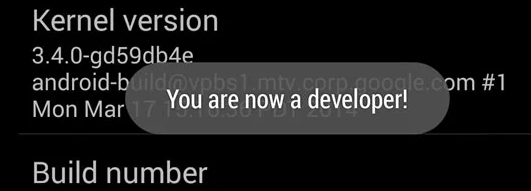
1. Enable Developer Options: Navigate to Settings > About Phone. Find the Build Number and tap on it seven times in a row. A small notification will appear confirming, “You are now a developer! ”
2. Install a Mock Location App: Go to the Google Play Store and install a well-reviewed GPS spoofing application. Fake GPS location by Lexa is a popular and long-standing choice, but you can find others by searching for “GPS Joystick. ”
3. Configure and Activate: Open the GPS spoofing app you just installed. Pick a location on the map and start the service. Then, immediately go to Settings > System > Developer Options and find the “Select mock location app ” setting. Choose the app you are using to authorize it to control your phone’s GPS.
How to Prevent Location Snapping Back
The most frequent problem on Android is “rubber-banding, ” where the game snaps between your real and spoofed locations. To minimize this, go to your phone’s Location settings and set the location mode to “Device only “ or “GPS only. “ This prevents Wi-Fi and cellular network data from interfering with your mock GPS signal.
The Golden Rules of Safe Spoofing to Avoid a Ban
Successfully changing your location is only half the task; doing so safely protects your account for the long term. Remember Alex, the player from a rural town? To participate in a New York City event, he didn’t just instantly appear there. He closed the Pokémon Go app, used his tool to set the new location, waited over two hours, and only then logged back in. This principle is the absolute key.
- 🛡️ Always Observe Cooldown Timers: This is the most critical rule. After a long-distance jump, do not interact with the game (catch, spin, raid, or battle) until enough time has passed. The maximum cooldown is 2 hours for any jump over 1,500 km. Wait this full duration for any major international or cross-country teleport.
- 🚶 Simulate Plausible Movement: For local exploration, use a joystick feature set to a walking speed (e.g., 7 km/h). Avoid moving in perfectly straight lines for long distances; use multi-point routes that follow actual roads and paths to create a more natural walking pattern.
- Logout Before You Jump: Always completely close the Pokémon Go app from your phone’s recent apps before making a significant location change. Only relaunch the game after your new GPS position is stable and the cooldown period has passed.
By following these practices, you can enjoy global events and explore new areas without triggering Niantic’s automated detection systems.
The recommended types of tools are consistently updated by their developers to adapt to Niantic’s app updates, ensuring long-term viability. Always check that you are using the latest version of your chosen tool before spoofing to maintain compatibility and safety.
TFrequently Asked Questions
Here are direct answers to the most common questions about changing your location in Pokémon Go.
Q1. How do I change my location in Pokémon Go?
The recommended method for both iOS and Android is to use a desktop software application connected to your phone. On Android, you can also enable Developer Options and use a mock location app like Fake GPS Joystick from the Google Play Store.
Q2. Can Niantic detect a fake GPS?
Yes, but its system primarily detects illogical travel, not the spoofing tool itself. Instantaneous jumps across long distances, followed by in-game action,s are easily detected by their servers and are the main cause of penalties.
Q3. What is the safest way to spoof my location?
The safest method is to imitate real-world travel. This means observing cooldown timers between location jumps, using a joystick at a realistic walking speed for local movement, and always logging out of the app before making a significant teleport.
Q4. Does teleporting get you banned?
Teleporting and then immediately interacting with the game is high-risk behavior that can lead to a ban. The action of changing your location is less of an issue than the impossible travel time it implies if you do not observe the cooldown period.
Q5. Are there Pokémon Go spoofing apps for both iOS and Android?
Yes. Desktop software solutions like Fonelora Location Changer typically support both iOS and Android devices. Android also has a wider selection of standalone mock location apps available directly from the Google Play Store, though they can be less stable.
Q6. Why does my location snap back to my real position in Pokémon Go?
This issue, known as rubber-banding, occurs when your phone’s actual GPS hardware signal conflicts with the mock location data. It is more common on Android and can often be fixed by changing your device’s location setting to “GPS only. ”
Q7. How can I simulate movement safely?
Use a joystick feature set to a speed below 10 km/h (6 mph) to simulate walking or jogging. To appear more natural, plan routes with multiple turning points that follow real-world streets instead of moving in a perfectly straight line for an extended period.
Conclusion
Navigating location-changing tools can feel overwhelming, especially when you’re faced with conflicting advice and concerns about account safety. The key is choosing a reliable solution and using it responsibly. By understanding how location-based games monitor movement and by following realistic travel patterns, you can enjoy a more flexible gameplay experience while minimizing unnecessary risks.
Tools such as Fonelora Location Changer make the process more accessible by providing features like one-click location changes, route simulation, and customizable movement speeds. When used thoughtfully alongside good gameplay practices, these features can help players explore different regions, discover new Pokémon, participate in location-specific events, and make better use of distance-based game mechanics.
With the strategies and techniques covered in this guide, you now have a clearer understanding of how to manage your location more effectively. Whether your goal is to access region-exclusive content, optimize resource collection, or simply explore new areas of the game, you can approach the process with greater confidence and flexibility. Now it’s time to put these tips into action and continue your Pokémon GO adventure on your own terms.
For more related gameplay data, explore: Best Pokémon GO Tokyo Coordinates.
More Related Articles



Joy Taylor is a seasoned technical writer with over a decade of experience in mobile technology. At iMobie, she specializes in producing in-depth content on iOS data recovery, iPhone unlocking solutions, and iOS troubleshooting.
Product-related questions? Contact Our Support Team to Get Quick Solution >
