Playing Pokémon Unbound—one of the most feature-rich and complex GBA ROM hacks ever created—often requires hours of grinding. For players looking to skip the repetitive parts of the game, cheat codes can grant unlimited rare candies, max money, or even guaranteed shiny encounters. However, because version 2.1.1.1 pushes the GBA engine to its absolute limits, entering cheats incorrectly will easily corrupt your save file.
This guide provides a tested list of working CodeBreaker and GameShark codes, alongside a foolproof method for applying them safely without triggering game-breaking glitches.
Pokémon Unbound Master Code and Critical Safety Warning
Quick Answer: The Master Code for Pokémon Unbound version 2.1.1.1 is required for many older cheats to properly hook into the game’s memory. Enter this code first:
000014D1 000A
10044EC8 0007
Critical Safety Warning: Pokémon Unbound is a highly complex, fan-made ROM hack, not an official Nintendo release.
Golden Rule: Never use the regular in-game save menu while cheating. Always use your emulator’s “Save State” feature before entering any code. If the game crashes or corrupts, you can simply load the save state to instantly recover your progress.
How to Safely Enter Cheats on Emulators (MyBoy & mGBA)
To prevent crashes, you must apply cheat codes carefully. Most Pokémon Unbound cheats use the CodeBreaker or GameShark v3 (Action Replay) formats. Here is the step-by-step process for safely applying them in popular mobile emulators like MyBoy (Android) or desktop emulators like mGBA:
- Create a Save State: Open your emulator’s menu and select “Save State” to create a safe restore point. Do not rely on the in-game PC save.
- Open the Cheats Menu: Navigate to the “Cheats” section in your emulator’s settings.
- Add a New Cheat: Select “New Cheat” and give it a recognizable name (e.g., “Rare Candy”).
- Select the Cheat Type: Set the format to “CodeBreaker” or “GameShark v3 / Action Replay” based on the code provided.
- Paste the Code: Paste the exact code block into the cheat field and hit save.
- Activate Only One Cheat at a Time: Turn the cheat on, perform your action (like withdrawing an item), and disable the cheat immediately before walking through a door, entering a battle, or changing screens. Leaving multiple cheats active during transitions is the primary reason emulators freeze.
Essential Item Cheats: Unlimited Rare Candies and Money
Getting unlimited items and max money are the most common reasons players use cheats to skip the grind. Ensure you have created a save state before proceeding.
Unlimited Rare Candies (CodeBreaker):
820257C4 0044
Max Money (CodeBreaker):
820257BC 423F
820257BE 000F
How to use these codes safely:
With the code active, walk to any Poké Mart or open your in-game PC item storage. Withdraw the Rare Candies or cash you need. Once you have collected your items, open your emulator menu and turn the code off immediately. Do not talk to NPCs or leave the building until the code is completely.
Encounter Cheats: Catching Shiny and Wild Pokémon
Modifying wild encounters is highly unstable in custom ROMs. If you want to force shiny encounters or specific Pokémon, you must follow strict procedures.
Guaranteed Shiny Encounter (GameShark):
1670047D 04815C68
18452A7D DDE55BCC
Warning: Combining the shiny cheat with a specific wild Pokémon modifier will almost certainly crash version 2.1.1.1.
To use this code safely:
1. Stand completely still outside a patch of tall grass and create an emulator Save State.
2. Activate the shiny code in your emulator.
3. Walk into the grass until a wild battle starts.
4. Catch the shiny Pokémon.
5. Disable the code instantly after the battle concludes.
Movement Cheats: Walk Through Walls
The Walk Through Walls (WTW) cheat allows you to bypass map obstacles, which is useful for exploring but incredibly risky in a story-heavy ROM hack.
Walk Through Walls (GameShark v3):
509197D3 542975F4
78DA95DF 44018CB4
Walking out of bounds or skipping mandatory story triggers can permanently soft-lock your game, meaning you will be trapped with no way to progress the story. Always turn the WTW code off before entering buildings, passing through warp tiles, moving to new routes, or walking into areas where a cutscene is supposed to happen.
Troubleshooting: Fixing Crashes and the ‘Bad Egg’ Glitch
If a cheat code conflicts with Unbound’s custom memory mapping, it can ruin your save file. The most infamous consequence is the “Bad Egg” glitch—a corrupted data slot that overwrites your Pokémon and cannot be released or hatched.
Symptom 1: The game freezes or goes black during a transition.
Fix: Disable all active cheats in your emulator. Restart the emulator app entirely. Load your last clean emulator “Save State.” Do not try to load the in-game save if the crash already occurred.
Symptom 2: A ‘Bad Egg’ appears in your party or PC.
Fix: The Bad Egg is a sign of permanent file corruption. You must immediately load an emulator Save State from before the egg spawned. If you accidentally used the in-game save menu while the Bad Egg was present, that save file is ruined.

Best Practices Checklist to Avoid Glitches:
- Never leave cheats running in the background while changing map zones.
- Never stack multiple codes at the same time.
- Always create an emulator Save State before entering tall grass or accessing the PC with a cheat active.
Bonus for Mobile Gamers: Exploring Real-World AR Pokémon Games
Because Pokémon Unbound is heavily played on mobile emulators, many players using their smartphones also spend time in official GPS-based AR games. If you enjoy mobile Pokémon titles but live in rural areas with few PokéStops—or find it difficult to physically travel to events—you might find yourself looking for better ways to manage your location and Pokémon GO tips and tools.
For players looking to change location in Pokémon GO or explore AR games on supported iOS and Android devices, Fonelora Location Changer provides a guided desktop workflow to manage your GPS location and simulate movement. It allows you to set up multi-spot walking routes or use a GPS joystick, giving you controlled virtual movement without relying on unstable mobile spoofing apps.
Fonelora Location Changer is strictly an iOS/Android GPS location tool for AR apps. It does NOT interact with GBA emulators, ROM hacks, or Pokémon Unbound.
How to Use Fonelora Location Changer for AR Pokémon Games
Before using any GPS location tool, remember that Fonelora Location Changer is designed for iOS and Android location management, AR app testing, route simulation, and privacy-related location control. It does not modify Pokémon Unbound, GBA emulators, ROM files, save files, cheat codes, or in-game memory. Also, always review the rules of any location-based game or app before changing your GPS position, since some official AR games may restrict or penalize GPS spoofing.
Here is the basic workflow for using Fonelora Location Changer:
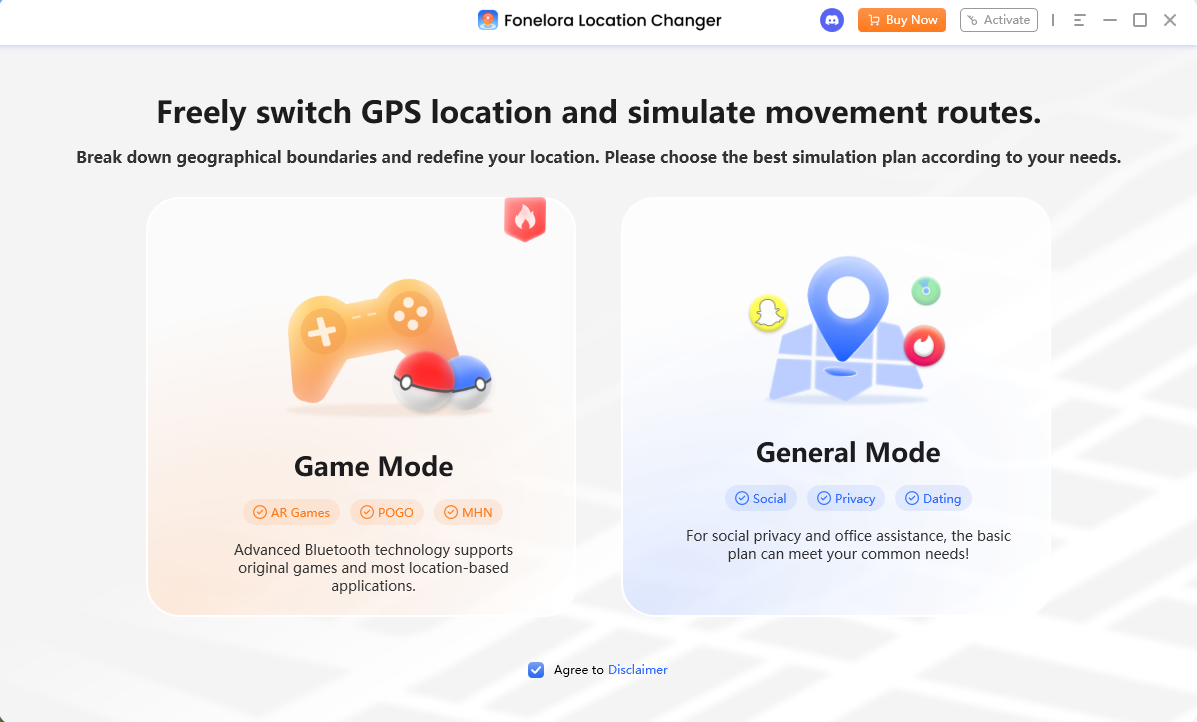
1. Download and install Fonelora Location Changer on your computer.
Install the desktop program on a supported Windows or Mac computer. After installation, launch the software and choose the mode that best fits your situation.
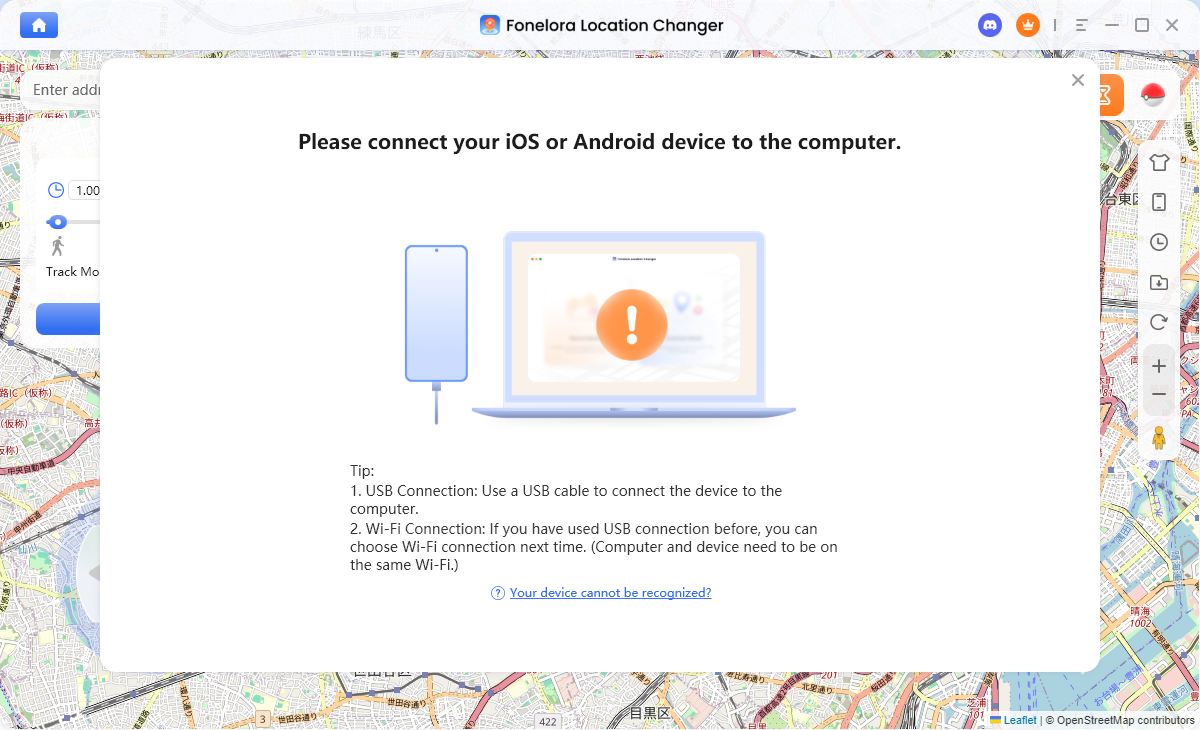
2. Connect your iPhone or Android device.
Use a USB cable for the first connection. For iPhone, tap “Trust This Computer” when prompted and keep the device unlocked during setup. For Android, enable Developer Options and USB Debugging if required by the on-screen instructions.
3. Choose the location-changing mode.
Fonelora Location Changer offers several modes depending on how you want to manage movement:
- Teleport Mode: Instantly move your phone’s GPS location to a selected destination.
- Single-Spot Mode: Simulate movement between two points with adjustable speed.
- Multi-Spot Mode: Create a route with multiple stops and simulate movement along that path.
- Joystick Mode: Control virtual movement manually in real time with a GPS joystick.
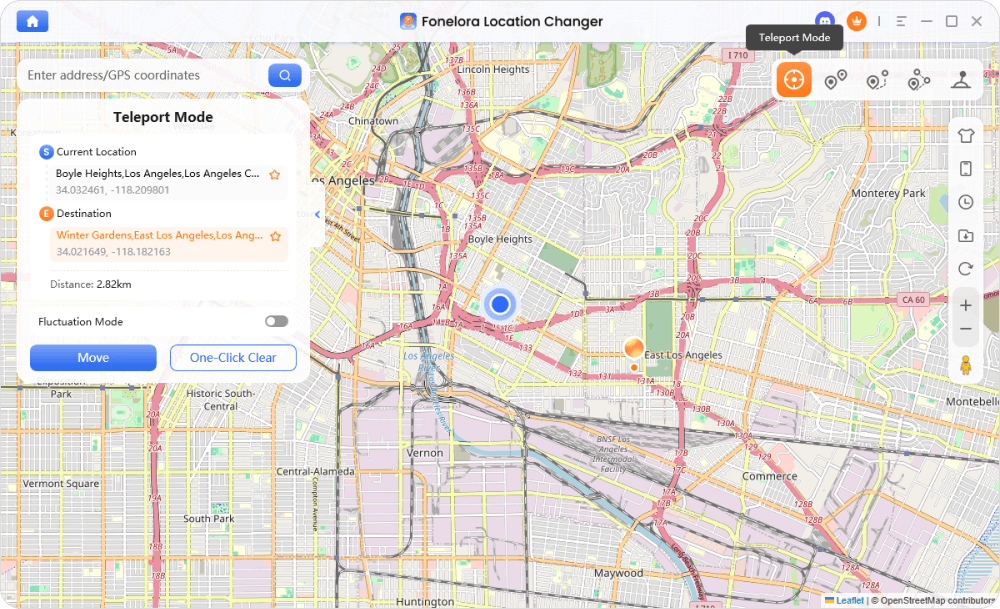
4. Select your destination or route.
Search for a place, enter an address, use GPS coordinates, or click directly on the map. For route-based movement, add one or more waypoints and adjust the walking, cycling, or driving speed to create a more natural route.
5. Start the location simulation.
Click the “Move” button to apply the selected location or begin the simulated route. Keep your phone connected while the location is active, especially when using route or joystick features.
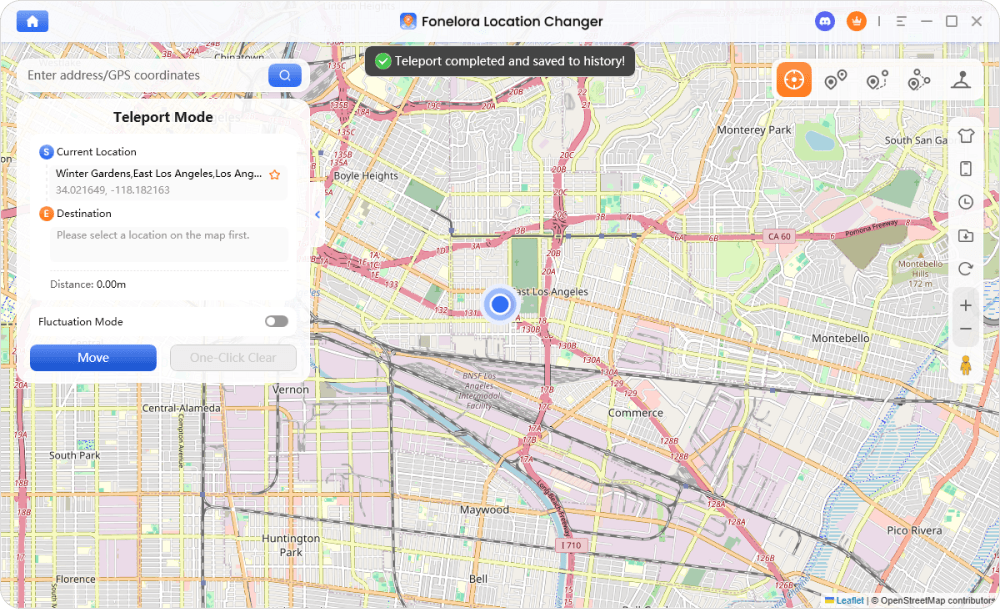
6. Stop the simulation when finished.
When you are done testing or exploring an AR app, stop the route, close the tool if needed, and restart your phone’s location services to return to your real GPS position.
Practical Safety Tips
Do not confuse Fonelora Location Changer with Pokémon Unbound cheats. Pokémon Unbound runs inside a GBA emulator and uses cheat codes such as CodeBreaker or GameShark, while Fonelora Location Changer only affects the GPS position of a real iOS or Android device. It cannot give you Rare Candies, max money, shiny encounters, or Walk Through Walls in Pokémon Unbound.
For AR games, avoid unrealistic long-distance jumps, frequent location switching, or using virtual movement in ways that violate the app’s rules. If you are using the tool for app testing, route planning, privacy control, or accessibility purposes, keep your movement settings realistic and use the tool responsibly.
Frequently Asked Questions
Q1: What is the master code for Pokemon Unbound?
The master code (000014D1 000A / 10044EC8 0007) is often required for older cheats to attach to the game memory, though some newer emulator updates may bypass the need for it.
Q2: Why is my game crashing when I enter a cheat code?
Crashes in version 2.1.1.1 happen primarily when you leave cheats active during screen transitions, or when you use multiple cheat codes simultaneously.
Q3: How do I enter cheats on the MyBoy or mGBA emulator?
Open the emulator settings, navigate to the Cheats menu, select “New Cheat,” paste your code into the prompt, and select either the CodeBreaker or GameShark format depending on the code.
Final Thoughts: Cheat Safely, Play Smarter, and Explore More
Ultimately, whether you’re using save states to safely skip the grind in Unbound or planning a virtual walking route for your favorite mobile AR game, using the right tools safely ensures you get the most out of your mobile gaming experience.

Fonelora Location Changer
- Bluetooth Hardware Simulation for Safer GPS Spoofing
- Realistic Movement & Route Simulation
- No Root or Jailbreak Required
- All-in-One Solution for Games, Social Apps & Privacy
More Related Articles