iOS GPS Spoofer: The Ultimate Guide to Faking Your Location Safely in 2026
Looking for a dependable way to spoof your iPhone’s location? This guide explains how to do it safely without jailbreaking, based on expert testing in 2026. It also highlights methods that reduce the risk of detection while keeping your device secure.
If you have ever tried to catch a region-exclusive Pokémon, join a geo-restricted gaming event, or simply protect your privacy from tracking apps, you have probably hit the same wall I did. You look for a simple way to change your iPhone’s location, but instead of finding an easy solution, you are hit with a barrage of confusing tutorials, sketchy download links, and the terrifying threat of getting your favorite gaming account permanently banned.
It is incredibly frustrating. You do not want to jailbreak your expensive phone or accidentally download malware just to explore a digital map.
After testing over a dozen tools on my iPhone 15 and MacBook to figure out what actually works on modern iOS versions without triggering a ban, I wrote this guide to save you the headache. We are going to cut through the noise, look at exactly why simple App Store apps fail, and walk through the concrete steps to safely override your coordinates—without the marketing fluff.
Comparing Methods: Finding the Best iOS GPS Spoofer
Before picking a specific tool, it is critical to understand your actual options. Many users get their accounts flagged because they follow outdated guides promoting a “fake GPS iPhone app” that actively harms their device. To keep your hardware safe, let’s objectively evaluate the three primary approaches: manual developer tools, free modifications, and desktop software.
1. Manual Methods (Apple Xcode)
Using Xcode to simulate a location is a legitimate developer technique. However, it requires a Mac computer, an active Apple Developer account, and enough technical knowledge to build and deploy GPX (GPS Exchange Format) files.
- Success Rate: High (for static, unmoving locations)
- Time Cost: High (requires compiling code and frequent reboots)
- Safety Risk: Low (official Apple software, but highly tedious)
2. Free Hacks and Modified Apps
Many websites advertise free, on-device tweaks. These often require side-loading unverified configuration profiles or downloading modified, third-party versions of popular games (like heavily modified “spoofer” game clients).
- Success Rate: Low (frequently and rapidly patched by Apple)
- Safety Risk: High (extreme risk of malware, permanent account bans, and personal data theft)
3. Professional Desktop Solutions
These are dedicated programs installed on a PC or Mac that communicate directly with your connected iPhone via USB to temporarily alter its coordinates at the system level.
- Success Rate: Very High
- Time Cost: Low (minutes to set up)
- Safety Risk: Very Low (no jailbreak required)
Method Comparison Summary
| Feature/Criteria | Xcode (Manual) | Modified Apps (Free) | Desktop Software |
| Requires Jailbreak? | No | Frequently | No |
| Detection Risk | Low | Very High | Low (if used responsibly) |
| Setup Difficulty | Hard | Medium | Easy |
| Best For | App Developers | Not Recommended | Gamers / Privacy Users |
Why Desktop Software is the Only Reliable iPhone GPS Spoofing Tool
If you search the Apple App Store for an ios gps spoofer, you will quickly notice that none of the results actually change your phone’s system coordinates. Most content lists various tools but fails to explain why you can’t just download a mobile app.
Here is the technical reality: Apple’s iOS ecosystem strictly forbids system-level mock location applications. Unlike Android, which has a built-in “mock locations” developer setting, iOS apps are securely “sandboxed.” No app installed directly on your iPhone has the root permissions required to force a location change globally.
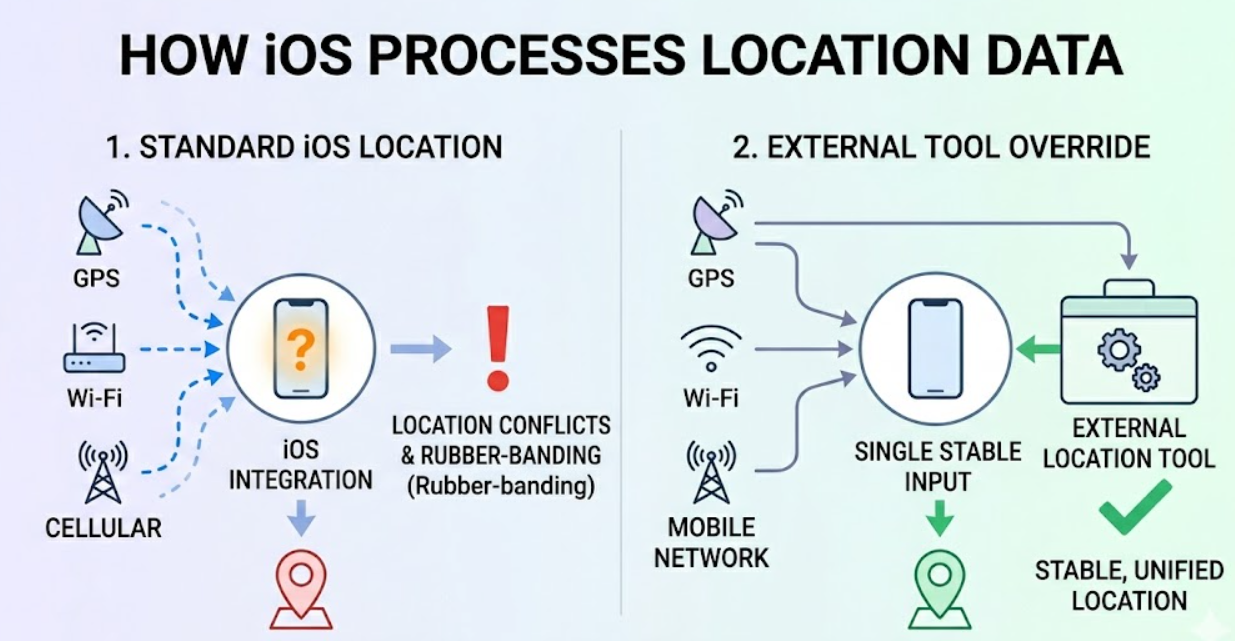
The Multi-Signal Triangulation Problem
To make matters more complex, iOS calculates your physical position using a highly advanced, multi-signal approach. It triangulates your position by combining:
1. GPS Satellites: Traditional coordinate tracking.
2. Wi-Fi Networks: Scanning nearby routers and cross-referencing their known physical locations.
3. Bluetooth Beacons: Using localized hardware pings.
WARNING: The Rubber-Banding Effect
If a low-quality free app attempts to alter only your GPS data without tricking the Wi-Fi and Bluetooth signals, iOS instantly detects a data mismatch. This leads to the dreaded “rubber-banding” effect—your in-game character erratically snaps back and forth between your spoofed location and your real-world living room. In location-based games, rubber-banding is the fastest way to get your account permanently banned.
Because of this triangulation and sandboxing, tethering your iPhone to desktop software is an absolute necessity. It is the only way to feed clean, system-wide coordinate data to your phone without jailbreaking it.
Setting Up Your Spoofer (The Step-by-Step Guide)
In my testing, I used Fonelora Location Changer to bypass iOS 17 restrictions. I chose it not because it is magical, but because it is a reliable desktop utility that handles the triangulation problem well and includes built-in speed limits to mimic real human movement.
Fonelora Location Changer is a premium desktop software. While paid tools can be annoying, maintaining compatibility with Apple’s frequent iOS security updates requires active development that free apps simply cannot sustain.
Here is the complete, realistic 5-step process to spoof your location, including the critical developer steps that most guides skip.
Step 1: Enable Developer Mode
If you are on a modern iPhone, you cannot simply plug it in and spoof. You must enable Apple’s native Developer Mode first.\
- Go to Settings > Privacy & Security on your iPhone.
- Scroll to the very bottom and tap Developer Mode.
- Toggle it On. Your iPhone will prompt you to restart.
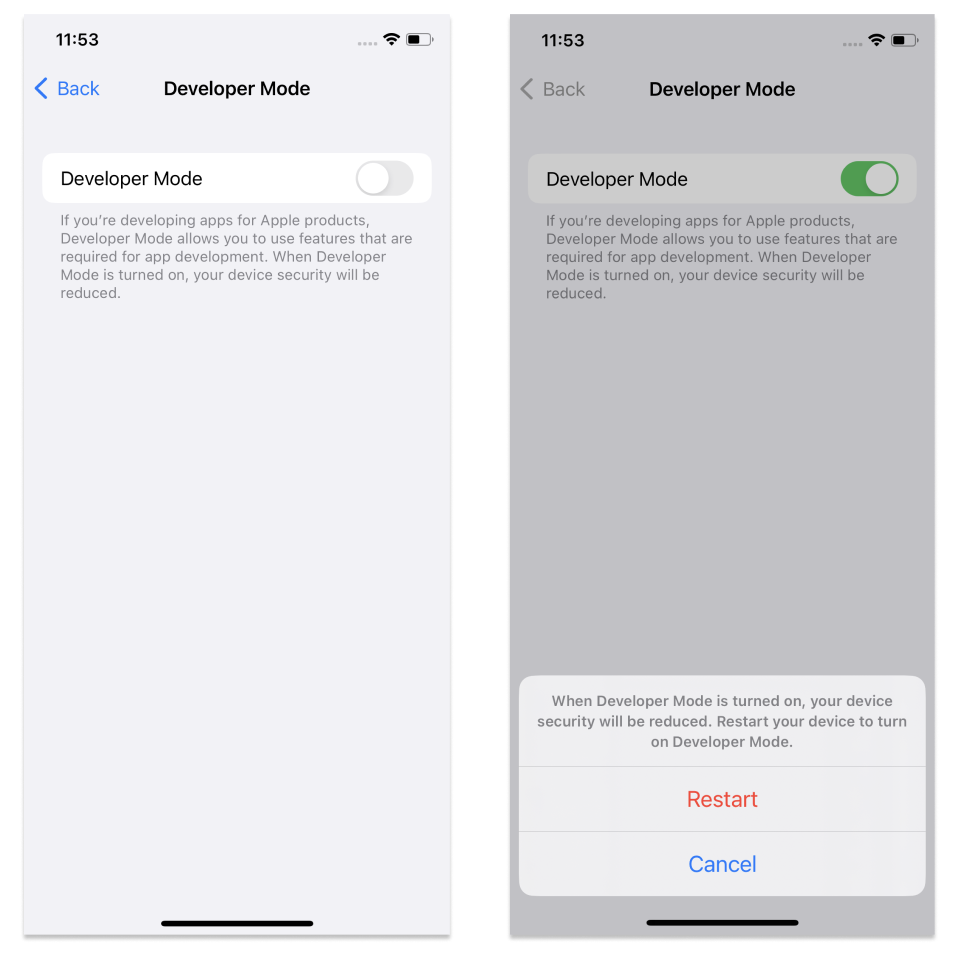
- After the reboot, unlock your phone and confirm the prompt to enable the mode.
Step 2: Connect Your Device (Mac vs. Windows)
Download and install your chosen spoofing software (like Fonelora Location Changer) on your computer. Your connection method will vary slightly depending on your operating system:

- For Windows PC Users: Use an original Apple USB cable (or high-quality data cable). You must have iTunes installed on your PC, as the spoofing software relies on iTunes’ background Apple drivers to communicate with your phone. Once connected, tap “Trust This Computer” on your iPhone.
- For Mac Users: Connect your iPhone via USB-C or Lightning. Macs natively recognize iOS devices, so no extra drivers or iTunes installations are required. Just unlock your phone and tap “Trust This Computer”.
Step 3: Understand the Cooldown Rules
Before you teleport, you must understand how to avoid a soft ban. Anti-cheat algorithms flag accounts that travel impossible distances in short times.
WARNING: The Soft-Ban Risk & Cooldown Rules
If you are catching a Pokémon in New York and suddenly teleport to Tokyo three minutes later, your account will be soft-banned (you won’t be able to catch anything or spin stops).
The Golden Rule: If you are jumping long distances (over 1,000 miles), you must close your game and wait a strict 2-hour cooldown before interacting with the app at your new location. For shorter jumps (a few towns over), wait at least 15 to 30 minutes. Always use the software’s built-in 360° GPS joystick to simulate realistic walking speeds (e.g., 4 km/h) once you arrive.
Step 4: Change Your Location
Inside the desktop software map interface, select Teleport Mode. Enter your desired destination or specific GPS coordinates into the search bar, then click “Move.” Your device’s location will instantly update across all your apps, including games, maps, and social media.

Step 5: How to Reset Your Real Location
This is the most frequently asked question: How do I get my normal GPS back?
When you are done playing, do not just unplug the USB cable and walk away. Your iPhone will remain stuck at the fake coordinates until the system cache clears. To immediately reset your iPhone back to your actual physical location, simply restart your device. Once it reboots, your native GPS will lock back onto your real-world coordinates.
Practical Uses for Location Simulation Software
Understanding how to use an ios location changer software correctly depends heavily on your specific goals.
1. Enhancing Mobile Gaming
For gamers wanting to explore rare events or specific geographic zones, realistic simulation is key. By using the multi-spot routing and joystick features, you can control an in-game avatar’s walking speed naturally. This prevents aggressive anti-cheat systems from detecting unnatural behavior and protects your hard-earned account.
2. Digital Privacy Protection
Privacy-conscious users frequently employ these tools to hide their real-time coordinates on social media platforms, fitness trackers, and dating apps. By setting a static location a few miles away from your actual home, you can protect your residential address from being passively tracked by background apps while still engaging with localized content safely.
3. Software Developer Testing
App developers rely heavily on location manipulation to ensure their applications function correctly for a global audience. Instead of physically flying to another continent to test a geo-restricted feature, a developer can simply input specific global coordinates to verify localization formats and map data.
Frequently Asked Questions
Navigating the technical landscape of iOS manipulation naturally brings up several common questions. Here are direct, honest answers to help you troubleshoot.
Can I spoof my location wirelessly over Wi-Fi?
Many desktop tools advertise a “Wi-Fi spoofing” feature that allows you to ditch the USB cable after the initial setup. However, honestly, it can be a hassle. If your home Wi-Fi network fluctuates or drops even for a split second, your phone loses connection with the desktop software and snaps back to its real location. In a game, this massive jump can result in an instant ban. For serious gaming sessions, keeping your phone tethered via USB is by far the safest route.
Can I spoof my location on iPhone without jailbreaking?
Yes. Using external desktop software is the primary method for GPS spoofing iPhone without jailbreak. It allows you to alter your coordinates safely without voiding your Apple warranty or exposing your device to severe security vulnerabilities.
Do iOS GPS spoofers work on iOS 17?
Yes, but you must ensure Developer Mode is enabled (as detailed in Step 1). Because Apple frequently updates its security protocols, you must use actively maintained software that releases rapid updates to stay compatible with the latest firmware.
Master Your Device’s Location Safely
Regaining control over your device’s geographical footprint shouldn’t require an advanced degree in computer science, nor should it put your expensive hardware at risk.
As we explored, Apple’s strict ecosystem restricts native, on-device location changes, which is why downloading free, random apps from the internet usually ends in malware or gaming bans. By avoiding those dangerous free hacks and taking the time to tether your phone to a reliable desktop software (like Fonelora Location Changer) , you bypass these restrictions securely.
Remember to strictly follow the cooldown rules, stick to realistic walking speeds using the digital joystick, and always restart your phone when you are ready to return to the real world. By treating the software as a utility rather than a magic wand, you can finally enjoy geo-restricted content safely and completely frustration-free.
More Related Articles



Joy Taylor is a seasoned technical writer with over a decade of experience in mobile technology. At iMobie, she specializes in producing in-depth content on iOS data recovery, iPhone unlocking solutions, and iOS troubleshooting.
Product-related questions? Contact Our Support Team to Get Quick Solution >
