Why Pokémon GO PvP Keeps Crashing & How to Fix It
Pokémon GO PvP crashes and GBL lag can interrupt battles and make matches unplayable. This guide explains the common causes—such as network instability, device performance issues, and game bugs—and provides practical fixes for both Android and iPhone. Follow the troubleshooting steps to reduce freezes, stabilize gameplay, and enjoy smoother Pokémon GO PvP battles.
Few situations in gaming are as demoralizing as having a match lock up just as you are about to secure a win. For Ethan, a competitive battler aiming for Legend rank, this was a daily reality. He wasn’t losing because of poor type matchups or missed move counts; he was losing because his screen would freeze, turning his device into an expensive paperweight during crucial moments.
If PvP keeps crashing for you, or if you face the dreaded “Weak Connection” error despite having full signal bars, you are likely dealing with a conflict between your device’s hardware and the game’s demand for real-time synchronization. Whether it is a sudden app closure, the spinning white ball of death, or Pokémon GO battle lag, these interruptions can halt your rank progression entirely. In some cases, players may also encounter related issues like Pokémon GO Error 12, which occurs when the game fails to detect accurate location data and further disrupts gameplay.
This guide details the specific technical steps required to stabilize your game. We move beyond generic advice like “restart your phone” and provide the exact configuration changes needed to eliminate the instability costing you wins.
Immediate Fixes: What to Do When Go Battle League Freezes
When you are mid-battle, and the screen becomes unresponsive, you need a Pokémon Go PvP freeze fix that works in seconds. If you experience a sudden Pokémon Go Battle League crash or the game hangs on the loading screen, perform these “first aid” steps immediately.
1. Remove Your Phone Case (Thermal Throttling)
Heat is the silent killer of PvP performance.
- The Action: If you feel your phone getting warm, immediately remove the case and hold the device in front of a fan or air conditioner vent between matches.
- Why It Works: When your phone overheats, the CPU automatically slows down to protect the hardware (thermal throttling). This drop in processing power causes dropped frames and missed inputs. A cooler phone maintains the high clock speeds necessary for smooth gameplay.
2. The Airplane Mode Toggle (The “Hail Mary”)
If you see the spinning white ball (the loading icon) in the top left corner, do not wait for it to resolve itself.
- The Action: Pull down your notification shade and toggle Airplane Mode ON for 3 seconds. Then, turn it OFF.
- Why It Works: This forces your phone to reset its radio stack (the software controlling your cellular antenna). It forces a fresh “handshake” with the nearest cell tower, often pushing the data packet through faster than waiting for the game to retry.
- The Cost: Be aware that this process takes roughly 5 seconds. In GBL terms, that is about 10 turns. You may lose a shield or a Pokémon, but this is often better than a guaranteed loss from a total disconnect.
3. Force Close and Clear RAM
If the app is completely frozen (screen is stuck on a frame and audio is looping), the app has likely crashed in the background.
- The Action: Swipe the app away immediately to force close it. On older devices, verify no other heavy apps (like Instagram or Maps) are running in the background before relaunching.
- Why It Works: A Pokémon Go app crash often occurs when the device runs out of Random Access Memory (RAM). Force-closing clears the active session, allowing you to reload.
Ethan found that using the Airplane Mode toggle specifically helped him recover a connection during a “Weak Connection” error without getting booted from the match entirely.
Diagnosing the Crash: Network Lag vs. Device Limits
Before applying advanced settings, you must identify whether the Pokémon GO app crash is caused by your internet connection or your phone’s hardware limitations. Mistaking one for the other leads to wasted time; resetting your router will not stop your phone from crashing if the issue is insufficient RAM. In some cases, the same hardware limitations can also trigger issues like the Pokémon GO black screen error, where the game fails to render properly during launch or gameplay.
Use this symptom decoder to identify your specific Pokémon Go battle glitch:
| Symptom | Visual Indicator | Root Cause | Priority Fix |
| The “Hard Crash” | The app closes instantly, sending you back to the home screen. | Device Memory (RAM) or Processor Overload. | Clear cache partition & enable “Native Refresh Rate.” |
| The “Spinning Wheel” | The battle stops, or the white ball spins indefinitely in the top-left corner. | Network Latency or Packet Loss. | Switch connection type & sync time settings. |
| The “Stutter” | Animations are choppy; Fast Moves don’t register. | Frame Drop or Thermal Throttling. | Cool down device & close background apps. |
By distinguishing between a Pokémon Go battle freeze (Network) and a full crash (Device), you can target the correct solution immediately.
Resolving Network Instability and ‘Weak Connection’ Errors
If your diagnosis points to a Pokémon Go connection issue, standard troubleshooting often fails because Battle League operates differently than the rest of the game. A stable connection for catching wild Pokémon may be insufficient for PvP.
Expert Insight: PvP battles require constant real-time synchronization between both players and the Niantic server. Unlike map gameplay, where the game can “catch up” if data is delayed, GBL operates on strict 0.5-second turns. Even a micro-spike in latency causes the server to reject your input, leading to the dreaded “Weak Connection” error.
To resolve this Pokémon Go network problem, apply these protocols:
1. Disable ‘Party Play’
The “Party Play” feature allows you to group up with friends, but it consumes significant bandwidth and processing power to constantly update your friends’ locations and avatars.
The Fix: Always leave a Party before entering GBL. This is a known cause of Pokémon Go Go Battle League crashing and lag due to background memory leaks.
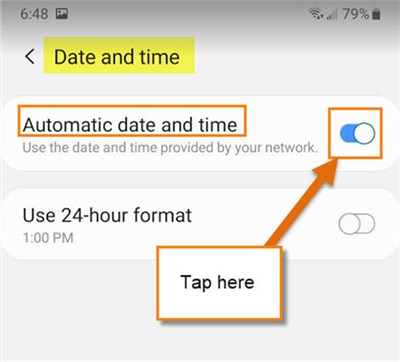
2. Sync Device Time
If your internal clock drifts even by a second, your moves will not register with the server’s turn timer.
The Fix: Go to your phone’s Date & Time settings. Toggle “Automatic Date & Time” OFF, wait 10 seconds, and toggle it back ON. This forces a re-sync with the atomic clock.
3. Test Connection Stability Over Speed
High download speed does not equal stability.
The Fix: A strong 4G/5G signal is often more stable for PvP than a crowded public Wi-Fi network. Public networks often have high “jitter” (variance in latency), which causes packet loss. If you are on Wi-Fi, ensure you are close to the router and on the 5GHz band if available.
Optimizing iOS and Android Settings for Smooth PvP
If you suffer from Pokémon Go PvP lag crash issues where the app stutters or closes, your device is likely struggling to render the battle assets. You can optimize performance by adjusting specific internal configurations. This is particularly effective for resolving Pokémon Go app crash incidents on older phones.
Critical In-Game Optimization
Regardless of your phone, these three settings are mandatory for competitive play:
1. Enable Native Refresh Rate:
- Navigate to Settings > Advanced Settings. Turn this ON.
- Benefit: While it consumes more battery, it unlocks the framerate cap. This makes input registration for Fast Moves significantly more responsive and helps you count opponent moves accurately.
2. Download All Assets:
- Navigate to Settings > Advanced Settings and select “Download All Assets.”
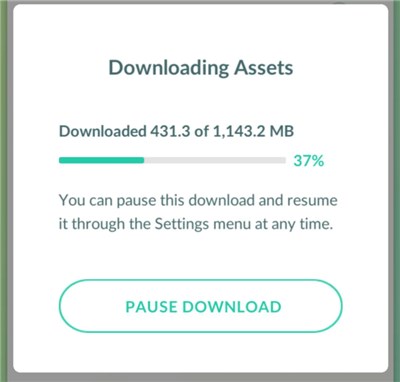
- Benefit: This forces the game to store visual data (3D models, move effects) locally. Without this, your phone may try to download a specific Pokémon model during the battle start sequence, causing a freeze.
3. Refresh Game Data:
- Navigate to Settings > Advanced Settings and tap “Refresh Game Data.”
- Benefit: This is your middle-ground fix before reinstalling. It resets your local configuration without deleting the app entirely. Use this if the game feels sluggish or if you encounter visual glitches after a recent update.
OS-Specific Maintenance
For Android Users:
- Clear the Cache Partition: This is different from clearing the app cache. It involves booting into Recovery Mode (usually holding Power + Volume Down while the device is off) and selecting “Wipe Cache Partition.”
- Why: This clears corrupted temporary system files that interfere with the game engine, a common fix when Pokémon Go PvP is not working after an OS update.
For iOS Users:
- Perform a RAM Reset: On iPhones with FaceID, press Volume Up, then Volume Down, then hold the Power button until the Apple logo appears.
- Why: iOS manages memory aggressively. This hard reset clears the working memory, providing a clean slate for the game engine and reducing the likelihood of a mid-match crash.
Why Go Battle League Crashes More Than Raids
You might wonder why you can complete a Raid with 20 people without issue, yet a 1-on-1 battle triggers a Pokémon GO battle freeze. The answer lies in how the game handles data synchronization.
Unlike Raids, where the server only updates the boss’s health periodically, PvP requires a perfect lock-step connection. As noted earlier, the requirement for real-time synchronization means that the threshold for failure is incredibly low. A recently introduced Pokémon GO update bug can often destabilize this delicate sync. When Niantic updates the “Game Master” file (the code governing move stats) mid-season, it often conflicts with cached data on your phone, resulting in crashes.
It is also important to recognize that sometimes, the fault lies entirely with the server. High traffic events, such as GO Battle Days, place an immense load on the matchmaking infrastructure. If you are doing everything right but still facing Pokémon GO Battle League crashing, the issue may be a server-side bottleneck. In these moments, some players temporarily switch activities—such as using a raid finder in Pokémon GO to locate nearby raids—while waiting for PvP matchmaking to stabilize.
Improve Pokémon GO PvP Stability With a GPS Management Tool
Pokémon GO PvP relies heavily on stable synchronization between GPS, network data, and real-time battle updates. As explained in Pokémon GO PvP crashing guide, unstable connections, background GPS conflicts, and device overheating are common causes of battle freezes and “Weak Connection” errors.
Some players also use Fonelora Location Changer to maintain more consistent virtual movement and reduce GPS instability during gameplay sessions.
Why Players Use Fonelora Location Changer
According to Fonelora Location Changer, the software supports several movement and GPS simulation features useful for location-based apps:
- GPS Joystick Control
- Multi-Spot Route Simulation
- Adjustable Walking Speed
- Teleport Mode
- Cooldown Timer
- GPX Route Import
The platform also highlights support for:
- iPhone and iPad
- Android devices
- iOS 18 and iOS 26 compatibility
- Android 15 and newer systems
Unlike modified game clients, the software operates at the device GPS level rather than altering Pokémon GO itself.
Key Highlights for Pokémon GO PvP Players
Stable GPS Route Simulation
PvP lag and crashes are often tied to unstable synchronization between network and location services. Reddit users frequently report crashes after switching between Wi-Fi and cellular data or after aggressive movement changes.
Fonelora’s route simulation attempts to create smoother movement paths instead of abrupt jumps that may increase GPS inconsistencies.
Built-In Cooldown Support
The cooldown timer helps users manage travel intervals more naturally before moving between different gameplay locations.
Joystick & Walking Modes
Instead of teleport-only movement, players can simulate:
- walking
- cycling
- driving routes
with adjustable speed settings for more realistic movement behavior.
No Root or Jailbreak Required
Fonelora promotes compatibility with modern iOS and Android devices without requiring root or jailbreak access.
How to Use Fonelora Location Changer for Pokémon GO PvP
Step 1: Install the Software
Download and install Fonelora Location Changer on your Windows or Mac computer.

Step 2: Connect Your Device
Connect your iPhone or Android device using:
- USB
- Wi-Fi
- Bluetooth
depending on your preferred setup.

Step 3: Select a Movement Mode
Choose from:
- Teleport Mode
- Joystick Mode
- Multi-Spot Route
- Jump Teleport
based on your gameplay needs.

Step 4: Click “Move” to complete the location change.

FAQ: Troubleshooting Pokémon GO Battle Glitches
Q1. Does my phone case actually affect PvP performance?
Yes. Modern phones dim the screen and throttle CPU speed when they get hot to prevent damage. A thick case traps heat, triggering this throttling faster. Removing the case during Battle League sets allows the phone to dissipate heat and maintain higher frame rates.
Q2. What is the difference between “Refresh Game Data” and reinstalling?
“Refresh Game Data” is a built-in tool that resets your local settings and re-downloads essential configuration files without uninstalling the app. It fixes most glitches and is faster than a full reinstall. Save reinstalling for when the app refuses to open entirely.
Q3. Why does Pokémon GO close during PvP matches?
If the app closes completely, your phone likely ran out of memory (RAM). Close all background apps, disable “Party Play,” and restart your device before a battle session to free up resources.
Q4. Is there a Pokémon Go PvP lag crash fix for iPhone?
Yes. Disable “Low Power Mode” as it throttles the CPU performance needed for smooth battles. Additionally, enable “Native Refresh Rate” in the game’s advanced settings to ensure smoother frame delivery.
Q5. What should I do if Pokémon Go PvP is not working after an update?
A fresh install is often necessary after major updates. Uninstall the game, restart your phone, and reinstall. This removes corrupted update files that often cause the Pokémon Go battle glitch.
Q6. How can I reduce lag in Pokémon GO PvP?
Ensure your phone is not overheating and that “Download All Assets” is complete. Playing on a stable 4G/5G connection often yields lower latency (ping) than public Wi-Fi, which can suffer from jitter.
Conclusion
A Pokémon Go battle league crash should not be the reason you miss out on Legend rank or exclusive rewards. While server-side issues are occasionally to blame, most crashes can be reduced by optimizing your device and connection. By adjusting settings and using tools like Fonelora Location Changer to maintain stable GPS behavior, you can minimize disruptions. Like Ethan, you can stop worrying about freezes and focus on winning battles.
Take control of your device performance today. Apply these settings before your next set of battles and experience the difference a stable connection makes. Once your game runs smoothly again, you can focus on other activities like exploring the map, completing events, or learning how to follow a route in Pokémon GO without interruptions.



Joy Taylor is a seasoned technical writer with over a decade of experience in mobile technology. At iMobie, she specializes in producing in-depth content on iOS data recovery, iPhone unlocking solutions, and iOS troubleshooting.
Product-related questions? Contact Our Support Team to Get Quick Solution >
