Pokémon GO Error 12: Fix “Failed to Detect Location” (Full Guide)
Pokémon GO Error 12 usually occurs when the game cannot access your device’s GPS location. This guide shows how to fix the problem by adjusting location settings, refreshing the game environment, and troubleshooting device permissions. Follow the instructions to restore proper GPS detection and resume gameplay.
You are standing at a gym, ready to join a Raid Lobby. Your friends are already selecting their teams, but your screen is frozen. A red banner drops from the top of the screen: “Failed to detect location (12).”
For a Pokémon GO player, few things are as aggravating as Error 12. Unlike server outages, this error is personal—it means your specific device is refusing to share the necessary data with Niantic’s servers. Whether you are trying to catch a shiny during Community Day or simply spinning a stop on your daily commute, this error completely halts gameplay.
The good news is that this is rarely a hardware failure. In most cases, it is a solvable software conflict. This guide provides verified solutions to resolve Pokémon GO Error 12, tested across modern iOS and Android versions. We will move past the basic advice and look at the real-world triggers—from hidden developer settings to background app interference—to get you back in the game immediately.
You may also like: Pokémon GO Black Screen Fix: Troubleshooting for iPhone & Android >
Step 0: The “Pre-Flight” Check (Try These First)
Before diving into complex settings menus, we need to rule out the most common external triggers. Many players experience failed detection of location error 12 Pokémon Go messages simply because of how their network is configured or because of temporary signal “drift.”
1. Disable Your VPN
This is the most frequent cause of sudden location errors. If you use a VPN for work or privacy (like NordVPN or ExpressVPN), Pokémon GO often flags the mismatch between your GPS coordinates and your IP address location.
The Fix: Completely disconnect your VPN before launching the game. Pausing it is often not enough; ensure the background process is terminated.
2. The “Airplane Mode” Refresh
If your avatar is drifting or stuck in a location you visited ten minutes ago, your GPS radio might be “hung.”
The Fix: Toggle Airplane Mode to On. Wait for 10 seconds. Toggle it Off.
Why it works: This forces your phone to completely disconnect from cellular towers and GPS satellites and re-establish a fresh “handshake,” often clearing temporary glitches faster than restarting the phone.
The Primary Fix: High Accuracy & Google Location Settings
If the quick refreshes didn’t work, the issue is likely your device’s permission structure. Pokémon GO requires “High Accuracy” to function. If your phone is in a power-saving state, it may be feeding the game low-quality location data, which Niantic’s anti-cheat system rejects.
For Android Users (Modern Versions)
Android menus have changed significantly in recent years. “High Accuracy” is often buried inside Google’s proprietary settings rather than the main location menu.
1. Open Settings and tap Location.
2. Tap Location Services.
3. Find and select Google Location Accuracy.
4. Ensure Improve Location Accuracy is toggled On.
If this is off, your phone only uses GPS hardware, which is slow and struggles indoors. Turning this on allows the phone to use Wi-Fi and mobile networks to pinpoint you instantly.
For iOS (iPhone) Users
Apple is strict about privacy, and accidental taps can revoke permissions required for gameplay.
1. Go to Settings > Privacy & Security > Location Services.
2. Ensure the main Location Services toggle is Green (On).
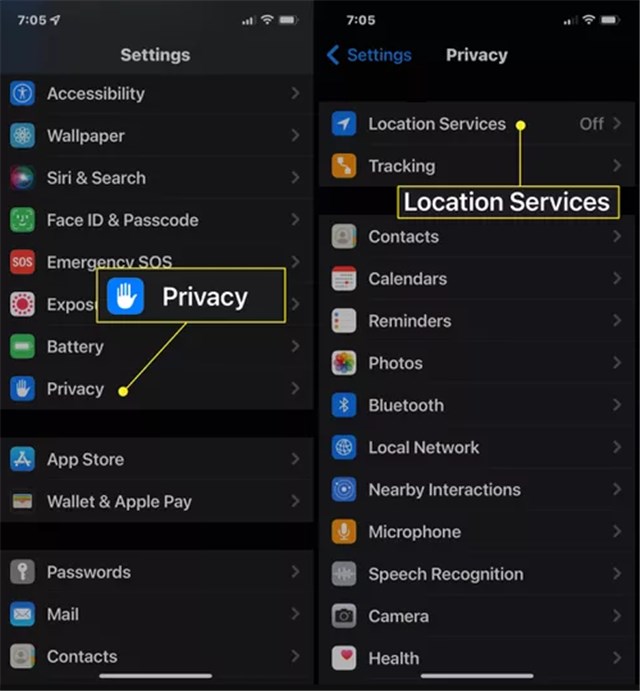
3. Scroll down and tap Pokémon GO.
4. Verify two settings:
- “Allow Location Access” must be While Using the App or Always.
- Precise Location must be toggled On.
If “Precise Location” is off, the game only receives an approximate radius of where you are. This is not precise enough for interacting with Gyms, triggering Error 12.
Platform-Specific Solutions
If your accuracy settings are correct but the red banner persists, we are likely dealing with corrupted cache data or a specific OS conflict. The steps here diverge depending on your device.
Android: Clearing Cache and Managing A-GPS
On Android, the “Assisted GPS” (A-GPS) data—which helps your phone predict where satellites are—can become outdated, causing your phone to search the wrong part of the sky.
1. Clear Game Cache:
- Go to Settings > Apps > Pokémon GO > Storage.
- Tap Clear Cache.
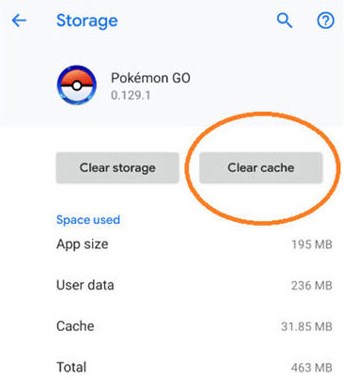
Warning: Do not tap “Clear Data” unless you know your login password, as this signs you out.
2. Force a GPS Reset:
- If you are still stuck, you may need to reset the A-GPS data manually.
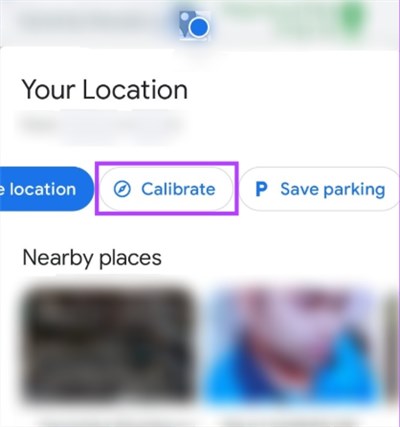
- While third-party “GPS Toolbox” apps exist, a simpler method is to open Google Maps, tap your blue dot, and select Calibrate. Move your phone in a figure-eight motion. This often updates the compass and satellite almanac simultaneously.
iPhone: Resetting Privacy Location
iOS caches location permissions to save battery. Sometimes, this cache becomes corrupted, and the phone “forgets” it has permission to give Pokémon GO location data, even if the switch says “On.” This can also create problems for users trying to spoof their location—many players searching for guides like how to spoof Pokémon GO on iOS encounter Error 12 when the game cannot properly read GPS permissions.
1. Refresh Location Services:
- Go to Settings > Privacy & Security > Location Services.
- Toggle the main switch Off.
- Restart your iPhone. (Do not skip this).
- Go back and toggle it On.
2. Network Settings Reset (The Nuclear Option):
- If the error persists, go to Settings > General > Transfer or Reset iPhone > Reset > Reset Network Settings.
This deletes saved Wi-Fi passwords, but it clears out any conflicting DNS or cellular configurations blocking the game.
The “Mock Locations” Conflict (Android Only)
This is the most common cause of Pokémon GO spoofing error 12 for users who bought used phones or previously experimented with GPS apps.
Niantic’s software aggressively scans for “Mock Locations.” This is a developer setting used to simulate different locations for testing apps. If this setting is active—even if you aren’t currently using a spoofing app—Pokémon GO will block you immediately.
1. Check Developer Options: Go to Settings > System. If you see Developer Options, tap it. (If you don’t see it, this step is likely not your issue).
2. Find the Conflict: Scroll down to the “Debugging” or “Location” section.
3. Select Mock Location App: Tap this setting. Ensure it is set to Nothing or None. If any app is selected here (even a benign one), select “None.”
4. Restart: Reboot your phone to clear the “mock” flag from the system memory.
Last Resort: System Recovery vs. Manual Fixes
If you have validated your permissions, disabled VPNs, turned off Mock Locations, and reset your network settings, but Pokémon GO Error 12 persists, you may be dealing with deeper operating system corruption. This can happen after a major iOS or Android update, where system files related to the GPS radio were not indexed correctly. In some cases, players experimenting with Pokémon GO cheats or location modifications may also trigger conflicts with the device’s GPS framework, causing the game to repeatedly fail to detect location.
At this stage, you have two choices: a full Factory Reset (which wipes your data) or using a specialized system repair tool (which attempts to fix the OS without data loss).
| Feature | Manual Troubleshooting | System Repair Software |
| Best For | Misconfigured settings, permissions, and minor glitches. | Deep system corruption or post-update bugs. |
| Data Safety | High (Safe). | High (Standard modes are non-destructive). |
| Effort | High (Requires multiple resets and menu navigation). | Low (Automated scanning and repair). |
| Cost | Free. | Paid (License required). |
Recommendation: Always exhaust the manual fixes in this guide first. However, if the alternative is wiping your phone completely to fix a Pokémon GO device location error, a dedicated repair tool can be a time-saving middle ground to repair the OS subsystems without losing your photos and messages.
Why Does Error 12 Happen? (Technical Context)
Understanding why the error happens can help you avoid it during crucial gameplay moments. Pokémon GO Error 12 is essentially a trust issue. The game client does not trust the location data your phone is providing.
- The “Drift” Factor: In cities with tall buildings (Urban Canyons), GPS signals bounce off glass and concrete. Your phone might report that you are teleporting 50 meters every second. The game detects this impossible movement and triggers Error 12 as a soft-ban to prevent cheating.
- The “Discord” Switch: On older phones, switching apps to check Discord or Campfire can cause the OS to kill the GPS process to save RAM. When you switch back to Pokémon GO, the GPS takes a moment to warm up, triggering the error.
- Triangulation Failure: Your phone uses three sources to find you: Satellites (Space), Cell Towers (General Area), and Wi-Fi (Precise Location). If you turn off Wi-Fi to save battery, you lose the “Precise” layer, often causing the game to fail its location check.
Pre-Raid Checklist: Preventing Future Errors
To ensure you are never locked out of a Raid Hour or Community Day again, follow this quick mental checklist before heading out:
- Keep Wi-Fi On: Even if you aren’t connecting to a network, keep the toggle On. This allows your phone to scan nearby hotspots for positioning data.
- Close Background Apps: If your phone is older, close memory-hungry apps like Instagram or video editors before playing. This ensures the GPS process isn’t terminated by the system.
- Update Your OS: Niantic frequently updates its anti-cheat protocols. Running an outdated version of Android or iOS can trigger false positives.
- Check Date & Time: Ensure your phone is set to “Automatic Date & Time.” If your system clock is out of sync with the game server, location authentication will fail.
A More Stable Way to Fix Pokémon GO Error 12
Pokémon GO Error 12 usually appears when the game detects inconsistent or unreliable GPS data. This often happens after:
- unstable location signals
- VPN conflicts
- mock location issues
- system-level GPS mismatches
According to Error 12 Guide, the issue is commonly tied to conflicts between real GPS signals and modified location data.
Some players use Fonelora Location Changer to provide a more stable virtual GPS environment for location-based apps and games.
Why Players Use Fonelora Location Changer
Fonelora Location Changer includes several features designed for GPS-sensitive apps:
- Teleport Mode
- GPS Joystick
- Multi-Spot Route Simulation
- Adjustable Movement Speed
- Cooldown Timer
- GPX Route Import
The platform states support for:
- iPhone
- iPad
- Android devices
- iOS 18+
- Android 15+
- iOS 26 future compatibility
Unlike modified game clients, the software focuses on device-level GPS simulation rather than altering Pokémon GO itself.
Key Highlights for Pokémon GO Players
Stable GPS Simulation
One common trigger for Error 12 is “rubber-banding,” where the device rapidly switches between real and virtual coordinates. Community discussions frequently mention GPS conflicts as a major cause of the error.
Fonelora attempts to reduce these conflicts by generating a single continuous movement path instead of abrupt location jumps.
Cooldown-Friendly Route Design
The built-in cooldown timer helps players avoid unrealistic movement patterns that may trigger gameplay restrictions.
Joystick & Route Movement
Instead of teleport-only movement, users can simulate:
- walking
- cycling
- driving routes
with customizable speed controls.
No Root or Jailbreak Required
Fonelora promotes support for both iOS and Android devices without requiring jailbreak or root access.
H2: How to Use Fonelora Location Changer for Pokémon GO Error 12
Step 1: Install the Software
Download and install Fonelora Location Changer on your Windows or Mac computer.

Step 2: Connect Your Device
Connect your iPhone or Android device using:
- USB
- Wi-Fi
- Bluetooth
depending on your setup.

Step 3: Choose a GPS Mode
Select one of the available modes:
- Teleport Mode
- Joystick Mode
- Multi-Spot Movement
- Jump Teleport

Step 4: Click “Move” to complete the location change.

Frequently Asked Questions
Q1. What does Pokémon GO Error 12 mean?
It specifically means the game cannot find a GPS signal. Unlike Error 11 (GPS Signal Not Found), Error 12 usually implies the game detects something wrong with the configuration, such as a mock location setting or insufficient permissions.
Q2. I am indoors. Why do I get Error 12?
GPS signals struggle to penetrate concrete roofs. If you are indoors, your phone relies heavily on Wi-Fi signals for location. If your Wi-Fi is off or you are in a building with thick walls, the game loses lock.
Q3. Does “Battery Saver” mode affect Pokémon GO?
Yes, significantly. Both Android and iOS limit GPS updates when in Battery Saver mode. Always disable power-saving modes when playing to ensure the game receives the real-time data it needs.
Q4. I’ve tried everything, but I still get the error. What now?
If you have verified High Accuracy, disabled Mock Locations, cleared cache, and reset network settings, your phone’s GPS antenna might be failing. Test your location in Google Maps. If Maps also struggles to find you or shows a wide blue circle, the issue is likely hardware-related, not specific to Pokémon GO.
Q5. Can a VPN cause Error 12?
Yes. Using a VPN masks your IP address. If your GPS says you are in New York but your IP address says you are in London, the game detects the discrepancy and blocks location data security. Always disable VPNs while playing.
Conclusion
Seeing the “Failed to detect location” banner is frustrating, but it is rarely permanent. By following the hierarchy of fixes—starting with disabling VPNs and enabling “High Accuracy,” moving to clearing cache, and finally checking for hidden developer settings—you can resolve Pokémon GO Error 12 on almost any device. Once your location works properly again, you can get back to exploring events, hunting rare Pokémon, and even learning tips to increase shiny odds in Pokémon GO.
Remember, the game relies on a steady stream of data from satellites, Wi-Fi, and cell towers. Anything that interrupts that stream, whether it’s a battery saver or a conflicting app, can trigger the error. Some players use Fonelora Location Changer to maintain a more consistent virtual GPS signal. Apply these settings, keep your Wi-Fi toggled on, and get back to catching them all.



Joy Taylor is a seasoned technical writer with over a decade of experience in mobile technology. At iMobie, she specializes in producing in-depth content on iOS data recovery, iPhone unlocking solutions, and iOS troubleshooting.
Product-related questions? Contact Our Support Team to Get Quick Solution >
