Pokémon GO Black Screen Fix: Troubleshooting for iPhone & Android
This guide explains why Pokémon GO shows a black screen on iPhone and Android and how to fix it quickly. It covers the most common causes such as app glitches, server issues, cache problems, and location or device compatibility errors. Follow the step-by-step solutions to restore the game and get back to catching Pokémon.
You tap the app icon, anticipating the familiar Niantic logo, but you are met with nothing but a silent, unresponsive void. The Pokémon GO black screen effectively turns your device into a paperweight right when you need it most.
Facing a locked device during a limited-time event or a raid is a significant obstacle that thousands of trainers face daily. Maybe you were about to join a raid, complete a research task, or even searching for tips like a catch Ditto Pokémon GO hack when the game suddenly stopped loading.
This guide provides a verified troubleshooting workflow to resolve the issue. We have restructured this advice based on real user feedback to prioritize the most critical checks first, ensuring you don’t waste time or data on unnecessary steps.
Step 0: Rule Out Server Outages & Compatibility
Stop. Before you clear any data or uninstall anything, read this section.
The most frustrating scenario is spending 20 minutes troubleshooting your phone, only to realize the problem is on Niantic’s end. Pokémon GO server issues are common during major events like Community Days, GO Fests, or immediately after a global update.
1. Check Server Status
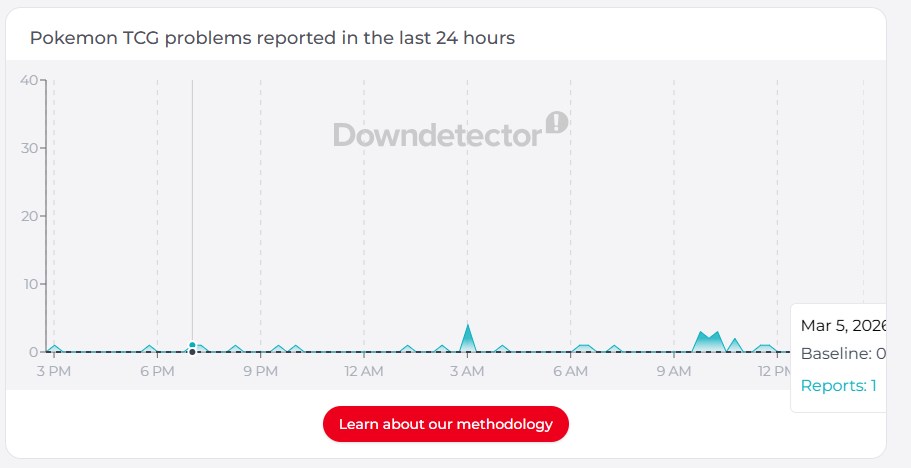
If thousands of other players are reporting Pokémon GO not loading, the problem is external. No amount of troubleshooting on your phone will fix it until the servers stabilize.
- Official Source: Check the Niantic Support X (Twitter) feed for confirmed outages.
- Community Source: Check third-party trackers like DownDetector. If you see a massive spike in reports within the last hour, close the app and wait.
2. Verify Device Compatibility
If your screen is black every time you launch the app, and you are using an older device, your phone may no longer support the game’s graphics engine.
- Android: Requires Android 9 or above with 2GB+ RAM.
- iPhone: Requires iOS 15 or above (iPhone 6s and older are largely unsupported).
If your device is compatible and the servers are online, proceed to the troubleshooting steps below.
Decision Guide: Quick Fixes vs. Full Reinstall
If the servers are fine, the issue is local to your device. When facing a Pokémon GO stuck on black screen scenario, you generally have two primary options: a quick cache refresh or a complete application reinstall.
Use the table below to decide which method fits your current situation:
| Strategy | Success Rate | Time Required | Data Usage | Best For… |
| Force Stop & Cache Clear | Moderate (60%) | < 2 Minutes | None | Minor glitches, black screen on startup, limited data plans. |
| Full Reinstall | High (95%) | 10-20 Minutes | High (~1GB) | Corrupted files, black screen after update, persistent crashes. |
| System Repair | Low (Specific cases) | Varies | Low | Device-specific OS errors (rare). |
The Likely Fix: Force Stop and Clear Cache
This is the preferred first step. It is fast, consumes zero mobile data, and retains your login preferences.
Many Pokémon GO black screen problems occur when the app fails to properly load graphics assets after an update. Essentially, the game engine is running, but it cannot display the visual elements. Clearing the app cache forces the client to reload these resources from scratch.
How to Clear Cache on Android
Android allows you to wipe temporary data without deleting the app. You must stop the app process first for this to work effectively.
- Force Stop: Go to Settings > Apps > Pokémon GO. Tap Force Stop at the bottom. This ensures the frozen process is fully killed.
- Clear Cache: On the same screen, tap Storage & Cache.
- Select Clear Cache.
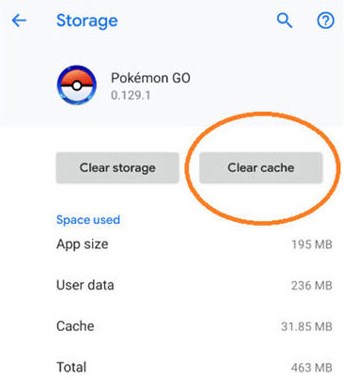
Warning: Do not select “Clear Storage” or “Clear Data” yet. That will reset your login, Adventure Sync, and AR preferences. Only use “Clear Data” if the “Clear Cache” step fails.
How to Refresh Game Data on iPhone
iOS handles data differently. There is no direct “Clear Cache” button.
Scenario A: The screen is totally black.
If you cannot see any menus, you must use the system settings to refresh the app binary.
- Go to Settings > General > iPhone Storage.
- Scroll to find Pokémon GO.
- Tap Offload App. This deletes the corrupted app file but keeps your documents and settings safe.
- Tap Reinstall App (which appears in the same spot).
Scenario B: You can access the menu, but the map is black.
If the game loads partially:
- Tap the PokéBall icon to open the menu.
- Go to Settings > Advanced Settings.
- Tap Refresh Game Data.
Advanced Solutions: Adventure Sync & Permissions
If refreshing the cache did not resolve the Pokémon GO loading black screen, the root cause often lies in background processes or permissions.
The “Adventure Sync” Glitch
A common, expert-level insight is that Adventure Sync can cause startup hangs. The app attempts to sync fitness data from Google Fit or Apple Health immediately upon launch. If this handshake fails, the app freezes on a black screen.
The Bluetooth Test: Try turning off your Bluetooth before launching the app. This disconnects external devices (like Pokémon GO Plus+ or smartwatches) that might be stalling the startup.
Permission Check:
- Android: Settings > Apps > Pokémon GO > Permissions. Ensure “Physical Activity” is allowed.
- iOS: Settings > Privacy & Security > Motion & Fitness. Ensure Pokémon GO is toggled ON.
Android Battery Optimization
Android systems often throttle the GPU to save power, preventing the game from rendering the 3D map.
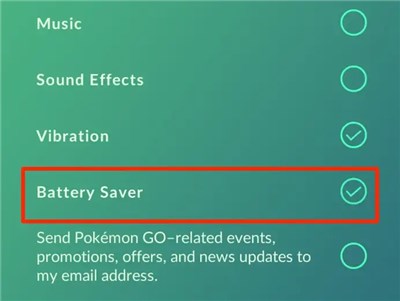
- Disable Battery Saver: Ensure your phone is not in “Power Saving Mode” or “Ultra Battery Saver.”
- Unrestricted Data: Go to Settings > Apps > Pokémon GO > Battery Saver and set it to Unrestricted.
iPhone Location Handshakes
The Pokémon GO black screen iPhone error often comes from a failure in the Location Services “handshake,” where the app cannot properly confirm your GPS signal. In some cases, this can also trigger Pokémon GO Error 12, which indicates the game is unable to detect or verify your location.
- Toggle Location: Go to Settings > Privacy & Security > Location Services. Toggle the master switch Off, wait 10 seconds, and toggle it On.
- Background App Refresh: Navigate to Settings > General > Background App Refresh and ensure it is enabled for Pokémon GO.
The “Nuclear” Option: Reinstalling the App
If you have cleared the cache, checked server status, and verified permissions, but still face a Pokémon GO stuck on loading screen, you likely have a corrupted installation file. This requires a full reinstall.
Important: Your Pokémon Are Safe
A common fear is data loss. Please be reassured: Your Pokémon, items, and level are stored on Niantic’s servers, not your phone. Deleting the app does not delete your account. As long as you know your login credentials (Google, Facebook, or Apple ID), you can uninstall without fear.
The Correct Reinstall Procedure
To ensure a clean slate, follow this strict order of operations. Do not skip the restart step.
- Uninstall: Delete the application entirely from your device.
- Restart Your Device: (Crucial Step) This clears the RAM and any lingering temporary files that might interfere with a fresh install.
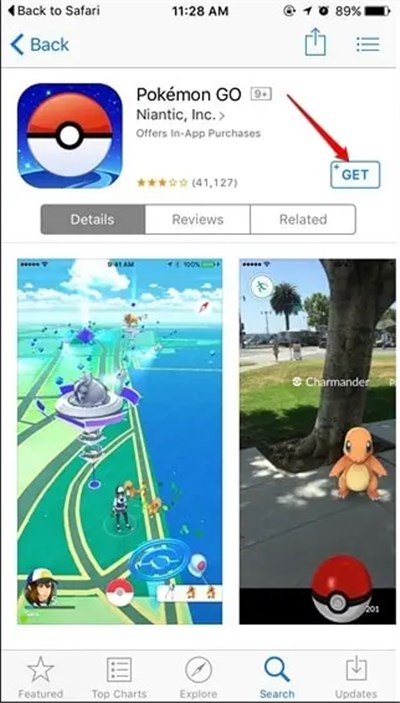
- Download: Visit the App Store or Google Play Store and download the latest version.
- Login: Sign in with your linked credentials.
- Wait: The first load will be slow as the game downloads new assets. Do not close the app; let it finish loading the map.
Why Is Pokémon GO Stuck on a Black Screen? (Root Causes)
Understanding why the Pokémon GO screen goes black can help you prevent it in the future. In many cases, the issue is closely related to how the game initializes location services, and it may even appear alongside errors like “GPS Signal Not Found in Pokémon GO” when the app fails to establish a stable position.
- Corrupted Assets: After a game update, the old files cached on your phone may conflict with the new version. This is the most common cause.
- Server Timeouts: If the game cannot contact the server to get your profile data within a few seconds, it may default to a black screen rather than showing an error message.
- Permission Conflicts: If you recently updated your phone’s OS (e.g., updating to iOS 17), permissions for GPS or Camera might have reset, causing the app to hang while waiting for approval that never comes.
Extra Tip: Explore Globally with Fonelora Location Changer
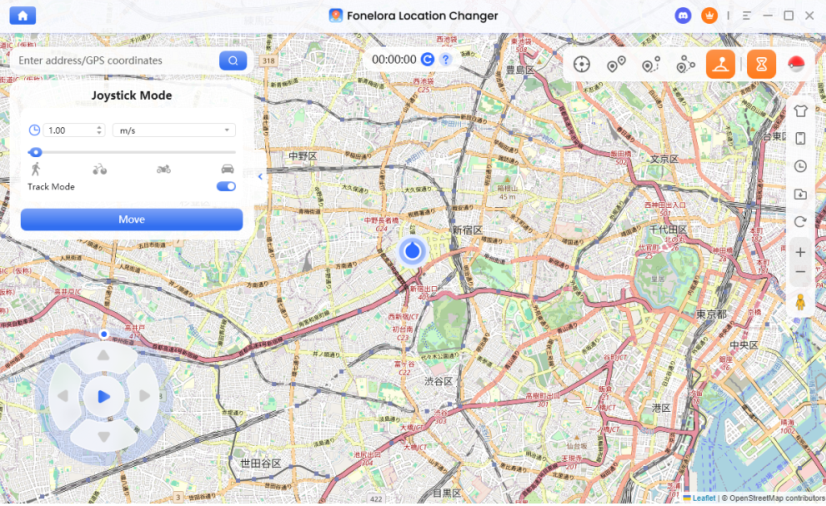
Once you’ve resolved the black screen issue, you might find that your local area lacks the PokéStops or Raids you need. If you’re looking to participate in global events or catch region-exclusive Pokémon without traveling, Fonelora Location Changer is a popular tool that allows you to change your GPS coordinates safely from your computer.
Key Features:
- One-Click Teleport: Instantly move your character to any city in the world to join high-tier Raids.
- Joystick Control: Use a virtual joystick on your PC to walk around in-game while staying comfortable at home
- Customized Speed: Set a natural walking speed to mimic real-human movement and reduce detection risks.
How to Change Your Location:
1.Connect Your Device: Download Fonelora Location Changer on your PC/Mac and connect your phone via USB.

2.Enter Your Destination: Use the search bar to find a specific landmark or coordinate (e.g., Central Park or Tokyo Disneyland).
3.Change Location: Click “Move” to update your phone’s system-level GPS instantly.

4.Simulate Movement: Switch to Joystick Mode or Multi-spot Mode to create a custom walking path, allowing you to hatch eggs and earn candy automatically.
Frequently Asked Questions
Q1. Is Pokémon GO black screen caused by server issues?
Yes, frequently. Always check Niantic Support or DownDetector first. If servers are down, no local fix will work.
Q2. I can’t access the settings menu to “Refresh Game Data” on iPhone. What do I do?
If the screen is totally black, you cannot use the in-game menu. Instead, go to your iPhone’s Settings > General > iPhone Storage > Pokémon GO and select Offload App. This achieves a similar result.If you see “Unable to authenticate Pokémon GO”, it usually means a login or session error—reinstalling or offloading the app normally fixes it.
Q3.Why is Pokémon GO Route not working?
Sometimes the “Route” feature fails to load or doesn’t start properly. This is usually caused by server-side limitations, outdated app data, or location services not fully initializing. In some cases, it may also appear alongside general loading issues like black screens or GPS errors.
Make sure your app is updated, your location permissions are enabled, and your GPS signal is stable before trying again.
Q4. Does reinstalling Pokémon GO delete my Pokémon?
No. Your game data is stored on Niantic’s servers. Uninstalling the app only deletes the app files, not your progress.
Q5. Why does the screen go black after I capture a Pokémon?
This is usually a storage permission issue or an AR+ crash. Try disabling “AR+” in the game settings (if you can load it) or ensuring the app has “Camera” permissions in your phone settings.
Q6. My phone is old. Will the black screen go away?
If your device does not meet the minimum requirements (Android 9+ or iOS 15+), the black screen is likely due to hardware limitations. The app may launch but fail to render graphics because the phone lacks sufficient RAM.
Conclusion
Encountering a Pokémon GO black screen doesn’t mean your account is lost; it’s usually just a temporary software conflict or server hiccup. By systematically clearing your cache or performing a clean reinstall, you can quickly eliminate the error and get back to the hunt.
Once you’re back in the game, you can overcome local limitations with Fonelora Location Changer. It’s a powerful tool for trainers who want to explore global hotspots or join remote raids using its intuitive joystick control and realistic movement simulation.
Don’t let technical glitches or your physical location stall your progress. Fix the error, grab the right tools, and regain full control of your Pokémon GO journey.
More Related Articles



Joy Taylor is a seasoned technical writer with over a decade of experience in mobile technology. At iMobie, she specializes in producing in-depth content on iOS data recovery, iPhone unlocking solutions, and iOS troubleshooting.
Product-related questions? Contact Our Support Team to Get Quick Solution >
