Can You Record on Paramount Plus? Solution Here
In this article, you will explore the world of Paramount Plus. You will also find an answer to “Can you record on Paramount Plus.” If yes, then how to do it? You will discover various screen recording tools and learn to record on Paramount Plus following their step-by-step guide. Not only that, we will also help you pick the right tool for you.
Are you a fan of Paramount Plus, eagerly catching up on your favorite movies and TV shows? Do you want an answer to “Can you record on Paramount Plus” so that you can enjoy the content offline?
If yes, then you are at the right place. Many Streaming enthusiasts are curious to know if there’s a way to record on Paramount Plus.
In this article, we are going to explore various tools to help you record whatever you want.
We will also walk you through their step-by-step guides so you can easily understand how to record those binge-worthy moments.
But before starting, let’s shed some light on the background of Paramount Plus.
What Is Paramount Plus?
Paramount+ is an American streaming service platform owned by Paramount Global. It is packed with tons of TV shows, movies, and cool original content. Think of it as your digital gateway to a world of entertainment, all accessible in a few clicks only. You can buy its subscription and watch the show that you like.
Earlier, Paramount Plus was known as CBS All Access. But later, it rebranded and expanded its content library. The best part? It allows you to stream content on various devices, including your smart TV and smartphone.
It is designed to fit into your entertainment routine, providing on-demand access to a vast catalog of content. Now that you know what Paramount Plus is, let’s find out: Can you record on Paramount Plus?
Is It Possible to Record on Paramount Plus?
Although Paramount Plus doesn’t have a built-in recording feature, you can still do it. Many cable or satellite providers include a DVR (Direct Video Recorder) feature. Paramount Plus, on the other hand, focuses on delivering content on demand. This means you can access the content at any time, but you won’t be able to save it for offline viewing.
However, don’t lose hope yet! There is an alternative way for you to watch your favorite content offline. You can record the content with the help of any third-party screen recorder. This way will not only allow you to watch the content offline, but you can also share it with your family and friends. Let’s move forward and explore the best recording tool.
Screen Record Paramount Plus with FocuSee
If you want to share specific Paramount Plus content with others, FocuSee provides you with an easy way to record Paramount Plus and highlight the key moments. You can capture and send clips or scenes to friends, family, or colleagues for discussion, review, or entertainment purposes. You have the freedom to choose between recording the entire screen, a custom section, or a specific window. You can also record your voice and face for narration easily.
Key Features of FocuSee
- Capture your preferred recording area, whether it’s a specific section or the entire screen.
- Effortlessly record mouse actions and movements with automatic tracking.
- Resize your video to a preset size optimized for social media platforms.
- Export your final masterpiece as stunning 4K videos or high-quality GIFs.
Steps to Screen Record Paramount Plus with FocuSee
Step 1. Download and install FocuSee for free, then open the application. Select your desired recording mode to begin. Let’s use the Custom mode as an example.
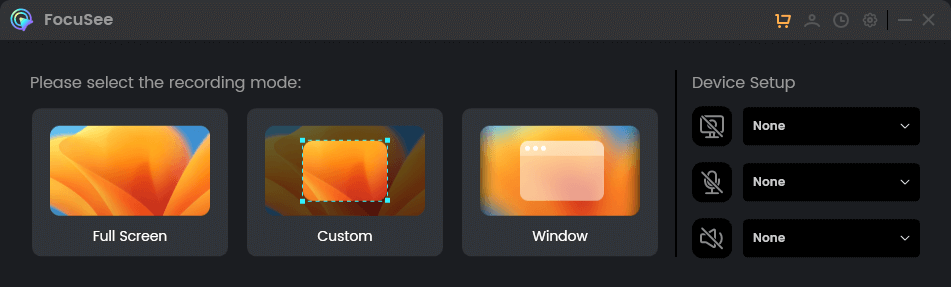
Choose Recording Modes
Step 2. Use the framing tool to select the area you wish to record, then click the REC button to start the recording process.
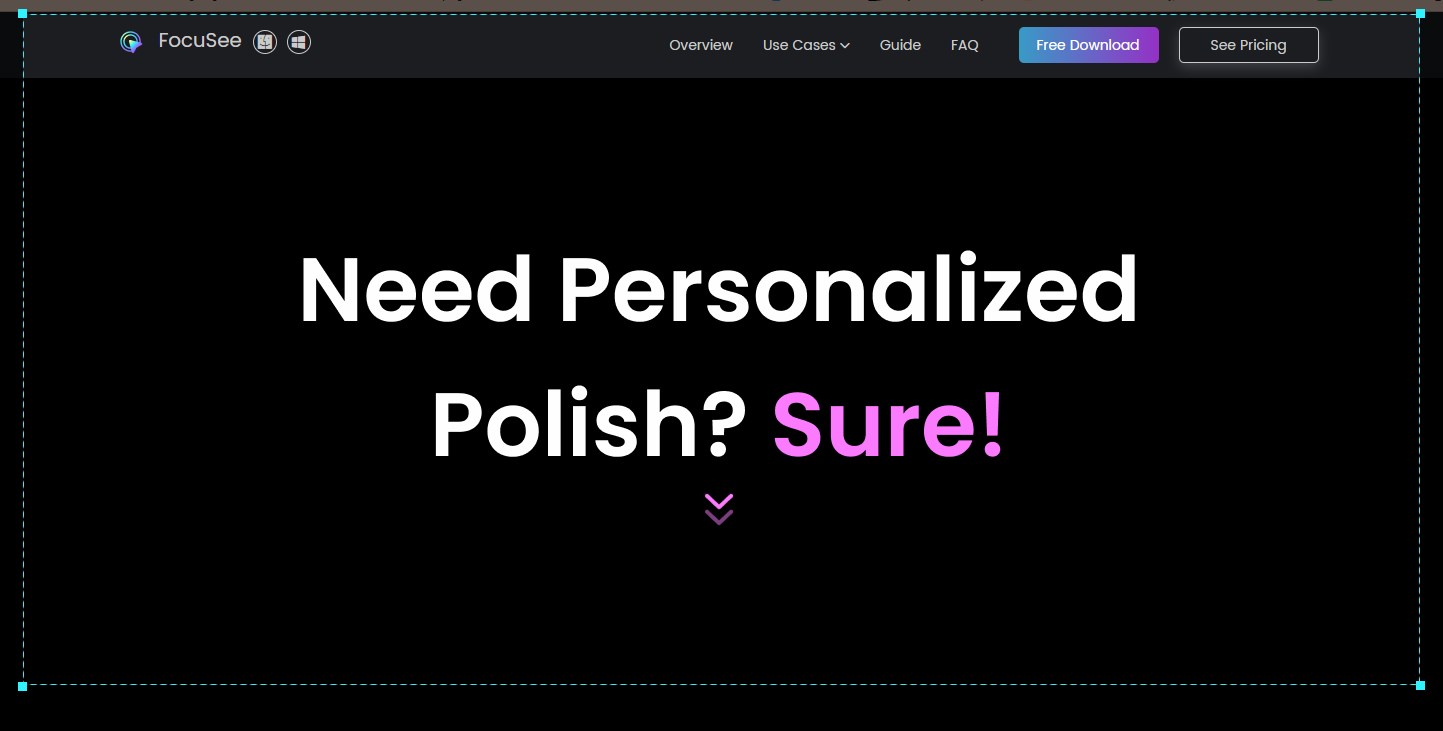
Frame an Area to Record
Step 3. Once you have finished recording, simply click on the Red Stop icon located on the toolbar. From there, you can customize various aspects such as changing the background, adjusting the style, size, and click effect of the mouse cursor, adding a spotlight, modifying the zoom effect, and more.
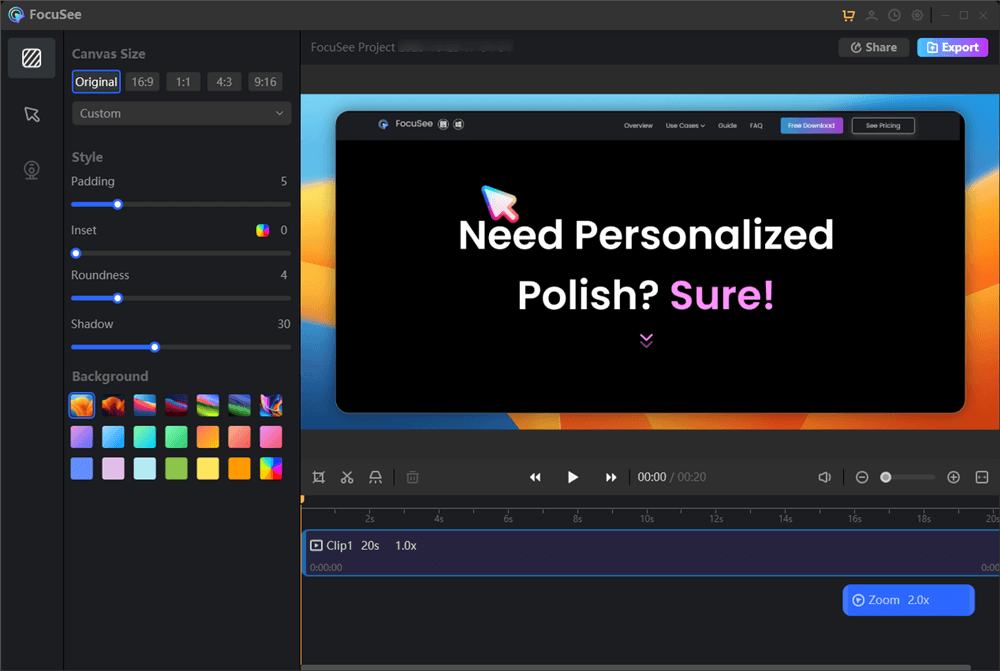
FocuSee Interface
Screen Record Paramount Plus with Screenify
If you are looking for a tool that will allow you to record Paramount Plus content hassle-free, look no further! Let us introduce you to Screenify. It is a user-friendly and reliable tool that can help you capture anything you want in HD quality. Whether you want to record a movie scene or your favorite show, Screenify has got you covered.
With this powerful tool, you can record your screen in a few clicks. Screenify is designed to be super easy, so you don’t need to be a tech expert to use it. The best part? It is available for free! You can download it and start recording your favorite shows to watch them later. Let’s see what else Screenify has to offer us.
Key Features of Screenify
Here are some of the key features of Screenify:
- It allows you to record any part of the content in 1080p HD/4K.
- There’s no limit on screen recording. You can record unlimited videos.
- It is a free screen recording tool. You can record anything without a watermark.
- It also offers customization. You can add filters, virtual backgrounds, and more.
- With its user-friendly interface, you can record and save the recordings in a few clicks.
Now that we have seen the amazing features of Screenify.
Let’s see how to use it!
Steps to Screen Record Paramount Plus with Screenify
Before starting, download and install the Screenify tool on your PC. Then, follow the instructions given below:
Free Download * 100% Clean & Safe
Step 1. Open Screenify. Choose the mode you want to use in your recording.
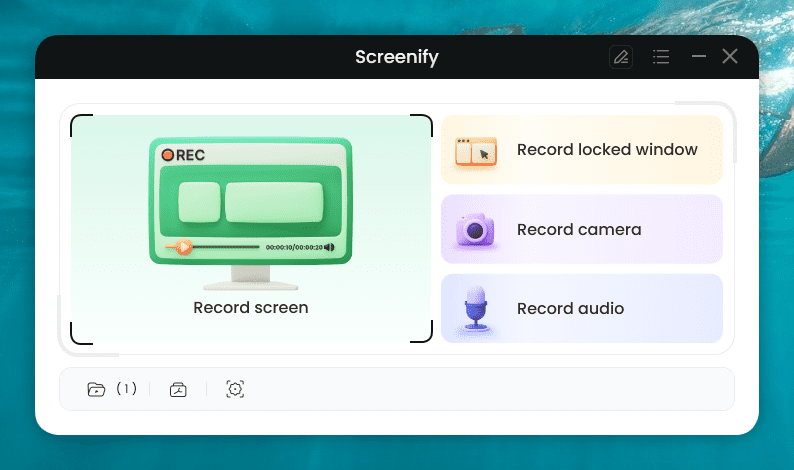
Choose the Mode You want to use
Step 2. Configure the settings before recording. Then, choose the recording screen. It has two options: either record full screen or a specific region. Select your preferred mode and hit “Record.”
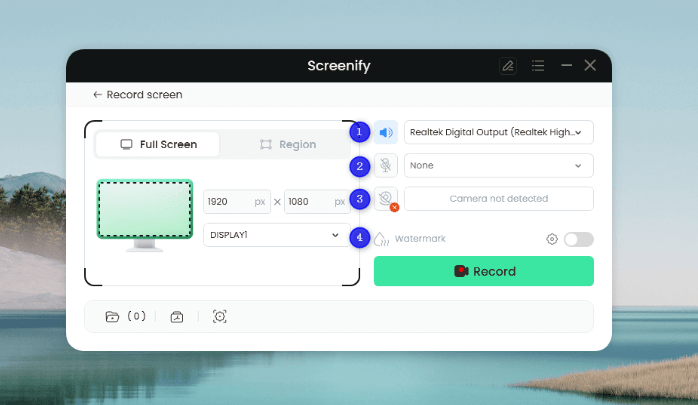
Configure the Settings and Hit the Record Button
Step 3. To record a specific region, manually select the region with your cursor. It also provides social media dimensions to choose from.
Step 4. Now, there will be a three-second timer. After this countdown, the recording will start.
Step 5. You can add annotations while recording the screen. You have brush, shape, text, arrow, and line options here.
Step 6. After you have finished recording, click on the Red “Stop” button. Your video will be displayed, and now you can preview and edit it.
Screenify is the best answer when it comes to “Can you record on Paramount Plus.” There are many other tools for screen recording, but they won’t be as reliable as this one. Let’s explore the next one!
Screen Record Paramount Plus with SplitCam
SplitCam is another tool that can help you record on Paramount Plus. However, the good thing about SplitCam is that it is not just limited to recording your. It has many other useful features as well. You can use it to make video tutorials or to broadcast your videos to various streaming platforms and more.
As the name suggests, the main feature of SplitCam is to split the webcam. It consists of two words, “split” and “camera,” which means you can use your webcam on several platforms at the same time. Not only that, you can also add stickers and zoom/split a part of your streams. Well, you must be curious to learn how to use this app. Let’s explore!
How can you record on Paramount Plus with SplitCam?
You can follow the instructions given below to screen-record Paramount Plus:
Step 1: Download and install the SplitCam app on your PC.
Step 2: Once the installation is finished, launch the SplitCam app. Click on the “+” icon right next to Media Layers to add a new capture source layer.
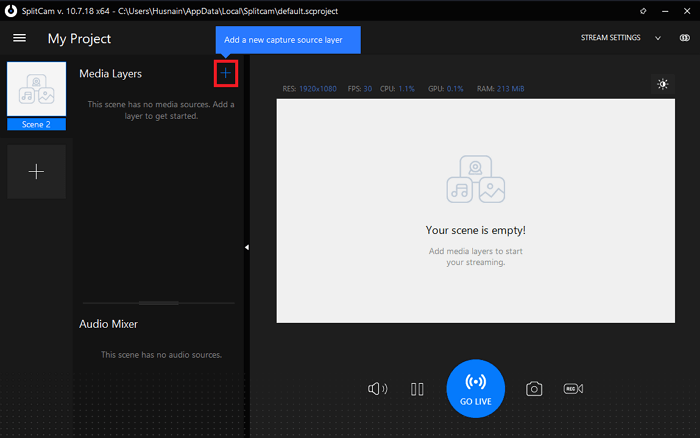
Add New Capture Source Layer in Splitcam
Step 3: Now click on “Audio Source” and select the “System Audio” option.
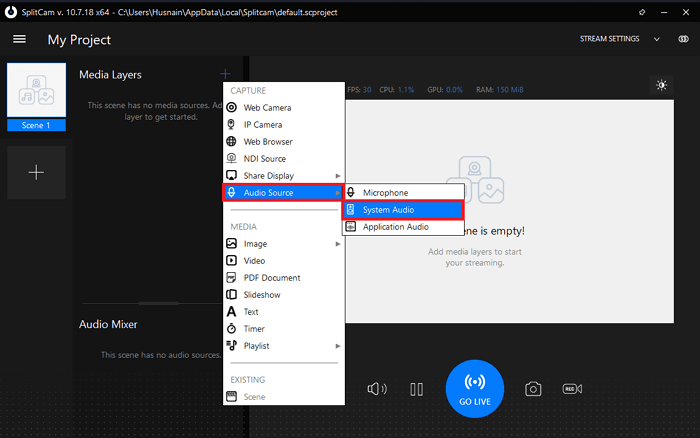
Choose System Audio in SplitCam
Step 4: In the same list menu, click “Share Display” and then the “Share Window” option. Choose the Paramount Plus window from the list.
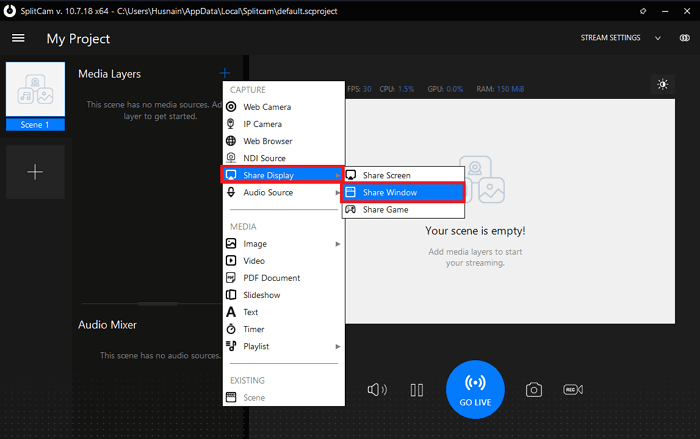
Share Display and Then Share Window in SplitCam
Step 5: Once the window is displayed, click the recording icon right below the screen to start recording. When you are done, click again to stop recording.
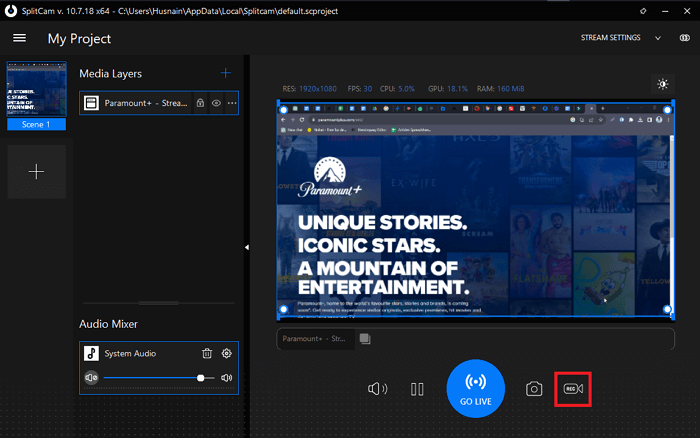
Click the recording icon to start/stop recording
Once you end the recording, it will be automatically saved to the recording folder. However, if you want to navigate to that folder directly, you can press the “Ctrl” button and click the “Recording” icon.
As we can see, SplitCam is not specifically designed for screen recording. Therefore, you have to compromise on the recording quality. But we aren’t done yet.
Let’s explore more to find the answer to “Can you record on Paramount Plus.”
Screen Record Paramount Plus with Loom
Loom is another tool that can let you record on Paramount Plus. With Loom, you can effortlessly record your screen, webcam, or both at the same time. Not only that, it also allows you to edit your screen recordings to make them more fun.
Whether you want to record any show or your favorite clip of the climax, Loom has your back. The best thing? It allows you to share whatever you recorded directly. Once you end the screen recording, you will get a link that you can share or embed anywhere.
How can you record on Paramount Plus with Loom?
You can follow the instructions given below to record on Paramount Plus with Loom:
Step 1: Download and install the Loom app on your PC. You can also download it as your Chrome extension.
Step 2: After the installation is completed, launch the Loom app. You will see the widget as shown in the below picture.
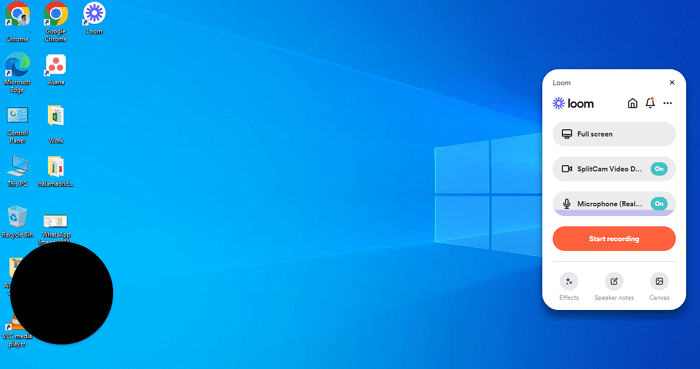
Loom App Widgets
Step 3: The Full screen option will be selected by default. If not, select “Full screen” from the list of options. You can also go for a Specific Window.

Select Full Screen Option in Loom
Step 4: Now, turn off the camera by selecting the “No Camera” option from the list. You are all set to record on Paramount Plus.
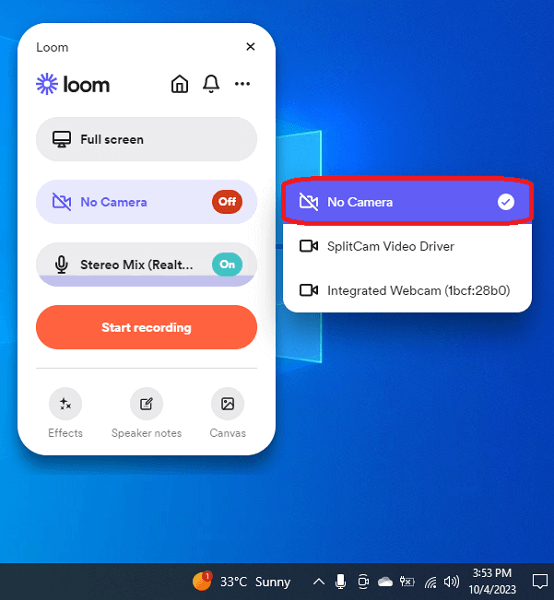
Select No Camera in Loom
Step 5: Click the “Start Recording” button and open the content on Paramount Plus that you want to record. Once you get done with the screen recording, click the “Stop” icon on the widget to end it.
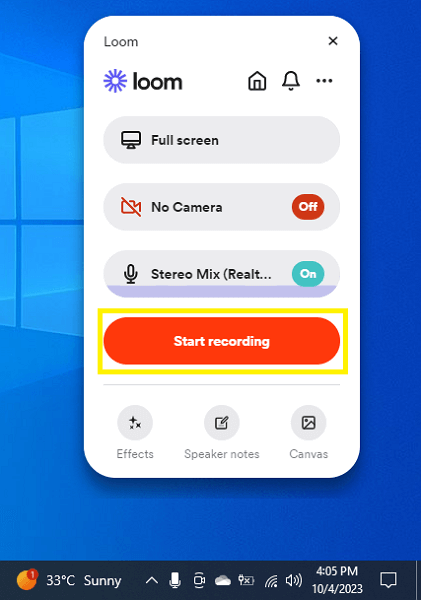
Click the start recording button
Then, Loom will directly navigate you to its homepage. Here, you can either edit the recording, download it, or generate its link to share with others.
However, many users experience lagging while using this recorder. Although it records in HD, it slows down the computer. Therefore, we recommend using Screenify. Let’s find out why!
Why Do We Recommend Using Screenify
When it comes to recording your favorite content on Paramount Plus, go for Screenify. Here’s how it can enhance your recording experience:
- User-Friendly Interface:
Screenify is designed with simplicity in mind. It offers an easy-to-use interface that even beginners can understand. You won’t need to be a tech whiz to use it effectively. - High-Quality Recordings:
It ensures that the content you record maintains its high quality. You won’t have to compromise on the visual or audio aspects of your favorite shows and movies. - No Time Limit:
Unlike other recording tools, Screenify doesn’t impose time limits on your recordings. It gives you the flexibility to record entire movies or shows without interruptions. - No Water Mark:
It is a free tool that allows you to record on Paramount Plus without any watermark. This handy tool can effortlessly capture any part of your screen, webcam, and audio. - Customizations:
This innovative tool offers many customization options. You can add filters and virtual backgrounds to your webcam. It also allows you to blur, remove, or change the background. - One-Click Save Recordings:
You can save unlimited recordings locally as you want. With just one tap, all recordings with audio will be automatically saved on your computer.
We must have cleared up your confusion about choosing the right recording tool. However, if you want to find more, you can go through the commonly asked questions in the next section.
FAQs
Q. Does Paramount Plus have a DVR feature?
No, Paramount Plus does not have a DVR (Digital Video Recorder) feature. It focuses on delivering content on-demand, allowing subscribers to binge-watch their favorite TV shows and movies at any time.
Q. Can I download Paramount Plus content without a subscription?
No, to download content from Paramount Plus, you will need an active subscription. Moreover, you also need to check your devices to download videos. The downloading feature is only available for iPhone/iPad (iOS 13+) and Android devices (Android 5+).
Q. Is it legal to record Paramount Plus content?
It depends. If you are recording on Paramount Plus for personal use, it is within legal bounds. However, it becomes illegal if you record with the intention of commercial use, such as selling copies.
Conclusion
We hope you got an answer to “Can you record on Paramount Plus.” While it doesn’t have a built-in DVR feature, you can still watch your favorite shows offline by screen recording them.
No doubt, there are many screen recording tools available in the market, but we recommend Screenify. It is a free and reliable tool to enhance your recording experience on Paramount Plus. So, don’t miss out on the action – give Screenify a try and make the most of your Paramount Plus subscription today!
More Related Articles



Jeremy Feron is a writer for iMobie with a deep passion for Android. He specializes in creating clear guides on Android tips and the latest updates, helping users navigate their devices and get the most out of new features.
Product-related questions? Contact Our Support Team to Get Quick Solution >
