The “Trust This Computer?” alert appears when a connected computer requests permission to communicate with your iPhone and access supported content or device functions. It is a security prompt, not an error.
What Does “Trust This Computer” Mean on iPhone?
Trust establishes a remembered authorization relationship between your iPhone and a computer. It can allow compatible computer software to sync with the device or access supported content such as photos, videos, and contacts. A trusted relationship can remain in place until you reset Location & Privacy settings or erase the iPhone.
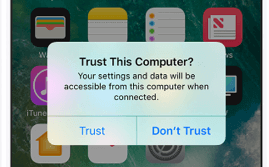
Trust is separate from Apple Account sign-in and the iPhone passcode. You must still unlock and authenticate the iPhone when requested; approving a computer does not remove the passcode or bypass device data protection. Tapping Trust does not itself erase your data, but it grants the computer a permission relationship you should approve deliberately.
Why Does My iPhone Ask to Trust This Computer?
1. You connected to this computer for the first time
When an iPhone connects to a computer it has not previously trusted, iOS asks whether to allow the connection. This is normal behavior for a new computer, a different computer, or a connection that needs access to device content.
2. You reset the iPhone’s Location & Privacy settings
Resetting Location & Privacy clears remembered trust decisions and other privacy permissions. A computer that was previously trusted may therefore trigger the alert again after you reconnect.
3. The iPhone was erased or restored
Erasing an iPhone can remove its remembered trusted-computer relationships. After setting the device up again, you may need to approve the computer connection again.
4. You previously selected “Don’t Trust”
If you decline the request, the computer’s access to content on the iPhone is blocked. The alert can appear again the next time you connect that computer, giving you another chance to make the decision.
5. The alert appears during a backup
On iOS 16 and later, the trust alert can also appear when backing up an iPhone. If automatic backups are enabled, the alert may appear whenever you connect the iPhone to that computer. Its appearance alone does not mean that someone else is attempting to access your device.
Should You Tap Trust or Don’t Trust?
Make the decision based on who controls the computer and what you are trying to do—not simply because the alert is blocking the next step.
| Situation | Recommended choice | Why |
|---|---|---|
| Your personal Mac or Windows PC, used for backup or file transfer | Trust, if you intend to connect it | The computer needs authorization to perform supported device-management tasks. |
| A work computer managed by your organization | Follow your organization’s policy | Trusting it can allow access to supported content; only approve it if the use is expected. |
| A public computer, borrowed computer, or device you do not recognize | Don’t Trust | You cannot reliably control how the computer is managed or what software may access the device. |
| You only connected the cable to charge the iPhone | Do not approve access unless you need it | Charging does not require you to grant data access to an unfamiliar computer. |
| You are unsure which computer is requesting access | Don’t Trust until you verify it | You can disconnect and investigate rather than approving an unknown connection. |
If you accidentally trusted a computer you no longer want to authorize, you can reset the remembered trust decisions using the steps below. You do not need to erase the iPhone just to revoke a computer’s trusted status.
How to Trust Your iPhone on a Mac or Windows PC
- Connect the iPhone to the computer using a USB cable that supports data transfer, not just charging.
- Unlock the iPhone and enter its device passcode if requested.
- On a Mac, open Finder and select the iPhone in the sidebar. On Windows, open Apple Devices or iTunes if that is the app you use to manage the device.
- If the computer asks you to trust or continue, approve the request on the computer when appropriate.
- When “Trust This Computer?” appears on the iPhone, review the request and tap Trust only if you intend to authorize that computer.
- Enter the iPhone passcode if prompted, then wait for the device to appear in Finder or Apple Devices.
If you are connecting to a Mac and see a separate “Allow accessory to connect?” alert on the Mac itself, that is a macOS accessory-permission prompt. It is separate from the Trust This Computer decision shown on the iPhone; follow both prompts only when you intend to connect the devices.
Why Is the Trust This Computer Alert Not Showing?
If the Trust alert is missing, first check whether the computer still recognizes your iPhone. Use this quick guide before changing any settings.
| What you see | What to do next |
|---|---|
| You trusted this computer before, the alert does not appear, and the iPhone is recognized normally. | No action is needed. A previously trusted computer does not need to trigger the prompt every time. |
| The alert does not appear and the computer cannot recognize the iPhone. | Unlock the iPhone, reconnect it with a data-capable cable, check the Wired Accessories setting if available, and open the correct computer app. |
| You tapped Trust, but a computer app still cannot access the content you need. | Check whether the computer recognizes the iPhone first. If it does, the issue may be specific to the app or content type rather than the trust prompt itself. |
1. Unlock the iPhone and reconnect it
Unlock the iPhone and leave the Home Screen visible. Disconnect the cable, wait a few seconds, and reconnect it. If the iPhone is locked, it may not communicate with a computer or wired accessory until it is unlocked.
2. Check the cable and USB port
Use a cable that supports data transfer and charging. Try another USB port and, if possible, another known-good cable. If the iPhone does not charge, vibrate, or otherwise react when connected, inspect the port for debris and test the connection before changing privacy settings.
3. Check Wired Accessories settings, if available
On supported iPhone models and iOS versions, open Settings > Privacy & Security > Wired Accessories. The available options vary by connector and device. If the iPhone is locked, unlock it, disconnect the cable, and reconnect it. This setting controls whether wired accessories can connect; it is separate from the Trust This Computer? prompt, so you may still need to approve the computer. If this setting is not available on your device, skip this check rather than changing unrelated settings.
4. Open the correct computer app and update it
On a Mac, check Finder and install available macOS updates. On Windows, open Apple Devices or update iTunes if that is the app you use. If you installed iTunes from the Microsoft Store and the trust alert still does not appear, check that iTunes Mobile Device Helper is enabled as a startup item. Reconnect the iPhone after updating the relevant software.
5. Restart both devices
Disconnect the iPhone, restart it and the computer, then reconnect with the iPhone unlocked. This can clear a temporary connection state without changing the iPhone’s data or settings.
6. Reset Location & Privacy only if needed
If you previously tapped Don’t Trust, or the prompt still will not appear after checking the connection, reset the remembered trust decisions as described in the next section.
How to Make the Trust Alert Appear Again
Use this option when you need to ask the iPhone to forget previously trusted computers or when the trust prompt does not return as expected.
- Open Settings on the iPhone.
- Tap General.
- Choose Transfer or Reset iPhone.
- Tap Reset.
- Select Reset Location & Privacy and confirm.
- Reconnect the iPhone to the computer, unlock it, and review the Trust prompt when it appears.
This is not the same as Erase All Content and Settings. Reset Location & Privacy does not erase your photos, messages, or apps, but it resets privacy permissions and remembered trust decisions. Some apps may ask for permission again. Avoid choosing Erase All Content and Settings for a simple trust-prompt problem.
Last resort: Reset Network Settings
If the alert still does not appear after updating the computer software, reconnecting and restarting both devices, and resetting Location & Privacy, you can try Settings > General > Transfer or Reset iPhone > Reset > Reset Network Settings. Use this only as a last resort: it removes saved Wi-Fi networks and passwords and resets cellular, VPN, and APN settings. Make sure you have the information needed to reconnect to your networks before proceeding.
Does Trust This Computer Give Access to All My Data?
Trust allows a computer to sync with the iPhone and access supported content and device functions. The exact information available depends on the computer software, the connection, and the permissions involved. It should not be treated as a guarantee that every app can read every item, but it is also not a permission to grant casually.
- Trust does not remove the iPhone passcode. A computer trust decision is not a way to unlock a device you cannot authenticate.
- Trust does not guarantee that a computer is safe. Only authorize computers you recognize and control or that your organization has approved.
- Don’t Trust blocks the computer’s trusted access. If you are unsure, decline first and reconnect after checking the computer.
- Resetting trust is different from erasing the device. Use Reset Location & Privacy for trust decisions rather than jumping to a full reset.
What If You Forgot the iPhone Passcode?
You generally need to unlock the iPhone and authenticate before granting a computer trusted access. The Trust This Computer prompt is not a passcode-removal method, and a computer tool cannot legitimately use the prompt to bypass iPhone data protection.
If your goal is to recover information from a locked iPhone, first identify whether a usable copy may already exist in iCloud, another trusted device, or a computer backup. See our guide to iPhone data recovery without the passcode for the limits and options in that situation. If you can unlock the iPhone but a computer cannot recognize it, troubleshoot the connection and trust relationship before assuming that your data or backup is damaged.
After Trust Is Granted: Transfer or Back Up iPhone Data
After the iPhone is authorized and recognized, use Finder on a Mac or Apple Devices/iTunes on Windows for Apple-supported backups and photo imports. If you want to manage or transfer selected supported content with AnyTrans, follow the steps below; you do not need to repeat the trust process unless the iPhone prompts you again.
Using AnyTrans after the connection is authorized
- Open AnyTrans on your computer.
- Connect the unlocked iPhone with a data-capable USB cable and tap Trust on the iPhone if prompted.
- After AnyTrans recognizes the device, open Device Manager and choose File Manager or the relevant supported content category.
- Select the content you want to manage or transfer, choose the destination, and confirm the operation.
AnyTrans can help manage and transfer supported iPhone content after the device has been authorized and recognized. It does not create the Trust permission, unlock a passcode-protected iPhone, or bypass the device’s security checks. If the trust prompt itself is missing, resolve that connection issue first.
Frequently Asked Questions
Why does my iPhone ask to trust the same computer every time?
This can happen after you reset Location & Privacy, erase the iPhone, or previously chose Don’t Trust. On iOS 16 and later, the alert can also appear during backups; with automatic backups enabled, it may appear each time you connect. If the prompt keeps returning outside that context, check the connection and trust settings above.
Can I make the Trust alert appear again without erasing my iPhone?
Yes. Use Reset Location & Privacy to clear remembered trust decisions. This is different from Erase All Content and Settings, although some apps may ask for privacy permissions again.
Does this alert mean my iPhone has been hacked?
No. The alert is a normal security prompt, not evidence of hacking by itself. If you do not recognize the computer or did not intend to connect it, tap Don’t Trust and disconnect the cable.
If your iPhone also fails to update when connected to a computer, see how to troubleshoot an iPhone update that failed. If you are specifically troubleshooting a system restore, our guide to Recovery Mode vs. DFU Mode explains the difference between those two recovery options.


