How to Recover Deleted Photo on Android Devices | Proven 3 Methods
Accidentally deleted your Android photos? This guide explores three reliable recovery options: Gallery/Google Photos Recycle Bin, Google Drive, and third-party recovery software like DroidKit. With these steps, you can recover precious memories in just minutes.
DroidKit – Android Data Recovery Tool
DroidKit allows you to preview and recover 13 types of lost data from Android devices without backup. It supports 20,000+ Android brands and devices running Android 6-15.

If you’ve accidentally deleted an important photo on your Android, or maybe your phone crashed, reset itself, and now all your pictures are gone…don’t panic. You can often get those photos back. There are several reliable methods to recover deleted photos on Android. Some solutions are quick and easy, while others take a bit more work, but one of them is likely to help you restore your memories. Let’s dive in.
Part 1. Can I Recover Permanently Deleted Photos on Android?
Yes, you can get back pictures that seem to be fully erased on an Android. When you remove a photo, it doesn’t vanish right away but is marked as free space on your device. Until new files cover it, there’s still a chance to restore it.
The simplest spots to look are your Google Photos trash folder or Google Drive profile, because many Android devices automatically back up images to Google Photos if backup is enabled. You could also look for duplicates in cloud services such as OneDrive or Dropbox. If none of these help, try special Android photo recovery apps that scan your phone for files hidden in its storage.
With backups, cloud accounts, or recovery software, there are good chances to bring those deleted photos back.
Part 2. How to Recover Photos From Your Android Phone?
Now that you know recovery is possible, let’s look at three simple methods you can use to bring back deleted photos on your Android device.
Method 1. Recover Photos in Gallery/Google Photos Recycle Bin
When you remove a picture on Android, it normally doesn’t disappear instantly. Rather, it shifts to a bin or rubbish folder where it remains for a little while before being cleared forever. On most Android devices, this is the Gallery bin or the Google Photos trash.
To check and restore from Google Photos:
Step 1: Open Google Photos on your Android phone.
Step 2: Find Collections at the bottom.
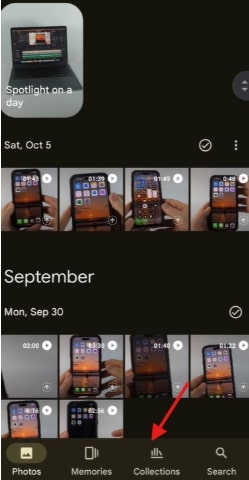
Find Collection at the Bottom
Step 3: Select Bin or Trash.
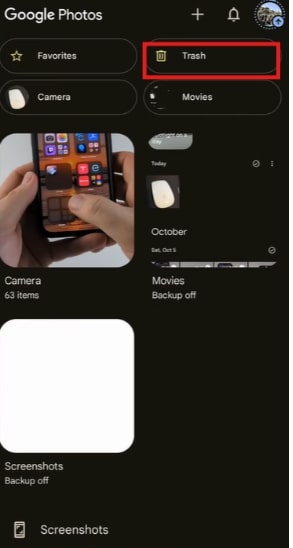
Select Trash or Bin
Step 4: Find the photos you want back, press and hold to select them.
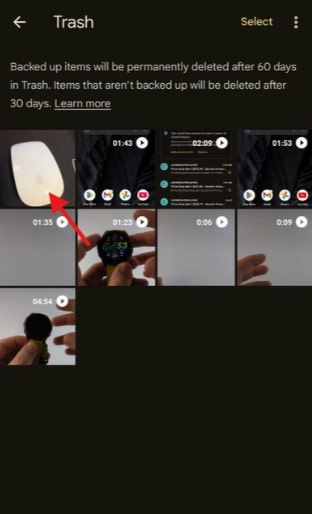
Choose Photos to Back
Step 5: Tap Restore to move them back into your photo library.
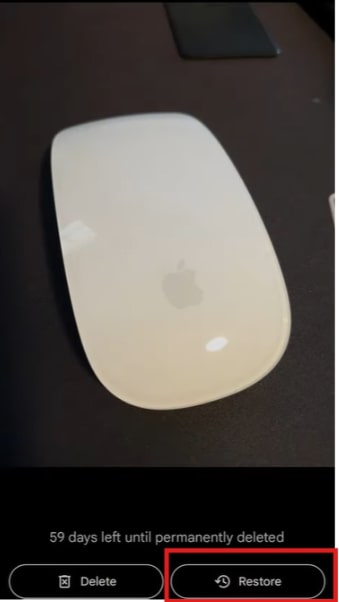
Tap Restore Button
This method is only going to function if you restore before 30 days since Google Photos automatically deletes files from the Trash after that time.
Method 2. Recover Photos from Google Drive
Google Drive can be really helpful when it comes to recovering deleted images from Android devices. With its cloud backup, many photos are safely stored online.
Since we are using Google Drive, which is accessible across different platforms, you can restore lost photos on your phone, tablet, or even a laptop. Here’s how to do that:
Step 1: Download Google Drive if it isn’t installed. Make sure to use the Google account tied to your phone.
Step 2: Click the menu icon (three bars) in the upper-left side of your Drive screen.
Step 3: Select Trash or Bin. This is where recently deleted files are kept.
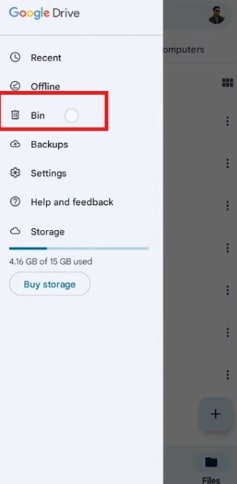
Locate Bin Trash
Step 4: Look through the list to find your photos. Use the search bar for quick access.

Use Search Bar to Find Your Photos
Step 5: Tap and hold each photo you want to bring back.
Step 6: Tap Restore (or “Restore from Trash”). Your chosen photos will return to their original place in Google Drive.
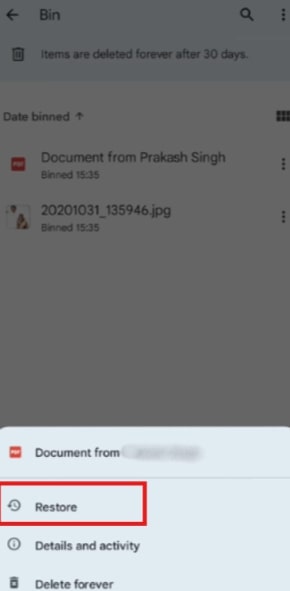
Click Restore Option
Method 3. Recover Photos via Third-party Android Recovery Software Without Backup
If your photos aren’t in the Gallery’s “trash” folder, Google Photos, or Google Drive, you can still try recovery software. DroidKit is a tool that helps you manage, transfer, and recover data. Even if files are lost due to accidental deletion, system errors, or device issues, DroidKit gives you a way to bring them back.
DroidKit – Recover Data With No Backup
- Recover Android data like photos, contacts, videos, and so on.
- Preview before Android data recovery.
- No technical knowledge is required; No need to root your device.
- No erasing of previous data on your phone, 100% clean & safe.
Free Download100% Clean & Safe
Free Download100% Clean & Safe
Free Download * 100% Clean & Safe
Additionally, DroidKit is an all-in-one Android toolkit that helps you remove all kinds of screen locks, bypass FRP after factory reset, or fix terrible system issues as you need.
Here’s how to do that:
Step 1: Download and launch DroidKit. From the main menu, choose Data Recovery > Quick Recovery from Device.
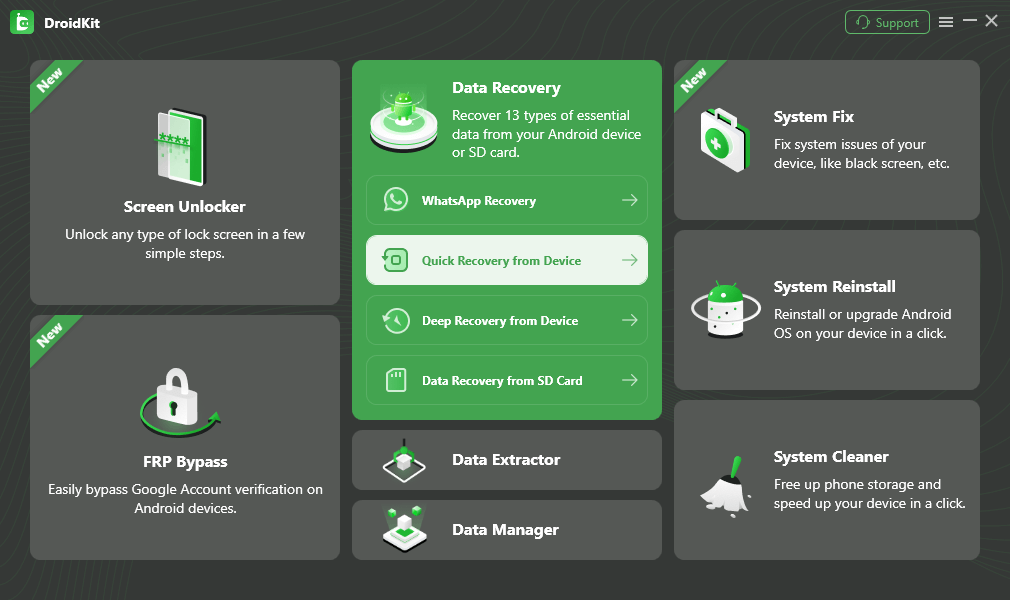
Choose Quick Recovery from Device from Data Recovery
Step 2: Connect your Android device to the computer using a USB cable. Select the data type you need to recover and continue.
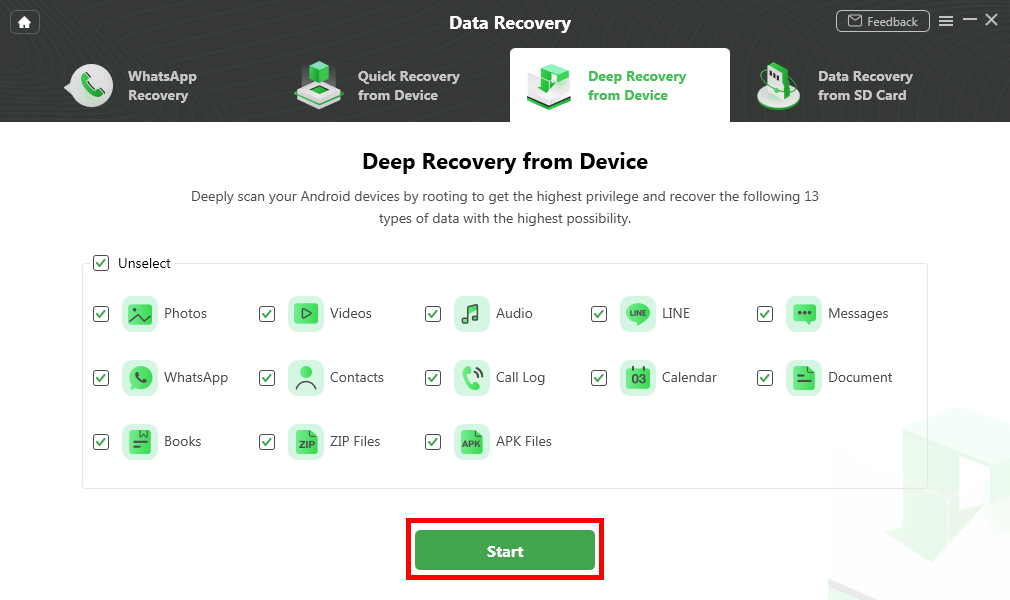
Select the Data Type You Need to Recover
Step 3. Next, you can preview all your data, including deleted files > Select the specific ones or select all > Click To Device or To PC.
FAQs
Q1. Are permanently deleted photos actually gone forever?
Not always. If the space hasn’t been overwritten, recovery from backups or recovery tools is still possible.
Q2. Where do deleted photos go in Android?
They usually move to the Gallery/Google Photos bin or cloud storage trash. There, they stay for about 30 days before being erased.
Q3. Can we recover 5-year-old deleted photos?
It’s unlikely unless they were backed up to cloud storage or transferred to another device. Old files are usually overwritten.
Conclusion
To conclude, deleted photos on Android can be recovered. First, see the Gallery or Google Photos bin. If they’re not there, search in Google Drive. And if you still can’t find them, use a recovery tool like DroidKit to scan your phone and bring them back. These three methods give you the best chance of saving your important memories.


Roger Smith is a senior technical writer with years of experience in providing Android solutions. He loves to help users solve various problems such as Android unlock, Android data recovery, and Android system repair.
Product-related questions? Contact Our Support Team to Get Quick Solution >
