[Updated] How to Recover Thumbnail Pictures on Android
To recover thumbnail pictures on an Android, you can check the Trash or Recycle Bin in your Google Photos or gallery app first. If they are not available, consider using cloud backups or regenerating the thumbnail cache. For a more reliable way to recover thumbnail pictures, try DroidKit to scan and restore lost photos directly from your phone.
DroidKit – Recover Thumbnail Pictures Easily
Free download DroidKit to recover thumbnail pictures on Android without backup. Supports 20,000+ models of phones & tablets running Android 6 – 15. No technical skills are required.

Thumbnails are small preview images automatically generated by Android to let you browse your photo gallery quickly. Without them, you may face slow loading, blank previews, or even difficulty accessing full-size photos. Sometimes these thumbnails disappear or get deleted, making it harder to manage your photos and pictures. In this article, we’ll introduce 4 thumbnail recovery methods, including using DroidKit as a data recovery tool, restoring from the recycle bin, retrieving pictures from the cloud, and recreating the thumbnail cache. Let’s get started!
What Is a Thumbnail?
A thumbnail is essentially a miniature version of a photo that is automatically generated by an Android device, allowing you to browse pictures and videos much faster. These small images are stored in the system’s thumbnail cache to prevent accessing the full files again, thereby saving time when browsing the Gallery. Although thumbnails are not the original files, they still serve as references or means by which your device can present and fetch the media more quickly. If your Gallery is affected by deletion or corruption, previews may not show, making recovery necessary to access your photos easily.
Can I Recover Thumbnail Pictures on Android?
In most cases, it is possible to recover thumbnail pictures on Android as long as the storage location has not been overwritten. Thumbnails are miniature pictures saved in a cache folder; hence, when these are deleted or broken, recovery tools or backup ways can often restore them. But recovery success largely depends on timing. The sooner you act, the higher the chance of restoring them.
To improve your chances of recovering your original photos, immediately stop using your phone to avoid new data overwriting the deleted files.
Method 1: How to Recover Thumbnail Pictures on Android [Easy & Secure]
To recover missing or deleted thumbnail pictures, DroidKit is an effective solution. As a professional Android data recovery tool, DroidKit performs a deep device scan to accurately locate deleted thumbnails and even the original images for restoration. Beyond thumbnails, DroidKit also supports recovering videos, contacts, messages, WhatsApp chats, and other important files from both device storage and SD cards. It works even when your phone is broken, black-screened, or unresponsive, making it a comprehensive solution for Android data loss. By combining its easy-to-use interface and high recovery rate, the accomplishment of the task is made hassle-free for the non-tech user as well.
Key Features of DroidKit:
- Recover photos, videos, text messages, and contacts on Android even without a backup.
- Offers two recovery modes: Quick Recovery (fast scan without root) and Deep Recovery (comprehensive scan with higher success rate).
- Compatible with 20,000+ Android device models, including Samsung, Xiaomi, Redmi, etc.
- Preview data before recovery, ensuring you only restore the files you actually need.
Free Download * 100% Clean & Safe
Here are the steps to recover thumbnail pictures on Android via DroidKit:
Step 1. Free download DroidKit on your Windows or Mac. Open it, click Data Recovery, and select Quick Recovery from the Device mode.
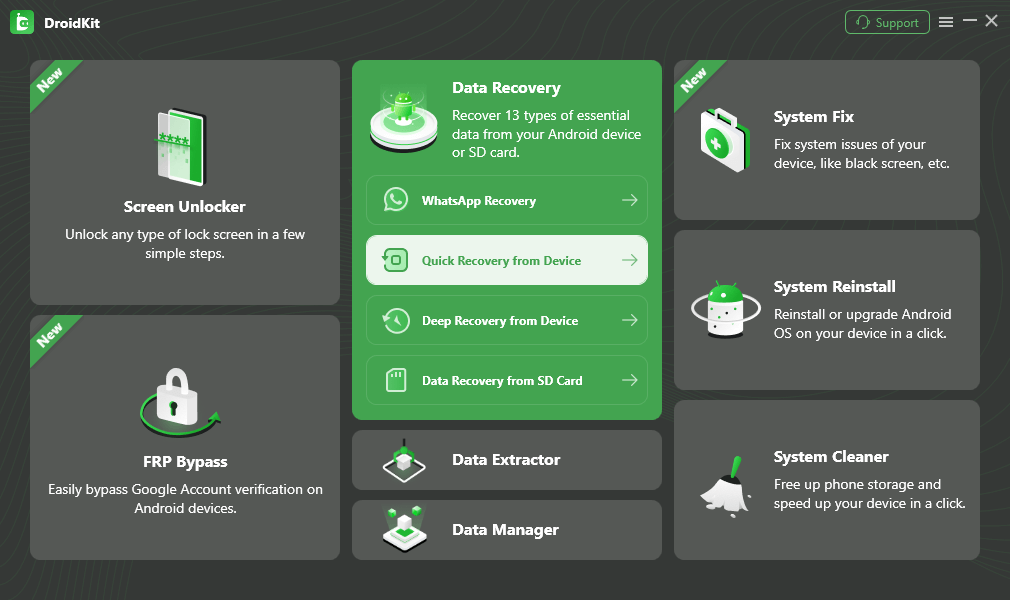
Choose Quick Recovery from Device from Data Recovery
Step 2. Choose Photos (and Videos if needed), then click Start to retrieve thumbnail pictures.
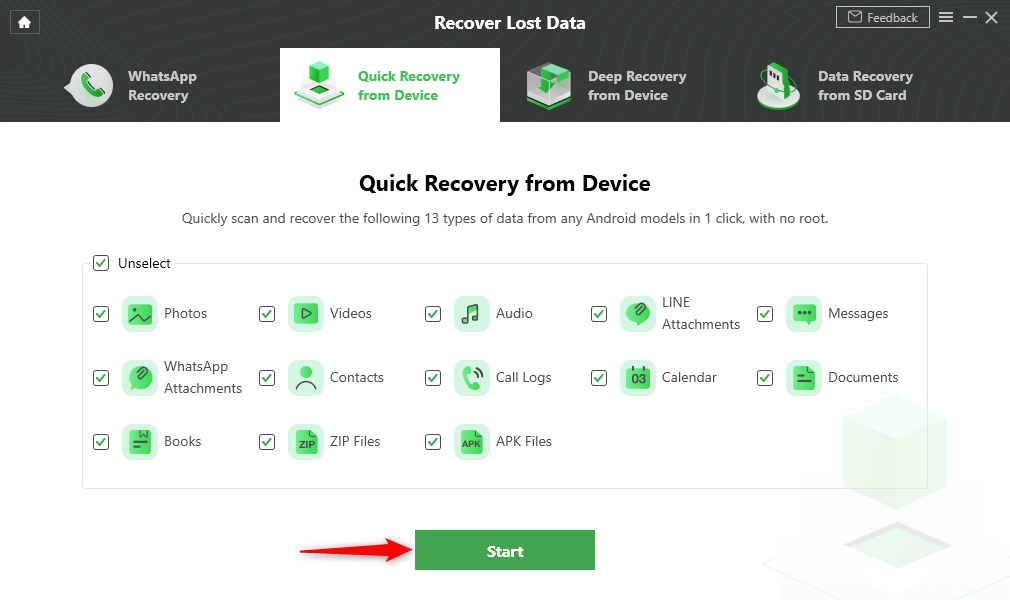
Select the Data Type that You Want to Recover
Step 3. Connect your Android phone to the computer with a USB cable. Click Start to scan your phone. After that, preview and select the thumbnails you want, recover them either to your phone with To Device or to your computer with To PC for backup.
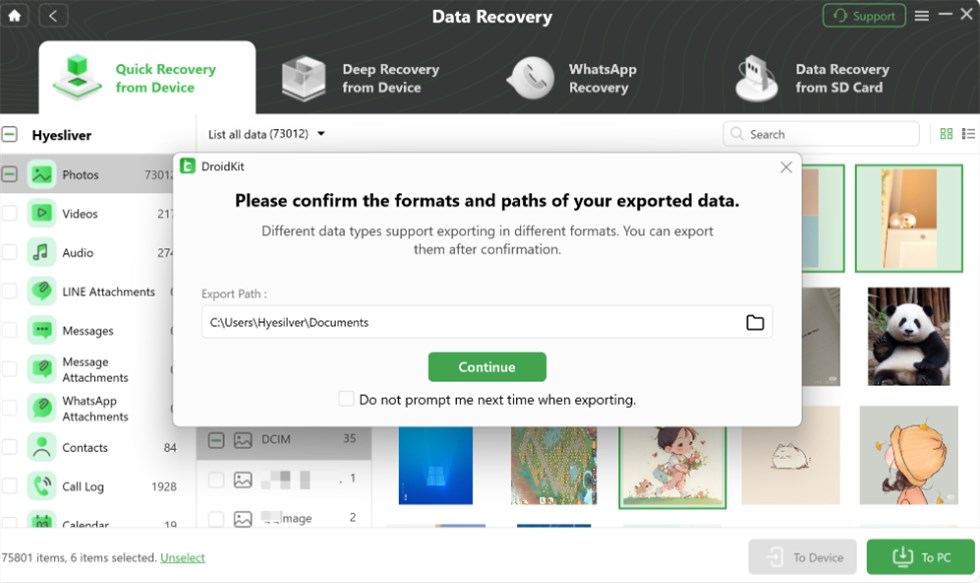
Recover Thumbnail Pictures on Android
Step 4. When the recovery process is done, you can then safely locate and open your recovered thumbnail pictures in the folder you chose.
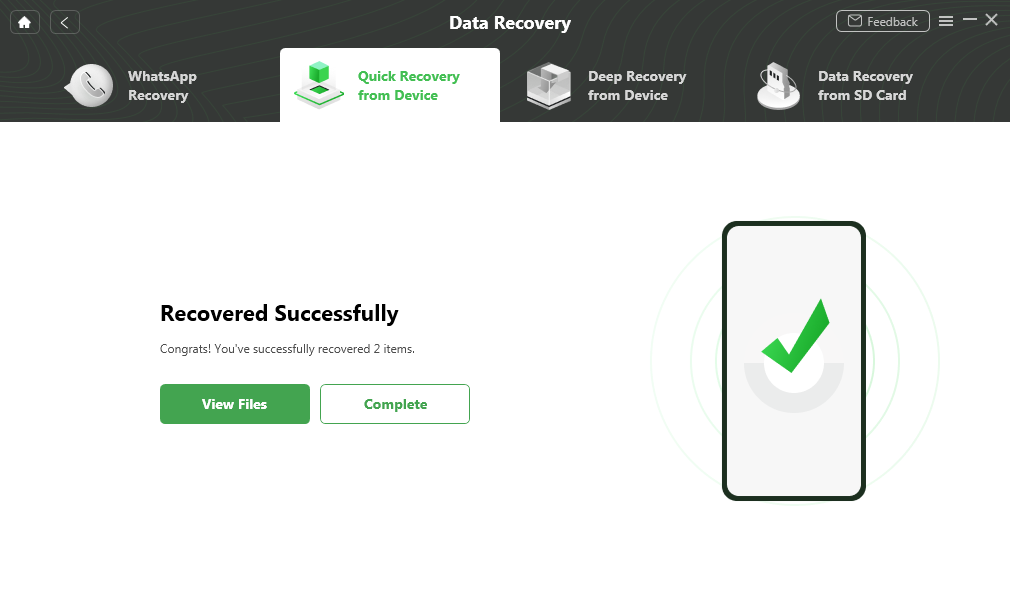
Quick Recovery from Device Successfully
Method 2: Check Trash/Recycle Bins on Android
Most Android devices, together with gallery applications like Google Photos or the Default Gallery, have a storage area or a recycle bin feature as part of the software design, where deleted files are stored temporarily for about 30 days before the system removes them completely. It means that you can locate and return to the folder those thumbnail images that you have deleted by mistake in a short time without applying any additional recovery methods.
Step 1. First, launch the Gallery or Google Photos app.
Step 2. From the menu, get to the Trash or Bin folder.
Step 3. Go through the deleted files until you get the thumbnail pictures.
Step 4. After selecting the thumbnails to be recovered, tap on Restore.
Step 5. The recovered images will be accessible again in the Gallery or the folder where they were.
Method 3: Check Cloud Backups
Let’s say your Android mobile device is connected to a cloud service, such as Google Photos, Google Drive, OneDrive, or Dropbox. In that case, the thumbnail images that you deleted could still be available in the cloud. Backups made in the cloud are the standard storage for pictures and their related data; a duplicate is generally kept even when the files are deleted from your device. This is still a secure method to get back thumbnails when you enable the automated synchronization.
Step 1. Launch the cloud storage app on your phone, e.g., Google Photos or Google Drive.
Step 2. Use the same account to go back up the files and then log in.
Step 3. Look for the missing thumbnails in the Photos, Albums, or Backups section.
Step 4. Select the pictures and get them back on your device by clicking Download.
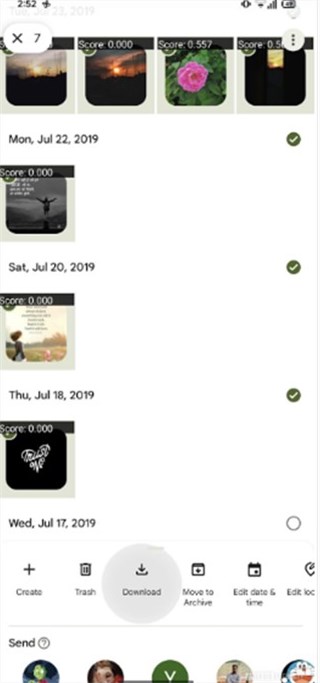
Click Download
Method 4: Regenerate Thumbnail Cache
Thumbnail images can lose their way at times, mainly because the thumbnail cache on Android has gotten corrupted or is not too old. A new cache can be one of the ways to bring back previews that have gone missing in your photo gallery. Please note that this process has the capabilities of only refreshing the system-generated thumbnails, but it won’t be able to recover deleted pictures.
Step 1. Start with your phone’s Settings. Next, move to Apps (or Applications).
Step 2. Discover and select the Gallery app on your device (or the app where thumbnails are missing).
Step 3. On Storage, press the Clear Cache button.
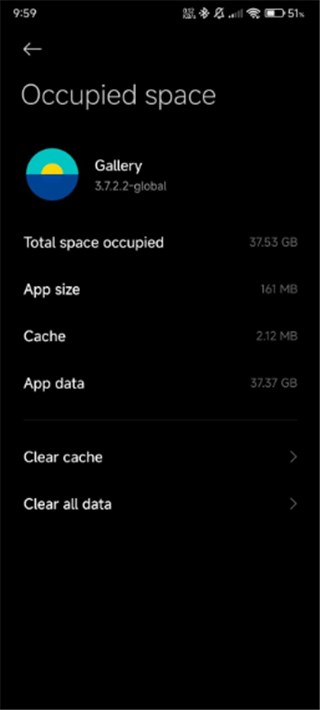
Press Clear Cache Button
Step 4. Reboot your Android device, therefore, allowing the system to create the new thumbnail cache.
FAQs about How to Recover Thumbnail Pictures on Android
Q1. How to recover photos from thumbnails in Android?
To recover photos from thumbnails in Android, try to check the phone’s trash or recycle bin, or recover a backup from the cloud. For an easier way, use DroidKit to recover these thumbnails with a few clicks.
Q2. How to see thumbnail images in Android?
Thumbnails in Android are small versions of images and videos displayed in the gallery or photo app. If these previews are missing, the problem can be solved by clearing and recreating the thumbnail cache or by verifying if the app has been given storage permissions.
Q3. How to fix no thumbnail in Gallery?
After the “No thumbnails in the gallery” issue appears, you may want to delete the cache of the Gallery or Photos app, check for cloud backups, then restart your device to let the system regenerate the thumbnail cache.
Q4. Can I convert a thumbnail to the original image online?
Thumbnails are just reduced previews and cannot be restored to the original image with online tools. To get the full pictures, you need local storage or a cloud backup.
Conclusion
In this guide, we introduced four practical ways to recover missing thumbnails on Android: using DroidKit, checking the Trash/Recycle Bin, restoring photos from cloud backups, and re-creating the thumbnail cache. Among these, DroidKit is the most reliable option. It performs a deep scan of your device, ensuring a higher recovery success rate compared to manual methods. Download DroidKit today to bring back your lost photos and thumbnail pictures fast and safely!
Free Download * 100% Clean & Safe


Roger Smith is a senior technical writer with years of experience in providing Android solutions. He loves to help users solve various problems such as Android unlock, Android data recovery, and Android system repair.
Product-related questions? Contact Our Support Team to Get Quick Solution >
