How to Retrieve Deleted Contacts on Android Without Backup
Losing contacts without backup can be stressful, but recovery is still possible. This guide covers native options like Google Contacts, Trash, and Undo Changes, as well as third-party tools like DroidKit. It also shows why restoring contacts is important and answers common user questions about contact loss.
DroidKit – All-in-one Android Toolkit
- Recover deleted contacts/photos/messages on Android without backup.
- Unlock 20,000+ models of Android phones & tablets.
- No technical knowledge is required; No need to root your device.
- Bypass Samsung FRP lock if forgot Google account password.
Free Download100% Clean & Safe
Free Download100% Clean & Safe
Free Download * 100% Clean & Safe
It is stressful to lose the contacts of your Android phone, especially when you have no recent backup. Can you recover deleted contacts on Android without backup? This 2026 guide explores five effective methods to restore deleted contacts using native Android features like Google Contacts and third-party tools like DroidKit, ensuring you reconnect quickly.
Part 1. Can You Recover Deleted Contacts on Android without a Backup?
Of course, you can restore deleted contacts, even without a backup, but it might be different in different cases. Most Android phones keep deleted contacts in a trash or recently deleted folder up to 30 days. At this time, it is very easy to retrieve lost contacts using your phone without any additional applications.
The second helpful technique is restoring via Google Contacts, which enables you to reverse the changes made in the past 30 days. For users asking how to retrieve deleted contacts on Android without backup, these options provide practical solutions. Besides, you can also use dedicated data recovery tools like DroidKit to recover your deleted contacts without hassle.
Part 2. Why Restore Deleted Contacts on Android?
Losing contacts is disturbing since they hold personal, professional, and emergency importance. Below, we will explore a few reasons why restoring deleted contacts is important:
- Personal Connections: Reconnect with friends and family effortlessly.
- Professional Networking: Retain critical work contacts for career opportunities.
- Emergency Access: Ensure access to vital numbers for urgent situations.
- Time Savings: Avoid manually recollecting contact details.
- Service Continuity: Stay in touch with providers like doctors or technicians.
Part 3. How to Recover Deleted Contacts on Android without Backup
When you are worried about lost numbers, there are simple methods available. So, this section covers the 2 most effortless methods to help users understand how to retrieve deleted contacts on Android without backup:
Method 1. Check Google Contacts Trash
The first method to check or recover your deleted contacts is through the Google Contacts Trash. It holds deleted contacts for 30 days by allowing easy restoration without backup tools. This method helps bring back lost contacts quickly, directly syncing them back to your phone automatically. Let’s explore how to retrieve deleted contacts on Android without backup:
Step 1. Access the “Google Contacts” website on your Android browser and sign in with your account. After that, tap the “Hamberger” icon and choose the “Bin” option to move further.
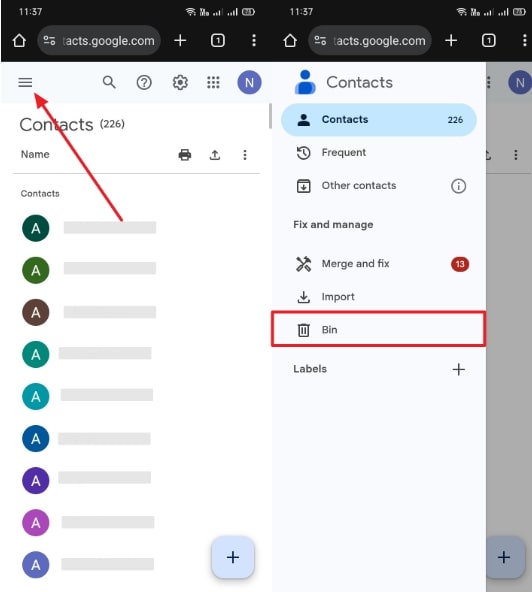
Choose Bin
Step 2. Upon seeing the deleted contacts in Bin folder, tap on it you want to retrieve and hit the “Recover” button.
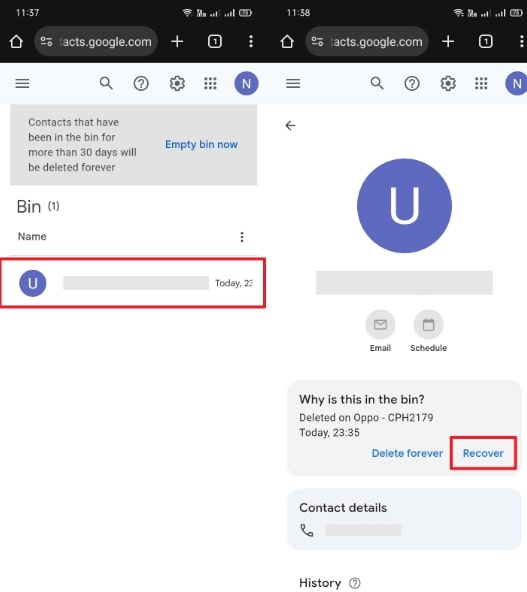
Hit Recover
Method 2. Restore Contacts via Third-Party Data Recovery Tool-DroidKit
For users seeking an effortless solution to recover deleted contacts without a backup, DroidKit is an ideal choice. It is designed to restore contacts and other important files even without any backup available. Also, the tool supports the latest Android 15 system to ensure compatibility with both old and new devices. Along with contacts, DroidKit helps you recover 13 types of deleted data, including messages and photos.
Before restoring, users can preview deleted contacts, ensuring they recover just what’s needed. Moreover, it helps in various loss scenarios such as system crashes, malware attacks, or SD card failures. DroidKit is capable of recovering data from over 20,000 Android device models across all popular smartphone brands. So, follow the steps below to find out how to retrieve deleted contacts on Android without backup using DroidKit:
Free Download * 100% Clean & Safe
Step 1. Upon downloading and launching DroidKit on your PC, choose “Quick Recovery From Device” from “Data Recovery.” Afterward, select “Contacts” from the data types and hit the “Start” button.
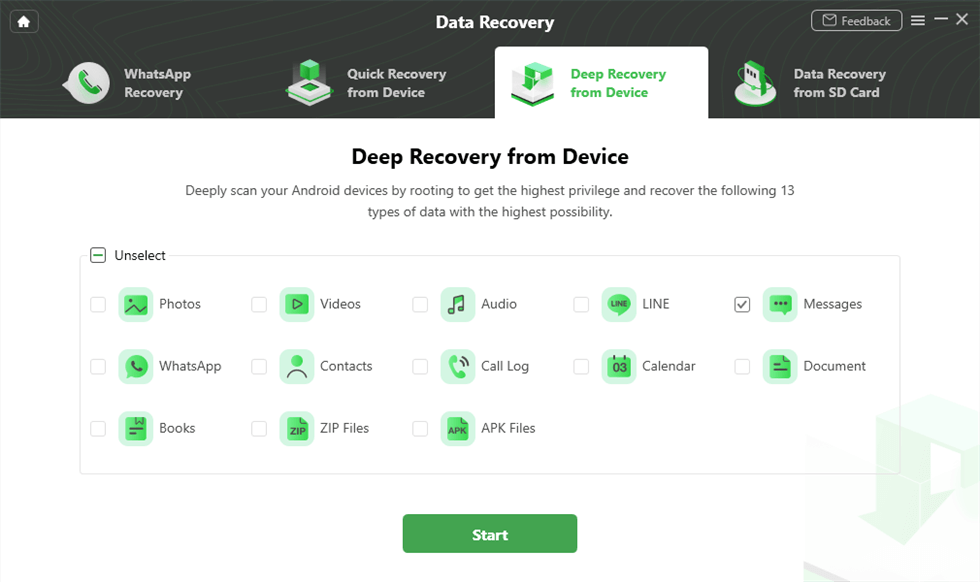
Select the Data Type You Need to Recover
Step 2. Connect your Android to the PC and hit “Start” when DroidKit detects your phone. The tool then starts scanning all the deleted contacts from your phone.
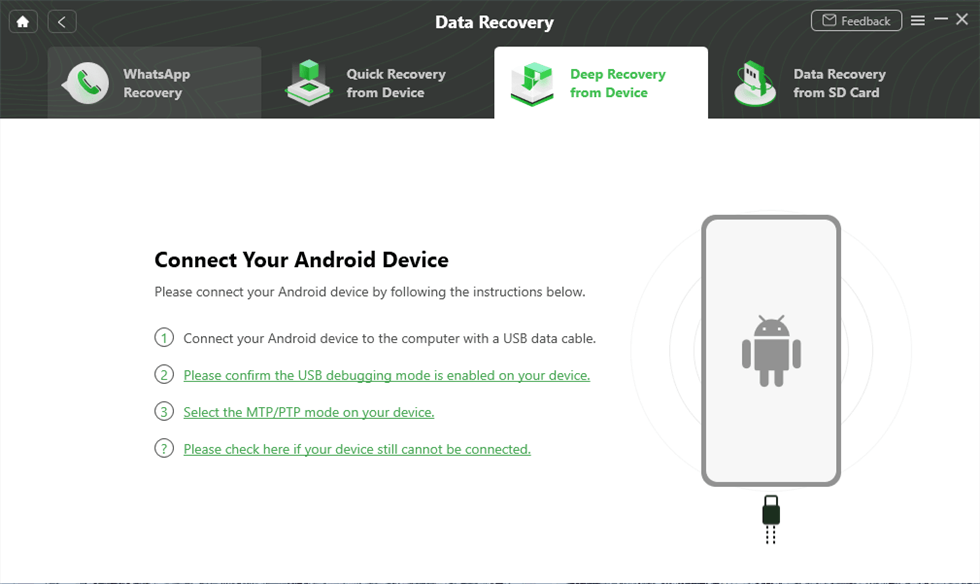
Connect Your Android Device to the Computer
Step 3. After you open the trash of contacts, opt for the data you would like to recover and tap the “To Device” or “To PC” button. Then, DroidKit will start restoring your contacts in your selected device and preferred format.
Part 4. How to Recover Deleted Contacts on Android Backup
Even if you know how to retrieve deleted contacts on Android without backup, using backup is faster and easier. So, this section covers methods that restore lost contacts efficiently using saved data:
Method 1. Recover Android Contacts from Gmail Backup Without PC
This method automatically saves contacts, allowing easy Google restoration anytime. It supports multiple devices syncing, providing seamless contact recovery across phones. Restoration is fast and secure, requiring only your Google login. Adhere to the following steps to find out how to retrieve deleted contacts on Android without backup:
Instruction. As you head to your phone’s settings, tap “Google” and head to the “All Services” tab. Later, choose “Restore Contacts” and then hit the “Restore” button.
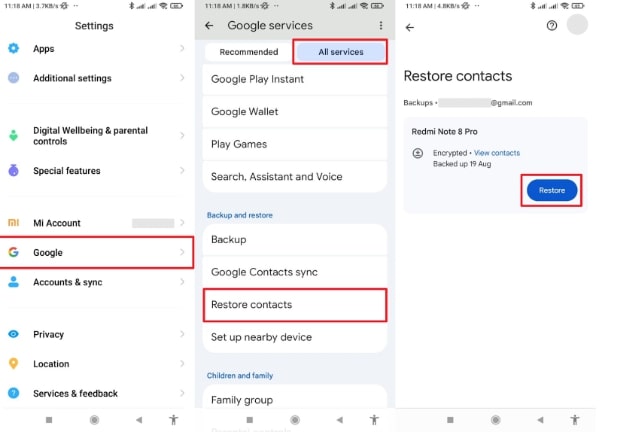
Click on Restore Button
Method 2. Recover Android Contacts using Google Backup
Google Backup also makes restoring lost contacts simple and quick for any Android user. It saves your contacts automatically, so you can bring them back whenever needed. You can securely restore important contacts by signing in with your Google account. Go through the steps to understand how to retrieve deleted contacts on Android without backup:
Step 1. To initiate, navigate to the “Google” section and tap the “Manage Your Google Account” tab. On the next page, go to the section of “People & Sharing” and tap the “Contacts” section.
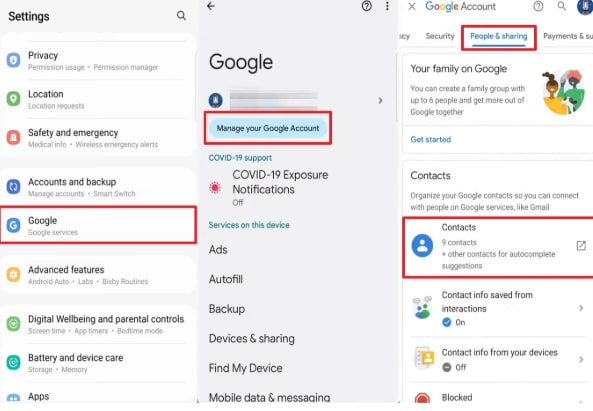
Tap Contact
Step 2. Afterward, tap the “Gear” icon and select the “Undo Changes” option from the pop-up. Following that, choose your preferred time and press the “Undo” option to recover contacts.
Part5. FAQs
Q1. Where do I find recently deleted on Android?
On most Android devices, recently deleted contacts are stored in the “Trash” or “Bin” folder. You can access this by opening the Google Contacts app or website and checking the menu. Deleted contacts remain there for 30 days before being permanently erased from your account.
Q2. Why do your contacts disappear?
There are cases of contacts being lost when syncing your phone and Google account during an update. They can also vanish if you accidentally delete them or reset your device without proper backup. Sometimes, contacts hide because they are saved on the SIM or storage that is not currently displayed.
Q3. How to Check Where Your Contacts Are Stored
Access your Contacts settings and locate the option that reads, “Contacts to Display.” Here, you can see where your contacts are saved in your Google account, SIM card, or device storage. This helps you confirm the exact location of your contacts and manage them easily.
Conclusion
Recovering lost contacts is important because they hold value for every user. Android has many native alternatives to make the process fast and easy. These are useful techniques, yet they do not work in all situations.
Even when you are still in a state of wondering how to get deleted contacts back on Android without backup, you need DroidKit. This dedicated recovery tool allows you to retrieve 13+ deleted data types from your Android. So, you should download and try DroidKit today and recover your desired deleted contacts effortlessly.
Free Download * 100% Clean & Safe


Roger Smith is a senior technical writer with years of experience in providing Android solutions. He loves to help users solve various problems such as Android unlock, Android data recovery, and Android system repair.
Product-related questions? Contact Our Support Team to Get Quick Solution >
