4 Ways to Recover Data from Dead Android Phone Internal Memory
To recover data from a dead Android phone’s internal memory, check your cloud backups, try SD Card Recovery, or ask for help from a phone repair shop. For a completely dead phone, professional data recovery services, like DroidKit, are the most reliable choice to extract data from the internal memory.
DroidKit – Recover Data from Dead Phone Internal Memory
Free download DroidKit to recover data from dead Android phone internal memory. It supports 20,000+ models of phones & tablets running Android 6 – 15. No technical skills are required.

Recovering important files from a dead Android phone can feel overwhelming, especially when the device no longer powers on. Many users wonder whether it is realistic to recover data from a dead Android phone’s internal memory. Thankfully, several effective methods exist to retrieve lost files even if your device does not power on. This guide explores 4 practical solutions to recover data from dead Android phone internal memory, to help you know where to begin immediately.
Is it Possible to Recover Data from a Dead Android Phone’s Internal Memory?
Yes, in many cases it is possible, but success depends entirely on what caused the failure originally. If the phone is only experiencing minor hardware or software issues, the internal memory often remains intact and accessible. However, when severe damage occurs to storage components, recovery becomes far less certain. Factors such as the extent of the malfunction, the device model, and how the data was originally stored all influence whether recovery is realistic.
Way 1. Recover Data from Dead Android Phone Internal Memory [Without Backup]
To recover data from dead Android phone internal memory, we highly recommend using DroidKit. Compatible with both Windows and Mac, this tool supports most phones running Android OS 6-15. As a professional Android data recovery tool, it can help users recover Android data from a dead phone quickly and securely, even without a backup. It supports recovery of 13+ file types, including photos and messages. Moreover, it ensures recovery by offering two different modes, Quick Recovery and Deep Recovery, for any scenario. DroidKit also provides a preview option so you can review files and decide what to restore. This selective recovery process saves time to prevent unwanted clutter and ensures that important files are recovered first.
Key Features of DroidKit:
- Supports more than 20,000 Android smartphones and tablets from global brands.
- Even restore data from WhatsApp and LINE securely.
- Fetch synchronized app or account data from supported cloud platforms instantly.
- Works seamlessly with Android 15 and earlier operating system versions available.
Free Download * 100% Clean & Safe
Detailed Steps to Recover Data from a Dead Phone’s Internal Memory via DroidKit:
Step 1. Get and run DroidKit on your PC. From the home screen, navigate to Data Recovery, and pick Quick Recovery from Device.
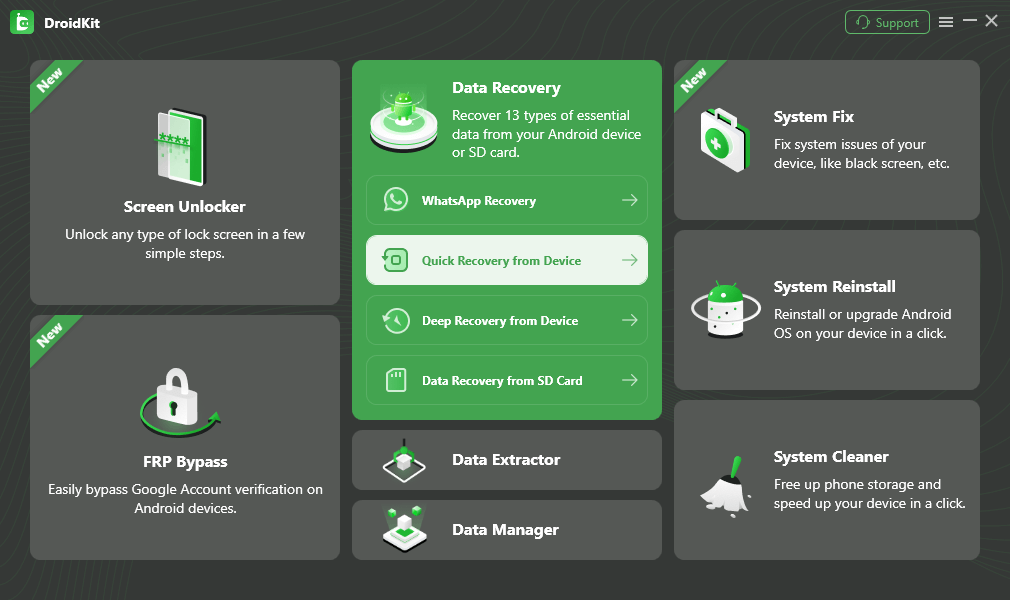
Choose Quick Recovery from Device from Data Recovery
Step 2. Choose the data type you want to recover, and click Start to continue.
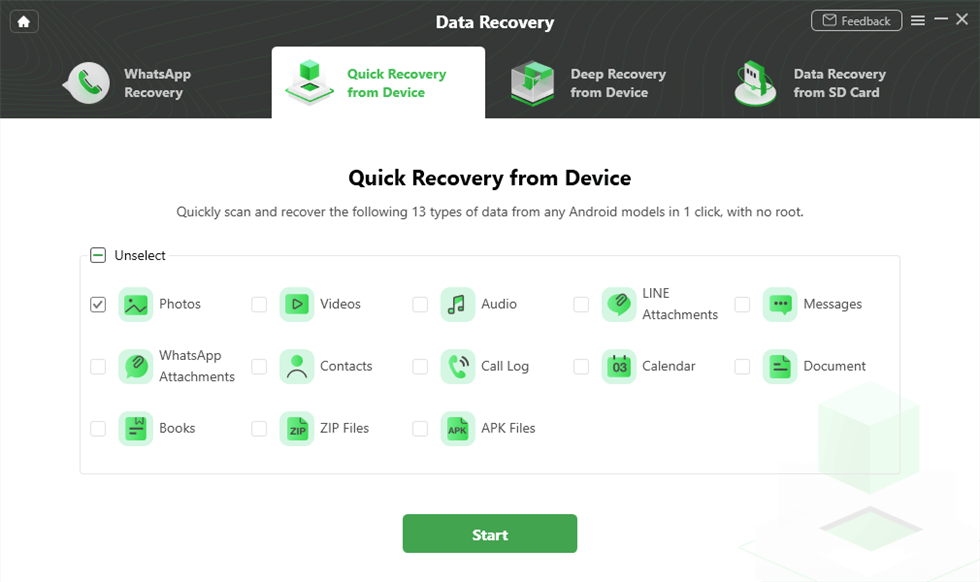
Choose Data Type
Step 3. Link your Android handset to the computer using a USB cable. Give the command to Start so that the software can scan and access the device.
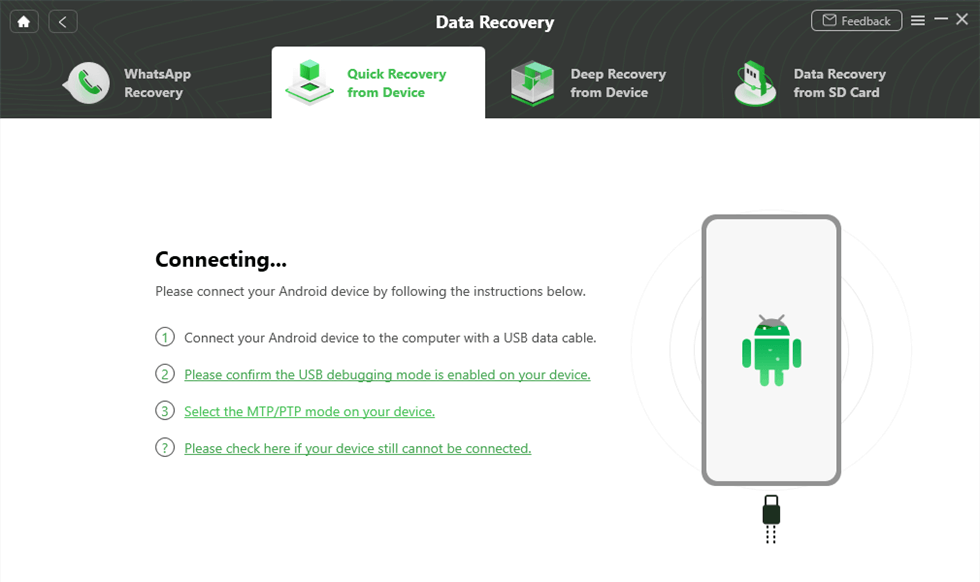
Connect Your Phone to Computer
Step 4. After scanning, look through the erased contacts, select the ones to be recovered, and click the button To PC (or To Device) to release them safely.
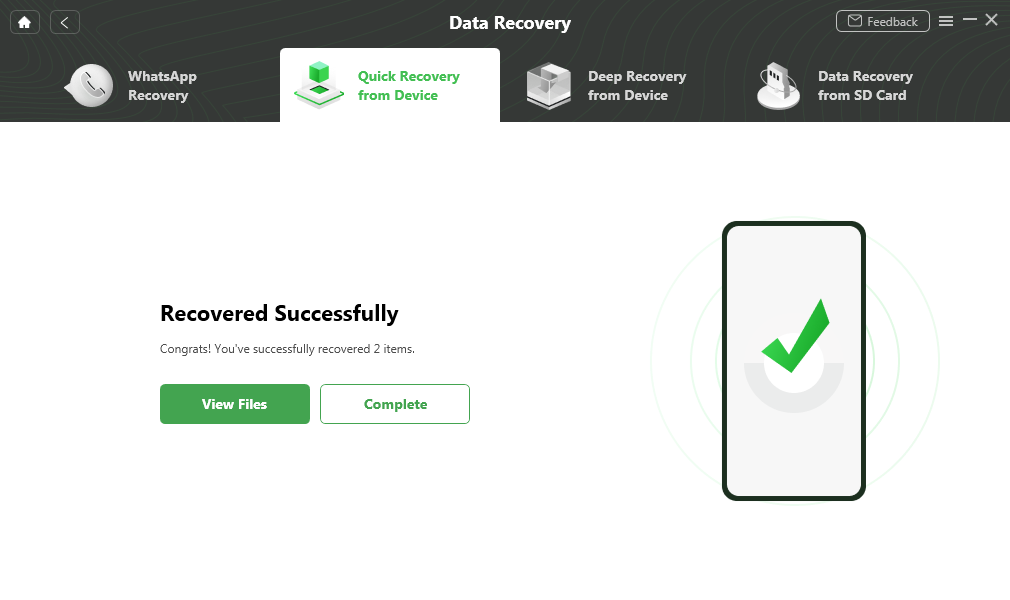
Quick Recovery from Device Successfully
Way 2. Check Cloud Backups to Recover Data from Dead Android Phone Internal Memory
Apart from using the above dedicated tool, you can also recover data from dead Android phone’s internal memory when you have a backup. The following section covers 2 ways to retrieve data from a dead phone from backups:
Option 1: Google Account Backup
Using a Google Account backup is an easy way to recover data from dead Android phone’s internal memory. You can recover data using synced contacts, messages, call logs, and app data. Photos and videos are stored securely in Google Photos separately from standard backups. Review the steps below to find out how you can utilize your Google backup to retrieve data:
Step 1. On your working phone, sign in with the same Google Account and head to the “Settings” app.
Step 2. Tap the “Account And Backup” option and access the “Manage Accounts” section to choose your Google Account.
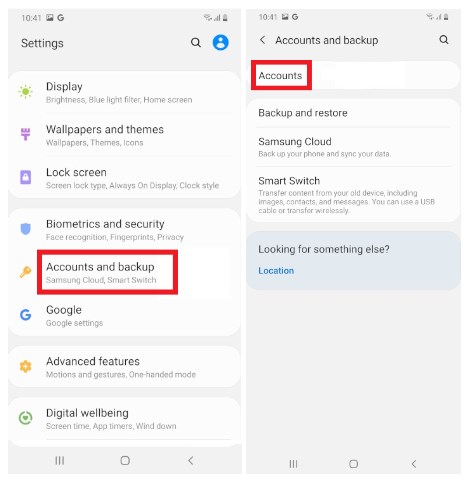
go to accounts and backup
Step 3. After selecting the account, tap “Sync Account” and then enable the toggles you want to recover.
Step 4. Once syncing is complete, open the corresponding apps on the working phone, and your backed-up data will appear automatically.
Option 2: Samsung Cloud Services
Samsung users can also recover data from dead Android phone’s internal memory from Samsung Cloud. It lets you secure call logs, messages, contacts, and device settings automatically for Galaxy devices. Samsung Cloud also offers selective restore by letting you choose which data categories to recover. Take guidance from the following instructions to understand how to use Samsung Cloud to recover your dead phone’s data:
Step 1. Access the same Samsung Cloud on your working phone and tap the “Restore Data” option.
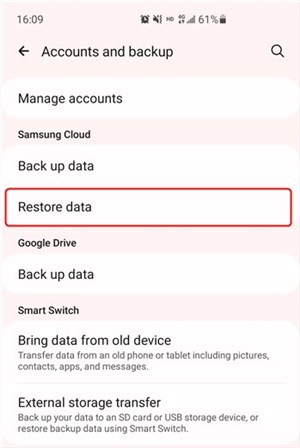
Click on Restore Data
Step 2. Choose your recently backed-up data, select your desired data, and press the “Restore” button. And your data will be recovered in the device now.
Way 3. Try SD Card Recovery to Recover Internal Memory Data
If your files were saved on an SD card, you can still recover them even if the phone is dead. Multimedia and documents stored on the card can then be retrieved on your computer. To know how to access it, go through the steps below to perform this procedure:
Step 1. Connect your dead mobile SD card to your PC using a card reader and click the “SD Card” from the “File Explorer.”
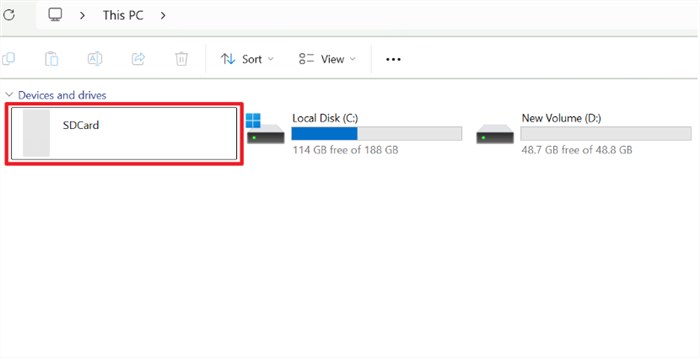
Click SD Card
Step 2. After accessing the data, select your preferred one and right-click on it to choose the “Copy” option.
Step 3. Access the PC storage, right-click on any empty area, and select the “Paste” option. Once the process completes, verify that your copied files open correctly to confirm successful recovery.
Way 4. Asking for Help from a Phone Repair Shop
When basic methods are not enough, turning to a professional phone repair shop is often the best choice. Skilled technicians have advanced tools and techniques to recover data from dead Android phone’s internal memory safely. They can perform hardware repairs or small repairs to access inaccessible data. Though it might be expensive, it has the greatest potential for recovery of important files if other solutions don’t work.
FAQs about Recovering Data from a Dead Phone’s Internal Memory
Q1. How to get back internal memory on an Android phone?
To get back internal memory on an Android phone, you can check if the device powers on and is recognized by a computer first, and then use professional recovery tools and services to retrieve files.
Q2. Can you transfer data from a phone that has a dead battery?
When a phone has a dead battery, data transfer is generally not possible directly. You must first charge or replace the battery to power on the device. Once the phone turns on, connect it to a computer to transfer data safely and efficiently.
Q3. Can data be recovered from a phone that won’t turn on?
Yes, data can be recovered from a phone that won’t turn on using tools like DroidKit. This dedicated program helps scan and retrieve 18+ data from dead devices safely.
Conclusion
In summary, this article has explored 4 possible ways to recover data from dead Android phone internal memory. Methods include using cloud backups, accessing SD cards, and consulting professional repair shops. Among these, DroidKit stands out as the most effortless method for data recovery. With just a few clicks, you can recover lost photos, messages, and more from a dead Android phone. Download DroidKit today and start protecting your valuable information immediately!
Free Download * 100% Clean & Safe


Roger Smith is a senior technical writer with years of experience in providing Android solutions. He loves to help users solve various problems such as Android unlock, Android data recovery, and Android system repair.
Product-related questions? Contact Our Support Team to Get Quick Solution >
