Fix Android Phones Stuck on Emergency Calls Only in 10 Ways
This article explains what the “Emergency Calls Only” message means and why it appears on Android phones. It provides 10 simple and effective solutions to fix this issue, including checking the SIM card, toggling Airplane mode, and resetting network settings. For deeper system issues or FRP locks, DroidKit provides a reliable fix.
Seeing your Android stuck on “Emergency Calls Only” can be confusing and disturbing. This is normally caused by your phone not being able to get a connection to your mobile network. However, there are a few fast and simple ways in which this problem can be addressed and solved. So, this article will help you learn how to turn off emergency calls only on Android using 10 effective methods.
Part 1. What Does “Emergency Calls Only” Mean?
“Emergency Calls Only” is a message shown on Android phones when the device cannot connect to its mobile network. In this condition, you cannot make normal calls, send texts, or use mobile data. However, the phone still allows you to dial emergency numbers like 911, 112, or other local services depending on your region. Moreover, this message usually appears when there is a poor signal or incorrect settings.
Part 2. Why Does Your Phone Say Emergency Calls Only?
Sometimes your Android shows “Emergency Calls Only” because it struggles to connect with the mobile network. Below, we will explore a few common reason why your phone show this problem:
- Poor Network Signal: When you are in areas with a weak signal, your phone cannot connect properly to your carrier’s network. In such cases, the phone allows only emergency calls while waiting for a stronger connection to appear again.
- Damaged Contact Card: A scratched or dirty SIM card may block the connection between your phone and the carrier’s network system. When this happens, the phone cannot read the SIM properly and only shows “Emergency Calls Only” on the screen.
- Enabled Airplane Mode: It disables your phone’s ability to connect with mobile networks, even when you are in a coverage area. If this is on, the phone may only allow emergency calls until Airplane Mode is turned off completely.
- Misconfigured Settings: Incorrect network settings can stop your phone from connecting properly to your carrier’s services. This interferes with normal calls and data, making your device unable to work, leaving it on the message of emergency calls only.
- System Errors: Your phone’s internal system may have errors or bugs that interfere with proper network registration and signal detection. In this situation, solutions like restarting or tools that show how to turn off emergency calls only on Android can help.
Luckily, there are effective ways to fix “Emergency Calls Only” Error on Android” in the next part.
Part 3. How to Fix “Emergency Calls Only” Error on Android-10 Ways
Regarding why your phone shows this problem, many quick fixes exist to resolve this issue. So, the following section covers 10 solutions to learn how to turn off emergency calls only on Android:
1. Restart You Phone
One of the easiest and most efficient ways of solving temporary problems is restarting your phone. It clears small errors, refreshes the system, and helps the device reconnect to the mobile network. Follow the steps to find out how to turn off emergency calls only on Android:
Press the “Power” button and hold it for a few seconds to select the “Reboot” option.

Reboot
2. Check SIM Card
The second solution is to examine your phone’s SIM chip if you see the “Emergency Calls Only” message. Sometimes, it is possible that the SIM may be dirty or placed incorrectly. You can put it back after removing it, wiping it gently, and putting it back to help your phone reconnect with the mobile service. This simple step often solves problems and gets your device working properly again without extra tools or effort.
3. Toggle Airplane Mode
Another easy way to fix your phone is by switching Airplane mode on and off. When you turn it off again, your phone tries to reconnect with the network. Using this simple trick often refreshes your connection and removes the “Emergency Calls Only” label. So, take guidance to understand how to turn off emergency calls only on Android by toggling Airplane mode:
As you access the “Quick Settings” panel on your Android, tap the “Airplane Mode” to turn it on and then press again to disable it.
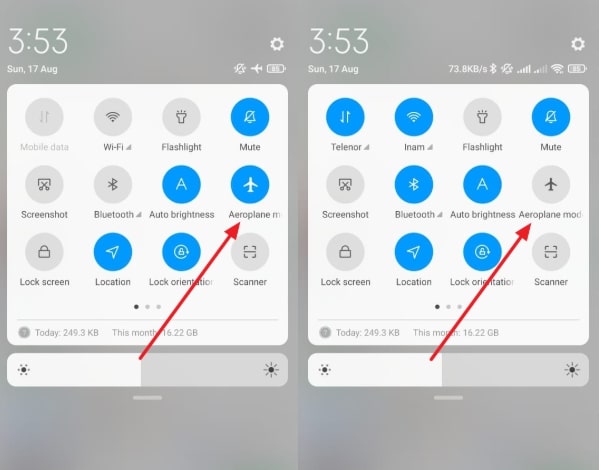
Click Airplane Mode
4. Check Network Settings
Apart from the above, checking your network ensures your phone is using the correct options to connect with your mobile carrier. This feature allows you to verify preferred network type, automatic selection, and roaming options. It helps detect if wrong settings are blocking normal calls or data usage. Thus, go through the steps to learn how to turn off emergency calls only on Android using this method:
Step 1. Initially, open your phone’s settings to go to the “Connections” section and tap “Mobile Networks” on the following screen.
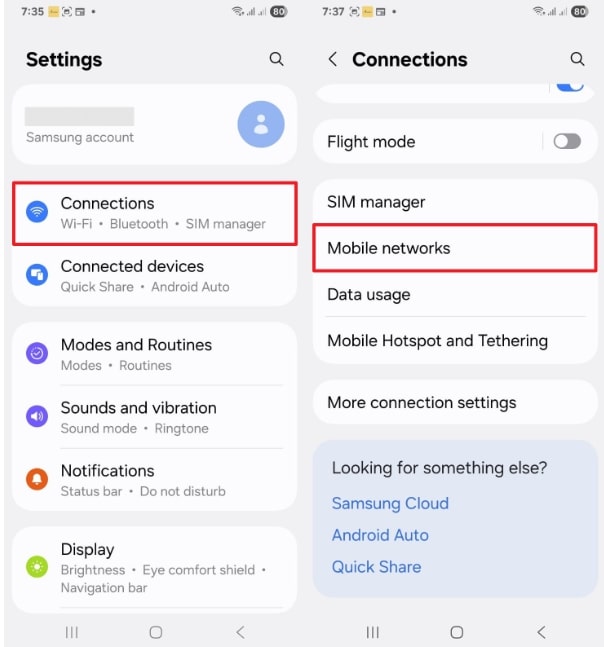
Choose Mobile Networks
Step 2. Going ahead, choose the “Network Operator” option and then make sure you have enabled the “Search Automatically” toggle.
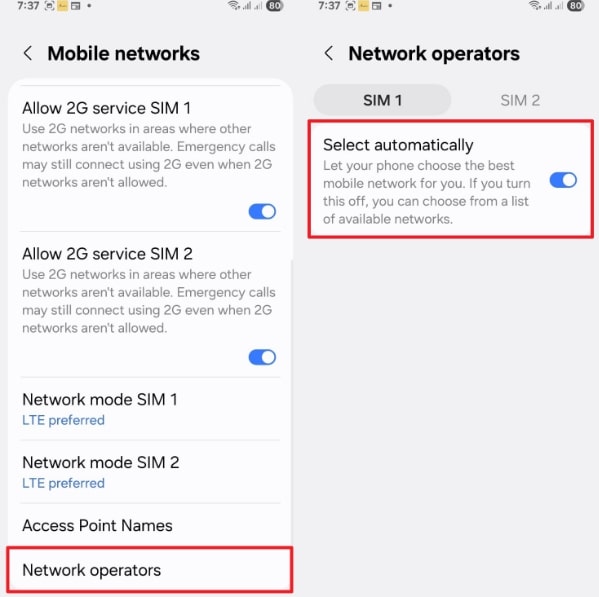
Choose Search Automatically
5. Fix Phone Stuck on Emergency Calls Only System Error-DroidKit
For an effortless solution, DroidKit is a trusted tool that fixes system errors causing the “Emergency Calls Only” problem on Android phones. It works on many mobile brands, including Samsung or Xiaomi, and does not require rooting your device. You can also use DroidKit to repair many other Android issues, like frozen screens or black screens. Take guidance from the following steps and learn how to turn off emergency calls only on Android:
DroidKit- Android System Repair Tool
- 1-click to solve system-related issues like black screen, device frozen, etc.
- No technical knowledge is required; No need to root your device.
- Supports both Windows & Mac.
Free Download100% Clean & Safe
Free Download100% Clean & Safe
Free Download * 100% Clean & Safe
Step 1. Once you download and launch Droidkit, select the “System Fix” feature and connect your Android to the PC. On the following screen, hit the “Start” button to let Droidkit detect and show your phone’s PDA code.
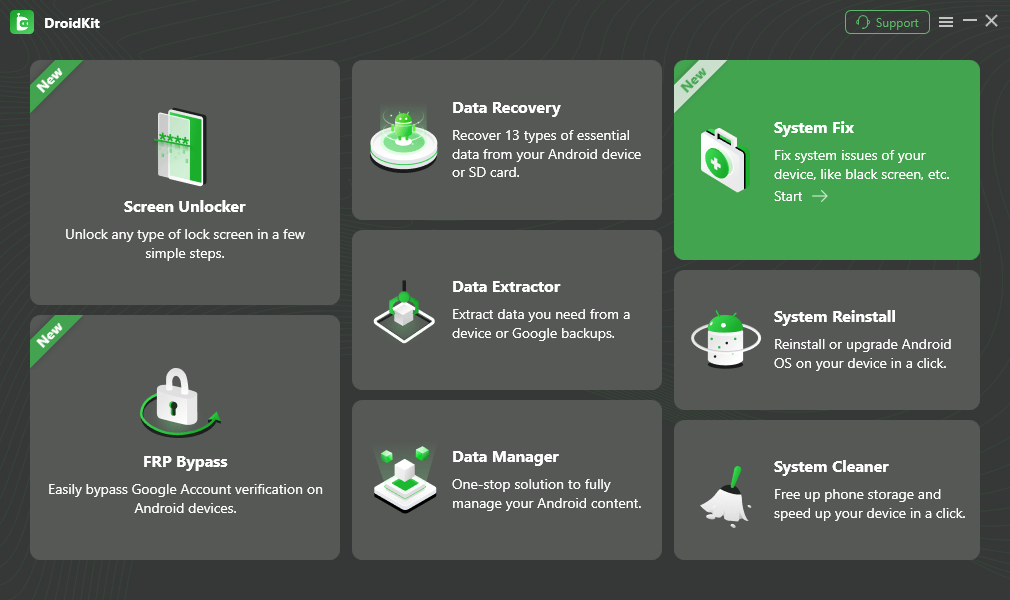
Choose System Fix Mode
Step 2. When you see the PDA code on your screen, hit the “Download Now” button to install the required firmware. Upon downloading it, press the “Fix Now” button in order to move forward.
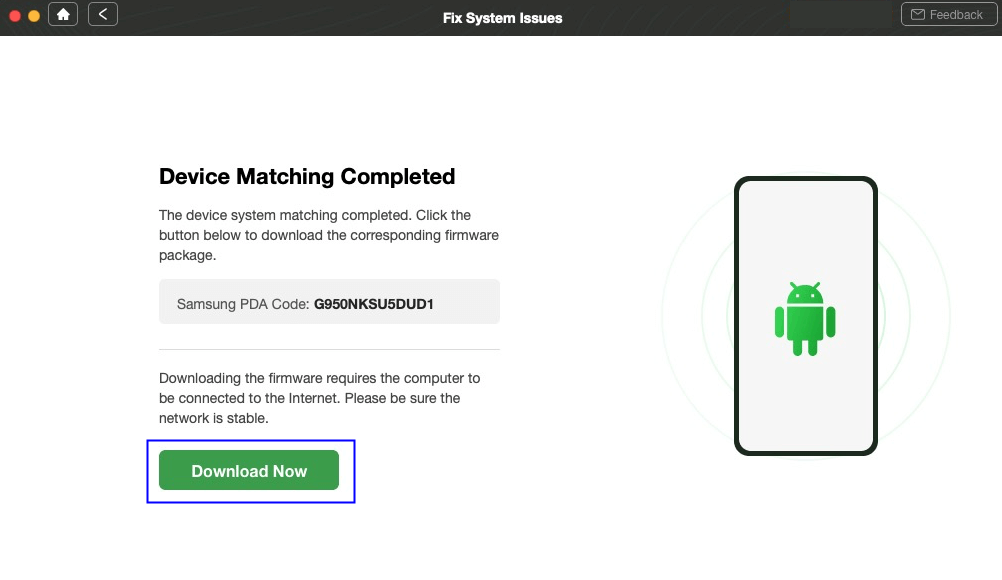
Start to Download Firmware Package
Step 3. When you access a new screen, follow the on-screen instructions to put your Android device in “Download Mode.” Afterward, press the “Next” button to allow Droidkit to start resolving the system issue, including the stuck emergency call.
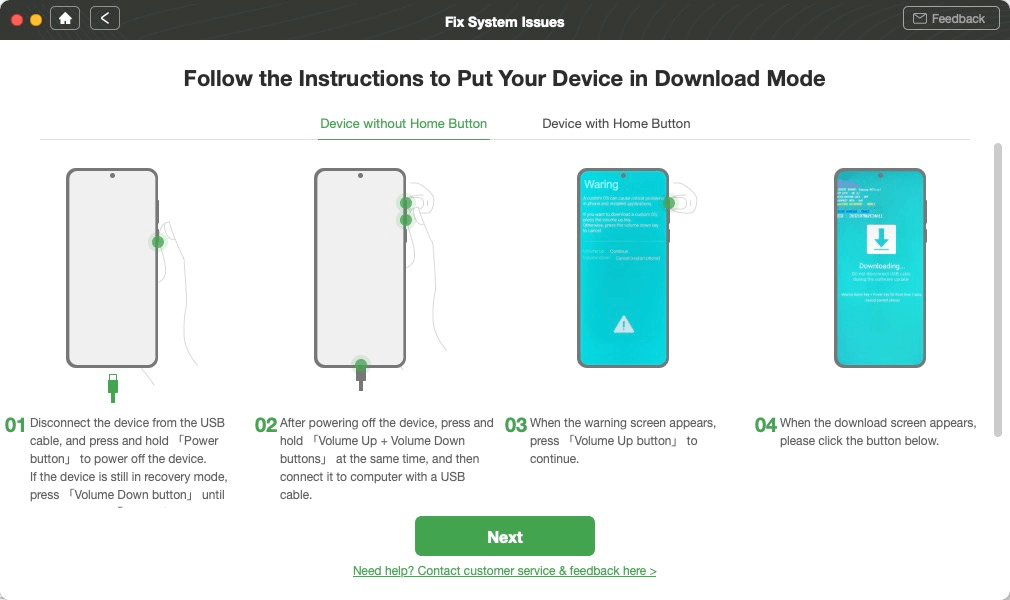
Get Your Phone into Download Mode
6. Check for Software Updates
You also need to check software updates, which keep your phone running smoothly with the latest improvements from the manufacturer. As we all know, updates fix hidden bugs, improve security, and strengthen how your phone connects with mobile networks. This feature ensures better stability, faster performance, and fewer errors during daily use. So, let’s explore how to turn off emergency calls only on Android by updating your mobile’s software:
Go to your phone’s settings and head to the “Software Update” section. Afterward, tap the “Download and Install” option and press the “Install Now” button if any update is available to install.
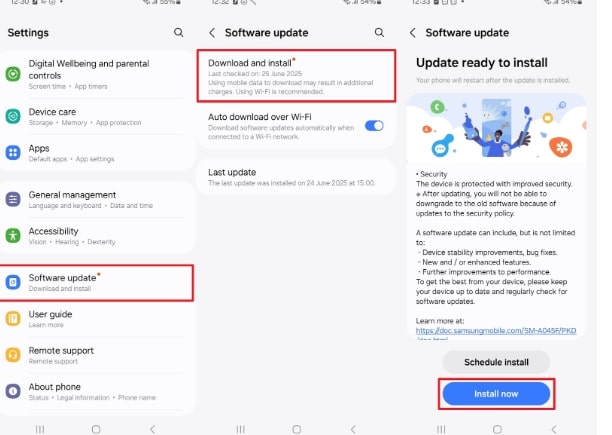
Click on Install Now
7. Reset Network Settings
It is basically a native feature that clears saved connections like Wi-Fi, mobile data, and Bluetooth configurations. This option helps remove wrong or corrupted settings that may block your phone from connecting properly. It restores default network options without deleting personal files, making it safe to use. So, adhere to the given instructions to find out how to turn off emergency calls only on Android:
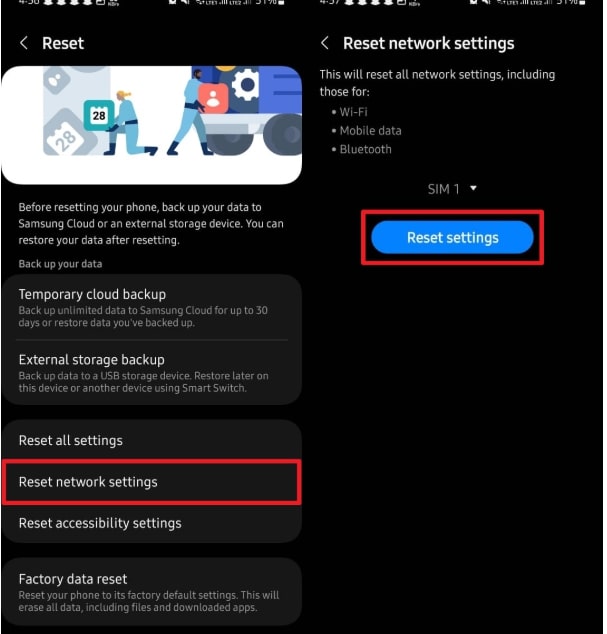
Step 1. Access your phone Settings, go to the “General Management,” and tap the “Reset” option.
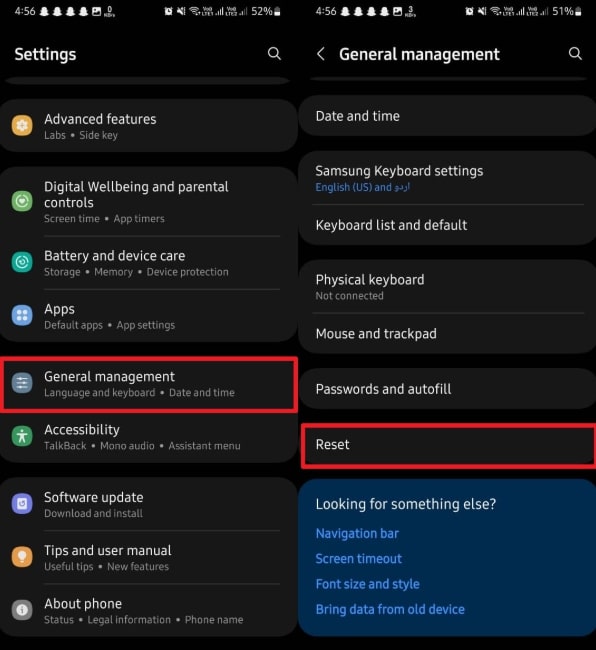
Choose Reset
Step 2. After accessing the new screen, tap “Reset Network Settings,” and hit the “Reset Settings” button.
Click Reset Settings
8. Contact Your Carrier
In case the previous basic solutions do not work, contacting your carrier is a good idea. Your mobile service provider can verify whether there is a problem with your account or network problems in your area. They can also help you with troubleshooting or update your phone remotely. This direct support ensures you get professional help to restore normal phone service quickly and with less hassle.
9. Update Carrier Settings
Many times, updating carrier settings also helps your phone stay connected with the latest network improvements. These updates improve signal strength and internet connectivity by aligning your device with network changes. It is an important option for keeping your phone compatible with ongoing network upgrades and avoiding unnecessary connection problems. So, go through the instructions to understand how to turn off emergency calls only on Android:
Upon heading to the “Play Store” app, search for “Carrier Services” and hit the “Update” button.
10. Factory Reset-Last Resort
A factory reset is the last option to fix stubborn phone issues. It wipes all information and restores your device to its initial condition. This procedure eliminates deep errors or bugs that lead to the problem of the Emergency Calls Only. Though it wipes personal files, it ultimately solves serious problems quickly. Hence, follow the steps below to learn how to turn off emergency calls only on Android by factory resetting your phone:
Step 1. To get started, access the “Settings” app on your Android and go to the “General Management” category to tap on “Reset.”
Step 2. Then, select the option of “Factory Data Reset” and tap the “Reset” button.
Conclusion
To conclude, fixing the “Emergency Calls Only” error can be challenging, but these solutions help restore normal phone use. With these methods, you now know how to turn off emergency calls only on Android effectively. DroiKit serves as an all-in-one Android tool, fixing system issues on Android devices at ease. Additionally, you can reset your Android phones without password with its Screen unlocker function. Try it now!


Roger Smith is a senior technical writer with years of experience in providing Android solutions. He loves to help users solve various problems such as Android unlock, Android data recovery, and Android system repair.
Product-related questions? Contact Our Support Team to Get Quick Solution >
