Stepwise Guide to Enable/ Disable Google Pixel Safe Mode
How to turn on and turn off Safe mode on Google Pixel? Here is the stepwise guide for you. Additionally, in case of possible Safe Mode error, we offer a troubleshooting tip to solve your problem.
DroidKit – Fix Google Pixel Safe Mode Issue
If you cannot exit Safe mode on Google Pixel, just free download DroidKit to fix your phone stuck in Safe mode easily. [Android 6-15]

Is your Google Pixel crashing or slowing down? You may be wondering what’s causing the issue. It could be a serious system bug or a corrupted app affecting your device. The best way to find out is to use Safe Mode. It can help you identify the problem and fix it more effectively.
However, many users don’t know how to enter or exit this mode. That’s why we’ve prepared a complete guide on Google Pixel safe mode. You’ll learn what it is, when to use it, and how to turn it on and off with ease. If you want to revive your phone, this guide is for you!
Part 1. What is Safe Mode on Google Pixel?
Safe mode is a built-in diagnostic tool in Pixel phones. It helps you identify the underlying cause of various smartphone issues. When active, it turns off all external apps and runs the device with only basic system settings. Other tasks that go beyond the default system settings are not available. This protected mode makes it easier to understand whether the issues are due to the external apps or the system of your device.
Part 2. When to Use Safe Mode?
You can use Google Pixel Safe Mode to figure out exactly why your phone is acting up. It’s useful if your phone is acting slow, freezing, crashing, or randomly restarting. In Safe Mode, only the apps that came with your phone are active. This makes it easier to tell if the problem is caused by something you downloaded manually.
You can tell this if your phone works normally in safe mode, indicating the problem was due to an external app. However, the issue may persist. This points to a deeper problem with the phone’s software itself.
Part 3. How to Turn on Safe Mode on Google Pixel
Turning on Safe Mode is simple on any Pixel phone. You can do it in two ways: by restarting the phone or using the power button. The method you choose depends on whether your phone is active or powered off.
Let’s go through both options one by one.
Way 1. When the Phone is Active
On any standard Pixel phone that is powered on, you can simply restart your device in safe mode. The steps to do this vary for different Pixel models. Once you know your smartphone’s model, use the following instructions to reboot it in Safe Mode.
For Pixel 6 and Later Models:
Step 1. Press and hold the Power and Volume Up keys.
Step 2. Let the buttons go when you see the “Power off” and “Restart” options. Then, tap and hold “Restart”.
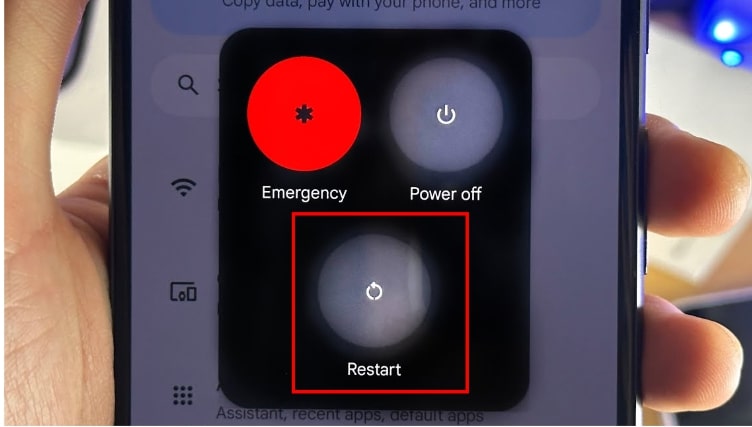
Hold the Restart Option
Step 3. Release the option when the “Reboot to safe mode” pop-up appears. From here, press “OK.”
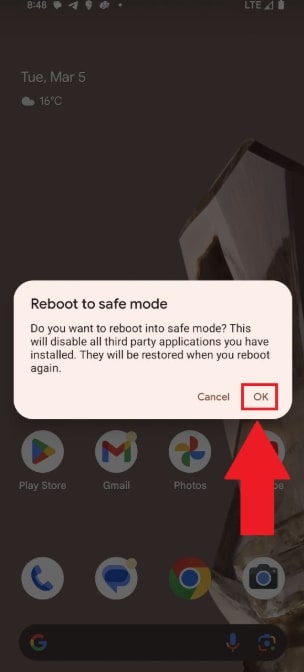
Tap OK to Reboot in Safe Mode
Step 4. Your phone will restart. After that, look for “Safe mode” at the bottom. It will confirm that you’re in the Google Pixel Safe Mode.
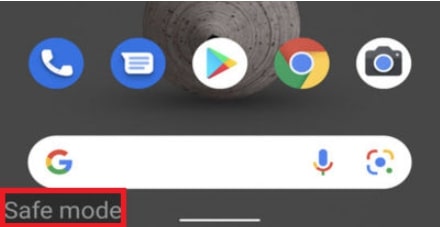
Device in Safe Mode
For Pixel 5 and Earlier Models:
Step 1. Press and hold the Power button.
Step 2. Release the keys when you see “Power off” on the screen.
Step 3. Long-press “Power off”. Keep holding until the “Reboot to safe mode” pop-up appears.
Step 4. Tap “OK” to continue. Your device will restart. Now, you are in safe mode.
Way 2. When the Phone is Powered Off
Your Pixel phone might not turn on or get to the home screen because of a technical problem. When that happens, you can start it in safe mode using the hardware buttons.
Here’s how to do it.
Step 1. Press the Power button to turn on your device.
Step 2. Once you see the Google logo animation, long-press the Volume Down key.
Step 3. Hold until you see “Safe mode” in the lower left of the lock screen.
Part 4. How to Turn Off Safe Mode on Google Pixel
After entering Google Pixel Safe Mode, try using your phone and see if it still functions abnormally. Once you’ve made an assessment, you can exit the mode and reboot your device as normal.
Here are the steps to turn off safe mode on the Google Pixel.
On Pixel 5 and earlier:
Step 1. Press and hold the Power button.
Step 2. Keep holding or until your phone restarts.

Press the Power Button
On Pixel 6 and later:
Step 1. Long-press the Power + Volume up buttons.
Step 2. Hold for a few seconds or until your phone turns on.

Press the Power and Volume up Buttons
Part 5. Bonus. Fix Android Phone Safe Mode Issue – DroidKit Way
While turning on and off Google Pixel Safe Mode is simple, sometimes it can be tricky to exit. Your phone might get stuck due to a system error, or continue to restart in safe mode. This has happened to many users and can get pretty frustrating. If you’re having the same problem, we recommend using the DroidKit-Android System Repair tool to fix it.
DroidKit is an all-in-one toolkit that can resolve any Android system issue, including getting stuck in safe mode and other software bugs. Even better, it offers customized repair solutions tailored for all device types, for a smooth and effective recovery.
Key Advantages of DroidKit
- Fix all system issues like boot loops, frozen screens, app crashes, and more.
- No need to root or unlock the bootloader (on supported devices).
- Fix problems with no technical skills or complicated steps.
- Supports all popular brands such as Samsung, Google, Xiaomi, Redmi, etc.
- Compatible with Android 6 and later versions.
- Also removes lock screens, bypasses FRP, recovers and manages data, and more.
Free Download * 100% Clean & Safe
Steps to Fix Android Safe Mode Issues with DroidKit
Step 1. Download and install DroidKit on your computer. Launch it and select “System Fix” from the main screen. Then, connect your Pixel phone and turn on USB Debugging.
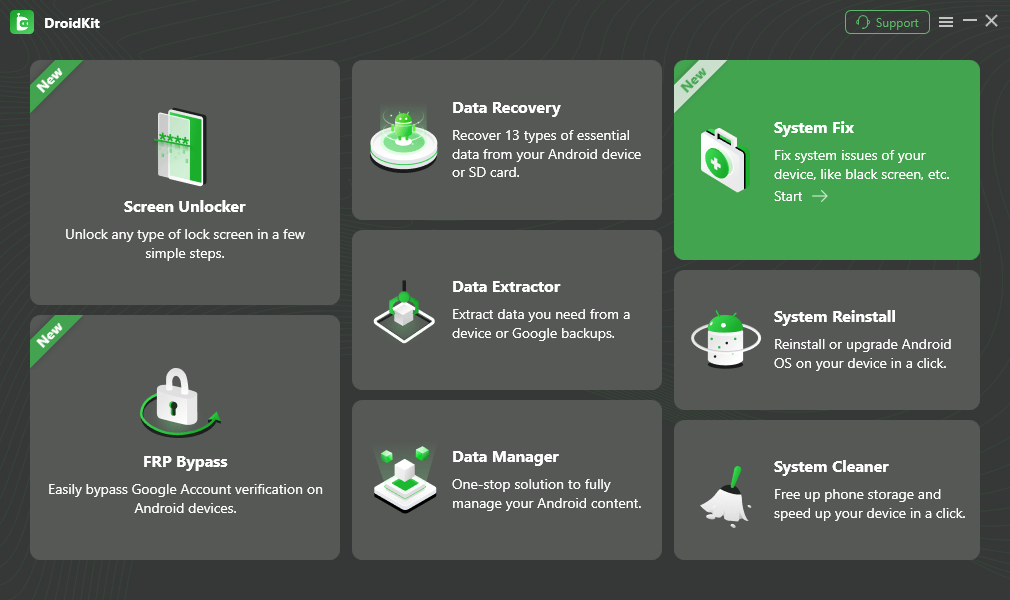
Choose System Fix Mode
Step 2. Wait till DroidKit detects your device. Then, click “Start” to proceed.
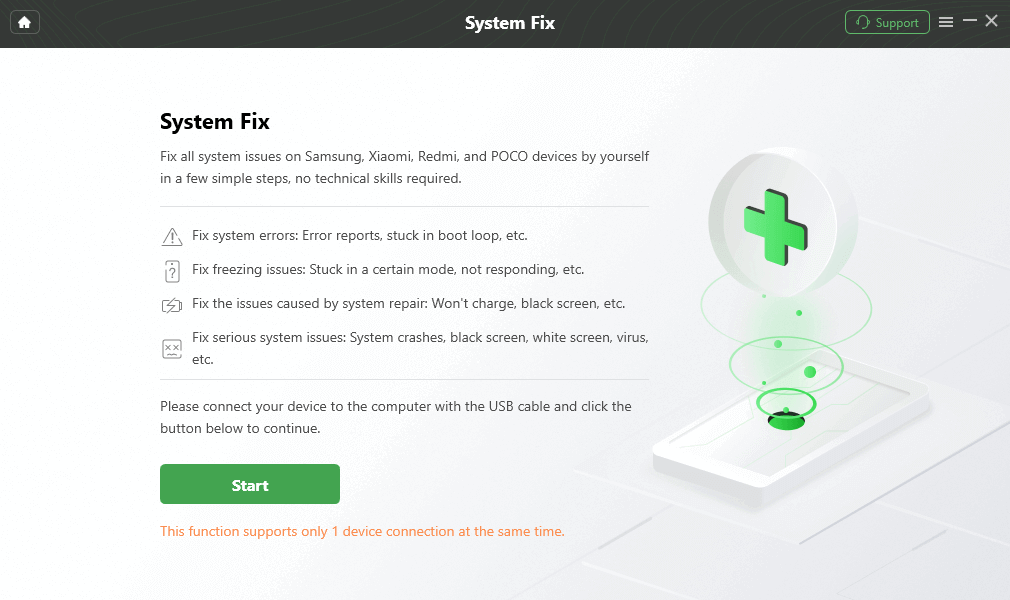
Connect Pixel 7 to Computer
Step 3. DroidKit will find the PDA code of your device and match it with the system. Once done, click “Download Now” to install the firmware.
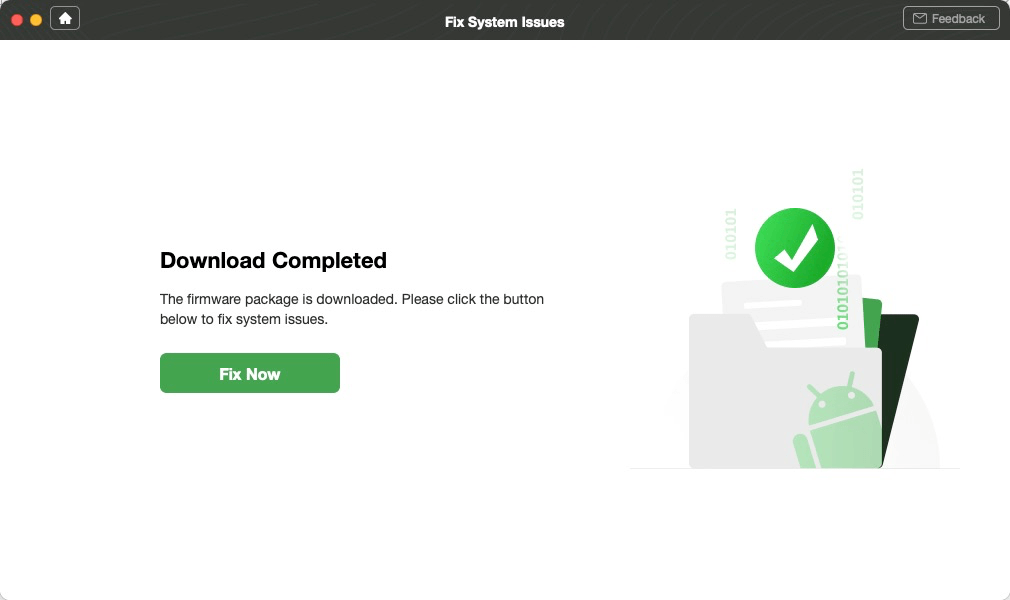
Click Fix Now after Firmware Downloaded
Step 4. Wait for DroidKit to download the firmware package on your device. After it completes, click “Fix Now.”
Click Fix Now after Firmware Downloaded
Step 5. Put your device in Download mode using the on-screen instructions. Then, click “Next.”

Put Pixel 7 in Download Mode
Step 6. DroidKit will start repairing your device. Wait for it to complete. You will see the following window once it does.
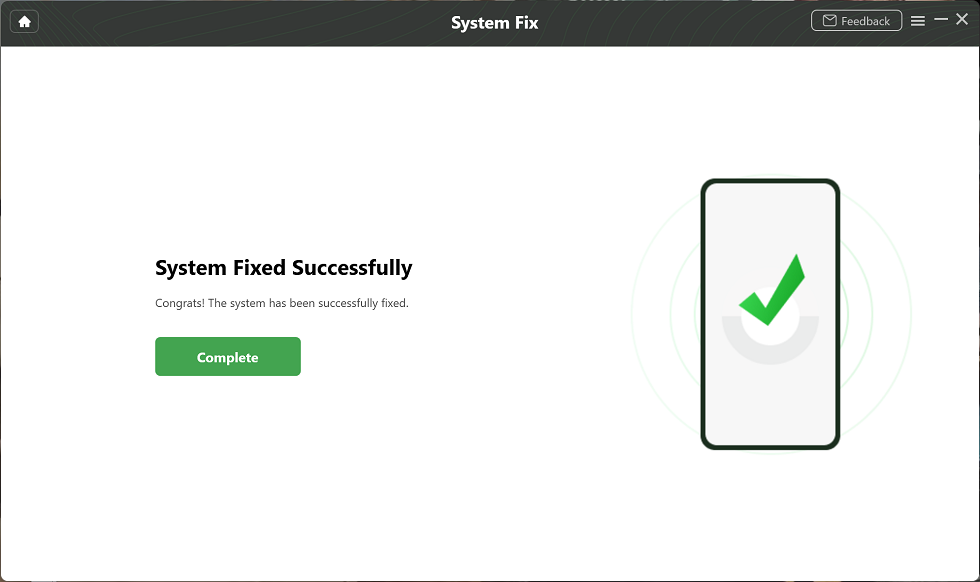
System Fixed Successfully
Part 6. Conclusion
Google Pixel Safe Mode provides a handy solution to isolate problematic apps from more severe software issues. You can activate it with a quick restart or by using the Power key. After spotting the underlying cause, simply restart the device to exit it. And if you get stuck in safe mode, DroidKit will repair your device and get it back to working in no time. Download it now to keep your smartphone running smoothly all the time!



Senior writer of the iMobie team as well as an Apple fan, love to help more users solve various types of iOS & Android-related issues.
Product-related questions? Contact Our Support Team to Get Quick Solution >
