How to Fix LG TV Stuck on Logo Screen in 5 Ways
LG TVs can get stuck on the logo screen due to software or hardware issues. This problem can often be fixed with a hard reset or factory reset, or by contacting LG support. If your LG phone is stuck on the logo screen, you can recover important data using trusted third-party software like DroidKit.
LG is one of the most commonly used TV brands in the world and is known for high-quality displays. However, there are many issues with these TVs, such as getting stuck on the logo screen. This common problem frustrates users, leaving them unable to access menus or content.
Fortunately, there are several effective solutions to this problem. This article will explain how to repair your LG TV practically, getting it working quickly and easily. Let’s explore the reasons and a step-by-step guide to restore your LG TV to normal.
Part 1. What Is the ‘LG TV Stuck on Logo Screen’ Error?
The ‘LG TV stuck on the logo screen’ error occurs when the TV displays the logo but fails to proceed to the home screen. The screen may freeze or go blank, making it impossible to access menus, applications, or channels. You might notice that the TV doesn’t respond to the remote control or buttons, rendering it inoperable.
Part 2. Why Is LG TV Stuck on Logo Screen?
The following are the possible reasons why LG TV may be stuck on the logo screen:
- Startup firmware bugs: The startup process can be disturbed due to corrupted or old firmware. Therefore, the TV sticks on the logo screen and does not boot its operating system.
- Corrupted software updates: The distorted or defective software updates interrupt the files in the system. Thus, TV cannot boot up the process and clings to the logo.
- Power supply problems: Issues with the power supply, voltage spikes, or a bad power board can create an issue, and the screen may be stuck on the LG logo screen.
- Hardware problems: Damaged parts, including the mainboard or processor, do not perform startup instructions and the TV cannot leave the logo screen.
- Overheating problems: The TV’s circuits or parts may produce heat that can damage the internal components of the TV. This problem may disrupt the startup process and the TV may be stuck on the logo due to thermal stress.
- External device incompatibility: External devices such as HDMI sticks or video game consoles produce incompatible signals. This may overload the system, preventing the TV from starting up at the logo.
- Internal memory faults: Defective or overfilled memory devices, e.g., flash storage, deny the TV access to needed boot data, resulting in a logo screen freeze.
Part 3. How to Fix LG TV Stuck on Logo Screen
Let’s have a look at how to fix LG TV stuck on logo screen issue:
Method 1. Power Cycle Your TV
The power cycling helps to reset the system of the TV, and it eliminates temporary errors that lead to the locking logo screen. Here is how you can power cycle your LG TV:
Step 1: Switch off the TV either with the remote control or the power button.
Step 2: Disconnect the TV from the power source.
Step 3: Wait 60 seconds until no residual power is left in the TV’s circuits.
Step 4: Connect the TV again and switch it on.
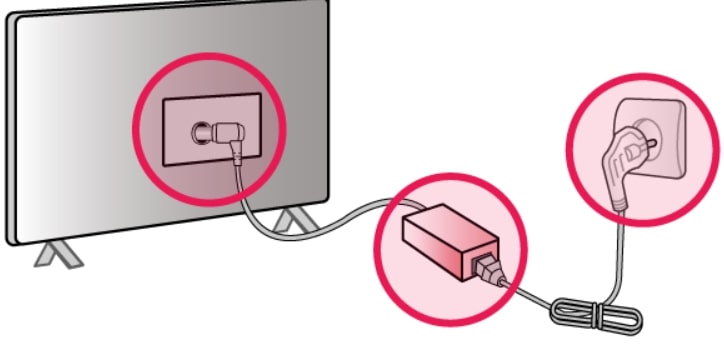
Plug Your TV
Step 5: Turn on the TV to see if the issue has been resolved.
Method 2. Perform a Hard Reset
A hard reset restores the inner settings of the TV. It solves the TV’s software problems. A hard reset is one of the most effective ways to solve the deeper or the inconsistent glitches of the LG TV.
Step 1: Cut the power supply to the TV.
Step 2: Press & hold the physical power button and wait 1 minute. This method will reset the TV.
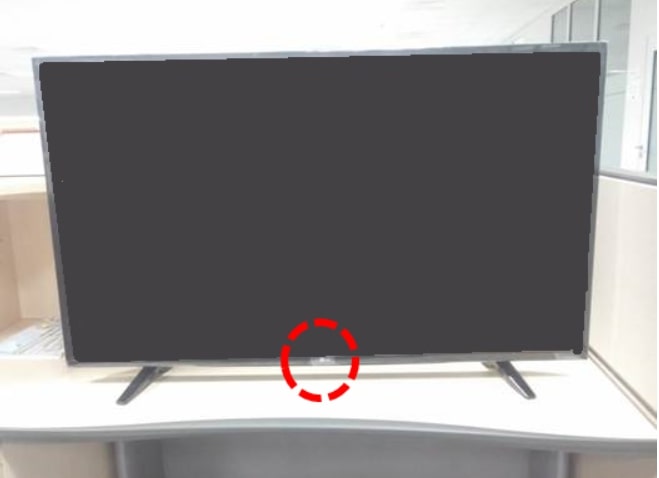
Press the Power Button
Step 3: Plug your TV back in and switch it on.
Step 4: Check to ensure that the TV screen goes past the logo or not.
Method 3. Try a Factory Reset
Factory reset returns the TV to its default settings, which eliminates the corruption of software. Note that this will clear out all user settings and data.
Step 1: Use the Settings button of your remote control to enter the menu (when it is possible).
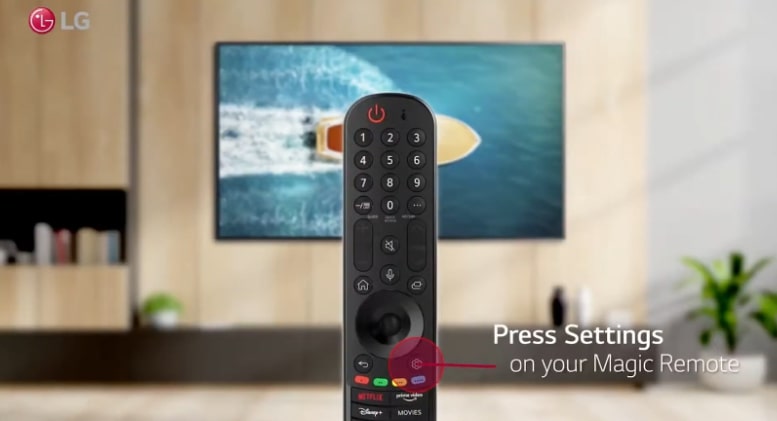
Press Settings on Remote
Step 2: Open Settings > General > Reset to Initial Settings.
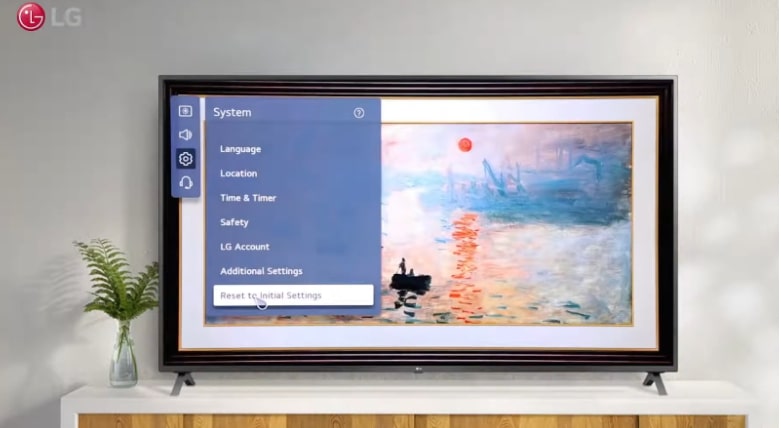
Reset to Initial Settings
Step 3: Verify the reset by pressing “OK” and enter the password of the TV if required.
Step 4: Wait till the TV restarts to finish the reset.
Step 5: Set up the TV to see if the issue has been resolved.
Method 4. Reload Firmware
Firmware reloading sorts out corrupted or problematic software by reinstalling the operating system of the TV. You will need a USB and an internet connection to perform this method..
Step 1: Find your TV model number, which is normally labelled on the back of your TV. You can even access the make and model by pressing the remote mute button three times.
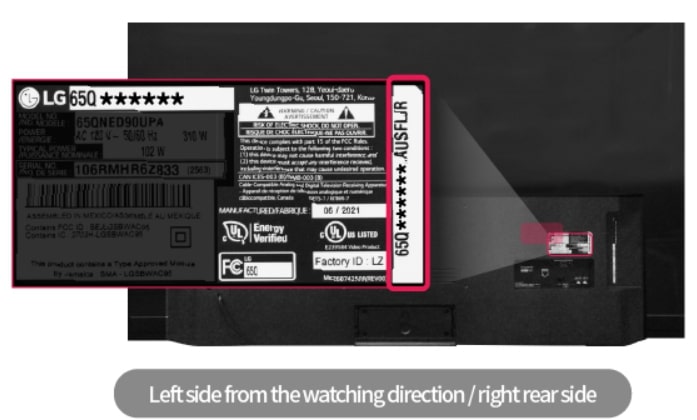
Find the Model Number
Step 2: Go to the official LG support site, add your model number and then download the latest firmware/software update file to your PC and attach the USB device to it.
Step 3: If the file downloads with a .bin extension:
- Extract the file to the USB drive that is formatted in FAT32.
In case the update file is of .epk extension:
- Unzip the file to a new folder with the name “LG_DTV” on your USB drive.
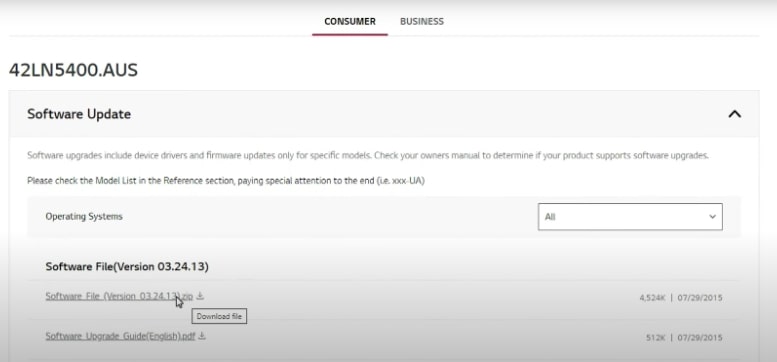
Download the Firmware
Step 4: Remove the USB safely from the PC and insert it into the USB port of your LG TV.
Step 5: The TV will automatically identify the upgrade and notify you to confirm the upgrade. Press “Start ” to begin the update process. It will take around 3 to 15 minutes.
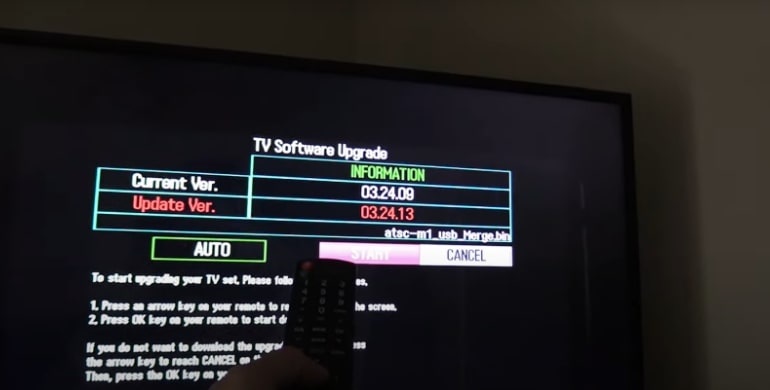
Start the Firmware Installation
After that, the TV will reboot, and new firmware will be flashed. Verify whether your TV is going past the logo screen or not.
Method 5. Contact LG Support
LG Support is able to identify and resolve complicated hardware or software problems in case all the above methods fail. Here are the steps to help you contact the LF support:
Step 1: Go to the LG support site to contact LG support.
Step 2: Enter your model number of the TV and explain the logo screen problem.
Step 3: Follow their expert guide to troubleshoot the problem or understand the service.
Step 4: Arrange for repair if they recommend it.
Part 4. Bonus. How to Fix an LG Phone Stuck on Logo Screen
We hope the above methods resolve the LG TV stuck on logo screen issue. But what if your LG phone is stuck on the logo screen? Fortunately, a powerful Android system repair tool, DroidKit, can fix Android system issues without requiring a full boot. Whether your LG phone is stuck on the logo screen, displays a black screen, or has an unresponsive touch screen, DroidKit can address these issues effectively.
DroidKit – Repair Android System in 1 click
- Fix various system issues like black screen, stuck at logo screen and so on.
- Intelligently choose the best solution for your device.
- No technical knowledge is required; No need to root your device.
Free Download100% Clean & Safe
Free Download100% Clean & Safe
Free Download * 100% Clean & Safe
DroidKit is also a trusted Android data recovery tool that retrieves lost data without rooting. It supports Android versions 5 and above, recovering various data types, such as photos, videos, documents, and contacts.
To retrieve data on your LG phone with DroidKit Quick Recovery mode, take a look at the following steps:
Step 1. Download and open DroidKit on your computer and select the System Fix option. Connect your device and click on the Start button.
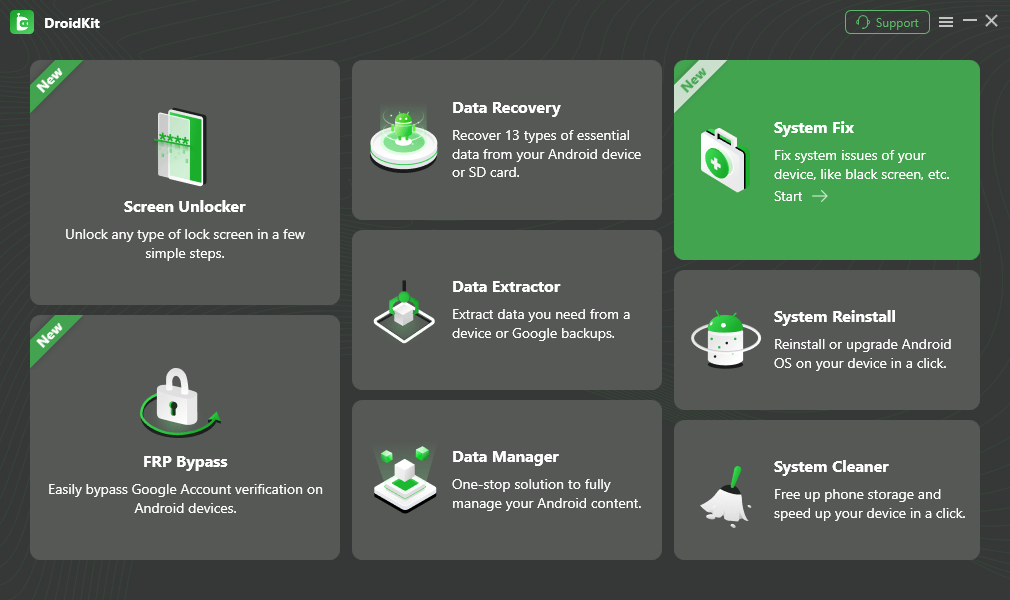
Choose System Fix Mode
Step 2. DroidKit will match the PDA code of your Device. Just click Download Now to get the firmware.
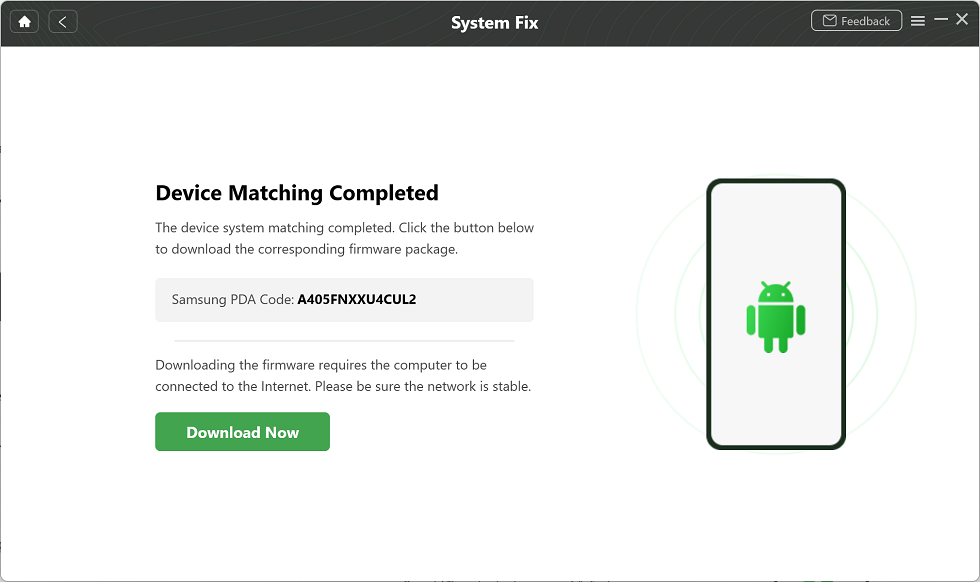
Complete Device Matching
Step 3. After that, click the Fix Now button and put your device into download mode.

Put Phone in Download Mode
Step 4. Once the firmware is downloaded and checked, your Android system’s repair begins automatically. Please wait briefly.
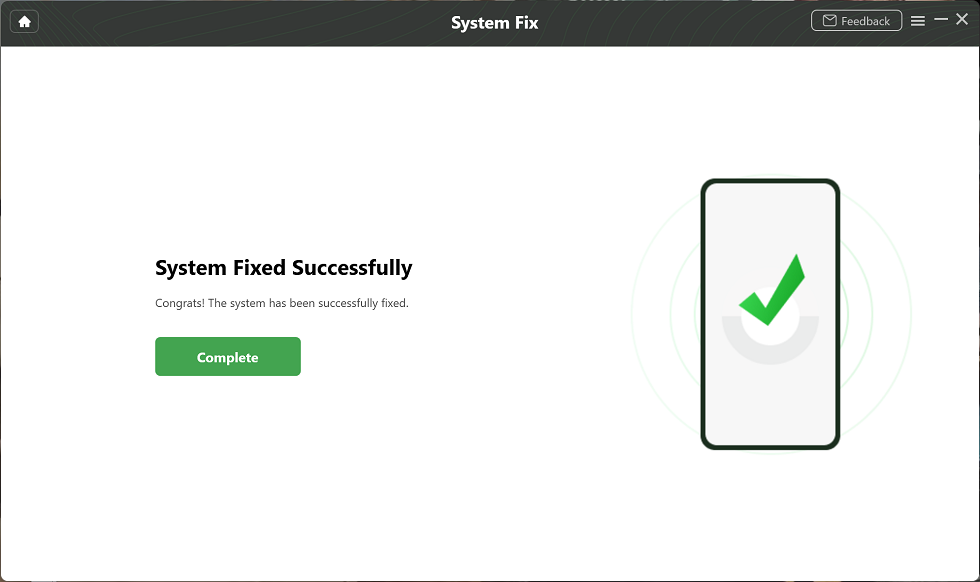
System Fixed Successfully
Part 5. FAQs
Q1. How to get rid of the LG logo on TV?
Go to the hidden menu of the TV by pressing the Mute button three to five times using your remote. Turn off the “Show LG logo when turning off” from the next menu.
Q2. How to force shut down an app on LG TV?
Press the Home button and go to the app. Press and hold down the Home button to access the App Switcher and tap the X to close it.
Q3. How do I unfreeze my LG TV without a remote?
Unplug the TV, press and hold the power button on the TV for 10-15 seconds. Then, wait for 1 minute, plug it back in and turn it on.
Part 6. Conclusion
In summary, the problem of LG TV stuck on logo screen happens due to firmware malfunctions, corrupted firmware upgrades, or hardware failures that interrupt watching. The solutions would be power cycling, hard reset, factory reset or firmware reload. And if you’re experiencing logo stuck issues on your LG phone, you can use DroidKit to repair the system.


Roger Smith is a senior technical writer with years of experience in providing Android solutions. He loves to help users solve various problems such as Android unlock, Android data recovery, and Android system repair.
Product-related questions? Contact Our Support Team to Get Quick Solution >
