How to Fix ‘Network Locked SIM Card Inserted’ Issue in 3 Ways
Facing ‘Network Locked SIM Card Inserted’ error? Don’t panic. In this article, we will share three methods to solve this problem effectively.
“How do I unlock a network locked SIM card inserted in my phone? I’m struggling to make it work. Can anyone assist?”
-from Quora
Changing your SIM card may lead to the “Network Locked SIM Card Inserted” error, especially when switching carriers or using a phone from another region. While sometimes your phone isn’t actually locked, this error often indicates that it can’t recognize or work with the new SIM.
Don’t worry! In this article, we’ll explain what this error means and show you 3 easy ways to fix it so your phone can work with any SIM card again.
Part 1: What Does ‘Network Locked SIM Card Inserted’ Mean?
The message “network locked sim card inserted” shows up when a phone is locked to one network and doesn’t accept SIM cards from other carriers. This often happens with phones bought through mobile contracts or certain service providers.
A locked phone stays connected only to the original network. Unlocking a device is a must before trying another SIM in it. This, however, can be a hassle, especially when changing networks or trying to use local SIM cards while traveling.
Most of the Samsung devices come unlocked by default, but there are cases where the seller or carrier adds the lock later. In this case, it is better to get the unlock code from the seller or carrier.
Part 2: Why Is My SIM Showing Network Locked?
It means that your phone cannot operate with the SIM you inserted. But why does this happen?
- Your phone is locked to one network: Most of the time, the phone was bought from a carrier and is set to work only with their SIM cards. Until it’s unlocked, it won’t accept SIMs from other networks.
- It’s a secondhand phone: If the phone was used before, it might still be locked to the previous owner’s network. They may not have removed the lock.
- Wrong SIM card: The SIM card may be from a region that is not supported by the phone, or it may not match the type of network that the phone supports. This is common when using travel SIMs.
- Region-locked phones: Some phones are locked to work only in certain countries. If you try a SIM from another place, it may not work at all.
- Software issues: Sometimes, a phone update or system bug can cause this error, even if the phone and SIM were fine before.
Part 3: How to Fix ‘Network Locked SIM Card Inserted’ Issue
The network locked SIM card inserted message may seem serious, but don’t worry. There are a few simple ways to unlock your phone and start using any SIM card you like. Below are the top two solutions you can try.
Way 1: Contact Your Network Carrier
This is by far the most secure and most reliable. They can issue you a special unlock code if you still have an original carrier lock on your phone. You’ll probably have to comply with some conditions, once approved, the unlocking process typically takes just a few minutes.
Steps to Unlock through Carrier:
Step 1: Get your phone’s IMEI number. Call *#06# on your phone or go to Settings and then About Phone.
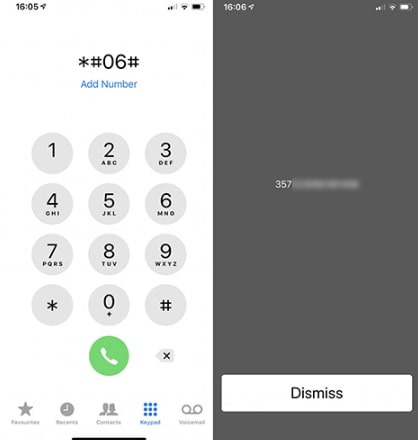
Call *#06#
Step 2: Contact the customer care service of your network provider through a call or text message, stating that you want to unlock your phone.
Step 3: Give them your IMEI number and anything else you may be asked for.
Step 4: Wait while they check your eligibility. You might have had to have used the phone for at least 3-6 months and cleared any dues.
Step 5: If approved, they will send you an unlock code.
Step 6: Power off your phone, insert a SIM from a different network.
Step 7: Switch the phone on. A screen will come up and ask for a ‘SIM Network Unlock PIN.’
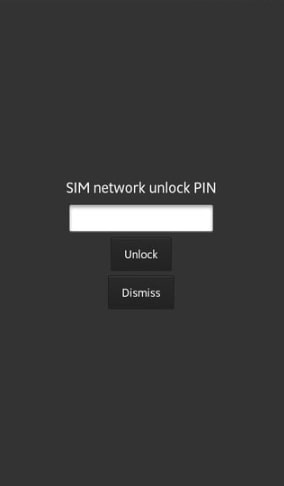
Ask for SIM Network Unlock
Step 8: Insert the code which unlocks the device. Your device is now ready for use with any SIM of your desire.
Way 2: Unlock Using Online Unlock Service
If your carrier won’t help or you want a faster solution, try an online unlock service like MobileUnlocks. It’s safe, works remotely, and supports many phone brands and carriers.
Steps to Unlock Using MobileUnlocks:
Step 1: Visit MobileUnlocks
Access the MobileUnlocks platform. Choose the country and provider where your phone is locked.
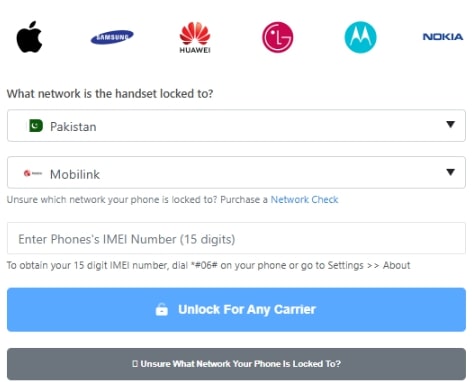
Visit MobileUnlocks
Step 2: Input Your IMEI Number
The IMEI number can be found by dialing *#06# on the phone or going to Settings > About Phone. You will input this number into the website.
Step 3: Type in Your Contact Details
Fill in a name and email address since this is where the unlocking instructions will be sent.
Step 4: Make the Payment
Pay via credit/debit card or Apple Pay. Even if you selected the wrong carrier, the system will automatically detect and adjust it. They will resolve that. The provider also does checks for being blacklisted.
Step 5: Wait a Few Minutes
Unlocking for the majority of phones occurs within 15 minutes. You will get everything via email.
Step 6: Unlock Your Phone
- Android: You would enter a code after prompting it to enter a new SIM card.
- iPhone: Simply insert a new SIM card, and no code is required.
Way 3: Repair Your Phone (Using iMobie DroidKit)
Not every SIM card issue comes from the network or the SIM itself. Sometimes, your phone’s system is the real problem. A buggy software update, corrupted files, or a system crash can mess with your network settings and cause errors like “network locked sim card inserted.” This is where DroidKit- Android System Repair tool comes in handy.
DroidKit isn’t just a repair tool, but a complete Android rescue kit. This product is reliable, simple to use, and designed to solve problems that arise in Android devices. It repairs system bugs, bypasses FRP locks, restores deleted data as well as unlocks frozen screens for DroidKit in clicks.
Why Choose DroidKit?
- The product effectively repairs Android system errors such as boot loops, freezing, and not recognizing the SIM.
- It is compatible with over 2,000 Android models from popular brands such as Samsung, Xiaomi, Oppo, Vivo, and many more.
- The product can recover lost files that are either on the device, the SD card, or the Google account.
- Bypass FRP lock (Factory reset protection) on many devices.
- Unlocks screen locks even if the buttons don’t work.
- Extracts data from damaged, stuck, or locked phones.
Free Download * 100% Clean & Safe
Steps to Repair Your Phone Using DroidKit:
Step 1: First, download and install DroidKit on your computer. Open it, and on the main screen, click on “System Fix.”
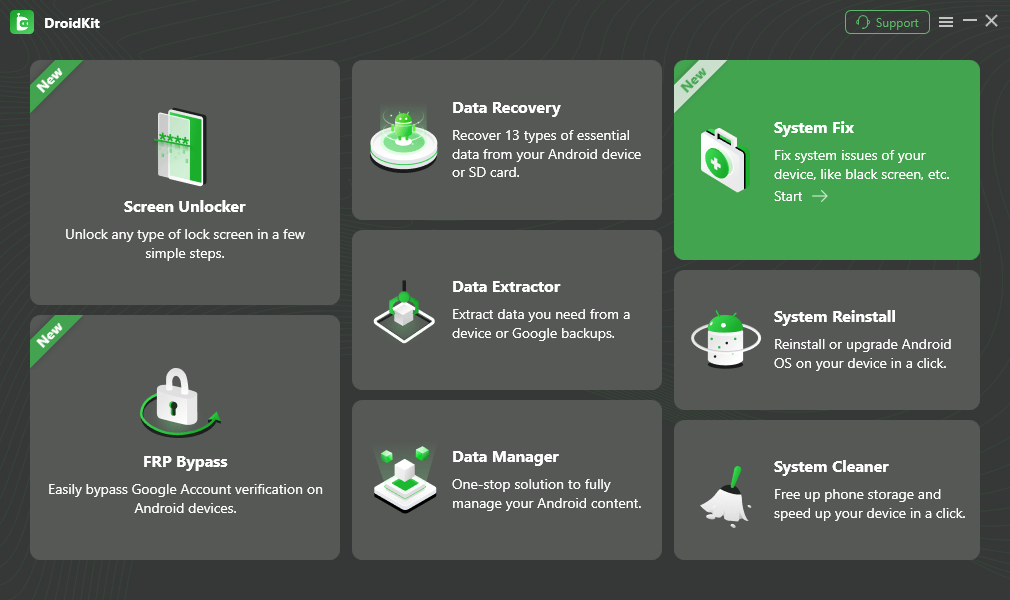
Choose System Fix Mode
Step 2: Make sure your phone has USB debugging turned on, then connect it to your computer with a cable. When DroidKit detects your device, click “Start.”
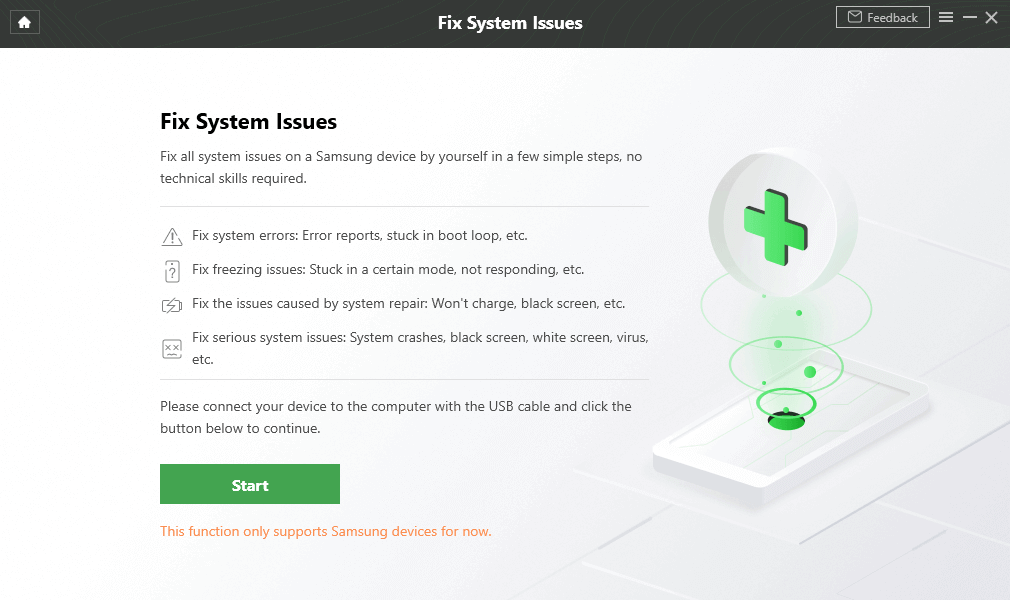
Start to Fix App Crashing Issue on Android with DroidKit
Step 3: DroidKit will find the right system version (firmware) for your phone. Click “Download Now” and let it download the package. Just keep your phone connected the whole time. When the download finishes, click “Fix Now.”
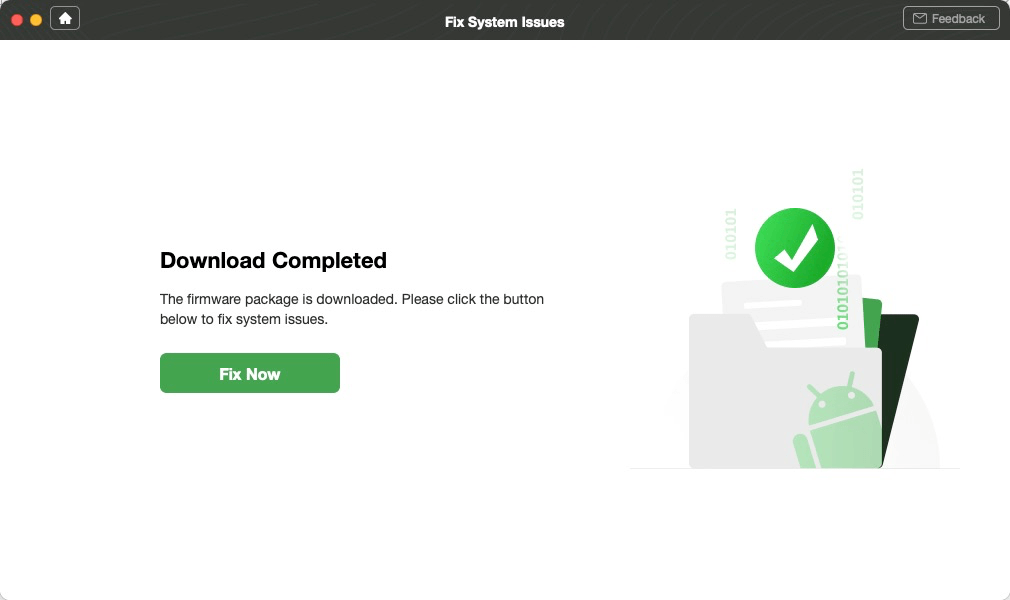
Click Fix Now after Firmware Downloaded
Step 4: Now, you’ll need to put your phone into Download Mode. It will show you how, based on your phone type whether it has a Home button or not. Just follow the instructions and click “Next” when you’re done.
Step 5: Once everything is set, DroidKit will start repairing your phone’s system. Wait a few minutes. When it’s done, your phone will restart and hopefully, that SIM card error will be gone.
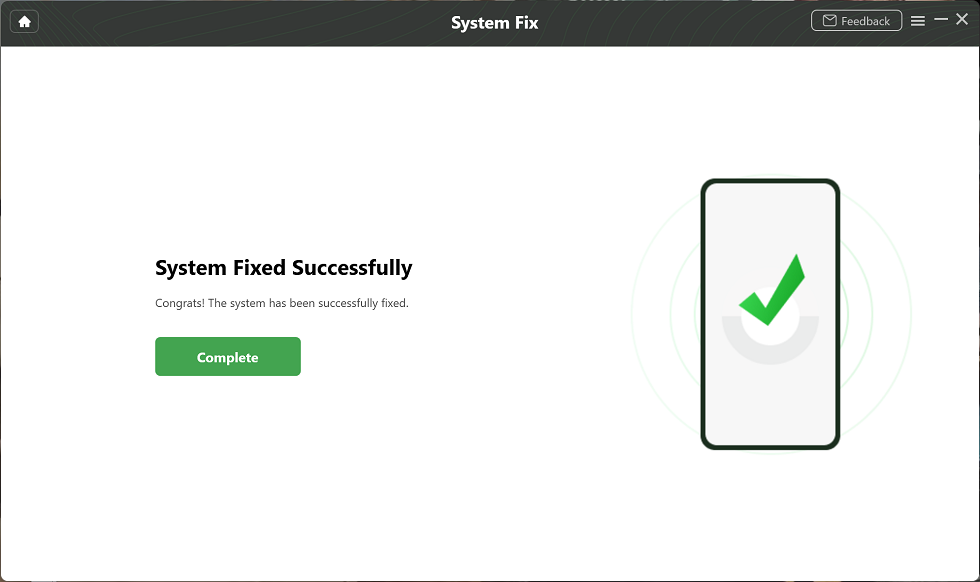
System Fixed Successfully
Part 4. Bonus: How to Check If Your Phone Is Network Locked
Before trying to unlock your phone, it’s a good idea to check whether it’s actually network locked. Many users don’t realize their phone might already be unlocked and finding out only takes a few minutes. Below are two simple methods you can try without calling your carrier.
Method 1. Check in Settings
Many iPhone and Android devices let you check the network lock status through the settings menu. Here’s how to do it for both:
For iPhone:
Step 1: Open the settings menu on your iPhone.
Step 2: Tap on general and then tap about.
Step 3: From there, look for network provider lock and scroll down.
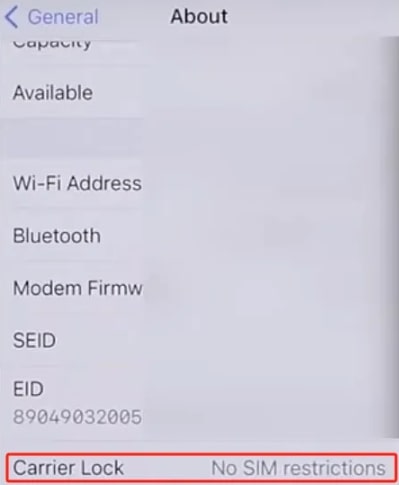
Scroll Down to Carrier Lock
Step 4: When it reads no sim restrictions, then congratulations! Your phone is probably unlocked. If not, it could remain locked to a specific carrier.
For Android:
Step 1: Go to the Settings section of your phone.
Step 2: Tap Network & Internet or Connections, depending on your device.
Step 3: Tap Mobile Network or Cellular Networks.
Step 4: Go to Network Operators and try selecting a different carrier manually.
Step 5: If you’re able to search and choose other networks, your phone is likely unlocked. If the option is blocked or shows an error, your phone is probably locked.
Method 2. Use Another SIM Card
Use a SIM card from a different mobile provider to see whether your phone is locked to a network. If it connects and operates normally, it is likely unlocked. However, if messages such as “SIM not supported” pop up or ask for an unlock code, then the phone is still locked to its original carrier.
Conclusion
The “Network Locked SIM Card Inserted” error isn’t always about your SIM. Sometimes it can result from system issues within the phone. If carrier support doesn’t help, tools like DroidKit offer a complete, safe way to repair Android problems and regain SIM access, all without needing technical skills. Trust DroidKit and repair your system in minutes.



Senior writer of the iMobie team as well as an Apple fan, love to help more users solve various types of iOS & Android-related issues.
Product-related questions? Contact Our Support Team to Get Quick Solution >
