SP Flash Tool Download [Latest Version 2026] – How to Use & Alternatives
Do you own a MediaTek Android device and want to upgrade its firmware? SP Flash Tool can do so to revive a dead device. This guide will also focus on the SP Flash Tool and its alternatives. Moreover, we suggest using DroidKit to reinstall your Android software if you are looking for an alternative.
SP Flash Tool, also known as Smart Phone Flash Tool, is a firmware flashing utility used with MediaTek-based devices. It can help with tasks such as installing compatible firmware, restoring a device, or writing selected partitions, but it is not a universal Android flashing tool and it requires the correct files for the exact device.
Quick answer:
If you are looking for the SP Flash Tool latest version or an SP Flash Tool download, do not rely on a version number alone. SP Flash Tool builds can differ by platform, device program, and distribution source. Verify the download against your device manufacturer or an official MediaTek resource when available, and make sure the firmware and scatter file match your exact MediaTek device before flashing.
For users who mainly want a guided Android system reinstall rather than a manual MediaTek flashing workflow, DroidKit provides a simpler alternative on devices supported by its System Reinstall feature.
Also Read: Best Android flashing tools
What is the SP Flash Tool?
SP Flash Tool, short for Smart Phone Flash Tool or Smartphone Flash Tool, is used for firmware-related operations on devices built with compatible MediaTek (MTK) chipsets. Depending on the device and firmware package, it can be used to write stock firmware, recovery images, or selected partitions.
SP Flash Tool should not be treated as a one-click repair program for every Android phone. A typical flashing workflow requires the correct firmware package, a compatible scatter file, suitable USB drivers, and the exact device model. Using files intended for another model or choosing the wrong flashing mode can cause data loss or prevent the device from booting.
About the SP Flash Tool latest version:
Public version numbers are not always consistent across MediaTek programs and third-party download mirrors. MediaTek’s Genio documentation currently directs supported developers to its software-development area for SP Flash Tool, while publicly available mirrors may list different v5 builds. For that reason, this guide does not label one third-party v5 package as the universal “latest version” for every MediaTek phone. Use the build recommended for your device or platform whenever possible.
Main Features of SP Flash Tool
- Firmware flashing: Writes compatible firmware images or selected partitions to supported MediaTek devices.
- Scatter-file workflow: Uses a MediaTek scatter file to describe the device partition layout and identify files to be flashed.
- Recovery-related operations: Can be used in certain device-specific recovery or unbrick workflows when the correct firmware package is available.
- Partition selection: Lets experienced users choose which supported partitions to write instead of treating every operation as a full-device flash.
- Windows and Linux workflows: SP Flash Tool packages are commonly used on Windows and Linux. Availability and compatibility can vary by build and device program.
Pros and Cons of SP Flash Tool
| Pros | Cons |
| Useful for compatible MediaTek firmware workflows. | Not designed for non-MediaTek Android devices. |
| Can write stock firmware and selected partitions when the correct files are available. | Requires exact firmware and scatter-file matching. |
| Offers advanced control over the flashing process. | The interface and flashing modes can be difficult for beginners. |
| Windows and Linux packages are available for supported workflows. | Drivers, USB connection behavior, and device detection can vary by model and computer. |
| Can help in some firmware-restoration or unbrick scenarios. | Incorrect files or settings may erase data or cause boot problems. |
Before you download SP Flash Tool:
- Confirm that your phone or tablet uses a compatible MediaTek chipset.
- Confirm the exact model number and region/variant of the device.
- Obtain firmware intended for that exact model and verify the scatter file belongs to the same package.
- Back up important data whenever the device is still accessible.
- Prefer the device manufacturer, an official MediaTek resource, or documentation provided for your platform over an unknown mirror.
How to Get Smartphone Flash Tool Download for Windows and Linux
Because searches such as “SP Flash Tool download,” “SP Flash Tool latest version,” and “SP Flash Tool download for PC” often lead to multiple mirrors with different version numbers, focus first on the source and device compatibility rather than simply choosing the file with the largest version number.
Step 1. Check your device manufacturer’s support resources or the MediaTek resources provided for your platform. For supported MediaTek Genio platforms, MediaTek currently points users to its software-development tools area for SP Flash Tool.
Step 2. If you use a third-party archive such as spflashtool.com, treat it as a third-party source rather than an official MediaTek download page. Compare the build with the version recommended for your device before running it.
Step 3. Select the package intended for your computer platform. SP Flash Tool packages are commonly available for Windows and Linux. Do not assume that a Windows executable will work correctly simply because it launches on your PC.
Step 4. Extract the downloaded archive to a dedicated folder. On Windows, the executable is commonly named flash_tool.exe.
Step 5. Install the MediaTek/device USB driver required by your specific phone and Windows setup if the device is not detected. Prefer driver packages from the device manufacturer or another source you can verify.
How to Use SP Flash Tool Latest Version
The exact workflow can vary by SP Flash Tool build and device, but a typical scatter-based firmware flashing process follows the steps below. Before starting, make sure you have the correct firmware for the exact device model.
Step 1. Extract the SP Flash Tool archive. On Windows, locate and open flash_tool.exe.
Step 2. In SP Flash Tool, locate Scatter-loading File. Select the scatter file included with the firmware package for your exact MediaTek device. The filename may vary; do not substitute a scatter file from another phone model.
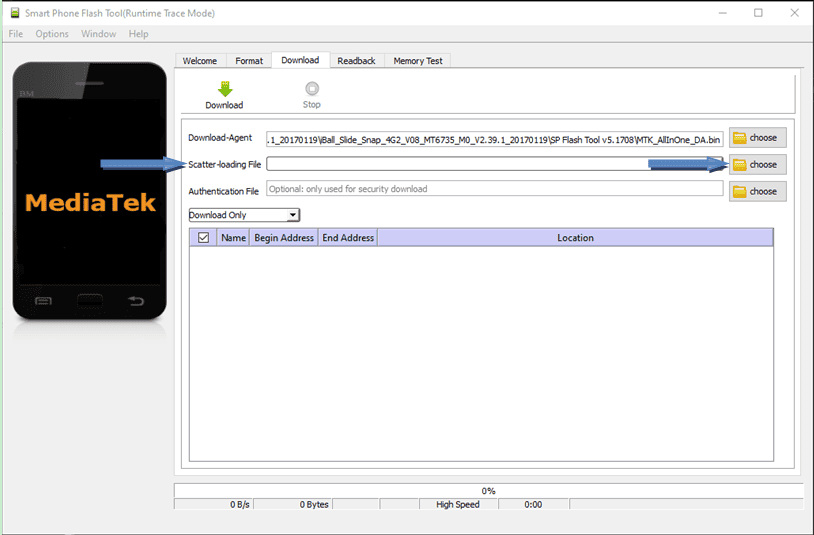
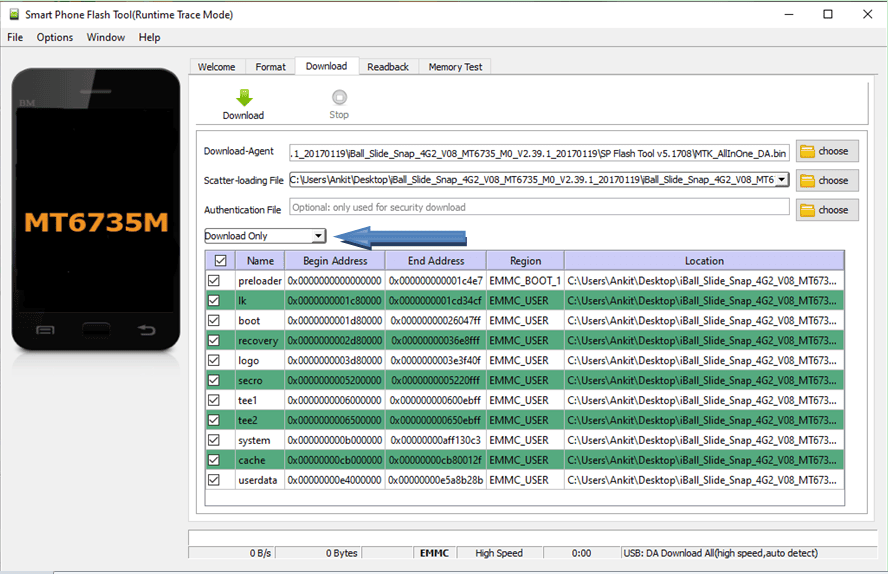
Step 3. Review the partitions and files that SP Flash Tool loads from the scatter file. If the guide for your specific device instructs you to use Download Only, select it before starting. Do not change flashing modes without understanding what they do.
Step 4. Power off the phone if required by your device-specific instructions. Connect it to the computer with a reliable USB cable. Some MediaTek devices also require a specific button combination or connection sequence for detection.
Step 5. Start the download/flashing process according to the SP Flash Tool build you are using. Keep the phone connected while partitions are being written.
Step 6. Wait for the completion indicator. A successful SP Flash Tool workflow commonly shows a green confirmation icon when the operation finishes.
Step 7. After the flashing process is fully complete, disconnect the device and attempt to boot it. The first boot after a firmware flash may take longer than a normal restart.
SP Flash Tool vs. DroidKit: Which One Should You Use?
| Choose SP Flash Tool when… | Consider DroidKit when… |
| You have a compatible MediaTek device. | Your goal is a guided Android system reinstall on a device supported by DroidKit System Reinstall. |
| You have the exact firmware and scatter file. | You do not want to search for firmware manually. |
| You understand manual flashing modes and partition risks. | You prefer an on-screen guided workflow. |
| You specifically need an MTK scatter-file flashing workflow. | You are working with a supported Samsung device rather than performing a MediaTek-specific flashing task. |
Best Alternative to SP Flash Tool – DroidKit System Reinstall
DroidKit is not a direct replacement for every SP Flash Tool function. SP Flash Tool is designed around MediaTek firmware and scatter-file workflows, while DroidKit’s System Reinstall feature is intended for users who want a guided OS reinstall on supported devices.
- Best for: Users with a supported Samsung device who want DroidKit to match an available system version and guide them through the reinstall process instead of manually selecting a scatter file and firmware partitions.
- Compatibility note: DroidKit features have different device ranges. According to iMobie’s current DroidKit FAQ, the System Reinstall function supports Samsung devices running Android 5 and above. Check your exact device compatibility before downloading.
Key Features:
- Guides users through downloading an available system version for a supported Samsung device.
- Reduces the need to manually locate a firmware package and scatter file for the System Reinstall workflow.
- Does not require root for the System Reinstall process.
- Provides separate Android tools for system repair, screen unlocking, FRP-related tasks, and data recovery; supported models vary by feature.
Get DroidKit * Check device compatibility first
Now, let’s explore the steps to use the DroidKit System Reinstall feature:
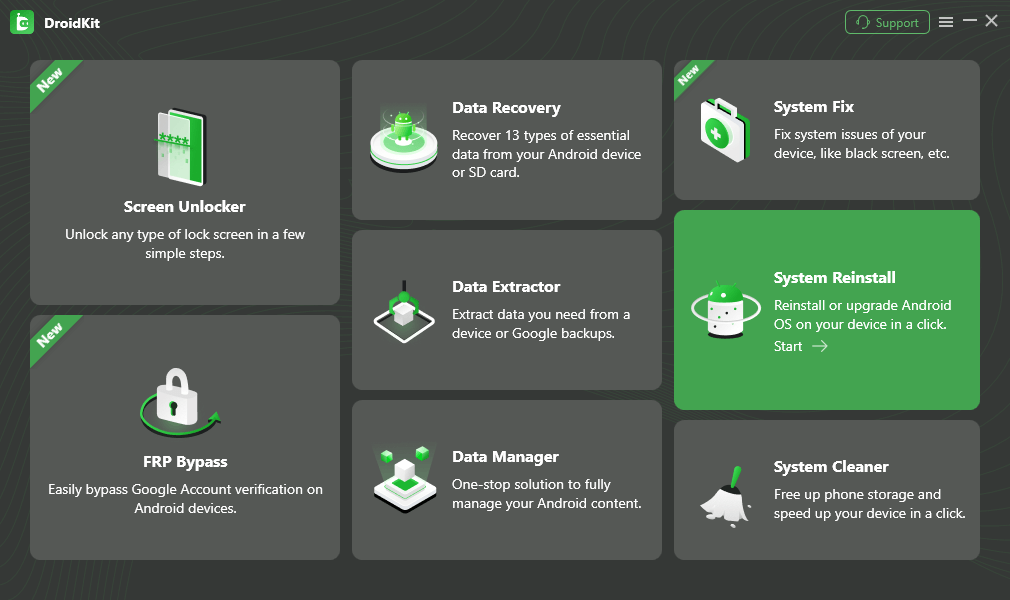
Step 1. Download and install DroidKit on your computer. Open it and click System Reinstall.
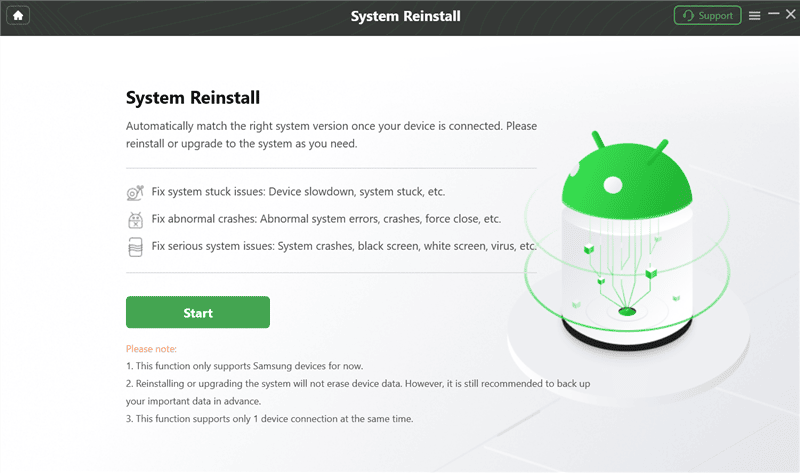
Step 2. Click Start and connect a supported Samsung device. DroidKit will read the device information and display available system versions.
Step 3. Choose an available version and download the firmware package shown for the connected device.
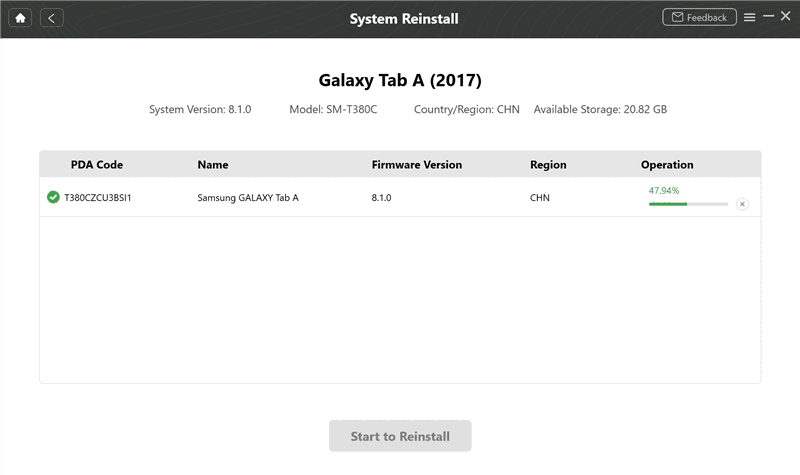
Step 4. When the download is ready, click Start to Reinstall and follow the on-screen instructions.
Step 5. Put the supported device into Download Mode as instructed by DroidKit.
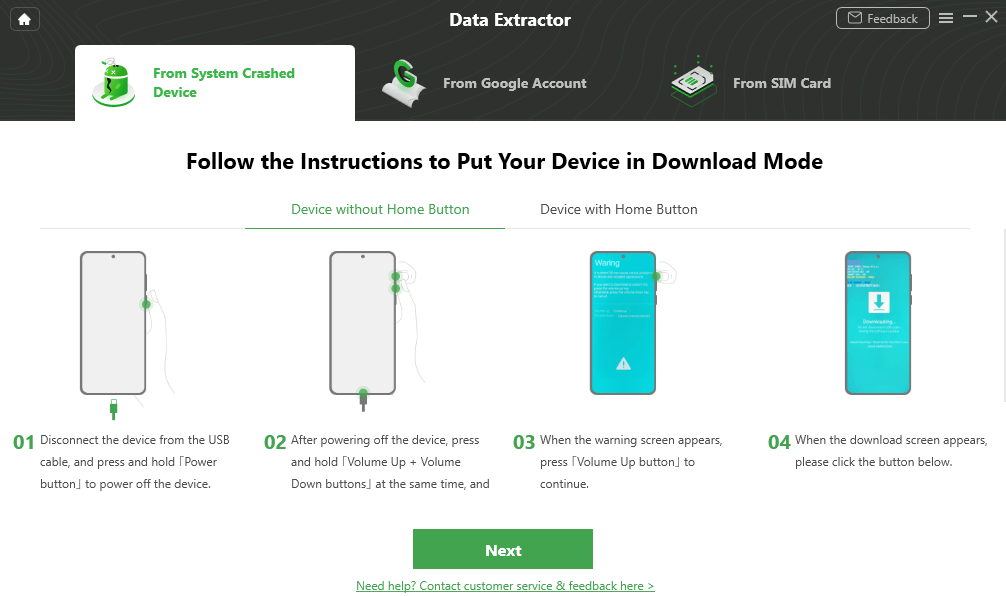
Step 6. Continue only after DroidKit detects the required mode. Keep the USB connection stable during the reinstall.
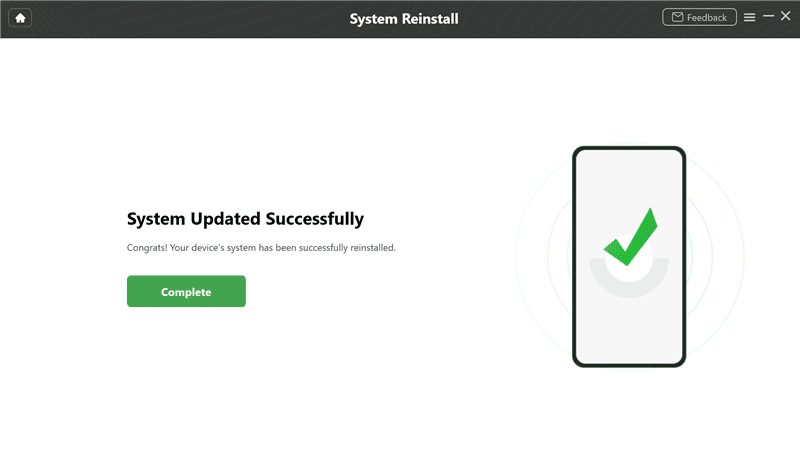
Step 7. Wait for the process to complete. Do not disconnect the device while firmware is being written. The device should restart after the reinstall finishes.
FAQs on SP Flash Tool
Q1. Is SP Flash Tool free?
SP Flash Tool is commonly distributed without a purchase fee for supported flashing workflows. However, download sources vary, so verify the source and do not assume that every site offering an “SP Flash Tool free download” is official or safe.
Q2. Can I use SP Flash Tool on any Android phone?
No. SP Flash Tool is intended for compatible MediaTek-based devices and related platforms. It is not the correct tool for every Android chipset or brand.
Q3. What is the SP Flash Tool latest version in 2026?
There is no single public version number that should automatically be treated as the latest build for every MediaTek device. MediaTek programs and third-party archives can expose different branches. Use the version recommended for your device or platform, and verify the source before flashing.
Q4. Does SP Flash Tool work on Windows 11?
SP Flash Tool can be used in Windows-based workflows, but successful use on Windows 11 also depends on the specific tool build, MediaTek/device drivers, USB detection, and the phone model. If a device is not detected, verify the driver package and the version recommended for that device instead of assuming the operating system is the only cause.
Q5. What if SP Flash Tool fails to connect?
Check the device-specific USB driver, USB cable, port, phone power state, required button combination, and whether the computer detects the MediaTek device. Also verify that the flashing package and scatter file match the exact model. Do not use Format All + Download as a generic first fix for connection errors.
Q6. Do I need a scatter file for SP Flash Tool?
A scatter file is commonly required in traditional SP Flash Tool firmware workflows because it describes the MediaTek device’s partition layout. Use only the scatter file supplied for the exact firmware package and device model you intend to flash.
Conclusion
SP Flash Tool remains relevant when you specifically need a MediaTek firmware or scatter-file flashing workflow, but the correct choice depends on your chipset, exact model, firmware package, drivers, and technical experience. The safest approach is to verify the download source and device-specific instructions instead of choosing a package only because it is labeled the “SP Flash Tool latest version.”
If you have a compatible MediaTek device and the exact firmware files, SP Flash Tool is the more appropriate tool for manual flashing. If your goal is instead a guided system reinstall on a Samsung device supported by DroidKit, DroidKit System Reinstall can reduce the manual firmware-selection steps.
Get DroidKit * Check device compatibility first


Roger Smith is a senior technical writer with years of experience in providing Android solutions. He loves to help users solve various problems such as Android unlock, Android data recovery, and Android system repair.
Product-related questions? Contact Our Support Team to Get Quick Solution >
