How to Access Secure Folder in Samsung 2026
This guide explains how to access Secure Folder in Samsung. Find detailed steps to create this protected space, add files, uninstall it, and how to open the folder if you forget its passcode. Also, find a bonus tip to unlock your Samsung screen lock in just minutes!
Do you have sensitive files on your phone that you want to keep private? Samsung Secure Folder is the perfect solution. Protected with Knox security, this folder will keep your data safe from unauthorized access.
Still, many users don’t know where to find this folder or how to open it. That’s why we’ve created a detailed guide on how to access Secure Folder in Samsung. You will learn how to set up the folder, add files, and remove it if needed. It also covers how to unlock it if you forget your password or pattern.
You may also like: How to access Samsung Cloud storage
What Is Samsung Secure Folder?
The Secure Folder is a protected space on Samsung Galaxy devices. It allows you to store your apps, images, videos, documents, and other data in a separate storage space. This way, it keeps your private data safe from unwarranted access or malware attacks. You can protect it with a lock of your choice. This can be a PIN, password, pattern, or fingerprint ID.
To use this secure space, your smartphone should be an Android 7.0 Nougat or higher. Also, the Secure Folder is only available on Samsung S series, Note, Z, and some A series phones.
How to Access Secure Folder on Samsung
You can find the Secure Folder under the Privacy and Security settings on your smartphone. After creating it, you can access it on the Apps Drawer or Home screen.
Here’s how to create Samsung Secure Folder in easy steps:
Step 1. Go to the Settings app. Tap “Privacy and Security” or “Biometrics and Security.”
Step 2. Press on “More Security Settings.” Then, tap “Secure Folder.”
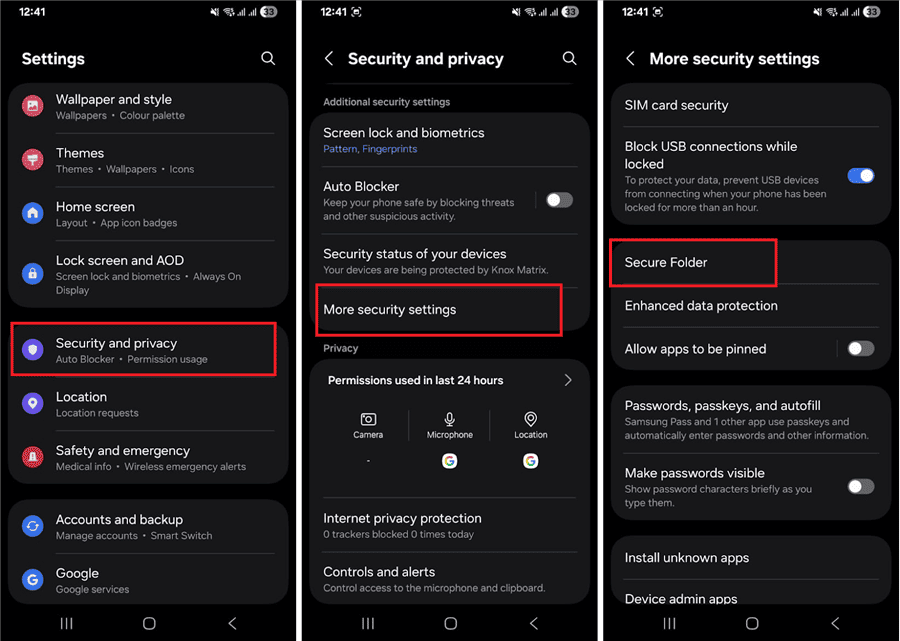
Samsung Secure Folder in Settings
Step 3. You will see a Welcome to Secure Folder screen. Tap “Continue” from here.
Step 4. Press “Continue” again to grant required permissions and create the folder.
Step 5. Wait till the secure space is created. Then, select a lock type to protect the folder.
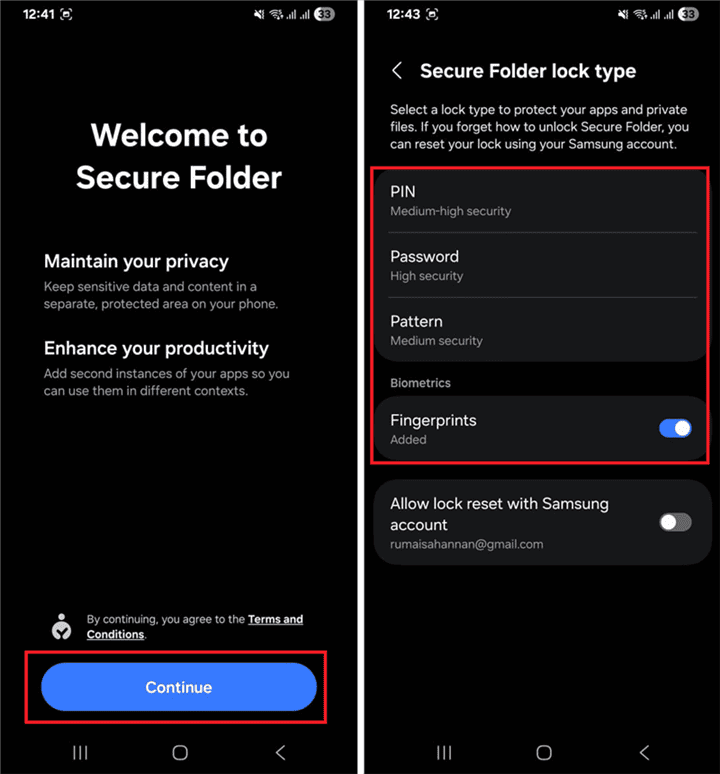
Set Secure Folder Lock
Step 6. Tap “Allow” to enable lock reset with your Samsung account.
Step 7. Tap “Next” to proceed. You are in the Secure Folder you just created.
That’s how you can create a secure folder on Samsung. Just try it now and keep your data private easily.
How to Add Files to Samsung Secure Folder
After knowing how to access the Secure Folder in Samsung, you must be wondering how to transfer your data to it. This protected folder has a built-in option to import files manually. Using it, you can add anything, such as images, videos, audio, documents, apps, and more.
Apply these steps to add files to the Samsung Secure folder:
Step 1. Tap the “Secure Folder” icon on your Apps screen. Enter your lock to open the folder.
Step 2. Once you’re in, press the three vertical dots on the top right. Then, select “Add files.”
Step 3. Choose the file type you want to import. Then, select the desired files and press “Done.”
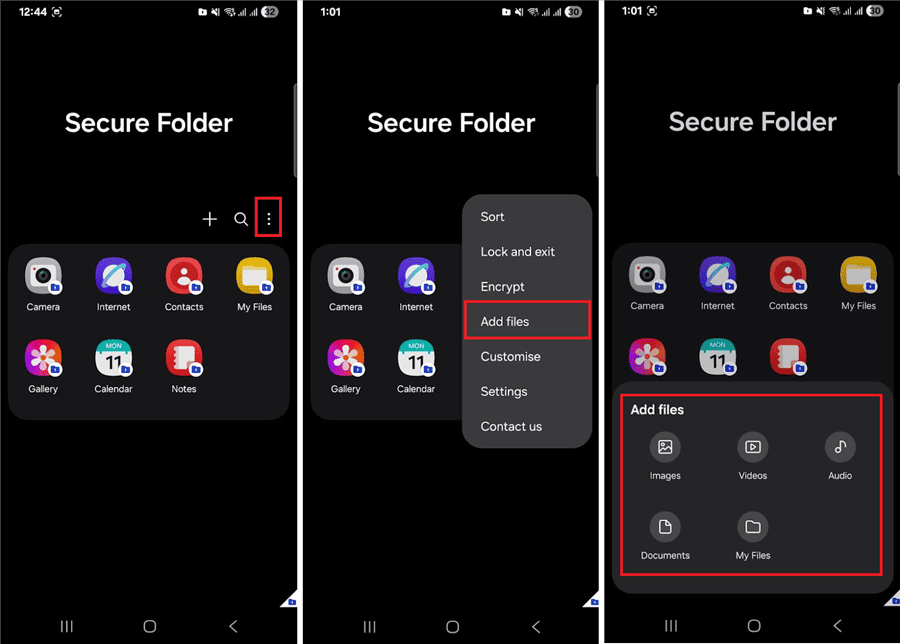
Add Files to Samsung Secure Folder
Step 4. Select whether to “Copy” or “Move” the files. Then, you can find them in the relevant App in the folder.
How to Remove Samsung Secure Folder
Deleting the Secure Folder is not as easy as other apps on your device. You can only uninstall it from the Settings app. This will also permanently delete stored data in the folder. To keep it safe, you need to migrate it to another location in advance.
Here are the steps to remove Samsung Secure Folder:
- Open Settings on your phone. Tap “Biometrics and Security” or “Privacy and Security.”
- Select “More Security Settings.” Then, tap on the “Secure Folder” option.
- Enter the passcode to confirm your identity. Then, tap “More Settings.”
- Press the “Uninstall” button. Select the option to move the files if you wish. Then tap “Uninstall” to confirm it.
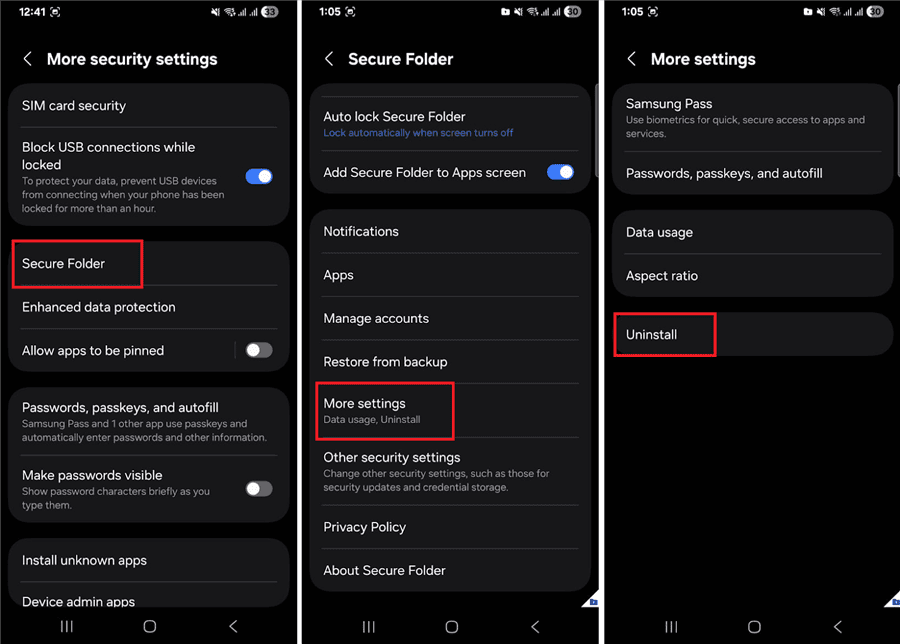
Remove Samsung Secure Folder
What To Do If I Forget Samsung Secure Folder Lock
If you cannot recall the passcode of your Secure Folder, you can reset it using your Samsung account. This works only if you’ve enabled this option while setting up the folder.
Follow the steps below to reset the Samsung Secure Folder lock:
Step 1. Open the Secure Folder app from the App screen.
Step 2. Enter the passcode you remember to be the correct one.
Step 3. Tap on the “Forgot pattern” option at the bottom of the screen.
Step 4. A prompt will appear to reset the lock. Tap “Reset” to proceed.
Step 5. Sign in to your Samsung account. Then create a new PIN or password to access the folder.
Also read: How to delete Samsung account without password
Bonus Tip. How to Unlock Samsung Without Password
Forgetting the password to your Secure Folder can be annoying. But getting locked out of your phone can be downright vexing. If you’re stuck with a locked device and cannot remember your Samsung account password, the only option is to use a third-party tool to unlock it. DroidKit offers a safe and reliable solution for this.
With DroidKit, you can unlock your Samsung Galaxy without needing your account’s password. It can remove any screen lock, be it a PIN, pattern, password, or fingerprint ID! Even better, you don’t need to root your phone or follow technical steps. DroidKit handles it all in a few easy steps!
Key Features of DroidKit:
- Unlocks 4-digit to 6-digit PIN, pattern, password, fingerprint, and face locks.
- Compatible with over 20,000 brands like Samsung, Huawei, LG, Google Pixel, and more.
- Remove screen lock on older Samsung models without data loss.
- Works on both Windows and Mac platforms.
- It also supports bypassing FRP lock, recovering lost data, fixing system issues, and more.
Steps to Unlock Samsung Without Password Using DroidKit:
Step 1. Download and install DroidKit on your computer.
Free Download * 100% Clean & Safe
Step 2. Link your device with a USB connection. Then, launch DroidKit and click the “Screen Unlocker” option.
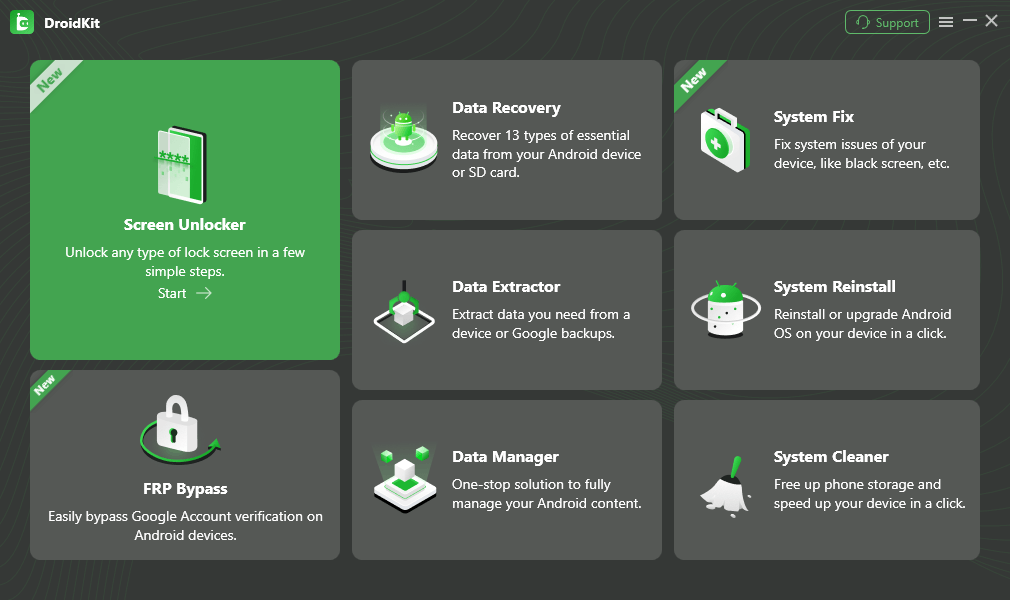
Select Screen Unlocker Mode
Step 3. Click “Start” from the next window. A pop-up will appear. From here, click “Device Connected” to confirm the connection. DroidKit will find a configuration file for your device. Once the process is complete, click “Remove Now.”
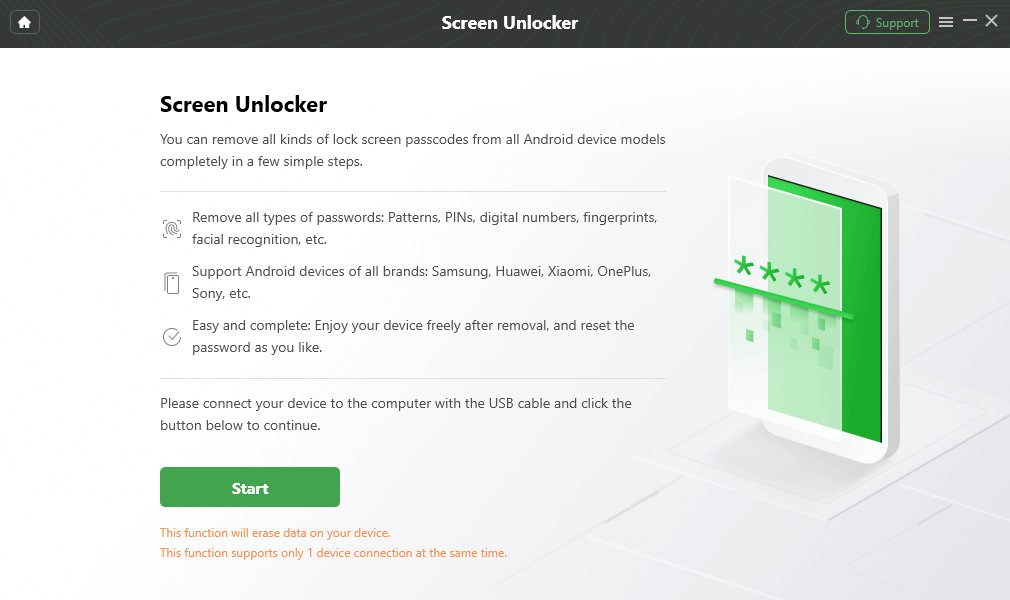
Connect your Locked Phone
Step 4. Select the “Samsung” brand from the options. Then, choose “Wipe device data (recommended)” and click “OK.”
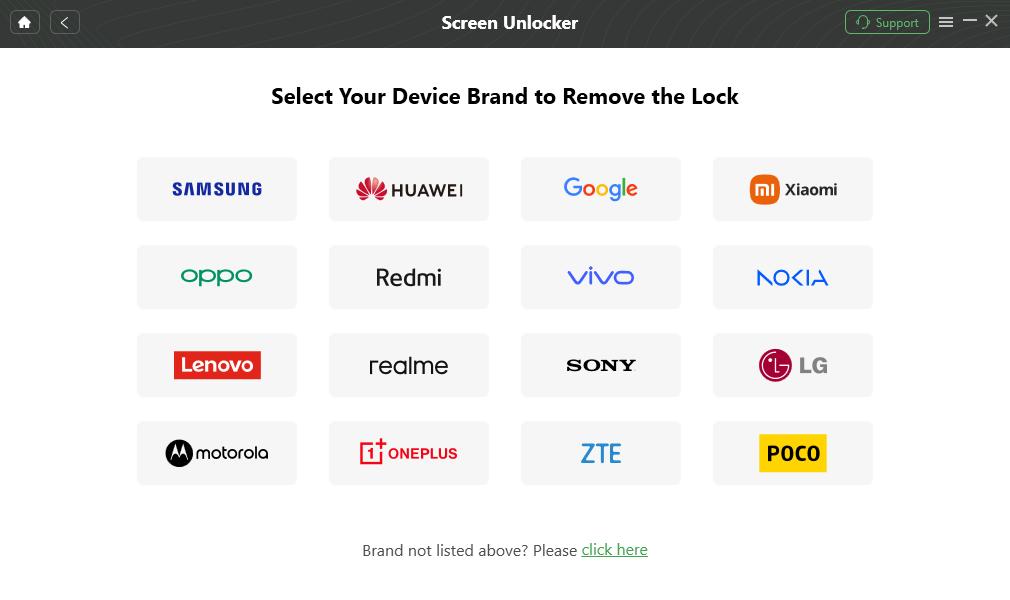
Confirm your Device Brand and Continue
Step 5. Next, put your device in Recovery Mode. Follow the directions outlined on your screen based on the phone’s buttons.

Put Samsung in Recovery Mode
Step 6. Once in the Recovery Mode, DroidKit will start removing the screen lock. Once it’s done, your phone will restart, and the lock will be deleted.
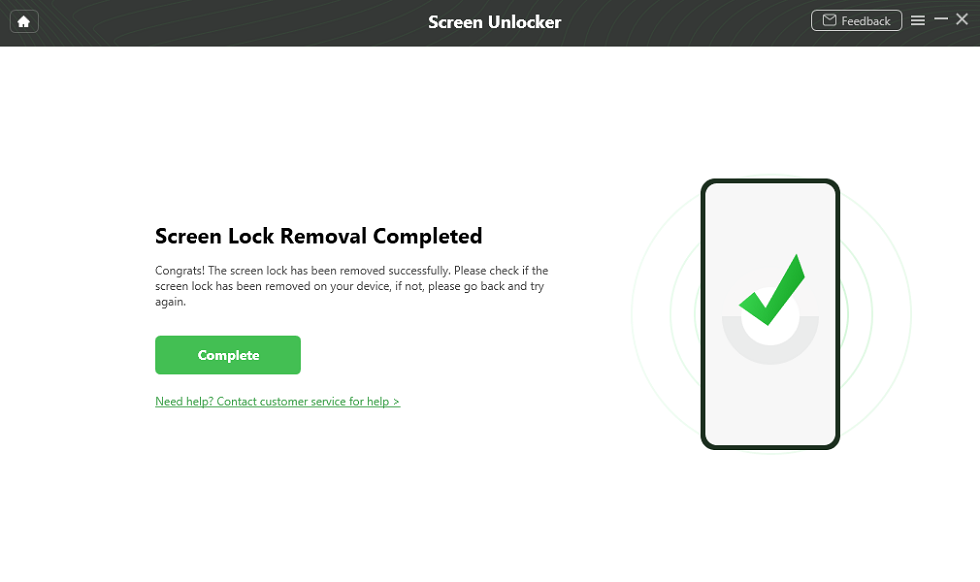
Unlock Samsung Screen Successfully
Conclusion
That sums up our guide on how to access Secure Folder in Samsung. You can create it in the Settings application of your phone and access it via a passcode. In case you forget your password, you can change it through your Samsung account. If you find yourself completely locked out of your phone, DroidKit can unlock it within minutes. It’s simple to operate and requires no technical procedures. Download it now to unlock your device hassle-free!



Jeremy Feron is a writer for iMobie with a deep passion for Android. He specializes in creating clear guides on Android tips and the latest updates, helping users navigate their devices and get the most out of new features.
Product-related questions? Contact Our Support Team to Get Quick Solution >
