How to Automatically Save Pictures to SD Card on Android [3 Ways]
To automatically save pictures to your SD card on an Android, you can change the storage location in Camera settings, set the SD card as default storage via Adoptable Storage, or use a third-party camera app like Camera MX. If you want to retrieve lost pictures from an Android SD card, try DroidKit to recover them easily without hassle.
Running out of storage is a common problem for Android users, especially if you take lots of photos or record videos regularly. Instead of constantly deleting files to free up Android phone space, many people choose to store pictures directly on an SD card. Fortunately, Android smartphones provide simple ways to set a storage card as the default storage easily. This guide will help you learn how to automatically save pictures to SD card on Android and keep memories secure.
Can I Make Android Save Photos to SD Card by Default?
Yes, many Android smartphones with an external card slot allow changing the default photo storage location. This feature is widely supported and helps users manage internal storage space more effectively. At this point, learning how to automatically save pictures to SD card on Android makes storage management. This option is especially helpful for users who frequently capture photos without worrying about storage capacity limitations.
How to Automatically Save Pictures to SD Card on Android
Way 1. Automatically Save Pictures to SD Card on Android Camera Settings
To automatically save pictures to SD card on Android, the easiest method is to adjust your smartphone’s camera settings for default storage management. This option allows switching photo and video storage from internal memory directly to the SD card. Once enabled, every captured image or recorded video saves automatically on your external storage card. Adhere to the given guide below to find out how to automatically save pictures to SD card on Android through camera settings:
Step 1. After launching the “Camera” app, access “Settings” by tapping the “Three Lines” icon.
Step 2. Upon seeing the new screen, enable the “Save to SD Card” toggle.
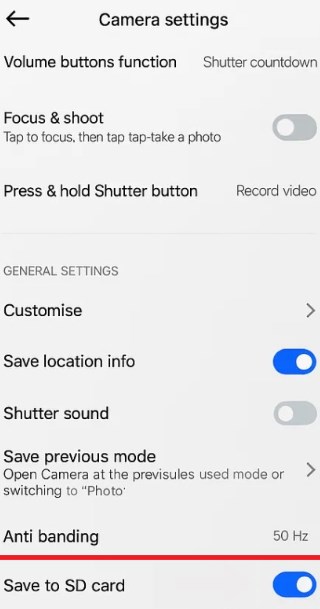
Enable Save to SD Card
Way 2. Make SD Card Default Storage on Android via Adoptable Storage [Android 6.0+]
Adoptable Storage, introduced in Android 6.0 Marshmallow, lets you integrate an SD card effortlessly. Instead of operating solely as portable storage, the SD card becomes a true extension of system memory. This allows saving multimedia and essential data directly without consuming limited internal storage space. Follow the given steps to automatically save pictures to SD card on Android:
Step 1. Insert the SD Card into the mobile phone and tap the “Set-Up” option when you get a notification.
Step 2. Select the “Use as Internal Storage” option and press the “Next” option.
Step 3. After getting “Format as internal storage”, hit the “Erase and Format” button.
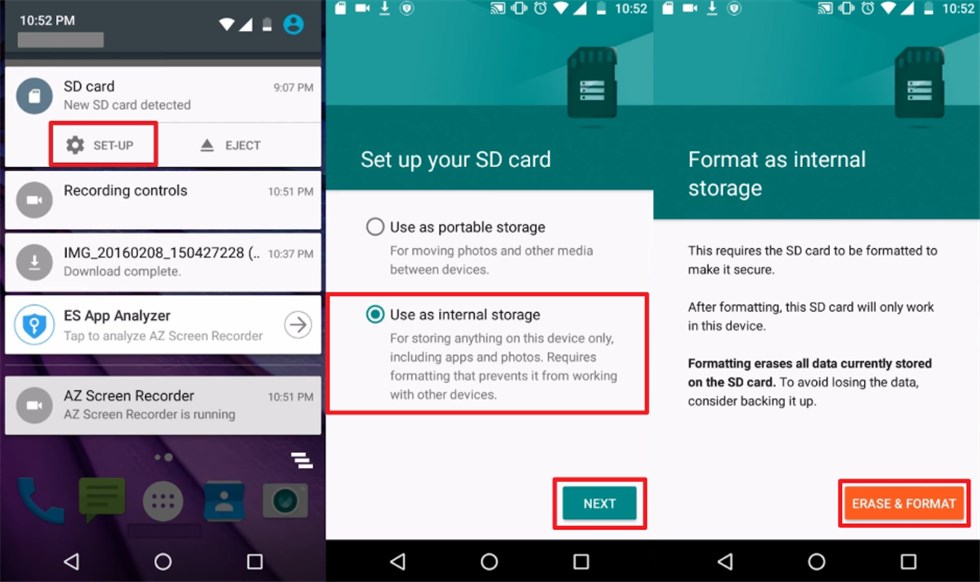
Click Erase and Format
Step 4. When you see a dialog box, hit “OK,” choose “Move Later,” and press the “Next” button.
Step 5. Upon seeing the “SD Card is Ready” screen, press the “Done” button to complete the process.
Way 3. How to Automatically Save Pictures to an SD Card on Android with the Camera MX App
The Camera MX app allows users to automatically save photos and videos directly to an SD card by setting a custom storage location. Once installed, you can easily change the default save path so that new pictures go straight to external storage instead of filling up internal memory. Review the steps below to understand how to automatically save pictures to SD card on Android using the Camera MX App:
Step 1. After installing and running the Camera MX app, tap “Three Dots” and select the “Gear” icon.
Step 2. Enable the “Custom Storage Location” option and tap “Allow” to complete the task. And then choose your SD card as the default save path
Due to incompatibility with newer Android versions, Camera MX has not been updated since 2022 and is no longer officially supported. You can still install it through some third-party APK files and save your pictures to your external storage card. However, compatibility and security are not guaranteed.
Bonus Tip: Recover Deleted Photos from Android SD Card Without Root
Apart from learning how to automatically save pictures to SD card on Android, many users also seek ways to recover deleted SD card photos. In such cases, users need a powerful solution like DroidKit to recover lost Android SD card photos. As a professional Android data recovery tool, DroidKit gives you the flexibility to preview files before recovery, so you only restore what really matters. Its advanced scan mode can even dig deep into damaged or corrupted storage to retrieve hidden photos that might otherwise be gone forever. Whether it’s family memories, travel videos, or work documents, DroidKit ensures your important data is safe.
Key Features of DroidKit:
- Recover your files without altering or risking your device.
- Works with over 20,000 Android phones and tablets.
- Preview and restore only the files you want selectively.
- Retrieves not only photos, but also videos, music, messages, and more.
Free Download * 100% Clean & Safe
Stepwise Guide to Recover Deleted Photos from Android SD Card Without Root via DroidKit:
Step 1: Launch DroidKit & Connect Your Android Phone to Computer
Install and launch the DroidKit on your PC or laptop. Connect the SD card through a card reader. Now, select the “Data Recovery from SD Card” mode.
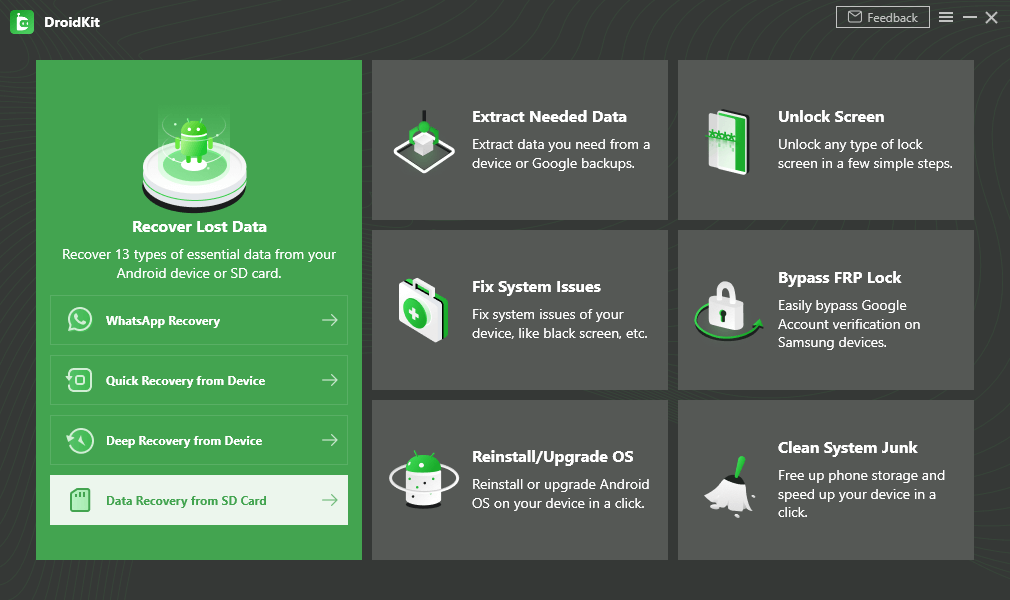
SD Card Recovery on DroidKit
Step 2: Scan Android Phone to Find Lost Data
Choose “Standard Recovery” to start the scanning process of the SD card > Tap on the “Next” option.
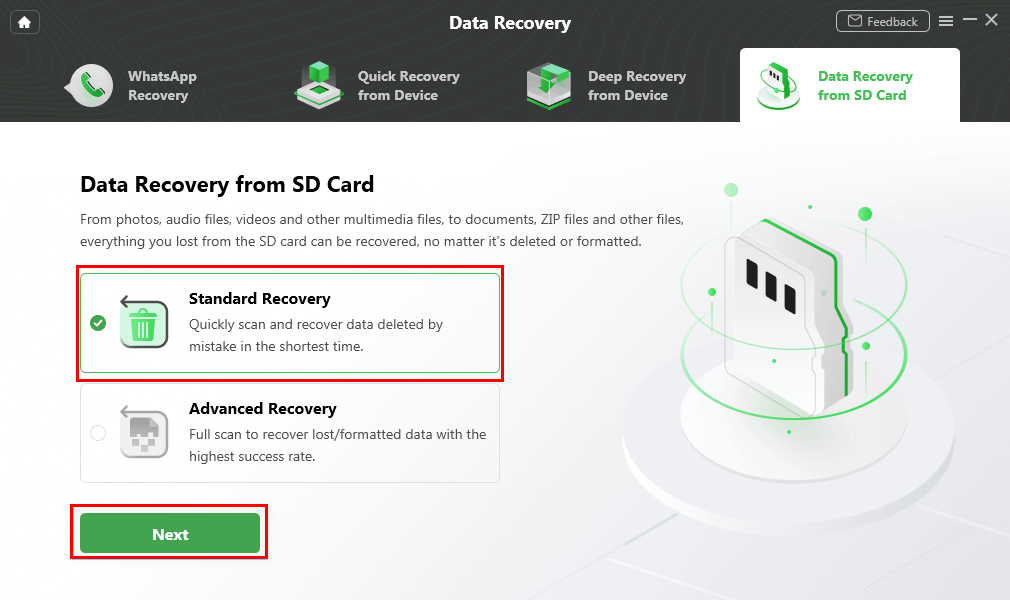
Choose Standard Recovery
Step 3: Preview & Recover Data from Android Phone
Wait for the SD card scanning and you can preview and recover all data as you need. Finally, after a few minutes, you will be able to recover deleted pictures from your SD card.
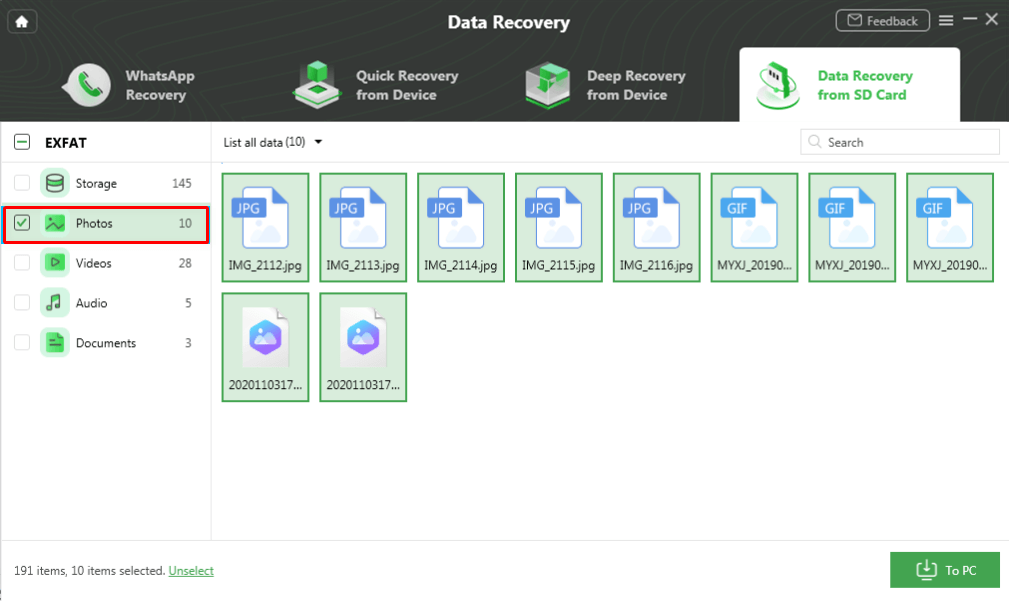
Select Data and Click To PC
FAQs about How to Automatically Save Pictures to SD Card on Android
Q1. How to automatically save photos to the SD card on a Samsung?
To automatically save photos to the SD card on a Samsung, open the Samsung Camera app, go to Settings > Storage Location, and select SD Card. All new photos and videos will now save directly to the SD card.
Q2. How to transfer Google Photos to an SD card on Android?
To transfer Google Photos to an SD card on Android, download your photos from the Google Photos app, then use the File Manager to move or copy them from internal storage to your SD card.
Q3. How to transfer photos to an SD card on Android?
To transfer photos to an SD card on Android, open File Manager, go to Internal Storage > DCIM > Camera, select the photos, and choose Move or Copy to transfer them to your SD card.
Conclusion
In conclusion, managing storage wisely ensures hassle-free photo capturing without worrying about space running out. This article has explored 3 different ways to learn how to automatically save pictures to SD card on Android. Still, accidental photo loss from SD cards can happen. In such situations, DroidKit can be a helpful option to recover lost photos even after factory reset securely and selectively. Free download DroidKit and start your recovery journey today to keep your memories safe forever!
Free Download * 100% Clean & Safe



Jeremy Feron is a writer for iMobie with a deep passion for Android. He specializes in creating clear guides on Android tips and the latest updates, helping users navigate their devices and get the most out of new features.
Product-related questions? Contact Our Support Team to Get Quick Solution >
